“The program can’t start because gxgamma.dll is missing from your computer.”
You may instead see “This application failed to start because gxgamma.dll was not found,” “Error loading gxgamma.dll,” “Failed to load gxgamma.dll,” or “Cannot find gxgamma.dll.” The message may also say that the file is missing or corrupted, that a required component is missing, or that Windows cannot register it.
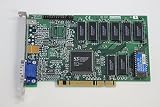

gxgamma.dll is not a normal Windows 10 or Windows 11 runtime. It is a legacy 32-bit Cyrix graphics component, associated with the Cyrix MediaGX display driver and described as the Cyrix Gamma Control Applet.
The 60-second answer
Do not download gxgamma.dll from a random DLL website, copy it into System32, or run regsvr32 as a first step.
#1 Best Overall
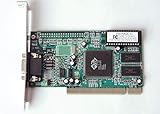
- ATI Rage IIc Graphic Chipset w/ 4MB memory
- PCI slots interface
- D-Sub 15 pin VGA connector, Support Video up to 1600 x 1200
- Legacy OS driver support for Windows 95, Windows 98 , OS2 and Windows NT 4.0. Include Driver Software CD.
- It is NEW, not refurbished or pulled unit. 90 Day Warranty
The most likely explanation is that an old program, installer, Windows 98 installation, emulator, or Cyrix MediaGX driver package expects this file. The safest repair is to identify the executable requesting it, then reinstall the complete original application or Cyrix display-driver package from trusted installation media.
On a current PC without Cyrix MediaGX hardware, Windows itself normally has no reason to need this file. If the error appears when opening an old program, repair that program or run it inside an appropriate legacy environment instead of adding an isolated DLL to modern Windows.
What is gxgamma.dll?
gxgamma.dll is a legacy Windows 9x-era DLL associated with Cyrix MediaGX integrated graphics hardware. Its reported description is “Cyrix Gamma Control Applet,” which indicates a display or gamma-control function rather than a general-purpose application runtime.
The file historically appeared alongside other Cyrix display-driver files, including gx95.drv, gxdraw.dll, gxmini.vxd, and gxtv.dll. That surrounding context matters because it shows that gxgamma.dll was part of a driver package, not a standalone component that should normally be downloaded and installed by itself.
The Tool Desk
Outbyte PC Repair FREEClear out junk files and repair common Windows errorsFree Scan →Outbyte Driver Updater FREEFix the driver behind crashes, sound loss and screen glitchesFind Drivers →Some file metadata associates the file with the Microsoft Windows operating system and Cyrix as the developer. That does not mean current Windows 10 or Windows 11 ships the DLL as a protected system file. The important distinction is between:
- The base Windows 95 or Windows 98 installation
- An OEM Windows image containing extra hardware drivers
- A motherboard or Cyrix MediaGX driver disc
- An old application that bundled or expected the file
- A modern computer running legacy software
Microsoft’s archived documentation states that the proprietary Cyrix MediaGX display driver was supplied by the motherboard or hardware manufacturer rather than being guaranteed in the base Windows installation. Some Windows 98 media or OEM distributions did contain a Cyrix driver directory, so the exact origin depends on the particular release and hardware.
Why the error appears on Windows 11 or Windows 10
A current Windows installation can display this error even though the file is not part of the current operating system. Usually, an older executable is making the request.
Common situations include:
- Launching a Windows 9x-era program in an emulator or compatibility environment
- Installing an old Cyrix MediaGX display driver
- Restoring an incomplete Windows 98 installation
- Running an installer that expects an obsolete driver directory
- Removing or quarantining an old application file
- Using a damaged or repackaged installer
- Running malware or an untrusted program that happens to use the same filename
There is no reliable basis for treating gxgamma.dll as part of a modern Visual C++ redistributable, DirectX package, .NET runtime, or current game. Installing those runtimes at random is unlikely to restore the correct dependency.
Crashes, No Sound, or Screen Glitches?
Random freezes, missing sound and display glitches usually trace back to one bad driver. Find and replace yours safely.Free scan · under a minuteWindows Errors? Fix Them Before They Spread
Repair common Windows errors and clear accumulated junk for a smoother, more stable PC - no reinstall needed.Free scan · no reinstallFirst, identify what is requesting the file
Before repairing Windows, find the program that triggers the message. The requesting program determines the correct fix.
Check when the message appears
Note whether the error occurs:
- Immediately after signing in
- When opening a particular application
- When starting a game
- During installation
- When launching an emulator or virtual machine
- After an antivirus detection
- After a driver or Windows update
If only one old application produces the message, that application is the primary suspect. If the error appears before the desktop loads, check startup programs and recently installed software.
Check the application folder
Right-click the shortcut that produces the error and select Open file location. If the shortcut points to an old application, note its publisher, installation folder, and executable name.
Do not delete the executable or replace files yet. An old program may be looking for gxgamma.dll beside its own executable or through a legacy driver path. Copying the DLL elsewhere may not change the search path and may hide the real problem.
Free tools Windows power users keep installed
One-click scans. No signup required.
Check startup entries
On Windows 11 or Windows 10:
- Press Ctrl + Shift + Esc to open Task Manager.
- Select Startup apps.
- Look for an old application, emulator, driver utility, or unknown publisher.
- Right-click the entry and select Disable.
- Restart Windows.
- Check whether the
gxgamma.dllmessage returns.
Disabling a startup entry does not repair the application, but it can confirm which program is requesting the file. Re-enable the entry if it is legitimate and needed.
Fix 1: Repair or reinstall the application that shows the error
This is the correct first fix when one program produces the message.
Rank #2

- Chipset: NVIDIA GeForce GT 1030
- Video Memory: 4GB DDR4
- Boost Clock: 1430 MHz
- Memory Interface: 64-bit
- Output: DisplayPort x 1 (v1.4a) / HDMI 2.0b x 1
If the program has a repair option
- Open Settings.
- Select Apps.
- Select Installed apps on Windows 11, or Apps & features on Windows 10.
- Find the affected program.
- Select the three-dot menu beside it on Windows 11, or select the program on Windows 10.
- Choose Advanced options if available.
- Select Repair.
- Restart the application and test it.
If there is no Repair button, open the program’s own installer from its original media and look for Repair, Modify, or Change.
Reinstall the program
- Close the affected program.
- Open Settings > Apps > Installed apps.
- Select the program and choose Uninstall.
- Restart Windows.
- Reinstall it from the original installer or a trusted copy supplied by the application’s developer.
- Start the program again.
Do not preserve a questionable replacement gxgamma.dll from a download site during the reinstall. If the application legitimately requires the file, its complete installer or original legacy media should provide the correct package.
Quick wins for a faster PC:
Fix the driver behind crashes, sound loss and screen glitchesFind Drivers →Repair Windows errors before they cause bigger problemsFix Now →If the application is designed for Windows 95 or Windows 98, modern Windows may still be unable to run it even after the file is restored. In that case, use a properly preserved legacy installation or emulator configured for the program rather than forcing an obsolete graphics component into Windows 11.
Fix 2: Restore the complete Cyrix MediaGX driver package
This is the strongest file-specific fix for a genuine Cyrix hardware installation.
The original source may be:
- A Cyrix MediaGX driver disc
- A motherboard manufacturer’s driver disc
- An OEM Windows 98 recovery disc
- A preserved Windows 9x installation image
- Complete original hardware-driver media
Microsoft’s archived guidance indicates that the Cyrix display driver was proprietary and normally came from the hardware manufacturer. Do not treat gxgamma.dll as an independent driver.
Install from original media
- Insert the motherboard, OEM, or Windows 9x driver media.
- Open File Explorer and browse to the disc or mounted image.
- Look for a Cyrix, MediaGX, Display, Video, or Graphics folder.
- Run the original setup program if one is present.
- Follow the installer prompts.
- Restart the computer when prompted.
If the media contains only driver files and no installer, do not randomly copy individual files. The package may require a specific directory layout and other files, including display drivers and virtual-device components.
Use Device Manager for a genuine legacy installation
If the computer is an actual older system running a compatible Windows 9x environment:
- Open Control Panel.
- Open System.
- Select the Device Manager tab.
- Expand Display adapters.
- Right-click the Cyrix or unknown display adapter.
- Select Properties.
- Open the Driver or Update Driver section.
- Choose the option to install from a specific location.
- Point Windows to the original driver media.
- Restart the computer.
The exact Device Manager interface differs substantially between Windows 9x and modern Windows. On Windows 11 or Windows 10, a current computer will not normally accept a Windows 9x Cyrix display driver as a usable graphics driver.
Updating drivers on a current computer
If the error appeared after installing an emulator, compatibility layer, or old program, update the current computer’s supported graphics driver through the PC manufacturer, graphics-chip vendor, or Windows Update. Do not install a Cyrix MediaGX driver on unrelated modern hardware.
Open Device Manager on Windows 10 or 11 as follows:
What’s actually slowing this PC down?
Pick the symptom - the matching free tool is one click away.
- Right-click Start.
- Select Device Manager.
- Expand Display adapters.
- Right-click the current adapter.
- Select Update driver.
- Choose Search automatically for drivers.
- Restart if Windows installs an update.
Outbyte Driver Updater can reduce the manual work of hunting through many hardware-driver versions; its free scan identifies possible outdated drivers, while driver installation is handled by the full version. It is optional, and reinstalling the old application or complete Cyrix package remains the definitive fix when that program specifically requires gxgamma.dll.
Fix 3: Check antivirus quarantine before restoring anything
An antivirus product may have quarantined an obsolete or modified copy. Because gxgamma.dll is an old binary, a matching filename alone is not enough to prove that a file is safe.
Review quarantine
The exact labels vary by security product, but the process is usually:
- Open Windows Security.
- Select Virus & threat protection.
- Select Protection history.
- Look for a detection involving the affected application or driver folder.
- Open the detection details.
- Confirm the original file path and the program that used it.
Restore the file only when all of the following are true:
Recommended Free Tools
- It came from original trusted application or hardware media.
- The path matches the expected program or driver directory.
- The detection is demonstrably a false positive.
- You can reinstall and scan the complete package.
Do not restore an unknown file merely because its name is gxgamma.dll. If the file came from an untrusted installer, remove the installer and scan the system instead.
Fix 4: Check Windows Update for broader compatibility problems
Windows Update is unlikely to provide an old Cyrix MediaGX driver. It can still resolve unrelated operating-system problems that affect a compatibility layer, application framework, or device driver.
- Open Start > Settings.
- Select Windows Update.
- Select Check for updates.
- Install applicable updates.
- Restart Windows.
- Test the application again.
If the same application still requests gxgamma.dll, Windows Update has not supplied the missing legacy dependency. Return to the application’s installer or original driver media.
Fix 5: Repair current Windows system files
Use DISM and SFC when other Windows components are also malfunctioning, or when the error began alongside broader system corruption. These commands are not guaranteed to restore gxgamma.dll, because the file is not verified as a protected component of current Windows.
Run DISM first, then SFC.
- Open Start.
- Type
Command Prompt. - Right-click Command Prompt.
- Select Run as administrator.
- Select Yes at the User Account Control prompt.
- Enter:
DISM.exe /Online /Cleanup-Image /RestoreHealth
- Press Enter.
- Wait for the operation to complete.
- Then enter:
sfc /scannow
- Press Enter.
- Wait until the scan reaches 100 percent.
- Restart Windows.
DISM repairs the Windows component source used by SFC. SFC checks protected Windows files and replaces damaged copies when a valid replacement is available.
If SFC reports that it found no integrity violations, that does not prove that every historical third-party DLL exists. It can simply mean that current protected Windows files are intact.
Outbyte PC Repair can make the manual repair process easier by scanning for broader Windows problems before you repeat DISM and SFC without knowing what changed; its free scan shows detected issues, while repair is performed by the full version. It is optional, and it does not replace reinstalling the specific legacy program that needs gxgamma.dll.
Fix 6: Use System Restore after a recent change
If the error began immediately after installing a driver, application, or update, System Restore may roll back the change.
Do these 3 things before closing this tab:
1Fix the driver behind crashes, sound loss and screen glitches2Repair Windows errors before they cause bigger problems3Scan for outdated or missing drivers - takes under a minute- Press Win + R.
- Type:
rstrui.exe
- Press Enter.
- Select Next.
- Choose a restore point from before the error started.
- Select Next.
- Select Finish.
- Confirm the restore.
System Restore rolls back system files, settings, drivers, and installed programs while normally preserving personal files. It does not guarantee recovery of a missing legacy application file, but it can undo a driver or software installation that introduced the dependency.
You can also open it through Control Panel > Recovery > Open System Restore.
Fix 7: Check Windows Features only when the old program requires one
Enabling a Windows feature will not normally install gxgamma.dll. Do not enable legacy components at random.
To review optional Windows components:
- Press Win + R.
- Type:
optionalfeatures
- Press Enter.
- Review the available features.
- Enable only a feature explicitly required by the affected program.
- Select OK.
- Restart if prompted.
For example, an old application may require a compatibility component such as Legacy Components or DirectPlay, but that is separate from the Cyrix gamma-control DLL. If enabling a required feature does not change the error, disable it again if the program does not need it and return to the application or driver repair.
Do not copy gxgamma.dll into System32 or SysWOW64
There is no verified basis for promising that gxgamma.dll belongs in either:
C:WindowsSystem32
or:
C:WindowsSysWOW64
On 64-bit Windows, System32 contains 64-bit system binaries, while SysWOW64 is used for 32-bit Windows components. That naming is already confusing, and it does not make a 32-bit Windows 9x-era driver DLL compatible with a modern 32-bit application.
Copying the file into a system directory can also:
- Leave the original application dependency unresolved
- Introduce an incompatible binary
- Create a new DLL search-path problem
- Make future troubleshooting harder
- Allow a modified file to load into another process
Manual copying is appropriate only in a narrow case where the file comes from the exact original package, the target program is known to require that file, and the package documentation requires the file beside a particular executable. Even then, installing the complete package is safer.
Independent reader supportYour contribution helps us test, update, and keep practical guides available for everyone.Should you run regsvr32 gxgamma.dll?
No, not as a default repair.
regsvr32 is intended for DLLs that provide registration entry points such as DllRegisterServer, commonly used by ActiveX or COM components. gxgamma.dll is identified as a Cyrix graphics gamma-control component, not as a verified self-registering COM or ActiveX DLL.
Rank #4
This command is therefore not recommended:
regsvr32 gxgamma.dll
If it returns “DllRegisterServer was not found,” that does not necessarily mean the file is damaged. It may simply mean that regsvr32 is the wrong tool.
Why random DLL downloads are unsafe
Standalone DLL download sites commonly present a filename without proving:
- The original source
- The correct driver package
- The required architecture
- The correct relationship to the requesting application
- Whether the file has been modified
- Whether other dependencies are also missing
A downloaded file can be malware, the wrong version, the wrong architecture, or an incomplete replacement that leaves the real installation problem untouched. Claims that an old 32-bit file has a modern x64 build should also be treated cautiously unless the hardware vendor provides authoritative evidence.
Use original application media, an OEM recovery image, a motherboard driver disc, or a complete preserved legacy installation instead.
If you do not have Cyrix hardware
A modern computer without Cyrix MediaGX hardware has no normal reason to install a Cyrix display component. In that situation:
- Identify the program requesting the file.
- Uninstall or repair the program.
- Check its compatibility requirements.
- Scan its installer and installation directory.
- Run it in an appropriate legacy environment if it genuinely requires Windows 9x.
- Remove the program if it is unknown or suspicious.
Do not silence the message by placing a random DLL in a system directory.
If malware is suspected
If the error began after running an unofficial installer, cracked program, or unknown attachment:
- Open Windows Security.
- Select Virus & threat protection.
- Select Scan options.
- Run a Full scan.
- Remove detected threats.
- Uninstall the suspicious application.
- Restart Windows.
- Reinstall only from trusted original media.
If the system remains suspect, back up essential personal files and use Windows recovery or installation media. Do not preserve an unknown gxgamma.dll simply because an application asks for it.
FAQ
Is gxgamma.dll a Windows 11 system file?
No current Windows 11 system installation should be assumed to contain it. It is a legacy 32-bit Cyrix MediaGX graphics component associated with Windows 9x-era driver packages.
Is gxgamma.dll part of DirectX or Visual C++?
There is no verified evidence that it belongs to DirectX, Visual C++, .NET, or a modern game runtime. Installing those packages is not the primary repair.
Does Windows normally keep it in System32?
Do not assume that it does. Archival evidence places it in a Cyrix driver-package directory, not conclusively in the standard current-Windows system directories.
Will SFC restore the file?
Usually not. SFC repairs protected current Windows files. It does not guarantee recovery of an obsolete third-party Cyrix DLL.
Recommended Free Tools
Can I download the file from a DLL website?
That is unsafe and does not establish that the file matches your application, driver package, or architecture. Use original trusted media instead.
Is there an x64 version?
No authoritative x64 build has been established. The historical component is associated with 32-bit Windows 9x and Cyrix MediaGX hardware, so an “x64” download claim should be treated as unverified.
Why does the error appear on a modern computer?
An old application, emulator, installer, startup entry, or compatibility environment is probably requesting it. Current Windows itself is not proof that the DLL belongs to the operating system.
What if the error remains after reinstalling the application?
The program may require additional legacy dependencies, may be incompatible with modern Windows, or may be looking in a particular old driver path. Install the complete original package, inspect the requesting executable, and consider running the software in a preserved Windows 9x environment.
Do these 3 things before closing this tab:
1Fix the driver behind crashes, sound loss and screen glitches2Repair Windows errors before they cause bigger problems3Scan for outdated or missing drivers - takes under a minuteQuick Recap
Final repair checklist
- Identify the executable that requests
gxgamma.dll. - Repair or reinstall that application from its original trusted source.
- Restore the complete Cyrix MediaGX driver package only when the hardware and legacy environment match.
- Check antivirus quarantine before restoring a file.
- Use Device Manager only with the correct hardware and driver package.
- Run Windows Update for broader compatibility or system issues.
- Run DISM followed by SFC when current Windows itself appears damaged.
- Use System Restore after a recent driver or software change.
- Do not copy a random DLL into
System32orSysWOW64. - Do not run
regsvr32unless the DLL is documented as a self-registering component. - Treat unknown installers and supposed x64 copies as suspicious.
Product prices and availability are accurate as of the date/time indicated and are subject to change. Any price and availability information displayed on Amazon at the time of purchase will apply.




