Recommended Free Tools
“The program can’t start because cnhw900.dll is missing from your computer” means Windows cannot load a Canon imaging component. cnhw900.dll is associated with Canon Inkjet WIA Driver software, which connects compatible Canon printer and scanner hardware to Windows Image Acquisition, or WIA.
Which fix applies to you
Use this list to choose the shortest path:
- The error appeared while scanning or opening Canon IJ Scan Utility: reinstall the complete Canon printer/scanner package for the exact model.
- Printing works but scanning fails: repair the scanner or WIA portion of the Canon installation, then reinstall the device if necessary.
- The file disappeared after a security scan: check Windows Security Protection history before reinstalling anything.
- The problem began after a Windows or driver update: roll back the affected device or use System Restore.
- Several Windows programs also report missing or damaged files: repair Windows with DISM and SFC.
- You downloaded a replacement DLL: remove it and reinstall Canon software from the manufacturer instead.
- The error remains after reinstalling Canon software: identify the executable requesting the file and check for a missing dependency or unsupported hardware.
cnhw900.dll is not a general Windows runtime, Microsoft Visual C++ file, DirectX component, or normal application DLL. It belongs to the Canon driver package that installed it.
1. Reinstall the exact Canon printer or scanner package
This is the most likely fix. Canon’s public support workflow is model-specific, and the correct download depends on the exact printer or scanner and your Windows edition.
Before starting, find the model name printed on the device or shown in Settings > Bluetooth & devices > Printers & scanners.
#1 Best Overall

- Stay organized: Easily covert your paper documents into digital formats (searchable PDF, JPG, and more) or scan directly to the cloud (Dropbox, Google Drive, OneDrive, Box, QuickBooks Online, Evernote, SharePoint, and more)
- Space saving design: Upright, with top feed and top eject, and a built-in cable organization system
- Reliably handles many different document types: Receipts, photos, business cards, plastic or embossed cards, reports, contracts, long documents, thick or thin documents, and more
- Fast and efficient: Scans both sides of a document at the same time, in color, at up to 25 pages-per-minute, with a 30 sheet automatic feeder, and one-touch operation
- Broad compatibility: Supports Windows and Mac; TWAIN driver also included
Remove the existing Canon software
- Disconnect the printer’s USB cable if it is connected. Leave network printers powered on.
- Open Settings > Apps > Installed apps.
- Search for the Canon model and remove its printer driver, scanner software, IJ Scan Utility, and related Canon packages.
- Restart Windows.
- Open Settings > Bluetooth & devices > Printers & scanners.
- Select the affected Canon device and choose Remove.
- Restart Windows again if the Canon installer previously failed or left the device in an error state.
For older installations, additional Canon entries may be listed in Control Panel > Programs > Uninstall a program. Remove only software belonging to the affected Canon device.
Install the replacement package
- Go to Canon’s official Software and Drivers support page.
- Select the exact product family and model.
- Select Windows 10 or Windows 11, matching the installed operating system.
- Select the correct architecture when Canon offers that choice.
- Download the current printer/scanner driver or the complete Full Driver & Software Package.
- Run the installer as an administrator.
- Connect the printer by USB only when the installer requests it. For a network device, follow the installer’s network discovery instructions.
- Restart Windows after installation.
- Test printing, then test scanning from Canon’s scanning utility and from a WIA-compatible Windows application if available.
Success means the Canon utility opens without the cnhw900.dll message and the device appears as an available printer or scanner. If printing works but scanning still fails, the printer portion is installed but the WIA/scanner portion is not. Repeat the removal process and install the full Canon package rather than only a basic print driver.
If the Canon support page offers no driver for your current Windows version, do not force a random DLL into a system folder. Use Canon’s documented compatibility choices or consider replacing hardware that the manufacturer no longer supports.
If manually finding the right model, architecture, and driver package is taking too long, Outbyte Driver Updater can scan for outdated device drivers and show what needs attention. Its free scan identifies the problem, while the full version performs the driver installation; reinstalling the exact Canon package remains the definitive fix for this Canon-specific file.
What’s actually slowing this PC down?
Pick the symptom - the matching free tool is one click away.
2. Check Windows Security Protection history
A file that worked previously and suddenly vanished may have been quarantined. Do not restore it solely because the filename looks correct.
- Open Start > Settings > Privacy & security.
- Select Windows Security.
- Open Virus & threat protection.
- Select Protection history.
- Look for a recent detection involving the Canon installation directory.
- Expand the detection and inspect the original file path, threat name, and affected item.
Restore or allow the file only when all of these are true:
- The file was inside a legitimate Canon installation.
- You installed the Canon software from the manufacturer.
- The detection is known to be a false positive.
- A current Windows Security scan does not report broader problems.
If Defender quarantines the file again, do not repeatedly override it. Run a full Windows Security scan, remove any unofficial replacement, and obtain a fresh Canon installer. A clean reinstall is safer than restoring an unknown copy.
3. Remove and reinstall the Canon device in Device Manager
Device Manager cleanup helps when Windows retains a damaged imaging-device entry or an old driver after software removal.
Rank #2

- STAY ORGANIZED – Easily convert your paper documents into digital formats like searchable PDF files, JPEGs, and more.Power Consumption : 2.5W or less (Energy Saving Mode: 0.7W). Suggested Daily Volume : 500 scans..Does it contain liquid: no
- CONVENIENT AND PORTABLE –lightweight and small in size, you can take the scanner anywhere from home offices, classrooms, remote offices, and anywhere in between
- HANDLES VARIOUS MEDIA TYPES – Digitize receipts, business cards, plastic or embossed cards, reports, legal documents, and more
- FAST AND EFFICIENT – No technical hurdles or complicated setups here; easily scan both sides of a document at the same time, in color or black-and-white, at up to 12 pages-per-minute, and with a 20 sheet automatic feeder
- BROAD COMPATIBILITY – Works with both Windows and Mac devices, be it laptop or computer
- Right-click Start and select Device Manager.
- Expand Printers, Print queues, Imaging devices, and Cameras.
- Locate the affected Canon device.
- Right-click it and choose Uninstall device.
- If Windows offers Attempt to remove the driver for this device, select it only for the affected Canon entry.
- Confirm the removal.
- Check the other listed categories for a second entry belonging to the same Canon device.
- Restart Windows.
- Install the Canon package again using the instructions in the first fix.
Do not remove unrelated cameras, scanners, or printers. If the device does not appear at all, check the USB cable, power, network connection, and Device Manager entries under Other devices or Universal Serial Bus controllers.
A successful repair produces a normal Canon device entry without a warning icon. If the warning returns immediately, the package may be wrong for the model or Windows version.
4. Repair Windows components with DISM and SFC
Windows component corruption is less specific to cnhw900.dll, but it becomes more plausible when multiple Windows features fail or other protected files are damaged. These commands do not reinstall a Canon driver. They repair Windows itself.
First install pending updates and restart:
- Open Settings > Windows Update.
- Select Check for updates.
- Install available updates.
- Restart Windows.
Then open an elevated Command Prompt:
- Open Start and type
Command Prompt. - Right-click Command Prompt and select Run as administrator.
- Run:
DISM /Online /Cleanup-Image /RestoreHealth
- Wait for DISM to finish.
- Run:
sfc /scannow
- Wait until verification reaches 100 percent.
- Restart Windows and test the Canon software again.
DISM should run before SFC. If SFC reports that it repaired files, restart and retest. If it reports that it found corrupt files but could not repair some of them, run DISM again after Windows Update completes, then repeat SFC. If both commands complete without finding a problem, return to the Canon driver installation rather than repeating them.
The Tool Desk
Outbyte PC Repair FREEClear out junk files and repair common Windows errorsFree Scan →Outbyte Driver Updater FREEScan for outdated or missing drivers - takes under a minuteDriver Scan →When manually interpreting repeated repair scans is slowing you down, Outbyte PC Repair can scan for Windows problems and identify what needs repair. Its free scan shows the issues, while repair is performed by the full version, and it is not a substitute for reinstalling the Canon driver that owns cnhw900.dll.
5. Undo a recent update or failed migration
Consider a rollback if the error began immediately after a Canon driver update, Windows update, or migration to a newer Windows release.
For a device-driver rollback:
- Open Device Manager.
- Expand the category containing the Canon device.
- Right-click the device and select Properties.
- Open the Driver tab.
- Select Roll Back Driver if it is available.
- Restart Windows and test scanning.
For a recent Windows change, open Settings > System > Recovery and review the available recovery options. System Restore can roll back drivers, system files, registry settings, and installed programs without normally changing personal files. Choose a restore point from before the problem began, if one exists.
After rolling back, install the correct Canon package rather than leaving an incomplete or generic driver in place.
Rank #3
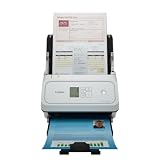
- Fast and Efficient: Scans both sides of a document at the same time, in color, at up to 45 pages per minute, with a 60 sheet automatic feeder, and one touch operation. Innovative Feeding System.
- Reliably Handles Many Different Document Types: Receipts, business cards, reports, contracts, long documents, thick or thin documents, and more. Monochrome LCD Display.
- Designed exclusively for the included Canon CaptureOnTouch software;TWAIN and ISIS drivers are not supported.
- Easy Setup: Simply connect to your computer using the supplied USB-C cable.
- Bundled Software: Includes easy-to-use Canon CaptureOnTouch scanning software.
Why downloading the DLL or using regsvr32 is unsafe
Do not download cnhw900.dll from a random DLL archive and copy it into C:WindowsSystem32, C:WindowsSysWOW64, a game folder, or the Canon program directory.
That approach can fail because the replacement may be modified, incompatible with the Canon driver generation, the wrong architecture, or missing its own dependencies. It can also leave Windows with files that do not match the driver’s installation records. Never place separate copies in both System32 and SysWOW64 to guess at compatibility.
regsvr32 is also generally the wrong repair. It registers DLLs that provide a registration entry point such as DllRegisterServer; it does not install arbitrary driver components. If you see an error saying that the entry point was not found, that does not prove the file is broken. Reinstall the Canon package instead.
Windows Features is not a source for this file. WIA is a Windows imaging model used by compatible devices and applications, not a feature that supplies a universal Canon DLL. Do not enable unrelated Windows features in an attempt to create cnhw900.dll.
Do these 3 things before closing this tab:
1Scan for outdated or missing drivers - takes under a minute2Repair Windows errors before they cause bigger problems3Fix the driver behind crashes, sound loss and screen glitches32-bit and 64-bit Windows
Public file listings describe this particular component with conflicting architecture information, so do not choose a replacement based on an isolated download page. A 32-bit Canon component does not automatically mean that the whole operating system is 32-bit.
To check Windows architecture:
- Open Settings > System > About.
- Read System type under Device specifications.
- Select the Canon download that matches your Windows version and the options offered for your exact model.
Older Canon hardware may have a 32-bit driver component while running on 64-bit Windows. The correct package is determined by Canon’s model-specific installer, not by copying files between system folders.
If the error still appears
The wording “The specified module could not be found” can mean that Windows cannot load a dependency required by cnhw900.dll, not necessarily that the named file is absent.
Rank #4

- Scanner type: Document
- Connectivity technology: USB
- With Auto Scan Mode, the scanner automatically detects what you're scanning
- Digitize documents and images
Record the following before seeking further help:
- The exact Canon model.
- Whether printing, scanning, or both fail.
- The exact error text.
- The Windows version and system type.
- The application that displays the message.
- Whether the problem began after an update, antivirus detection, cleanup, or migration.
To identify the requesting program, note the window title and executable name in the error. You can also open Event Viewer by right-clicking Start, selecting Event Viewer, and checking Windows Logs > Application around the time of the failure.
Quick wins for a faster PC:
Fix the driver behind crashes, sound loss and screen glitchesFind Drivers →Repair Windows errors before they cause bigger problemsFix Now →Scan for outdated or missing drivers - takes under a minuteDriver Scan →If Canon software works under a new Windows user profile, the original profile may have damaged application settings. A clean boot can reveal a conflicting startup service. If the error began after a known system change and no driver reinstall works, use System Restore or contact Canon with the model and installer details.
Prevention
- Keep the Canon model and its official driver package recorded.
- Do not use a generic driver when Canon provides a model-specific scanner package.
- Reinstall the complete Canon package after a major Windows migration.
- Review Windows Security detections before restoring quarantined files.
- Avoid copying individual DLLs into Windows folders.
- Remove old Canon devices before installing a replacement model.
- Keep Windows and Canon software updated only through their official support channels.
FAQ
Is cnhw900.dll a Windows system file?
No reliable evidence shows that it ships independently with Windows. It is associated with Canon Inkjet WIA Driver software installed for a Canon printer or scanner.
Is it a Visual C++ Redistributable file?
No. The available identification points to a Canon WIA driver component, not a Microsoft Visual C++ runtime. Repairing Visual C++ is usually irrelevant.
Can I fix the error by registering the DLL?
Usually not. regsvr32 is for self-registering DLLs and does not replace a damaged Canon driver installation.
Why does printing work when scanning does not?
Printing and scanning use different driver paths. A printer component can remain functional while the Canon WIA or scanner component is damaged or missing.
Should I run SFC first?
No. Install pending updates, run DISM, then run SFC. Use those commands for suspected Windows corruption, not as a replacement for reinstalling Canon software.
What is the safest source for the file?
The safest source is the official Canon installer for the exact printer or scanner model and Windows version. Do not obtain an isolated copy from an unofficial download source.
Quick Recap
Product prices and availability are accurate as of the date/time indicated and are subject to change. Any price and availability information displayed on Amazon at the time of purchase will apply.
Free tools Windows power users keep installed
One-click scans. No signup required.



