Start with this diagnostic checklist
Before changing Windows files, record:
- The full error message, including the executable or service named in it.
- The program that displays the error and whether it appears during startup, printing, or scanning.
- The Lexmark printer, scanner, or multifunction model connected to the computer.
- Whether the device still appears in Settings → Bluetooth & devices → Printers & scanners.
- Whether you use 32-bit or 64-bit Windows. Open Settings → System → About and check System type.
- What changed immediately before the error: a Windows upgrade, driver removal, failed reinstall, antivirus quarantine, disk cleanup, System Restore, device replacement, or storage problem.
lxaa4mini.dll is reported as a 32-bit Lexmark WIA Mini Driver, associated with the Windows Image Acquisition system used by scanners and multifunction printers. It is not a general Windows runtime, Visual C++ file, DirectX component, or .NET library.
The exact Lexmark model cannot be identified from the filename alone. Public records associate the file with an INF package named wialx009.inf and legacy Windows 8/8.1-era Driver Store packages, but those records do not prove which model or package release is correct for your computer.

Fix 1: Reinstall the complete Lexmark package
This is the most likely repair. A missing lxaa4mini.dll usually means the Lexmark driver package was removed, damaged, incompletely installed, or no longer matches the device.
Do not download the DLL by itself. The driver’s INF file places the DLL in the correct directory, registers the WIA components, installs dependencies, and connects the scanner to Windows.
#1 Best Overall

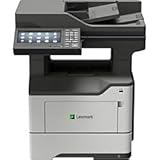
- All In One Printer - Print, copy, scan and optional cloud fax.* Fast print speed and standard two-sided printing. Laser printer durable and designed to increase your efficiency.
- Wireless Printer - Print and share from any device with standard Wi-Fi. Mobile-friendly. USB and ethernet connectivity. Simplify your connection with the Lexmark Mobile Print app.
- Secure Office Printer - Built-in security that protects your information on the device, over the network and at all points in between.
- Durable A4 Printer - Designed for small business and built to last with a sturdy steel frame. Compact printer scanner copier all in one, perfect for the office.
- Sustainable Multifunction - Automatic two-sided printing; Ability to use up to 100% recycled paper; Free and easy supplies cartridge recycling.
- Identify the exact Lexmark model from the label on the device or from Settings → Bluetooth & devices → Printers & scanners.
- Open Lexmark’s official Drivers & Downloads page.
- Search for the model.
- Choose your installed Windows version and the offered system architecture.
- Download the complete printer, scanner, or multifunction installation package.
- If the installer requests it, disconnect the USB cable or turn off the device.
- Remove the old Lexmark software from Settings → Apps → Installed apps, if the package provides an uninstall option.
- Restart Windows.
- Run the downloaded Lexmark installer as an administrator.
- Reconnect or power on the device only when the installer requests it.
- Restart again if prompted.
Test the repair by opening Windows Scan, the Lexmark scanning application, or the program that originally reported the error. Start a preview or scan. A successful repair should leave the device listed without a warning icon and should allow Windows Image Acquisition scanning to start.
If Lexmark does not offer a package for your exact Windows version, do not substitute a package for a similar model. Try the newest package listed for the device, but expect that an obsolete device may not work fully on current Windows.
When manually searching through several driver packages is the difficult part, Outbyte Driver Updater can scan for outdated or missing drivers and show what needs attention. Its free scan identifies the problem, while repair and driver installation are handled by the full version; the official Lexmark package remains the preferred source for this specific WIA driver.
Fix 2: Remove the broken device entry first
A damaged device entry can prevent a fresh Lexmark installation from registering its WIA components correctly. Use Device Manager when the device is duplicated, hidden, marked with a warning icon, or still points to an old installation.
Do these 3 things before closing this tab:
1Scan for outdated or missing drivers - takes under a minute2Clear out junk files and repair common Windows errors3Fix the driver behind crashes, sound loss and screen glitches- Right-click Start and select Device Manager.
- Select View → Show hidden devices.
- Expand Printers, Imaging devices, and Other devices.
- Look for the affected Lexmark device or an unknown scanner entry.
- Right-click it and choose Uninstall device.
- If shown, select Attempt to remove the driver for this device or Delete the driver software for this device.
- Confirm the removal.
- Repeat for duplicate entries clearly belonging to the same obsolete Lexmark device.
- Restart Windows.
- Install the complete Lexmark package using the steps above.
Administrator permission may be required. Microsoft’s Device Manager driver-removal guidance explains the available removal options.
If the Lexmark device returns with a yellow warning icon, open its Properties and read the Device status box. A code there, the full error text, and the device model are more useful than repeatedly copying the DLL.
Fix 3: Check antivirus quarantine
Security software may quarantine a legitimate driver file after a scan, especially if the original package is old. Open your antivirus application and inspect its quarantine or detection history for LXAA4mini.dll.
Restore it only when all of these conditions are true:
What’s actually slowing this PC down?
Pick the symptom - the matching free tool is one click away.
- The file belongs to the known Lexmark device package or a legitimate Driver Store location.
- You recognize the Lexmark device and installed package.
- Your security product identifies the detection as a false positive or allows a verified restoration.
Afterward, reinstall the complete official Lexmark package and run a full security scan. Do not disable antivirus protection to install a loose DLL from a download site. A random copy can contain malware, use the wrong architecture, or simply fail because the actual problem is a missing dependency or damaged INF registration.
Fix 4: Repair Windows components with DISM and SFC
Use Windows repair commands when the problem began after an update, servicing failure, System Restore, or broader system corruption. They can repair Windows components and protected files, but they may not restore a third-party Lexmark DLL whose driver package is absent.
- Open Start and type
Command Prompt. - Right-click Command Prompt and select Run as administrator.
- Select Yes at the User Account Control prompt.
- Run this command:
DISM.exe /Online /Cleanup-image /Restorehealth
- Wait for DISM to finish completely.
- Run:
sfc /scannow
- Wait until the verification reaches 100 percent.
- Restart Windows.
- Test the scanner again.
Microsoft documents this order in its System File Checker guidance.
If DISM reports that the repair source could not be found, or SFC says it could not repair some files, copy the exact result and continue with the Lexmark driver reinstall. Do not keep repeating the commands without addressing the missing device package.
When running repair commands manually has become repetitive and you want a guided scan, Outbyte PC Repair can identify Windows issues in its free scan; repairs are performed by the full version, and it is not a replacement for reinstalling the Lexmark package when that package is missing.
Fix 5: Check the WIA service and scanner visibility
The DLL is a WIA minidriver, so confirm that Windows Image Acquisition is running.
Rank #3

- Recommended Use: Plain Paper Print
- Press Windows key + R.
- Type
services.mscand press Enter. - Find Windows Image Acquisition (WIA).
- Double-click it.
- Set Startup type to Automatic or Automatic (Delayed Start) if available.
- If Service status is stopped, select Start.
- Select Apply, then OK.
- Restart the Lexmark device and test a scan.
If WIA is already running but the scanner is absent from Printers & scanners or Device Manager, the problem is more likely the Lexmark package, USB connection, network discovery, or device compatibility than the Windows service itself.
Do not copy lxaa4mini.dll into System32 or SysWOW64
Public metadata describes indexed copies as 32-bit and reports version 1.0.0.0, with legacy copies around 0.21 MB. That does not tell you which copy belongs to your Lexmark model or where Windows should install it.
The Tool Desk
Outbyte Driver Updater FREEFix the driver behind crashes, sound loss and screen glitchesFind Drivers →Outbyte PC Repair FREERepair Windows errors before they cause bigger problemsFix Now →Do not copy a downloaded file into:
C:WindowsSystem32C:WindowsSysWOW64- An application folder
- An arbitrary Driver Store directory
System32 is not a universal destination for every DLL. On 64-bit Windows, SysWOW64 is also not a general-purpose location for manually placing 32-bit driver files. The Lexmark INF installer selects the correct architecture, Driver Store path, permissions, and registration.
A reported path such as:
C:WindowsSystem32DriverStoreFileRepositorywialx009.inf_x86_...LXAA4mini.dll
describes an indexed driver package layout, not a command to create that folder or copy a file there.
Why regsvr32 usually does not fix this
Do not begin by running:
regsvr32 lxaa4mini.dll
regsvr32 is intended for DLLs that expose a registration entry point such as DllRegisterServer. WIA minidrivers are installed and registered through their device INF package. Running the command manually may produce an error such as “DllRegisterServer was not found,” or it may leave the driver installation incomplete.
Use regsvr32 only when the software vendor specifically instructs you to register that particular DLL. For lxaa4mini.dll, reinstalling the complete Lexmark package is the normal repair.
Rank #4
Read the exact error before choosing the next step
These messages do not all mean the same thing:
- “The program can’t start because lxaa4mini.dll is missing from your computer.” The Lexmark component is absent from the expected installation.
- “The code execution cannot proceed because lxaa4mini.dll was not found.” The calling program cannot locate the DLL.
- “Error loading lxaa4mini.dll. The specified module could not be found.” A dependency may be missing. The named DLL itself is not necessarily the only problem.
- “The procedure entry point could not be located…” The installed DLL may be incompatible with the component calling it.
- “lxaa4mini.dll is either not designed to run on Windows or it contains an error.” The file may be damaged, mismatched, or incompatible with the current installation.
Note the executable named in the message. No verified evidence connects this file to a game or general-purpose launcher. If a particular application bundled a Lexmark component, repairing that application may also be necessary.
Independent reader supportYour contribution helps us test, update, and keep practical guides available for everyone.When Windows Features is relevant
Do not enable random Windows Features to replace this driver. Visual C++ Redistributables, DirectX, and .NET repairs are normally irrelevant to a Lexmark WIA minidriver.
You can still check optional scanner-related components if another application explicitly requires them:
- Open Start and search for Turn Windows features on or off.
- Open it as administrator if prompted.
- Review only the feature named by the application or its documentation.
- Do not enable unrelated legacy features as a DLL repair.
- Select OK, restart if requested, and test again.
For a missing Lexmark WIA component, this step does not replace the manufacturer’s driver installation.
Recommended Free Tools
If the device is obsolete
The public records for lxaa4mini.dll point to older Windows driver packages. A current Windows 10 or Windows 11 installation may not support an old Lexmark scanner even if the hardware still powers on.
Use the latest package offered for the exact model. If Lexmark no longer provides a compatible driver, try Windows’ built-in printer or scanner driver, a compatible universal driver if Lexmark offers one for that device, or replacement hardware. Avoid forcing a driver for a different model.
Best Value

- SMALL: Compact printer fits almost anywhere (8. 7 x 14. 5 x 14. 3 inches / 222 x 368 x 363 millimeter).
If the DLL repeatedly disappears after a successful reinstall, run a full or offline malware scan, check disk health, review Event Viewer and driver-installation logs, and back up personal files. Use System Restore only when the failure clearly began after a recent change.
FAQ
Is lxaa4mini.dll a Windows system file?
No. Available metadata identifies it as a Lexmark WIA Mini Driver. It is a vendor component used by a printer, scanner, or multifunction device.
Outdated Drivers Are Slowing You Down
One free scan finds every outdated or missing driver and matches the right update for your exact hardware.Free scan · exact hardware matchWindows Errors? Fix Them Before They Spread
Repair common Windows errors and clear accumulated junk for a smoother, more stable PC - no reinstall needed.Free scan · no reinstallWhich Lexmark model uses it?
The filename alone does not establish the exact model. Identify the device in Settings, Device Manager, its physical label, or the original installation records before selecting a package.
Should I download the DLL separately?
Generally no. A loose DLL does not install the INF package or WIA registration and may be malicious, mismatched, or the wrong architecture. Use the complete official Lexmark driver package.
Is the file compatible with 64-bit Windows?
The indexed copies are reported as 32-bit. That does not mean you should copy them into SysWOW64. Let the correct Lexmark installer handle architecture and placement.
Will SFC restore it?
Usually not if the Lexmark driver package itself is missing. DISM and SFC can repair Windows components and protected system files, so use them as secondary checks rather than as a replacement for the Lexmark reinstall.
Free tools Windows power users keep installed
One-click scans. No signup required.
Why does Windows say the specified module is missing when the DLL exists?
The message can refer to a missing dependency required by the DLL. Reinstall the complete package and check the exact error and device status instead of copying another DLL beside it.
What information should I provide to a technician?
Provide the exact Lexmark model, Windows version and architecture, full error text, named executable or service, Device Manager status code, whether the scanner appears in Settings, and what changed before the failure.
Quick Recap
Product prices and availability are accurate as of the date/time indicated and are subject to change. Any price and availability information displayed on Amazon at the time of purchase will apply.



