TeknoParrot is a Windows-focused arcade platform that lets supported PC-based arcade games work with standard PC hardware such as keyboards, Xbox-style controllers, racing wheels, mice, and lightguns. It is not a universal arcade emulator: compatibility is title-specific, and each game can expose its own settings, fixes, and hardware requirements.
The current recommended installation method is the official TeknoParrot Installer. The installer sets up the latest stable components automatically. The older TeknoParrot UI 1.0.0.140 package remains available as a legacy release, while TeknoParrot UI 2.0 is listed separately as experimental.
What TeknoParrot does
Many modern arcade machines are built from ordinary PC components but rely on proprietary arcade hardware, control systems, and game-specific software. TeknoParrot maps supported arcade platforms to standard PC peripherals, making it possible to configure selected arcade titles for a home PC.
The official project describes support for more than 290 arcade titles, but that number should not be read as universal system compatibility. TeknoParrot is a collection of game and platform integrations rather than an emulator that runs every arcade game. The official compatibility list is the authority for whether a particular title is supported and how well it works.
#1 Best Overall

- Small Form Factor Fight Stick featuring an 8-button layout and 8ft. cable
- Great for both Arcade and Fighting Games
- Compact, lightweight and portable design
- Features Classic 8-Button Layout and HORI’s Original Joystick with V-cut Housing
- Officially Licensed by Sony
Which TeknoParrot release should you install?
| Release | Use it when | Important detail |
|---|---|---|
| TeknoParrot Installer | You want the normal, current installation path | The official Downloads page recommends it and says it installs the latest stable components automatically. |
| TeknoParrot UI 1.0.0.140 | The current bootstrapper does not run or a guide specifically requires the legacy UI | This is the older release described by many existing setup guides. |
| TeknoParrot UI 2.0 | You deliberately want to test the experimental interface | The official page lists separate Windows, Linux, and Android downloads. It is not the standard stable path. |
The current bootstrapper requires the .NET 8.0 Runtime. If it will not start, the official Downloads page points users toward the legacy release and manual updating path. The same page also lists the DirectX End-User Runtimes (June 2010) and a Visual C++ Redistributable Runtimes All-in-One package under recommended software.
Installing TeknoParrot
- Open the official Downloads page and choose Download TeknoParrot Installer.
- Install the required .NET 8.0 Runtime if the bootstrapper reports that it is missing.
- Let the installer set up the current stable components.
- If you are using the legacy package instead, extract it to a permanent folder and run
TeknoParrotUi.exe. - On the legacy first launch, dismiss the Hello World window with OK.
- When update prompts appear, select Update and continue until no update prompts remain. TeknoParrot UI may need to restart during this process.
Antivirus software can sometimes identify TeknoParrot files as false positives and remove them. If files repeatedly disappear, check the antivirus quarantine and add the TeknoParrot folder to the exception list only if you trust the files and understand the security trade-off.
Checking whether a game is supported
Start with the official Compatibility page, not a generic emulator list. Entries include support ratings such as Perfect, Great, and Unknown, along with the arcade platform and genre. Some games appear as distinct platform variants—for example, After Burner Climax (Elfloader2), Blade Strangers (APM3), and R-Tuned: Ultimate Street Racing (ElfLoader 2).
That distinction matters. A title’s compatibility entry can contain the game-specific setup instructions, graphics-card workarounds, and known problems that are not covered by the general UI guide. If a game fails with default settings, consult its individual compatibility page before changing unrelated global options.
Adding a game and configuring its executable
Once you have a supported game from a lawful source, open TeknoParrot’s hamburger menu in the top-left corner and choose Add Game.
Rank #2

- Compatible with Switch and Windows.
- Supports ultimate software - customize button mapping and create macros
- Dynamic button layout - button mapping changes with mode functionally and visually
- Ultra-moddable arcade stick - Universal mounting plate supports Sanwa arcade sticks
- Three ways to connect: Bluetooth, 2.4g and wired USB-C. The included 2.4g receiver has a special hidden compartment to store it safely.
- Select the extracted game from the game list.
- Select Add Game to place it on the main screen.
- Select the title and open GAME SETTINGS.
- Configure the game’s executable path there.
- Choose the appropriate controller mode. XInput is the input API commonly used by Xbox-style controllers.
- Select Save settings.
Do not assume that one configuration works for every title. The available options vary by game because different arcade platforms expose different hardware and input requirements.
Setting up controls
Select CONTROLLER SETUP for the game, choose a function, press the desired keyboard key, controller button, or wheel axis, and then select Save settings. Start the title with LAUNCH GAME.
For global options, open the hamburger menu, select Settings, make the change, and choose Save settings. The global sTo0z Zone controls the joystick deadzone around the stick’s center. The official guide describes 16–20% as a comfortable range for many users, but says not to use this setting with a steering wheel.
Do these 3 things before closing this tab:
1Scan for outdated or missing drivers - takes under a minute2Clear out junk files and repair common Windows errors3Fix the driver behind crashes, sound loss and screen glitchesDriving games also expose Reverse Axis Gas and Reverse Axis Brake. Use the relevant option if a car accelerates or brakes fully while the pedal is not being pressed.
Laptop graphics problems
Laptops with integrated and discrete graphics can launch a game on the wrong GPU, producing poor performance or graphical failures. Force the relevant game or loader to use the high-performance NVIDIA or AMD GPU through the graphics driver or Windows graphics settings.
Rank #3
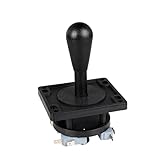
- Excellent function and high quality control.
- Used for any wooden or metal controller. Plastic base holder.
- Available round or square connect face.
- Easy to operate, Switch can be replaced easily.
For Lindbergh and Linux-based games, the executable that must be assigned to the high-performance GPU is BudgieLoader.exe, found inside the TeknoParrotTeknoParrot folder. The official guide’s Windows graphics-settings example refers specifically to Windows 10 version 1803, released in April 2018; that historical reference does not mean Windows 10 1803 is required today.
Lightgun setup
For native lightgun input, open GAME SETTINGS and select RawInput. TeknoParrot documents native support for up to two lightguns.
- Sinden: disable offscreen reload in the Sinden software for the best results.
- AimTrak: assign buttons in AimTrak software. The guide warns that GP buttons will not work.
- Dolphin Bar with RawInput: use one Dolphin Bar per Wiimote and set each bar to mode 2.
- Dolphin Bar with DirectInput: one Dolphin Bar is sufficient; set it to mode 3.
Mouse and Parsec configurations
For single-player mouse play where the crosshair should follow the normal Windows pointer, select Windows Mouse Cursor. This option cannot be used for multiple mice. For two mice, select each physical mouse from the device list instead; in that mode, it is normal for the Windows cursor and the in-game crosshair not to line up.
For two-player mouse play over Parsec, the host should select the physical mouse’s hardware name and bind the host controls to it. The remote player should select Unknown Device and bind their buttons there. The remote client must have permission to use the mouse, and Parsec’s Exclusive Input Mode must be Off on the host.
Independent reader supportYour contribution helps us test, update, and keep practical guides available for everyone.Launching profiles from the command line
TeknoParrot’s documented command-line options are passed to TeknoParrotUi.exe. First configure the game’s executable through GAME SETTINGS; the documented command-line flow invokes the saved profile rather than supplying the game executable directly.
Rank #4

- Compatible with Switch/Switch 2, PS4, PS3, Xbox Series S/X, Xbox One, Xbox 360, PC Windows, macOS, Steam Deck, Android.
- Compatible with Sanwa Denshi buttons and joystick that is perfect for customization
- Supports the XINPUT and DINPUT when being used on PC
- Supports the Turbo functions with different speed settings.
- F300 is compatible with PS5 by MAYFLASH Magic-S Ultimate adapter or MagicBoots-S5 Converter.
TeknoParrotUi.exe --profile=<profile xml>Launch the UI minimized with:
TeknoParrotUi.exe --profile=<profile xml> --startMinimizedRun only the selected game’s JVS emulator with:
TeknoParrotUi.exe --profile=<profile xml> --emuonlyThe official guide describes --emuonly primarily as a developer option. The --tponline option is also documented for developer use only:
Recommended Free Tools
TeknoParrotUi.exe --tponlineThe official guide does not document an option that directly supplies a game executable on the command line.
Legal and distribution limits
TeknoParrot does not host or link to game files or other copyrighted materials. Its setup guide says the developers will not help users find game files and that requests for game files are not allowed in the Discord. You must obtain and use game software in accordance with the law and the rights attached to that software.
Bottom line
TeknoParrot is a powerful, modern front end and compatibility layer for a broad but selective library of PC-based arcade games. For most users, the right approach is to install the official web installer, check the individual compatibility entry for the game, configure its executable and controls separately, and treat hardware-specific options—especially GPU selection, lightguns, wheels, and multiple mice—as title- and device-dependent rather than universal settings.
Quick Recap
Product prices and availability are accurate as of the date/time indicated and are subject to change. Any price and availability information displayed on Amazon at the time of purchase will apply.
Free tools Windows power users keep installed
One-click scans. No signup required.



