Outdated Drivers Are Slowing You Down
One free scan finds every outdated or missing driver and matches the right update for your exact hardware.Free scan · exact hardware matchWindows Errors? Fix Them Before They Spread
Repair common Windows errors and clear accumulated junk for a smoother, more stable PC - no reinstall needed.Free scan · no reinstallBest overall: a 4K OLED television with a genuine 120Hz (or faster) panel, HDMI 2.1, VRR, low input lag and a reliable Game Mode. Choose a Mini-LED/QLED model instead for a bright room, very long daily sessions or greater concern about OLED image retention. For most cockpits, 65 inches is the practical starting point—but your viewing distance and the hardware driving MSFS 2024 matter more than the biggest screen you can fit.
The game is available on Windows PC, Xbox Series X|S, PS5/PS5 Pro and Xbox Cloud Gaming. Microsoft says PC can offer higher resolution and frame-rate potential, VR, mods, multi-monitor support and broader peripheral compatibility, while consoles are simpler to set up: Microsoft’s platform guide.
Quick recommendations
| Use case | Best TV type | Starting size | Must-have features | Main trade-off |
|---|---|---|---|---|
| Best overall | 4K OLED, 120Hz or higher | 55–65 inches | HDMI 2.1, VRR, Game Mode, low lag | Image-retention risk and lower sustained brightness than top Mini-LED sets |
| Bright room or long sessions | Premium Mini-LED/QLED | 65–85 inches | Effective full-array local dimming, HDMI 2.1, VRR | Blooming and less precise blacks |
| Large-screen value | Midrange Mini-LED or gaming QLED | 75–85 inches | Verified 4K/120 input, Game Mode, VRR | Port limits and uneven HDR quality between models |
| Budget or Xbox Series S | Good 4K/60Hz TV | 55–65 inches | Low-latency Game Mode, 4K input, reasonable contrast | Less refresh-rate headroom and usually weaker HDR |
Choose for the platform first
Xbox Series X
Prioritize 4K, HDR, a genuine 120Hz input, HDMI 2.1, VRR and low latency in Game Mode. Microsoft lists MSFS 2024 on Xbox Series X|S with 4K Ultra HD and HDR support: Xbox’s game page. Confirm that the specific HDMI port—not merely the television’s marketing specification—supports the resolution, refresh rate and VRR combination you need.
Xbox Series S
A premium TV can improve contrast, HDR, motion and responsiveness, but it cannot make Series S render like a Series X or a high-end PC. A good 4K/60 model is often the rational purchase unless you also play other games or plan a future console upgrade.
Do these 3 things before closing this tab:
1Fix the driver behind crashes, sound loss and screen glitches2Clear out junk files and repair common Windows errors3Scan for outdated or missing drivers - takes under a minute#1 Best Overall

- TCL QM6K QD-MINI LED TV SERIES - AFFORDABLE PREMIUM PERFORMANCE FOR SPORTS, GAMING & STREAMING. Experience superior contrast, rich color, and ultra-smooth motion with TCL’s QD-Mini LED technology. Designed to outperform traditional QLED and OLED TVs, the QM6K is the best TV for every moment—whether you're streaming, gaming, or watching the big game.
- QD-MINI LED. IT’S MINI LED PLUS QLED COLOR - BREATHTAKING BRIGHTNESS AND COLOR IN ANY LIGHT. Combines ultra-precise Mini LEDs with Quantum Dot technology for incredible brightness, bold contrast, and over a billion vibrant colors.
- TCL HALO CONTROL SYSTEM - BETTER BLACKS. SHARPER DETAIL. NO BLOOMING. Advanced local dimming eliminates haloing, enhances shadow detail, and improves picture accuracy—so dark scenes look deeper, and bright scenes stay crisp.
- DOLBY VISION, HDR10+, HDR10 & HLG - STUNNING HDR IN EVERY FORMAT. Enjoy 4K content the way it was meant to be seen. Dynamic HDR support delivers exceptional color, contrast, and detail across all major formats.
- 144HZ NATIVE REFRESH RATE + MOTION RATE 480 - SMOOTH, FAST ACTION—PERFECT FOR LIVE SPORTS. Watch fast-paced action with incredible clarity and minimal motion blur—making this one of the best TVs for sports.
Gaming PC
Match the television to the computer’s real output. A modest PC may gain little from an expensive 4K/144Hz set; a powerful system can use HDMI 2.1, 4K high-refresh output and VRR. Check those modes over HDMI, then verify chroma, RGB range and text clarity if the TV doubles as a desktop display.
Microsoft’s published MSFS 2024 tiers are requirements, not frame-rate promises:
| Tier | CPU | GPU | VRAM | RAM | Storage |
|---|---|---|---|---|---|
| Minimum | Ryzen 5 2600X or Core i7-6800K | Radeon RX 5700 or GeForce GTX 970 | 4GB | 16GB | 50GB |
| Recommended | Ryzen 7 2700X or Core i7-10700K | Radeon RX 5700 XT or GeForce RTX 2080 | 8GB | 32GB | 50GB |
| Ideal | Ryzen 9 7900X or Core i7-14700K | Radeon RX 7900 XT or GeForce RTX 4080 | 12GB | 64GB | 50GB |
All three published tiers specify Windows 10 with the latest update and DirectX 12. See the official requirements and platform guidance.
PS5 and PS5 Pro
Look for 4K, HDR, HDMI 2.1, VRR and a low-latency Game Mode, then check compatibility with the exact console output. Do not assume that an Xbox or PC feature behaves identically on PlayStation.
Recommended Free Tools
Xbox Cloud Gaming
The Xbox app can be convenient on selected LG, Samsung, Amazon Fire TV and VIDAA televisions, subject to model, software and subscription restrictions: Microsoft’s supported-TV information. Cloud play adds network latency and video compression, so it is a convenience option rather than the best route for precise cockpit controls.
Rank #2

- 4K UltraHD Resolution: Experience incredible detail with 4X the resolution of 1080p Full HDTVs
- QLED (Quantum Dot Technology): Rich, vibrant colors covering nearly the entire DCI-P3 color space to bring images to lifeQLED – Quantum Dot Technology: Rich, vibrant colors covering nearly the entire DCI-P3 color space to bring images to life
- 120Hz Panel Refresh Rate: Watch action-packed movies, fast-paced video games, and live sports with an ultra-smooth viewing experience, free of motion blur
- TCL AIPQ Pro Processor: Powerful, advanced processor that intelligently optimizes the color, contrast, and clarity for an unrivaled 4K HDR experience
- Dolby Atmos Audio: Advanced spatial audio processing can be found in movies, TV shows, and video games
OLED versus Mini-LED
Choose OLED for contrast and immersion
- Each pixel can switch off for exceptionally deep blacks in night flights and cockpit shadows.
- Near-instant pixel response keeps camera movement and instruments clean.
- Wide viewing angles suit a screen mounted in front of a cockpit.
- It is particularly compelling in a controlled or dark room.
Image retention or burn-in is possible, not inevitable. Risk depends on static menus or instrument layouts, brightness, usage pattern, panel technology and the manufacturer’s protective systems. Consider pixel shifting, screen savers, varied content and warranty terms if the display will show a fixed cockpit for many hours every day. OLED can also use automatic brightness limiting and usually costs more at large sizes.
Choose Mini-LED/QLED for brightness and endurance
- Higher sustained brightness is easier to see in daylight.
- There is no OLED-style organic-pixel burn-in mechanism.
- Large sizes often cost less than equivalent premium OLEDs.
- Strong local dimming can make HDR clouds, sun and runway lights vivid.
Local dimming can bloom around bright instruments, subtitles, stars and runway lights. Black levels are not as exact as OLED, pixel transitions may be slower, and performance varies substantially by dimming implementation. Independent gaming-TV testing, such as RTINGS’ current coverage, is more useful than a peak-brightness claim alone.
Refresh rate, VRR and HDR: what actually matters
120Hz is preferred, not required
A 120Hz panel gives a smoother path when the source exceeds 60 frames per second, provides more VRR flexibility and keeps the TV useful for future hardware. It does not make MSFS 2024 render at 120fps. Frame rate remains dependent on CPU, GPU, settings, scenery and simulator workload. Treat 144Hz or 165Hz as a PC-oriented advantage, not a requirement for console flight simulation.
VRR helps uneven delivery—but cannot create performance
Variable refresh rate adjusts the panel’s refresh timing to the source, reducing tearing and some judder when frame delivery varies. Microsoft describes the technology in its Xbox technical guidance. VRR cannot fix severe CPU or GPU limits, streaming problems, simulator bugs or poor frame pacing.
HDR quality is more than an HDR label
Useful HDR depends on peak and sustained brightness, contrast, local dimming, tone mapping and the game’s implementation. It can improve sunlight, cloud contrast, airport lighting and night highlights, but a cheap HDR television may look worse than a well-calibrated SDR picture. Judge the result, not just signal compatibility.
Rank #3
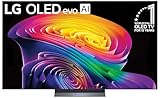
- BRIGHTNESS BOOSTER: Brighter visuals and vivid detail with Brightness Booster powered by the a11 AI Processor Gen 3
- PERFECT BLACK AND PERFECT COLOR: Over 8.3 million self-lit smart pixels with Perfect Black and Perfect Color technology¹.
- A11 AI PROCESSOR: Find and choose what to watch fast, without lag, and enjoy optimized picture with AI Director Processing powered by the LG a9 AI Processor Gen8, delivering 5.6x greater AI processing, 50% faster performance, and 70% improved graphics
- DOLBY VISION, DOLBY ATMOS AND FILMMAKER MODE: Loaded with Dolby Vision for extraordinary color, contrast and brightness, plus Dolby Atmos² for sound you can feel all around you. Land in the center of the action with FILMMAKER MODE with Ambient Light Technology, allowing you to see films just as the director intended.
- ULTIMATE GAMEPLAY: Delivers smooth, responsive gaming with a 0.1ms response time, up to 165Hz⁵ refresh rate, NVIDIA G-Sync, AMD FreeSync Premium and VRR.
Pick the size from your seating distance
| Approximate distance | Practical starting size |
|---|---|
| About 3–4 feet, desk or close cockpit | 42–55 inches |
| About 4–6 feet, single-seat cockpit | 55–65 inches |
| About 6–8 feet, living-room cockpit | 65–75 inches |
| Farther seating or a wide shared area | 75–85 inches |
These are starting points, not rules. Too much screen too close makes instrument scanning tiring; too little screen at distance wastes 4K detail. Check VESA spacing, stand width, cable clearance and mounting height—placing a TV too high can cause neck strain during long flights. Glossy OLEDs can reflect windows and cockpit lights; brighter Mini-LED models are often easier in daylight but are not reflection-proof.
Required specification checklist
- 4K resolution for Series X, PS5 and modern PCs.
- 120Hz input if your source can use it; genuine input support, not motion-processing terminology.
- At least one suitable HDMI 2.1 port; two or more are preferable for multiple consoles, a PC, soundbar or receiver.
- VRR, with a published operating range where possible.
- Low input lag and a usable Game Mode.
- HDR with credible brightness, contrast and tone mapping.
- PC mode, native 4K, 4:4:4 or RGB support and overscan controls if you use desktop text.
- Reflection handling, burn-in protections, firmware support and a suitable warranty.
Connect and configure the TV
- Connect the console or PC directly to the TV’s port marked for 4K/120, gaming or enhanced bandwidth.
- Enable Game Mode or the manufacturer’s low-latency equivalent.
- Enable VRR, FreeSync or HDMI Forum VRR when supported.
- Turn on the enhanced HDMI setting, which may be called Input Signal Plus, Enhanced Format, HDMI Deep Color or 4K Enhanced.
- Run the Xbox or PlayStation display and HDR calibration tools.
- On PC, select 3840×2160 and the TV’s actual supported refresh rate in Windows or the GPU control panel.
- Confirm the TV’s information panel reports the expected 4K, HDR and refresh-rate signal.
- Disable excessive motion interpolation, noise reduction and cinema processing in Game Mode.
- Use a certified Ultra High Speed HDMI cable for high-bandwidth or long connections.
Menu names differ by manufacturer. Do not assume an AV receiver or soundbar passes full HDMI 2.1 bandwidth; test the source directly first.
Free tools Windows power users keep installed
One-click scans. No signup required.
PC-specific picture checks
Use native resolution where performance permits and enable Windows HDR only if the TV’s HDR mode is genuinely useful. Verify RGB/full-range behavior and chroma with your particular GPU, TV input mode and cable. Avoid duplicate display modes that silently select 1080p or a reduced chroma format. Set the input to PC mode when available, disable overscan, sharpening and noise reduction, and check that Windows scaling is not making instruments blurry.
Independent reader supportYour contribution helps us test, update, and keep practical guides available for everyone.Fix common problems
The console reports only 60Hz
- Connect directly to the TV.
- Try the HDMI port labeled for 4K/120 or gaming.
- Enable the enhanced HDMI format.
- Replace the cable with a certified Ultra High Speed model.
- Review the console’s detailed display-information screen.
- Reconnect the receiver or soundbar only after direct operation is confirmed.
HDR looks gray or washed out
Re-run console HDR calibration, compare Game Mode HDR with SDR, remove unnecessary dynamic contrast, and check black-level and HDMI-range settings. On PC, disable Windows HDR if this television handles it poorly.
VRR flickers
Update firmware, test a narrower VRR range if available, cap frame rate below the panel maximum and compare the same flight with VRR off. Stable frame delivery is preferable if flicker persists.
Rank #4

- OUR MOST ADVANCED 4K AI PROCESSOR: Powered by 128 neural networks to deliver AI-enhanced picture and optimized sound, resulting in an exceptional 4K experience for streaming, gaming, live sports and more.*
- TRANSFORMS EVERYTHING ON SCREEN TO IMPRESSIVE 4K RESOLUTION*: See impressive details on screen. Our AI processor upscales everything you watch to 4K using 128 AI neural networks and ensures incredibly sharp and smooth picture quality.*
- POWERFUL BRIGHTNESS AND DEEPER CONTRAST IN EVERY PIXEL**:Experience powerful brightness and deeper contrast revealing nuanced detail in each scene. The NQ4 AI Gen3 processor analyzes each scene and boost brightness to illuminate even the smallest details.**
- BRINGS SMOOTH MOTION TO SPORTS AND TEAR-FREE GAMING: Experience smooth visuals and elite speeds for VRR gaming at up to 4K 144Hz.***
- KEEP YOUR EYE ON THE BALL: The AI processor smooths the motion of fast-moving balls and text, reducing blur and flickering, so you don't lose sight of the action.*
Instruments or desktop text look blurry
Use PC input mode, native 4K, no overscan, RGB or 4:4:4 where supported, and disable processing. Check that the GPU is not outputting 1080p or reduced chroma.
The Tool Desk
Outbyte PC Repair FREEClear out junk files and repair common Windows errorsFree Scan →Outbyte Driver Updater FREEScan for outdated or missing drivers - takes under a minuteDriver Scan →The picture stutters despite 120Hz
Separate display refresh rate from rendered frame rate and frame pacing. CPU-limited city flying, GPU-limited 4K, scenery, traffic, streaming or simulator workload can all cause stutter. Microsoft recommends checking requirements, updating the system and drivers, rebooting after updates and avoiding overclocking while troubleshooting: Microsoft performance guidance.
TV versus other display options
| Display | Strength | Limitation |
|---|---|---|
| TV | Large immersive image, console support and strong value at common sizes | Desktop text, reflections and mounting ergonomics require care |
| Ultrawide monitor | Sharper close-range text, wide PC view and high refresh rates | Usually less suitable for consoles and large living-room seating |
| Triple monitors | Excellent peripheral visibility on PC | More rendering load, configuration, desk space and peripheral complexity |
| Projector | Very large image | Brightness, contrast, latency and room-control compromises |
| VR headset | Maximum cockpit immersion | Comfort, setup, hardware and software constraints |
Microsoft identifies multi-monitor setups and broader peripherals as PC advantages, but the additional rendering and setup burden is substantial: platform guidance.
Decision guide
- Buy OLED when dark-scene contrast, viewing angles and immersion matter most in a controlled room.
- Buy Mini-LED for daylight, very long sessions, large sizes or greater concern about image retention.
- Buy 4K/60 when using Series S, an occasional-use setup or hardware that cannot sustain higher output.
- Choose the size from seating distance and cockpit ergonomics, not prestige.
A better TV cannot compensate for weak simulator hardware, insufficient VRAM, excessive detail settings, network problems or input-device issues. Select the panel and features that fit your source and room, then spend the remaining budget on the hardware and controls that determine how MSFS 2024 actually runs.
Quick Recap
Product prices and availability are accurate as of the date/time indicated and are subject to change. Any price and availability information displayed on Amazon at the time of purchase will apply.
What’s actually slowing this PC down?
Pick the symptom - the matching free tool is one click away.




