Do these 3 things before closing this tab:
1Scan for outdated or missing drivers - takes under a minute2Clear out junk files and repair common Windows errors3Fix the driver behind crashes, sound loss and screen glitchesYou can use an original Game Boy Camera as a webcam by running its cartridge through an Epilogue GB Operator, capturing the Playback window in OBS Studio, and sending that crop to calls or streams with OBS Virtual Camera. The result is a distinctive retro feed—not a conventional high-resolution camera.
What you need
- Game Boy Camera cartridge: The camera is a separate cartridge; it is not built into the GB Operator.
- GB Operator: Epilogue’s reader runs the cartridge through its Playback software.
- Playback and OBS Studio: Playback displays the camera software; OBS captures its viewfinder and provides the virtual camera output. OBS is a software requirement, not a direct connection to the cartridge reader.
Epilogue lists GB Operator and Playback support for Windows 10 or later, macOS 12 or later, Linux via Flatpak, Steam Deck, ASUS ROG Ally, and Raspberry Pi. That list does not guarantee that OBS has identical support or setup on every host, so check OBS compatibility for your specific system. Epilogue GB Operator product details
| # | Preview | Product | Price | |
|---|---|---|---|---|
| 1 |

|
Mcbazel Camera Adapter for PS4 Camera PSVR on PS5/PS5 Slim/PS5 Pro, Compatible with PS4 for Using PS... | $8.35 | Buy on Amazon |
| 2 |
|
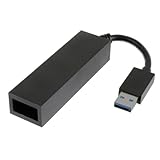
JAMHER PS4 Camera Adapter | $9.99 | Buy on Amazon |
Set up the Game Boy Camera in Playback
- Connect the GB Operator to your computer and insert the Game Boy Camera cartridge.
- Open Playback and set Core Selector to mGBA.
- Turn off Use Super Game Boy Borders so the camera picture has more room on screen.
- Start the cartridge and navigate to the camera’s shoot mode. Resize the Playback window until the viewfinder is large and easy to crop.
Epilogue’s Game Boy Camera as Webcam guide recommends good lighting and OBS’s Preview Scaling > Canvas Resolution setting.
Crop the viewfinder and send it to your call
- In OBS, add a Window Capture source and select the Playback window. On macOS, Epilogue directs users to use macOS Screen Capture instead.
- Disable Lock Preview in OBS so you can adjust the source.
- Hold Alt on Windows or Option on Mac while dragging the source edges to crop away everything except the Game Boy Camera viewfinder.
- Resize and center the cropped image in the OBS canvas. If needed, adjust the Playback window and refine the crop.
- Click Start Virtual Camera in OBS.
- In your video-call or streaming application, choose OBS Virtual Camera as the camera input.
The output is a cropped capture of the emulated camera display, routed through OBS; the GB Operator is not presented to the computer as a conventional webcam.
PC Slower Than It Used to Be?
A free scan shows the junk files, broken settings and background clutter dragging Windows down - then fixes them in one click.Free scan · Windows 10 & 11Crashes, No Sound, or Screen Glitches?
Random freezes, missing sound and display glitches usually trace back to one bad driver. Find and replace yours safely.Free scan · under a minute#1 Best Overall
- Compatible with PS5, PS5 Slim, and PS5 Pro consoles, this adapter allows seamless use of your PS4 Camera for PSVR gaming on PS5.
- Easy plug-and-play setup: just connect the adapter to your PS5 USB port, attach your PS4 Camera, and start enjoying supported PSVR games instantly.
- Compact and lightweight design measuring approximately 17.5 x 2.5 x 1.7 cm — perfect for gaming on the go.
- The PS Camera adaptor cannot be used with the PS4 console
- Tip:If you experience the camera going dark while using the adapter, please first check whether the indicator light is on and confirm the camera is receiving power. If both are normal but the issue continues, try unplugging and reconnecting the adapter, or restarting your PS5 console. If the problem still persists after these steps, please contact us directly for further assistance.
What image quality to expect
Epilogue documents the Game Boy Camera’s sensor as 128×128 pixels, with stored images cropped to 128×112 pixels. Those are source specifications, not a guarantee of a particular OBS output resolution or independent quality measurement. Expect the characteristic small, monochrome Game Boy image rather than detail comparable to a modern webcam. Lighting matters: Epilogue advises using good light.
Independent reader supportYour contribution helps us test, update, and keep practical guides available for everyone.Other ways to get images off the cartridge
| Route | What it does | Best suited to | Trade-off |
|---|---|---|---|
| GB Operator + Playback + OBS | Runs the camera software, captures its viewfinder, and sends it through OBS Virtual Camera. | Live calls, streaming, or recording using the retro camera view. | Requires the reader, camera cartridge, computer, Playback, and OBS; confirm host-specific OBS support. |
| GB Interceptor | An RP2040-based DIY adapter captures Game Boy cartridge-bus communication, renders it, and presents USB Video Class video. | People interested in a hardware capture project. | The project author warns of lag and host-software compatibility issues with its unusual video format. Its documentation is general Game Boy capture material, not a definitive Game Boy Camera webcam guide. GB Interceptor project |
| Raspberry Pi Pico printer adapter | Emulates a Game Boy Printer and transfers photos to a browser gallery. | Moving existing still photos from the camera. | Its documentation describes photo transfer, not a continuous webcam feed. The project requires a Pico and level shifting for safe 5V-to-3.3V interfacing. Pico printer emulator project |
Epilogue’s camera support page also describes photo transfer, PNG export, and save backup. Cartridge saves contain photos and camera settings, so back up the save before making changes if you want to preserve existing pictures. Epilogue Game Boy Camera support
Quick Recap
Rank #2
- Compatibility: The PS4 Camera Adapter is specially designed for PS5
- Easy setup: Firstly, connect the PS Camera adaptor to a USB Type A port on the back of your PS5 console. Secondly, connect the PS Camera to the AUX port on the PS camera adaptor
- Material: Updated Intelligent Chip for stronger compatibility and better performance. Premium thick pure wire, smaller resistance
- Function: PSVR Adapter Cable is used to connect your PS4 Camera to your PS5 console
- Package: 1 x PS5 Camera Adapter
Choose the route that matches your goal
- For a live retro camera in calls or streams: Use the GB Operator, Playback, and OBS workflow.
- For a DIY hardware capture experiment: Consider GB Interceptor, while accounting for its documented lag and format-compatibility caveats.
- For still-photo transfer: A printer-emulation adapter is a different kind of project; its documentation does not establish live webcam use.
Product prices and availability are accurate as of the date/time indicated and are subject to change. Any price and availability information displayed on Amazon at the time of purchase will apply.



