To set up the Razer Tartarus V2 Pro, connect it, configure its controls in the current Razer Synapse app, and save separate layouts for games and productivity apps when their shortcuts differ. Start with basic key assignments; add macros and optional gaming features only when they suit the application and its rules.
Confirm the model and open Synapse
This guide is for the Razer Tartarus V2 Pro, model RZ07-0552, not the separately documented Tartarus V2. Razer recommends using the latest Synapse app to customize it. Razer’s product page describes the device and its customization options; Razer Support identifies model RZ07-0552.
- Connect the Tartarus V2 Pro to your computer and install or open the current Razer Synapse app.
- Select the Tartarus V2 Pro from the device list.
- Open its customization controls, then select the physical key or button you want to change.
- Choose a keyboard key, shortcut, or other supported action that fits the game or work app.
- Save the mapping if prompted, then test it in the target application and adjust it if needed. Razer says mappings for this model save automatically; Synapse’s general remapping guidance describes selecting a device, choosing a control, assigning a function, and saving. Read Razer’s Synapse remapping instructions.
Build layouts around the task
Razer lists 31 programmable controls, three dedicated buttons, and a TMR thumbstick for this model. As Razer Support put it in its FAQ, updated September 17, 2026: “There are 31 fully programmable controls, 3 dedicated buttons, and a TMR Thumbstick on the Razer Tartarus V2 Pro.” These are vendor-stated specifications, not independent performance findings.
Razer advertises 24 configurable keymaps across three profiles, with up to eight layouts per profile. Start with one straightforward layout, then add a variant only when a task needs different controls. For example, one profile might hold layouts for several games, while another holds layouts for editing, browsing, or a frequently used work app. These are organizational examples, not prescribed mappings; the useful arrangement depends on the app and your preferred hand position.
Free tools Windows power users keep installed
One-click scans. No signup required.
#1 Best Overall

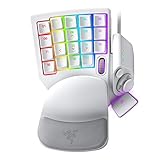
- HIGH-PERFORMANCE MECHA-MEMBRANE SWITCHES — Provides the tactile feedback of mechanical key press on a comfortable, soft-cushioned, membrane, rubber dome switch suitable for gaming
- 32 MECHA-MEMBRANE KEYS FOR MORE HOTKEYS AND ACTIONS — Perfect for gaming or integrating into creative workflows with fully programmable keys
- THUMBPAD FOR IMPROVED MOVEMENT CONTROLS — The 8-way directional thumbpad allows for more natural controls for console-oriented players and a more ergonomic experience
- FULLY PROGRAMMABLE MACROS — Razer Hypershift allows for all keys and keypress combinations to be remapped to execute complex commands
- ULTIMATE PERSONALIZATION and GAMING IMMERSION WITH RAZER CHROMA — Fully syncs with popular games, Razer hardware, Philips Hue, and gear from 30 plus partners; supports 16.8 million colors on individually backlit keys
The device has profile-cycle and keymap-cycle buttons, and Razer says a custom toggle assignment can switch layouts. Name or otherwise organize layouts so you can identify the one you intend to use, then test the cycle or toggle control before relying on it in a match or work session. The product page also describes an adjustable wrist rest; position it to suit your reach and comfort, without assuming that it guarantees an ergonomic benefit.
Choose gaming controls and optional features
Map the actions you use most
Assign the game’s frequent movement, ability, interaction, or menu actions to controls that are easy for you to reach. There is no universal best layout: check the game’s existing bindings first, avoid assigning conflicting actions, and test the map in a low-stakes area before using it in a match.
Rank #2

- MAXIMUM SPEED AND PRECISION — Dominate fast-paced FPS, MMO, and action games with Razer Analog Optical Switches Gen-2 featuring Rapid Trigger, adjustable 0.1-4.0 mm actuation, and up to 100 million keystrokes
- COMFORT FOR EXTENDED GAMING SESSIONS — Maintain natural wrist alignment with a fully adjustable ergonomic wrist rest that moves across multiple axes, creating an ideal setup for long raids, grinding sessions, and competitive play
- GREATER CONTROL WITH ANALOG INPUT — Execute precise movements, navigate radial menus, and expand your gameplay options with a full-sized anti-drift TMR thumbstick and 31 fully programmable controls via Razer Synapse
- CUSTOMIZE FOR EVERY GAME — Store and switch between up to 24 configurable keymaps across 3 profiles, making it easy to optimize controls for MMOs, RPGs, shooters, strategy games, and productivity workflows
- ULTRA-RESPONSIVE PERFORMANCE — Gain near-zero latency with true 8000 Hz HyperPolling, delivering input updates up to 8x faster than conventional gaming peripherals for quicker reactions during critical moments
Experiment with actuation and Rapid Trigger
Razer lists adjustable actuation from 0.1–4.0 mm and Rapid Trigger controls in Synapse’s Actuation settings. Support material describes the default profile as 2.0 mm actuation with Rapid Trigger off. Treat these as optional settings to experiment with in supported games, not required setup steps or guaranteed performance improvements. Change one setting at a time and verify that the resulting behavior feels reliable to you.
Check rules before enabling Snap Tap
Snap Tap is off by default. Razer says it can be toggled in Synapse or with Fn + Left Shift; its default pair is A and D, and up to four pairs can be configured. Game rules and competitive-event policies can differ, so check the current rules for the specific game or event before using an input-priority feature.
Do these 3 things before closing this tab:
1Fix the driver behind crashes, sound loss and screen glitches2Repair Windows errors before they cause bigger problems3Scan for outdated or missing drivers - takes under a minuteRank #3
- #1 SELLING PC GAMING PERIPHERALS BRAND IN THE U.S. — Source: Circana, Retail Tracking Service, U.S., Dollar Sales, Gaming Designed Mice, Keyboards, and PC Headsets, Jan. 2019- Dec. 2023 combined
- RAPID TRIGGER — Instead of a fixed reset point, keys reset instantly with an upward motion as low as 0.1 mm. This allows for faster repeated keystrokes compared to standard keyboards, which significantly enhances in-game responsiveness
- ADJUSTABLE ACTUATION — Supporting a range of actuation from 1.5 to 3.6 mm, customize the switches to be sensitive as wanted and achieve a setting that best suits different playstyle
- 32 KEYS FOR MORE HOTKEYS AND ACTIONS — Perfect for gaming or integrating into creative workflows with fully programmable keys
- THUMBPAD FOR IMPROVED MOVEMENT CONTROLS — The 8-way directional thumbpad allows for more natural controls for console-oriented players and a more ergonomic experience
Set up a productivity layout
Use the same remapping process for shortcuts and navigation actions in work apps. A layout might place a frequently used command, such as a chosen application shortcut, on an easy-to-reach control. Pick actions you actually use, preserve familiar keyboard bindings where they matter, and test each assignment in the app.
Macros can be useful for a repeatable sequence of actions when the application allows them. In Synapse, create or select a macro, assign it to a control, choose an available playback behavior, and save. Razer describes macros as sequences of commands and documents the assignment process in its macro setup instructions. Whether a macro is appropriate depends on the application and its rules; do not use one where it is prohibited. Razer’s cited materials do not establish a quantified productivity gain.
Rank #4

- #1 SELLING PC GAMING PERIPHERALS BRAND IN THE U.S. — Source: Circana, Retail Tracking Service, U.S., Dollar Sales, Gaming Designed Mice, Keyboards, and PC Headsets, Jan. 2019- Dec. 2023 combined
- RAPID TRIGGER — Instead of a fixed reset point, keys reset instantly with an upward motion as low as 0.1 mm. This allows for faster repeated keystrokes compared to standard keyboards, which significantly enhances in-game responsiveness
- ADJUSTABLE ACTUATION — Supporting a range of actuation from 1.5 to 3.6 mm, customize the switches to be sensitive as wanted and achieve a setting that best suits different playstyle
- 32 KEYS FOR MORE HOTKEYS AND ACTIONS — Perfect for gaming or integrating into creative workflows with fully programmable keys
- THUMBPAD FOR IMPROVED MOVEMENT CONTROLS — The 8-way directional thumbpad allows for more natural controls for console-oriented players and a more ergonomic experience
If you already use Synapse 3
Razer says Synapse 3 stopped receiving updates and cloud-service support on February 3, 2026. Its notice says devices already installed remain configurable in Synapse 3, but users who remove devices completely need Synapse 4 for continued customization. Razer recommends Synapse 4 and the Profile Migration Tool for existing profiles. See Razer’s current Synapse 3 transition and migration notice before moving a setup; software guidance can change.
Quick Recap
Best Value

- LOW-PROFILE LINEAR OPTICAL SWITCHES — Perform quicker keystrokes with all-new switches that have a shorter actuation height for reduced key travel, backed by a 70-million keystroke lifespan for long-lasting performance
- TOP-CLASS CONNECTIVITY — Experience lag-free gaming and instant response with Razer HyperSpeed Wireless (2.4GHz) connection or unlock greater functionality with Bluetooth 5.0 and toggle between 3 devices
- ULTRA-LONG UP TO 200-HOUR BATTERY LIFE — Power through an entire day of gaming without breaking a sweat, also includes a detachable Type-C cable for continued use while charging
- ULTRA-SLIM CASING WITH DURABLE ALUMINUM TOP PLATE — The keyboard’s slim profile ensures neutral hand positioning for long hours of use with little strain, while its aluminum alloy top plate provides greater durability with a satisfying heft
- LASER-ETCHED KEYCAPS WITH HYPERGUARD COATING — Greater protection against wear and tear compared to regular keycaps
Check the setup before using it
- Verify the device is the Tartarus V2 Pro, model RZ07-0552.
- Confirm the selected profile and keymap match the game or application you are opening.
- Test assigned keys, shortcuts, toggles, and any macro in the target app.
- Review that game’s rules before using Snap Tap or other input features that affect priority.
- Keep separate layouts when one configuration becomes confusing or conflicts with another task.
Product prices and availability are accurate as of the date/time indicated and are subject to change. Any price and availability information displayed on Amazon at the time of purchase will apply.




