Updating an Astro A50 depends on the generation: A50 Wireless Base Station Gen 3 and Gen 4 models use ASTRO Command Center with the base station connected by USB and the headset seated and charging, while newer products such as A50 X use Logitech G HUB and its device-specific firmware prompt.
The A50 name covers several hardware generations, so a firmware number or updater that applies to one model should not be treated as universal. The maintenance decision is simple once the hardware is identified: match the official Logitech application to the generation, then let that application provide the applicable update.

As an Amazon Associate I earn from qualifying purchases.
Key takeaways
- A50 Wireless Base Station Gen 3 and Gen 4 models use the ASTRO Command Center update workflow documented by Logitech.
- The older A50 workflow requires the base station to connect to a computer by USB while the headset sits on the base station and charges.
- Newer A50-family hardware, including A50 X, should use the firmware version offered by Logitech G HUB for the detected device.
- Logitech’s September 16, 2025 G HUB release notes list A50 firmware version 1.3.24, with wireless-stability improvements, minor optimizations, and bug fixes.
- Logitech says its legacy Firmware Update Tool is no longer supported or maintained, so it should not be treated as a general recovery method.
Which updater should you use for an Astro A50 update?
The correct updater depends on the headset generation: use ASTRO Command Center for an A50 Wireless headset with Base Station Gen 3 or Gen 4, and use Logitech G HUB for newer A50-family products such as A50 X.
| Hardware | Recommended software | Connection and update method | Important qualification |
|---|---|---|---|
| A50 Wireless with Base Station Gen 3 | ASTRO Command Center | Connect the base station to a computer by USB, seat the headset on the base, then accept the in-app update | Update both the headset and base station when prompted |
| A50 Wireless with Base Station Gen 4 | ASTRO Command Center | Use the documented USB and charging setup, with PC mode where applicable | Do not apply firmware intended for another A50 generation |
| A50 X | Logitech G HUB | Let G HUB detect the device and offer the applicable firmware | A50 X follows a separate newer product path from the older Gen 3/Gen 4 procedure |
Logitech’s ASTRO Command Center support documentation lists A50 Wireless with Base Station Gen 3 and Gen 4 among the supported products and requires the device to connect to the computer by USB; the documentation also refers to PC mode where applicable. Logitech’s ASTRO Command Center support article is the relevant compatibility reference.
#1 Best Overall
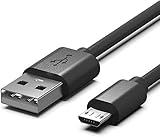
- Compatible for Astro A50,A38,A20,MixAmp Pro TR & MixAmp TXD Gaming Headsets
- Astro A20 GEN2 not suitable, Gen2 use TYPE C, here is the Asin:B08DCYRN7K
- Compact connectors to ensure a solid, high quality connection and fast charging speed between the connected devices
- Supports Hi-Speed USB 2.0 Universal Data Transfer Speed at up to 480 Mbps
- Service: 30-day refund, 3-month warranty and lifetime friendly customer service.
How do you update an older A50 Wireless headset and base station?
For an A50 Wireless Base Station Gen 3 or Gen 4, the documented process is to connect the base station by USB, place the headset on the base station, open ASTRO Command Center, and accept the firmware prompt.
- Identify the generation. Confirm that the product is an A50 Wireless headset with a Base Station Gen 3 or Gen 4. Do not use this procedure automatically for an A50 X.
- Connect the base station. Use the base station’s USB power cable to connect it to the computer. Make sure the base station is in PC mode where the software requires that setting.
- Seat the headset. Place the headset on the base station and confirm that the headset shows as charging.
- Open ASTRO Command Center. Wait for the application to detect both the headset and the base station.
- Accept the update. When ASTRO Command Center displays the firmware prompt, choose Download. Logitech describes the prompt this way: “The ASTRO Command Center will prompt you to update your firmware for both the headset and the Base Station.” Logitech’s A50 Base Station Gen 3 update instructions provide the official workflow.
- Keep the setup intact. Leave the headset seated and keep the USB connection connected until the application reports completion. The reviewed official material does not establish a safe manual-interruption procedure, so do not disconnect the hardware during the update.
- Verify the result. Reopen the application or its device-information screen and confirm that firmware information is reported for the headset and base station.
How do you update a newer A50-family headset?
For newer A50-family hardware, use Logitech G HUB and install only the firmware version that G HUB offers for the device it detects.
Logitech’s release notes published September 16, 2025 list A50 version 1.3.24 and describe the release as improving wireless stability with minor optimizations and bug fixes. That release-note entry is a published reference, not a universal manual-install target for every product sold under the A50 name. Logitech’s G HUB release notes should be checked through the application’s device-specific update flow.
A50 X should be handled separately from the older Base Station Gen 3 and Gen 4 workflow. Logitech’s A50 X support materials document G HUB firmware support, while the older A50 procedure specifically describes ASTRO Command Center. Logitech’s A50 X support page is the appropriate product-specific reference.
Rank #2

- Compatible: Micro USB charging cable compatible with Astro A50, A38, A20 gaming headsets, MixAmp Pro TR, MixAmp TXD (NOTE: Does not fit Astro A20 GEN 2)
- Fast Charging & Data Transfer: The A20 charging cable supports stable 5V/2A fast charging, which is 30% faster than the standard cable included with the product. It features a USB-A to Micro USB connector and supports USB 2.0 high-speed data transfer at up to 480 Mbps. It allows for instant transfer of audio settings and game audio files between the headset and your computer, with no waiting required
- Durable Materials: The A50 charger cord features an aluminum plug with anti-oxidation and scratch-resistant properties, ensuring smooth and seamless plugging and unplugging, as well as a long service life. The connection between the cable and the plug incorporates a reinforced PVC coating with a nylon braided inner layer, providing excellent resistance to bending. It has passed a 20,000-cycle bending test, effectively preventing cable breakage and poor contact
- Multi-Layer Safety Protection: The A50 charging cable features a built-in smart safety chip that continuously monitors current and voltage, effectively preventing overcharging, overcurrent, short circuits, and overheating. This helps preserve the battery life of the Astro A50 headset and ensures stable charging without overheating
- User-Friendly Design: The A20 charging cord is 1.5 meters long and folds easily for storage in a gaming backpack, pocket, or drawer, making it convenient to carry on the go—perfect for esports travel or daily commutes
What is the latest Astro A50 firmware?
There is no single verified firmware number that applies to every Astro A50 generation. Logitech’s reviewed release notes list A50 version 1.3.24 in the September 16, 2025 G HUB release, while the same official material documents multiple A50 X versions, including version 1.2.18 in a 2024 G HUB release.
The safest current answer is therefore device-specific: identify the generation, open the official Logitech application supported for that generation, and use the version offered for the detected hardware. Logitech’s official pages reviewed for this guide do not provide one consolidated firmware matrix covering every A50 generation.
| Published reference | Product label | Version | How to interpret it |
|---|---|---|---|
| G HUB release notes, September 16, 2025 | A50 | 1.3.24 | Published release-note reference; do not assume it applies to every A50-family product |
| G HUB release notes, 2024 | A50 X | 1.2.18 | Historical published reference, not necessarily the current version for every A50 X owner |
Why is your Astro A50 not showing a firmware update?
An A50 may not show an update when the hardware is connected through the wrong path, the headset is not seated and charging, the base station is not in the required PC mode, or the selected application does not support that generation.
Quick wins for a faster PC:
Clear out junk files and repair common Windows errorsFree Scan →Scan for outdated or missing drivers - takes under a minuteDriver Scan →Repair Windows errors before they cause bigger problemsFix Now →Check the connection in this order:
- Confirm whether the headset is an older A50 Wireless Gen 3/Gen 4 setup or an A50 X.
- For older models, connect the base station directly to the computer by USB.
- Place the headset on the base station and verify that it is charging.
- Use PC mode where the ASTRO Command Center documentation requires it.
- Open the matching application: ASTRO Command Center for the documented older A50 workflow, or Logitech G HUB for newer A50-family hardware and A50 X.
- Allow the application time to detect the headset and base station before expecting an update prompt.
These checks address the documented prerequisites, but they do not guarantee recovery from a failed or corrupted update. The reviewed Logitech material does not provide a complete failure-recovery decision tree, a verified forced-flash process, or a safe manual-interruption procedure.
Should you use Logitech’s legacy Firmware Update Tool?
You should not use Logitech’s legacy Firmware Update Tool as a general updater for an A50. Logitech’s official A50 X support page warns that the Firmware Update Tool is no longer supported or maintained, so the supported Logitech application for the detected generation should be preferred.
If the correct USB connection, charging position, PC mode, and application still do not result in detection, contact Logitech support for model-specific assistance. Avoid downloading an unofficial firmware file or forcing firmware intended for another generation.
What should you verify before starting?
Before starting an Astro A50 update, verify the generation, matching software, USB connection, charging state, and uninterrupted power and data connection.
Do these 3 things before closing this tab:
1Repair Windows errors before they cause bigger problems2Fix the driver behind crashes, sound loss and screen glitches3Clear out junk files and repair common Windows errors| Check | Expected state | Why it matters |
|---|---|---|
| Model | A50 Wireless Gen 3/Gen 4 or A50 X clearly identified | The updater depends on the generation |
| Software | ASTRO Command Center for older Base Station models; G HUB for newer A50-family hardware | One updater is not universal |
| Base station | Connected to the computer by USB | The documented older-model workflow uses the USB connection |
| Headset position | Seated on the base station and visibly charging | The application needs the headset connected for the update |
| Mode | PC mode where required | The software documentation identifies PC mode as part of the setup where applicable |
| Update source | Firmware offered by the official Logitech application | Published version numbers are not universal manual-install targets |
Frequently Asked Questions
How do I update my Astro A50 firmware?
For an A50 Wireless headset with Base Station Gen 3 or Gen 4, connect the base station to a computer by USB, place the headset on the base so it is charging, open ASTRO Command Center, and accept the firmware download prompt. A50 X uses Logitech G HUB instead.
Rank #4

- COMPATIBILITY- Designed 5ft length Charging Data Cable Compatible for SteelSeries Arctis 7(2019 Edition),Arctis 7P, Arctis 9 Arctis 9X,Arctis 3,Arctis 1, Arctis Pro High Fidelity Gaming Headsets, Astro A50 A38 A20 Gaming Headsets, MixAmp Pro TR & MixAmp TXD
- Durable cable jacket protects wire cores and resists kinks and tangles,also our compact connector heads slot in easily and steadily, won't get loose or fall out of your devices.
- with this premium cable for full speed charge even with extra-long length. wires which enable our USB cable charges faster than regular USB cables. Supports maximum 2.1 A current and transfer data up to 480 Mbits via USB 2.0
- [Quality assurance]: After 1000+ bending test, the cable is tensile resistant and has a long service life. The stainless steel connector head slot is Solid stable and will not loosen or fall off from the equipment. You can feel free to wave the controller and play without restraint.
- Notification: Ensures long-lasting enjoyment of your purchase. If any question, please feel free to contact us, we will reply you within 24 hours
How do I update the A50 base station?
The A50 base station update is included in the ASTRO Command Center workflow for supported A50 Wireless Gen 3 and Gen 4 systems. ASTRO Command Center should detect the headset and base station and prompt you to update both.
Do I use ASTRO Command Center or Logitech G HUB?
Use the updater that matches the hardware generation. ASTRO Command Center is documented for older A50 Wireless Base Station Gen 3 and Gen 4 models, while Logitech G HUB is the relevant path for newer A50-family products such as A50 X.
What is the latest Astro A50 firmware?
Logitech’s September 16, 2025 G HUB release notes list A50 firmware version 1.3.24, but Logitech does not provide one consolidated version matrix for every A50 generation. Check the version offered by the official application for your detected device.
The Tool Desk
Outbyte Driver Updater FREEFix the driver behind crashes, sound loss and screen glitchesFind Drivers →Outbyte PC Repair FREERepair Windows errors before they cause bigger problemsFix Now →The Bottom Line
The correct Astro A50 update path is generation-dependent. Use ASTRO Command Center for A50 Wireless Base Station Gen 3 and Gen 4, with the base station connected by USB and the headset seated and charging. Use Logitech G HUB for newer A50-family products such as A50 X, and accept only the firmware version offered for the detected device.
Quick Recap
Product prices and availability are accurate as of the date/time indicated and are subject to change. Any price and availability information displayed on Amazon at the time of purchase will apply.




