
PC Slower Than It Used to Be?
A free scan shows the junk files, broken settings and background clutter dragging Windows down - then fixes them in one click.Free scan · Windows 10 & 11Crashes, No Sound, or Screen Glitches?
Random freezes, missing sound and display glitches usually trace back to one bad driver. Find and replace yours safely.Free scan · under a minuteFor a strong Black Ops 6-era Warzone or Multiplayer starting point, use 7/7 stick sensitivity, a 0.80 ADS multiplier, Instant ADS transition, aim assist enabled, and 3/3 minimum deadzones adjusted upward only when drift appears. On PC, prioritize a stable frame rate over visual effects: 100 render resolution, about 90 CAS sharpening, 90 VRAM target, Very Low particles, Low shaders and shadows, no motion blur, and a 110 FOV starting point. For audio, set effects to 100, music to 0, dialogue to 100, select the correct output, and enable Enhanced Earphone Mode with headphones.
These values are a baseline rather than a universal optimum. Your display, controller wear, hearing, and play style determine the final profile. Change one setting at a time and evaluate it over several sessions.
As an Amazon Associate I earn from qualifying purchases.
Use this baseline before personal tuning
The following profile is a practical starting point documented for Black Ops 6-era Call of Duty by ONE Esports on May 19, 2025. Menu names and available options can change with patches, platforms, and game modes, so treat the labels as functional targets rather than a guarantee that every installation shows identical wording.
Recommended Free Tools
| Area | Starting value | Why it is a useful starting point |
|---|---|---|
| Horizontal and vertical sensitivity | 7 / 7 | Quick enough for close fights without beginning at the extreme end of the scale. |
| ADS sensitivity multiplier | 0.80 | Slows fine aiming relative to hip-fire turning, helping steadier tracking. |
| ADS sensitivity transition timing | Instant | Applies the ADS behavior immediately when you aim. |
| Target aim assist and ADS aim assist | On | Uses the game’s intended controller assistance in supported modes. |
| Left- and right-stick minimum deadzone | 3 / 3 | Low initial input delay; increase only as needed to stop drift. |
| Stick maximum deadzone values listed by the guide | Left 65; right 99 | Reference values from the guide, not a command to copy every controller’s calibration. |
| Motion sensor behavior | Off | Avoids accidental gyro input unless you intentionally aim with motion controls. |
| FOV | 110 starting point; practical range 100–120 | Balances peripheral awareness with readable target size on many displays. |
| ADS FOV and weapon FOV | ADS FOV: Affected; weapon FOV: Wide | Keeps the view behavior consistent with the visibility-oriented profile. |
| Motion blur and camera movement | World and weapon blur Off; first-person camera movement 50% (least option) | Reduces visual movement that can obscure targets. |
| Audio mix | Master 100; effects 100; gameplay and cinematic music 0; dialogue 100 | Prioritizes gameplay cues while retaining callouts. |
Start with the complete profile for a few play sessions. If you alter sensitivity, deadzones, FOV, and audio simultaneously, you cannot tell which change helped or hurt.
#1 Best Overall

- Iconic Monkeybomb Design: This officially licensed Call of Duty collectible features the legendary Monkey Bomb character rendered as a detailed 8.5 in tall gaming accessory that expresses your passion for the franchise
- Dual-Purpose Controller Holder: Heavy-duty PVC construction with a sturdy base securely holds gaming controllers, smartphones, and devices without tipping, combining functional organization with display appeal
- Universal Device Compatibility: Grips most gaming controllers including PlayStation 5 DualSense and Xbox Series S/X, plus iPhones, Android phones, TV remotes, and eBook readers for complete desk organization
- Authentic Licensed Collectible: Officially licensed by Activision, this Cable Guys figure delivers genuine Call of Duty authenticity that counterfeit alternatives cannot match for true COD gamers
- Premium Gaming Desk Accessory: Transforms any gaming setup into a professional space while keeping your devices within reach, perfect for streamers, competitive players, and collectors who value quality
Controller settings that matter in gunfights
Choose sensitivity for the fights you actually lose
At 7/7, a stick movement covers more ground than a low sensitivity while remaining easier to control than the highest values. The 0.80 ADS multiplier deliberately creates two speeds: fast hip-fire turns for reacting to a flank and slower ADS movement for keeping a reticle on a distant or strafing target.
If you consistently lose close-range engagements because you cannot turn far enough, raise horizontal and vertical sensitivity in small steps. If you overshoot heads or cannot hold a long-range beam, lower the ADS multiplier before lowering both stick sensitivities. Keep horizontal and vertical values matched initially; separating them is useful only when you have a clear reason, such as needing faster horizontal checks without adding vertical recoil movement.
Set deadzones around the condition of your sticks
A minimum deadzone tells the game to ignore tiny movements around the stick’s center. A value of 3 feels immediate on a healthy controller. The moment your operator or camera moves without touching the stick, raise that stick’s minimum deadzone one step at a time until the drift stops. Do not raise both deadzones automatically: a worn left stick may need correction while the right stick remains accurate.
Free tools Windows power users keep installed
One-click scans. No signup required.
The guide lists left-stick maximum 65 and right-stick maximum 99 as reference values. Maximum-deadzone behavior depends on the game’s calibration and controller, so use the in-game response display if available and avoid changing a maximum merely because the number appears in a recommended profile. Excessive minimum deadzone masks drift but also removes small corrections, which is especially noticeable when tracking at range.
Rank #2

- ✅【Using Tips】These Mobile Game controllers are using the sensitive real mouse micro switch inside. So there are several phones which have the electromagnetic problems. This will cause the triggers touch the screen automatically. Please do not worry about this and you just need to turn off the screen for 10 seconds and turn on the screen again. This issue will solved right away.
- ✅【Perfect Compatibility】These Mobile Game controllers are compatible with iPhone, iPad and most Android Phones, without even remove your case.(The thickness of the compatible mobile phone should be not more than 13mm.) These 6-fingers-operation mobile game controllers are suitable for a variety of shooting games, including PUBG, Call of Duty, Fortnite, Knives Out, Rules of Survival, Survivor Royale, Critical Ops etc. As long as the game allows customizing and draging the keys.
- ✅【Small and Lightweight】The PUBG game triggers are portable and tiny for you to put them into your pocket, and have them for gaming when in office, school, trip, camping and play games anywhere and anytime. With the 6 trigger PUBG mobile controller, you can simultaneously move, turn, aim and shoot by using the index fingers to press the buttons, which can eliminate the trouble that use thumbs only to make all operations.
- ✅【Mechanical Touch】4 triggers PUBG mobile controller designed for longevity with greater durability and responsiveness, more than 2 million click. Fast mechanical keys with medium resistance, precise actuation, audible click sound, and tactile bump feedback. Easy To Use, High Sensitive, Physical Button Feedback. Using this PUBG mobile game controller, you can move, angle adjust, aim and shoot at the same time with the thumbs and index fingers of the left and right hand.
- ✅【Super Gaming Experience】This PUBG game triggers is made of ABS and alloy, durable and ergonomic. 6 trigger PUBG mobile controller electroplated alloy materials, mouse buttons, smooth touch, six-finger linkage, auxiliary pressure grab, one-second burst, dominate the game battlefield, and enjoy the ultimate gaming experience. Call of Duty mobile controller are sensitive to shoot and aim, no Power supply and driver needed, easy to use and high precision, increase your game score!
Keep aim assistance and transition behavior predictable
Leave Target Aim Assist and ADS Aim Assist on for the intended controller experience. Set ADS sensitivity transition timing to Instant so the game does not introduce a delayed transition that can make the first part of a gunfight feel inconsistent.
Motion sensor behavior should remain Off unless you deliberately use gyro aiming. Accidental motion input can look like unexplained reticle drift. If you do use gyro, treat it as a separate control system and build a dedicated profile rather than mixing it into this baseline.
Use a layout you can operate without moving your aim thumb
Keep the default button and stick-layout presets while learning the other settings. After that, change to the layout that matches your controller technique: claw grip, rear paddles, or a remapped scheme. The important test is whether you can jump, crouch, reload, and plate or interact without releasing the right stick during a tracking fight. A remap that is theoretically faster is not an improvement if it causes accidental presses or hand fatigue.
A repeatable controller tuning drill
- Play a practice or low-stakes match using 7/7 and 0.80 ADS for at least one session.
- Test a close-range turn, a medium-range tracking spray, and a long-range micro-adjustment.
- Record the one failure you see most often: inability to turn, overshooting, shaky tracking, or missed fine corrections.
- Change only the setting tied to that failure. Use a small sensitivity change or a one-point deadzone change rather than a complete reset.
- Repeat the same three scenarios on another session before deciding that the change is better.
PC graphics and display settings for readable fights
Build a stable display pipeline first
Match the game’s output resolution to your monitor’s native resolution and select the monitor’s highest supported refresh rate. Use Fullscreen Exclusive when the option is available. Turn V-Sync off for gameplay to avoid adding synchronization delay, then cap gameplay FPS at the display’s refresh rate as a starting point. A cap that your system can hold consistently is more useful than a peak number that collapses during explosions or crowded fights.
Rank #3

- ✅【4 Fingers-Operation】 Just use your index and middle fingers to press the L1R1 triggers, that shooting, aiming, left/ right tilted head, moving, jumping, squatting and and lying operations can be performed at the same time, It will be a breeze to defeat the thumb-hold players, also a massive advantage in close range combat because difference in milliseconds can be life or death. No disconnection, response delay, root request or system incompatibility issues.
- ✅【Ergonomic Grip Controller】People may get hands cramps after playing hours of battle royal games with cellphone. DELAM gamepad is specially designed for mobile shooting games, it extends your phone into a traditional Xbox or PS controller, more comfortable for big hands. Phone body and controller are firmly fixed through three contact points covered of rubber pads to prevent the phone sliding, and won't press your on off button and volume keys, or scratch your phone.
- ✅ 【Wide Range Applicable for 4.7-6.5" iPhones & Android Phones (Max Phone Length: 16.8cm include Phone case) 】 Work for PUBG Mobile/ Call Of Duty Mobile/ Free Fire/ Critical Ops/ Rules of Survival/ Knives Out/ Cross Fire/ Terminator 2 Judgment Day/ Survivor Royale as long as the game allows customize and drag the touch points. Please feel free to contact us at the first time.
- ✅【High Sensitive Finger Sleeves】100% brand new. With copper fiber covered, finger sleeves for gaming ensures your every touch is accurate and effective. More sensitive than silver fiber.
- ✅【Sweat-Absorbent & Breathable】High-quality copper fiber mobile gaming sleeves is lightweight, breathable and has good sweat absorbing ability. They allow you to separate your thumb with the touch screen, fast sweat kick-away and fast dry.
| Graphics option | Starting setting | Adjustment rule |
|---|---|---|
| Render resolution | 100 | Keep native internal resolution before sacrificing clarity for a higher counter. |
| Dynamic resolution | Off | Avoids changing image sharpness during a fight; enable only if maintaining a stable target is otherwise impossible. |
| FidelityFX CAS sharpening | About 90 | Provides a crisp baseline; reduce it if edges look harsh or shimmering becomes distracting. |
| VRAM target | 90 | Lower to 85 or 80 if you experience hitching or texture-streaming instability. |
| Variable-rate shading | On | Can reduce shading work while preserving the main image structure. |
| Frame generation | Off | Prioritizes direct input response rather than generated intermediate frames. |
| Texture resolution | Normal | Retains useful surface detail without spending the entire performance budget on textures. |
| Particle resolution | Very Low | Limits smoke, sparks, and debris that can obscure an opponent. |
| Shader quality | Low | Reduces processing cost and shader-related hitch risk. |
| Screen-space shadows | Low | Keeps basic depth cues while reducing expensive shadow work. |
| Screen-space reflections and ambient occlusion | Off | Removes effects that add visual complexity without guaranteed competitive information. |
Choose FOV with target identification in mind
Set FOV to 110 first, then compare values within the practical 100–120 range. A higher FOV exposes more peripheral space and can make a close opponent easier to notice, but it also makes distant targets appear smaller. On a smaller display or at a long viewing distance, 100–105 may make target identification easier; on a large, close display, 110–120 may provide more useful peripheral context.
Use ADS FOV Affected and Weapon FOV Wide for the visibility-oriented profile. Compare a target at the ranges you normally fight rather than judging FOV only by how impressive the wider view looks.
Remove visual movement that hides information
Turn world motion blur and weapon motion blur Off. Set first-person camera movement to the least available option, 50 percent in the documented profile. These choices do not increase raw hardware performance, but they reduce extra movement layered over an already fast scene.
Quick wins for a faster PC:
Fix the driver behind crashes, sound loss and screen glitchesFind Drivers →Repair Windows errors before they cause bigger problemsFix Now →When to lower quality or change the frame cap
- If the game hitches while turning, lower the VRAM target from 90 to 85, then 80 if necessary.
- If the frame counter is high but aim feels inconsistent, use a cap your system can sustain through heavy effects instead of chasing the maximum peak.
- If opponents blend into a noisy scene, keep render resolution at 100 and reduce particles, reflections, shadows, or occlusion first.
- If the image becomes too soft after performance reductions, restore render resolution before adding cosmetic effects.
Console graphics guidance
Console versions expose fewer independent graphics controls than PC and differ by generation and game mode. Select the highest stable performance mode your display supports, disable motion blur, and apply the controller and audio portions of this profile. Do not assume a television’s advertised refresh rate means the game will hold that frame rate; judge stability during busy fights, not only in a quiet menu.
Rank #4
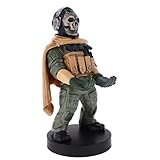
- Officially licensed Call of Duty Ghost figure: Heavy-duty PVC construction with sturdy black base holds gaming controllers, mobile phones, remotes, and more without tipping over during intense gaming sessions
On console, prioritize a mode that remains consistent over one that alternates between a higher peak and frequent drops. Exact resolution, FOV behavior, and available quality toggles vary by console generation and by whether you are playing Warzone or Multiplayer.
Independent reader supportYour contribution helps us test, update, and keep practical guides available for everyone.Audio settings for footsteps and directional cues
Start with a clean competitive mix
| Audio control | Starting value | Purpose |
|---|---|---|
| Master volume | 100 | Preserves the full output range before your device’s own volume control. |
| Effects volume | 100 | Maximizes footsteps, gunfire, equipment, and environmental gameplay cues. |
| Gameplay music | 0 | Removes a layer that can mask quieter movement sounds. |
| Cinematic music | 0 | Prevents non-gameplay music from carrying into the listening profile. |
| Dialogue | 100 | Keeps callouts available; lower it only if repeated lines distract you. |
| Output device | Your actual headphones or speakers | Prevents the game from sending cues to the wrong HDMI, USB, or wireless device. |
| Enhanced Earphone Mode | On when using headphones or earbuds | Activates the game’s headphone-oriented spatial processing. |
Enhanced Earphone Mode is designed for headphones and earbuds and, according to Activision, uses head-related transfer function (HRTF) processing. Activision says it is compatible with any headphone or earbud model, so the setting is not restricted to a particular headset brand.
Understand what HRTF and the game mix are doing
HRTF emulates how the shape of your head and ears alters a sound before it reaches your hearing. Audio engineer William Cornell described HRTF as the gold standard for maximizing directional perception over headphones. Your ear shape, hearing, headset fit, seal, and personal preference still affect the result; a theoretically accurate filter can feel less natural to one player than another.
The Tool Desk
Outbyte Driver Updater FREEScan for outdated or missing drivers - takes under a minuteDriver Scan →Outbyte PC Repair FREERepair Windows errors before they cause bigger problemsFix Now →Collin Ayers, Treyarch’s Lead Audio Designer, described Black Ops 6’s goal as an “adaptive battlefield”: a purposeful, directional soundscape that emphasizes information players need while reducing extraneous noise. The developers also describe Project Acoustics for spatial reverberation and a dynamic priority system that can emphasize imminent enemy movement over less urgent sounds. Those are explanations of the mix design, not controlled evidence that a particular preset raises K/D.
Best Value

- CHARACTER DEVICE HOLDER: Call of Duty Ghost Warzone in Zombie skin! Great for techies and gamers.
- 8.5" COLLECTIBLE FIGURE: Heavy duty PVC statue and sturdy base that holds your stuff without tipping over. 8.5" tall Zombie Ghost figure.
- VERSATILE: Compatible with most types of smartphones and console controllers, including the next-gen PlayStation 5 DualSense, Xbox Series S/X and all iPhones.
- THE PERFECT COMBINATION OF FUNCTIONALITY & DESIGN: Upgrade your gaming experience today and enjoy a clutter-free setup with this innovative accessory.
- OFFICIALLY LICENSED COLLECTIBLE: Your favorite pop culture characters - With A Purpose! A pefect gift for all those Call of Duty fans.
Test the mode instead of assuming it is better
- Put on the headphones or earbuds you actually use in matches and select that device in the game’s audio options and your operating system.
- Enable Enhanced Earphone Mode and listen for a familiar sound from the front, rear, left, and right in a practice environment.
- Repeat with the mode disabled. Keep the setting that gives you the clearest front-versus-back and left-versus-right distinction without discomfort.
- Set your physical volume to a comfortable level. Louder is not automatically more directional and can cause fatigue.
If footsteps remain difficult to place, check channel balance, console or PC spatial-audio layers, headset fit, and background noise before adding another software effect. Stacking multiple virtual-surround processors can smear positional cues.
How to personalize the profile without losing consistency
Use a decision framework
| Problem you observe | First change to try | What not to change first |
|---|---|---|
| You cannot turn onto a close enemy | Raise horizontal sensitivity slightly | Do not immediately raise FOV and sensitivity together. |
| You overshoot while aiming down sights | Lower the ADS multiplier slightly | Do not add a large deadzone that removes micro-adjustments. |
| Your reticle moves while your stick is untouched | Raise that stick’s minimum deadzone one point at a time | Do not raise both stick deadzones by default. |
| Distant targets are hard to identify | Try a lower FOV within 100–120 or restore render resolution | Do not assume the widest FOV is always clearest. |
| Turning produces hitching | Lower VRAM target to 85, then 80 if needed; reduce costly effects | Do not rely on a high peak FPS counter. |
| Footsteps are hard to locate | Verify output device, test Enhanced Earphone Mode, and remove competing audio layers | Do not assume a more expensive headset guarantees an advantage. |
Keep a short settings log
Write down sensitivity, ADS multiplier, deadzones, FOV, FPS cap, and audio mode whenever you change them. Evaluate the profile in three situations: a close-range turn, sustained medium-range tracking, and a long-range correction. Include several sessions because a setting can feel fast or slow simply because the map, weapon, or opponent changed.
What settings cannot fix
Graphics and controller options can improve local responsiveness and readability, but they cannot correct server-side latency, packet loss, or Ranked Play stability problems. Activision’s January 2025 community update documented continuing work on those issues. If opponents appear to skip, shots register late, or the scoreboard shows packet loss, troubleshoot the connection and server conditions separately from your settings.
There is no cited controlled statistic proving that one sensitivity, FOV, graphics preset, or audio mix increases win rate or K/D. Professional players also change settings to suit their hands, displays, and roles. The official Call of Duty League player-settings page is useful for seeing current professional examples, but an individual pro’s values are a comparison point, not proof that those values are best for you.
When updates change the menu
Live-service patches can rename options, move them between tabs, or add platform-specific controls. Recheck your profile after a major update, especially sensitivity, deadzones, FOV, frame-generation behavior, and audio output selection. If a setting disappears, preserve the underlying goal: stable frame pacing, clear target silhouettes, immediate but drift-free sticks, and an uncluttered directional mix.
Quick Recap
Product prices and availability are accurate as of the date/time indicated and are subject to change. Any price and availability information displayed on Amazon at the time of purchase will apply.

