
For most buyers, choose the EZ-FLASH Junior. It loads Game Boy and Game Boy Color software from a FAT32 microSD card, includes a real-time clock, supports firmware and kernel updates, and has a replaceable battery. Choose the Krikzz EverDrive GB X7 instead if save states are the feature you care about most; a 2025 review specifically identifies save-state support as its standout advantage.
Which Game Boy flash cartridge should you buy?
The EZ-FLASH Junior is the more practical recommendation for a broad homebrew and legally owned-backup library. Its published specification covers Game Boy and Game Boy Color loading, instant loading, a real-time clock (RTC), fast reset to the menu, FAT32 microSD cards from 4 GB through 32 GB, upgradable firmware and kernel, a replaceable battery, a maximum game size of 64 Mbit, and a maximum save size of 1 Mbit. It supports the original Game Boy, Game Boy Pocket, Game Boy Color, and Game Boy Advance/SP hardware.
As an Amazon Associate I earn from qualifying purchases.
The EverDrive GB X7 is the premium-feature alternative. The available 2025 review calls out save-state support, making it the better fit when pausing a game at an arbitrary point and returning later matters more than the Junior’s clearly documented SD and maintenance specifications. The review material does not establish a current price, stock position, warranty, power draw, physical-fit measurements, or universal title compatibility for the X7, so check the current authorized listing before ordering.
Crashes, No Sound, or Screen Glitches?
Random freezes, missing sound and display glitches usually trace back to one bad driver. Find and replace yours safely.Free scan · under a minutePC Slower Than It Used to Be?
A free scan shows the junk files, broken settings and background clutter dragging Windows down - then fixes them in one click.Free scan · Windows 10 & 11No flash cartridge is universally perfect. Mapper implementation, save-type handling, RTC behavior, firmware, and the individual game’s hardware can all affect compatibility. Treat the two recommendations as starting points, then verify unusual or clock-dependent titles against the cartridge maker’s current compatibility information.
#1 Best Overall

- [POWERFUL PERFORMANCE] Unlock the full potential of your Gameboy with this multifunctional flash card. Store and play 1000+ classic games effortlessly on a single cartridge. Ideal for retro gaming enthusiasts who want a seamless experience with file management and USB connectivity for easy transfers.
- [HIGH COMPATIBILITY] Works flawlessly with Gameboy, Gameboy Color, and GBA SP consoles. Supports games up to 64Mbit and various MAPPERS including MBC1, MBC2, MBC3, and MBC5. Enjoy broad compatibility with your favorite classic titles without technical hiccups.
- [AUTOMATIC BACKUP] Effortlessly backup your game progress with automatic saving to the built-in 8G memory card. No manual intervention required – your game data remains secure and intact even when switching between different games.
- [USER-FRIENDLY DESIGN] Features customizable A/B functions and one-touch return to menu for enhanced convenience. The energy-saving technology extends battery life, allowing for longer gaming sessions without frequent interruptions.
- [PREMIUM STABILITY] Experience reliable performance with stable data storage that prevents loss or corruption. The durable ABS construction ensures longevity while the transparent purple design adds a stylish touch to your gaming setup.
What a flash cartridge does
A flash cartridge is a programmable cartridge that presents software stored in flash memory or on removable storage to an original console. Instead of swapping individual game cartridges, you place a menu cartridge in the Game Boy and select a homebrew title or a backup made from software you own or are legally entitled to use. The Game Boy runs the selected program through the cartridge’s mapper and save hardware.
Homebrew is the least ambiguous use case: developers distribute their own games, demos, utilities, and test programs for real Game Boy hardware. Backups should be copies of cartridges you own or software for which you have the necessary rights. A flash cartridge does not grant permission to download or distribute commercial ROMs, and this guide does not direct you to unauthorized ROM sources.
The cartridge’s electronics matter as much as its menu. Game Boy software can use different memory-bank controllers (MBCs), battery-backed save arrangements, and, in some titles, a clock. If the flash cartridge does not correctly emulate the mapper or save type, a game can fail to start, display graphical errors, lose progress, or behave differently from an original cartridge.
Free tools Windows power users keep installed
One-click scans. No signup required.
EverDrive GB X7 vs. EZ-FLASH Junior
| Criterion | Krikzz EverDrive GB X7 | EZ-FLASH Junior |
|---|---|---|
| Best fit | Readers who prioritize premium features and save states. | Readers who want documented SD loading, RTC support, updates, and a replaceable battery. |
| Save states | A 2025 review specifically highlights save-state support. | Not stated in the cited EZ-FLASH specification. |
| Game Boy family support | The cited review identifies it as a Game Boy flash cartridge; verify the current authorized listing for the exact hardware range. | Game Boy, Game Boy Pocket, Game Boy Color, and Game Boy Advance/SP; loads Game Boy and Game Boy Color games. |
| Real-time clock | Not stated in the cited review. | Included in the published specification. |
| Storage and loading | The cited review does not establish the current storage medium or capacity; follow the current Krikzz documentation. | FAT32 microSD, 4–32 GB; instant loading and fast reset to the menu. |
| Maximum game size | Not stated in the cited review. | 64 Mbit. |
| Maximum save size | Not stated in the cited review. | 1 Mbit. |
| Firmware path | Check the current Krikzz update instructions for the exact process. | Firmware and kernel are upgradeable. |
| Battery | Battery type and replacement procedure are not stated in the cited review. | Replaceable battery. |
| Current price, stock, and warranty | Not stated in the cited review. | An EZ-FLASH USA listing captured in the available material showed $44.99 and “sold out”; that is a historical snapshot, not a current price or availability guarantee. |
The table separates documented capabilities from information that needs a current product check. Do not infer that an unstated X7 feature is absent, or that a Junior feature guarantees every title will work.
Compatibility with original Game Boy hardware
Original DMG and Game Boy Pocket
The Junior’s published compatibility list includes the original Game Boy and Game Boy Pocket. These systems use the monochrome display and original cartridge slot, so a correctly prepared Junior can serve as a single menu cartridge for compatible GB software. Confirm the physical fit and power requirements of any cartridge revision with the current manufacturer documentation, particularly if you use a nonstandard shell, flash-cart adapter, or a modified console.
Rank #2
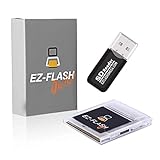
- Complete Package with USB Card Reader: Every GEDTEK order includes a USB Micro SD Card Reader-Writer and unlimited support via email for each customer
- Normal BATT Dry Message: When you first boot up the EZ Flash Junior, you may receive a BATT DRY message pop up. This is normal and will go away after you start using the EZ Flash Junior for just a few minutes
- Built-in Real Time Clock: The EZ Flash Junior features a built-in real time clock for games that require RTC support. Supports Gameboy, Gameboy Pocket, Gameboy Color, Gameboy Advance/SP, even with backlit mods and rechargeable batteries
- Memory Card Compatibility: Supports FAT32 4GB-32GB Micro SD card (Micro SD card is not included). Please make sure to read the included QUICK TIPS guide for details on memory cards and formatting
- Quick Reset Function: Fast reset to menu by squeezing the cartridge. Mapper supports: MBC1, MBC2, MBC3, MBC5, MBC1M, MBC30
Game Boy Color
The Junior specification includes Game Boy Color support and GB/GBC game loading. This is important for color-only homebrew and for commercial games that use Color-specific features. Mapper and save implementation still determine whether an individual title behaves correctly.
Game Boy Advance and Advance SP
EZ-FLASH lists the Game Boy Advance and Advance SP as supported hardware for the Junior cartridge. The cartridge is intended to load Game Boy and Game Boy Color software, not native Game Boy Advance games. A GBA or SP therefore provides another screen and control platform for the supported GB/GBC library, but it does not change the cartridge’s game-format limits.
Why a title can fail even when the console is supported
Compatibility references commonly group EverDrive, EZFLASH, and BennVenn among the established Game Boy flash-cart vendors, while emphasizing that mapper and save implementation determine whether unusual titles work. A game can be listed for the correct console and still need title-specific checking if it uses an uncommon MBC, a special save arrangement, a clock, or hardware behavior that the cartridge does not reproduce exactly.
- Check the game’s mapper and save type before assuming a problem is caused by the console.
- Use the cartridge’s current firmware and kernel; update support exists to correct bugs and add compatibility.
- Test a new title with a throwaway save before investing many hours in it.
- Keep the original cartridge available when a game relies on unusual hardware or timing.
RTC: when the clock matters
An RTC tracks time while the console is switched off. It matters to games whose mechanics change with the date or time, including clock-dependent features in Pokémon Gold, Silver, and Crystal. Without a functioning RTC, daily events, timed growth, and other clock-driven behavior can stop advancing or become incorrect.
The EZ-FLASH Junior specification explicitly includes an RTC. That makes it the safer choice when clock behavior is a purchase requirement. The available X7 review does not establish RTC behavior, so verify the current X7 documentation before buying it specifically for an RTC-dependent title. Even with RTC hardware, the game, firmware, battery condition, and time-setting procedure all affect results.
Rank #3

- Plug and Play! Just drop the games on your MicroSD card and start playing. Supports cheat codes.
- It offers all the features of the EZ Flash Omega and adds new amazing features and functions. Please note If your GBA is modified with an IPS screen that is low quality or an older version of the IPS backlight products, it may draw too much power from the Gameboy Advance and may not detect or allow the EZ Flash to get adequate power Please contact us directly if you are having any issues or need assistance. Most issues can be resolved with some technical support!!
- Rumble function for GBA games and NDS games - Supports the GBA-DS Link Transfer - Supports DS Web Browser, Supports DS RAM Expansion Pack!
- Power Saving Design and quick and Easy Drag And Drop File compatibility. Plug and Play! Supports micro SD cards up to 128GB in size.
- Supports GBC rumble game via embedded Goomba emulator. Fast patch engine and manual patch engine to support modified ROMs, Instant loading Hardware-based direct save to SD card and MUCH MORE!
When testing an RTC title, set the clock using the cartridge’s documented procedure, power the system off for a known interval, then boot and check whether the in-game date advanced. If it did not, update the firmware or kernel, inspect the battery, and consult the maker’s title-specific guidance rather than repeatedly rewriting the save.
What’s actually slowing this PC down?
Pick the symptom - the matching free tool is one click away.
Save files and save states are different
Normal in-game saves
A normal save is created through the game’s own menu or checkpoint system and is written to the cartridge’s save storage. The Junior’s published limit is 1 Mbit for a save. After creating a save, wait for the game’s confirmation, return to the cartridge menu using its documented reset method, and allow any save-management operation to finish before removing power. EZ-FLASH specifically advises users to follow its save-management instructions with a new setup.
Save states
A save state captures the emulator-like execution state at a moment chosen by the player. It is separate from the game’s normal battery save and can be useful for difficult sections, testing, or homebrew development. The EverDrive GB X7 is the option in this comparison with save-state support explicitly highlighted by the 2025 review. The Junior specification supplied here does not state that it offers save states, so do not buy it expecting that feature.
Protecting progress
- Do not switch off the Game Boy while a game indicates that it is saving.
- After a save, return to the menu using the cartridge’s supported reset path and wait for the save operation to complete.
- Keep a backup copy of important save data when the cartridge’s instructions provide a supported method.
- Replace an aging cartridge battery when the manufacturer specifies that replacement is needed; the Junior’s battery is replaceable.
- If one title repeatedly loses progress, test another game and inspect mapper, save-type, firmware, and battery conditions before blaming the console.
Setting up an EZ-FLASH Junior
The Junior’s setup is straightforward, but the exact file names and menu options can change with a kernel release. Use the current EZ-FLASH instructions for the release you install.
- Choose a compatible card. Use a microSD card formatted as FAT32 with a capacity from 4 GB through 32 GB, the range in EZ-FLASH’s specification. If your bundle does not include a card, buy one that can be reliably formatted to FAT32.
- Obtain software legally. Copy your own homebrew builds and backups of cartridges you own or are authorized to use. Keep the original files unmodified until you have confirmed that the cartridge loads them.
- Install the current kernel and firmware. Download the release and follow EZ-FLASH’s current folder and update instructions exactly. Do not mix files from different releases unless the manufacturer says they are compatible.
- Copy the library. Place the approved GB and GBC files on the card in the folder structure recommended by the current kernel. Eject the card cleanly from your computer.
- Insert and boot. With the Game Boy powered off, insert the Junior and the microSD card, then start the console. Confirm that the menu appears and that the expected files are visible.
- Run a low-risk test. Launch a small homebrew title, create a normal in-game save, reset to the menu using the supported fast-reset method, and reload the title. This confirms that loading and saving work before you begin a long playthrough.
- Test clock-dependent software separately. Set the RTC according to the current instructions, power down for a known interval, and verify that the game reports the expected time change.
Keep the microSD card’s contents backed up on a computer. A backup protects your homebrew library and save files from card corruption without relying on a second download.
Recommended Free Tools
Rank #4

- Ultra-High Compatibility — Perfectly supports original Game Boy (GB), Game Boy Color (GBC) titles, and works great on GBP, GBC, GBA SP, Analogue Pocket, FP-GBC, and similar systems
- Massive Storage — Includes a genuine 8GB SanDisk microSD card pre-loaded with extensive GB + GBC game collection; expandable up to 32GB for your own ROMs and homebrew
- Low-Power Design — Second-generation ultra-low power consumption circuit — ideal for backlit Game Boy Pocket, extended battery life on original hardware
- User-Friendly OS — OSV4 operating system with one-key return to menu (no need to power off), intuitive file browser, and quick game loading
- Premium Build — High-quality black ENIG process motherboard, new FPGA chip, onboard bus buffer for stable 5V performance and reliable operation
Setting up an EverDrive GB X7
The available material confirms the X7 as a Game Boy flash cartridge and identifies save states as a headline feature, but it does not provide a current storage capacity, file layout, firmware sequence, battery specification, or button combination. Follow the current Krikzz manual for those details rather than applying Junior instructions to the X7.
- Confirm that the seller is an authorized source and that the cartridge revision matches your console.
- Read the current manual for the required storage medium, directory structure, firmware version, and update procedure.
- Copy only legally obtained homebrew and backups, then eject the storage safely.
- Boot a small test program, create a normal in-game save, and verify that it reloads.
- If you plan to use save states, test one on a nonessential session first; keep normal in-game saves for long-term progress.
Troubleshooting common failures
The menu does not appear
- Power the Game Boy off, reseat the cartridge, and clean the cartridge and console contacts with an appropriate electronics-cleaning method.
- For the Junior, verify that the microSD card is FAT32 and within the 4–32 GB specification.
- Reinstall the current kernel and firmware using the manufacturer’s exact folder structure.
- On an X7, consult the current manual because the required storage and update procedure are not established in the cited review.
A game is missing or crashes
Confirm that the file is for Game Boy or Game Boy Color, that it is not corrupted, and that the cartridge firmware is current. Then check the title’s mapper and save type. An unusual mapper or hardware feature can exceed a cartridge’s implementation even when other games load normally.
Saves disappear
Reproduce the problem with a small test save. Wait for the game’s save confirmation, use the supported reset-to-menu path, and do not remove power during the write. If the Junior still loses saves, inspect its replaceable battery and follow EZ-FLASH’s save-management procedure. Persistent failure in one title points toward mapper or save-type compatibility; failure in every title points toward storage, firmware, battery, or contact problems.
The RTC is wrong
Check the clock-setting procedure, install current firmware and kernel, and test after a known period with the console switched off. A depleted battery can prevent the clock from retaining time. If the game uses unusual clock behavior, consult title-specific compatibility notes.
The Tool Desk
Outbyte PC Repair FREERepair Windows errors before they cause bigger problemsFix Now →Outbyte Driver Updater FREEScan for outdated or missing drivers - takes under a minuteDriver Scan →The cartridge fits poorly or drains power unusually fast
Power draw and physical-fit measurements are not established by the supplied product notes for either model. Stop using a cartridge that requires force, interferes with the shell, or causes abnormal heat, and verify the current revision’s mechanical and electrical specifications with the manufacturer before continuing.
Buying checklist
- Choose the EZ-FLASH Junior when you need documented GB/GBC loading, RTC, FAT32 microSD support, firmware and kernel updates, and a replaceable battery.
- Choose the EverDrive GB X7 when save states are the deciding feature and you can verify the current listing’s compatibility, storage, battery, warranty, and update details.
- Confirm the exact console you will use: DMG, Pocket, Color, Advance, or Advance SP.
- Check mapper, save type, and RTC requirements for games outside the common library.
- Budget for a FAT32 4–32 GB microSD card with the Junior if your bundle does not include one.
- Check current price, stock, warranty, and return terms at purchase time. The recorded $44.99 Junior listing was marked sold out when captured and should not be treated as a live offer.
- Use legal homebrew and backups only, and retain a backup of important saves.
Verdict
The EZ-FLASH Junior is the best all-around recommendation for playing homebrew and owned backups on Game Boy hardware because its supported systems, RTC, SD-card range, update path, save limits, and replaceable battery are clearly documented. The EverDrive GB X7 earns the premium pick for players and developers who specifically want save states. For either cartridge, current firmware and title-specific mapper and save compatibility matter more than a generic claim of universal support.
Quick Recap
Product prices and availability are accurate as of the date/time indicated and are subject to change. Any price and availability information displayed on Amazon at the time of purchase will apply.

