
Windows Errors? Fix Them Before They Spread
Repair common Windows errors and clear accumulated junk for a smoother, more stable PC - no reinstall needed.Free scan · no reinstallCrashes, No Sound, or Screen Glitches?
Random freezes, missing sound and display glitches usually trace back to one bad driver. Find and replace yours safely.Free scan · under a minuteFor the smoothest remote gaming, connect the phone to 5 GHz Wi‑Fi, connect the gaming computer to the router by Ethernet, keep local Steam Link sessions on the same network, match the stream resolution to the phone or host display, and lower bitrate or resolution whenever frames or decoding become unstable. Start at a sustainable 60-fps target, use hardware decoding, stop background traffic, and use a physical controller for action games.
The baseline settings that usually matter most
Remote play has three separate jobs: the host computer renders the game, the network carries the video and controller traffic, and the phone decodes and displays the stream. A weakness in any one of those stages feels like lag. Set up the connection in this order:
As an Amazon Associate I earn from qualifying purchases.
- Phone Wi‑Fi: choose the router’s 5 GHz band rather than 2.4 GHz. Valve describes 5 GHz as preferable to the highly congested 2.4 GHz band.
- Host connection: wire the gaming PC to the router with Ethernet whenever possible. Moonlight recommends a wired server connection and a good 5 GHz connection to the client.
- Network location: for a local Steam Link session, put the phone and host PC on the same network. Valve documents this requirement for Android and Apple clients.
- Resolution: select the phone’s native resolution or the host-display resolution recommended by the streaming app. Avoid adding scaling work that does not improve the image.
- Frame rate: begin with a target the phone and network can sustain, commonly 60 frames per second. If frames are dropped, reduce resolution or bitrate before attempting a higher refresh target.
- Decoder: leave hardware video decoding enabled when the app and phone provide that option. Moonlight notes that newer, faster phones are more likely to stream smoothly because they can use the device’s hardware video system.
- Traffic and power: pause downloads and cloud backups, and remove aggressive battery restrictions from the streaming app. The exact menu names vary by Android and iOS version.
- Controls: pair a supported Bluetooth or USB controller and test every button before starting a demanding game.
These settings are a starting point, not a universal performance guarantee. Router placement, channel congestion, phone hardware, host load and the game itself determine the final result.
Why 5 GHz and Ethernet reduce perceived lag
Use 5 GHz for the phone
Streaming sends a continuous, time-sensitive video stream. A congested 2.4 GHz network can introduce retransmissions and queueing even when a speed test reports an acceptable download rate. Valve’s guidance is explicit: “Choose the 5 GHz WiFi band over the highly congested 2.4 GHz band.” Select the 5 GHz SSID in the phone’s Wi‑Fi settings and keep the phone within reliable range of the access point.
#1 Best Overall

- FULL SIZED CONTROLLER FORM FACTOR — Console performance meets mobile convenience for iPhone* and Android; play for extended periods in complete comfort and control with larger ergonomic handles that feel more natural to hold than standard mobile controllers (*iPhone 15 series and up)
- FULL SIZED TMR THUMBSTICKS — Perfect your aim with high-precision, anti-drift thumbsticks that are superior to Hall Effect designs
- DUAL MOUSE CLICK BACK BUTTONS — Enjoy the same ultra-responsive actuation found in our top gaming mice with 2 back buttons built into the controller’s ergonomic handles
- UNPARALLELED CASE COMPATIBILITY — Fits many popular phone cases thanks to an innovative USB C ‘island’ design and thicker depth clearance than other controllers
- POWERED BY THE RAZER NEXUS GAME LAUNCHER — Launch games, customize controls, record and share gameplay, and keep the controller updated with a free* app that can be brought up at the touch of a dedicated button. (*Razer Nexus does not require a fee/subscription, however some apps within Razer Nexus do)
5 GHz generally has less range than 2.4 GHz. If the signal becomes weak in a distant room, move closer to the router or add a properly positioned access point rather than assuming that a weak 5 GHz signal is better than a strong connection on another band. Do not switch bands repeatedly during play; a roaming event can interrupt the stream.
Wire the gaming PC
When both the PC and phone use Wi‑Fi, the router must handle simultaneous wireless traffic in both directions. Valve warns that wireless traffic between the PC, router and phone can interfere with itself. An Ethernet cable from the gaming PC to the router removes the host’s radio hop and leaves the phone as the primary wireless leg.
Moonlight summarizes the target as a mid- to high-end wireless router, a good 5 GHz client connection, and a good connection from the PC server to the router, with Ethernet or another wired connection highly recommended for the server. This is especially important at higher resolutions or when other devices are streaming video.
Quick wins for a faster PC:
Clear out junk files and repair common Windows errorsFree Scan →Fix the driver behind crashes, sound loss and screen glitchesFind Drivers →Keep local sessions local
Steam Link’s local Android and Apple setup expects the phone and host computer to be on the same network. Guest Wi‑Fi, client-isolation settings and separate VLANs can prevent the devices from discovering each other even when both have internet access. If the app cannot find the computer, check that both devices are on the same home network before changing bitrate settings.
Rank #2
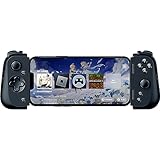
- CONSOLE QUALITY MOBILE GAMING CONTROLS — Designed with cutting edge microswitch buttons, analog triggers, and programmable macros to bring console-quality control to the phone
- UNIVERSAL FIT WITH EXTENDABLE BRIDGE — Features a stable, extendable bridge that provides a secure fit that perfectly holds all modern iPhone models, including the latest iPhone 14 models lightning connectors
- DISCOVER THE BEST GAMES IN ONE PLACE FOR FREE — Browse through thousands of compatible games, record and share gameplay, and keep Kishi updated with an integrated Razer Nexus App that allows full customizability
- STREAM PC AND CONSOLE GAMES — Play full PC, Xbox and PlayStation games directly on the phone, with support for the biggest game streaming apps.
- OPTIMIZED FOR MAXIMUM PERFORMANCE — Utilize iPhone's lightning connection to eliminate input latency, allow for seamless control—and passthrough charging for ultimate iOS compatibility
Resolution, frame rate and bitrate: a stable starting point
Choose the right resolution
Match the stream to the display that will actually show it. Moonlight advises matching stream resolution to the host display, while Steam exposes live resolution and bandwidth controls. On a phone, sending a substantially larger image than the panel can display increases encoding, transmission and decoding work without creating equivalent detail.
Valve’s Steam Link hardware documentation references 720p and 1080p display capability for clients. Treat those figures as capability guidance, not a promise that every phone, router or game will sustain either mode. If a 1080p stream stutters, test 720p before changing several other settings at once.
Set a sustainable frame-rate target
Sixty frames per second is a sensible first target when the phone, host and network can maintain it. A high target increases the number of frames that must be rendered, encoded, transported and decoded. If the performance overlay shows dropped frames or rising decode time, reduce the target or resolution and retest.
Do these 3 things before closing this tab:
1Fix the driver behind crashes, sound loss and screen glitches2Clear out junk files and repair common Windows errors3Scan for outdated or missing drivers - takes under a minuteDo not confuse the phone’s panel refresh rate with the stream’s delivered frame rate. A 120-Hz display cannot create missing stream frames. Conversely, a stable 60-fps stream can feel responsive on a 120-Hz panel if the game and app present frames consistently.
Rank #3

- CONSOLE-QUALITY MOBILE GAMING CONTROLS — Designed with cutting edge microswitch buttons, analog triggers, programmable macros, and the Xbox Button to bring console-quality control to the phone
- UNIVERSAL FIT WITH EXTENDABLE BRIDGE — Features a stable, extendable bridge that perfectly holds all modern iPhone models, providing a secure fit that won’t come loose while gaming
- DISCOVER THE BEST GAMES IN ONE PLACE FOR FREE — Browse through thousands of compatible games, record and share gameplay, and keep Kishi updated with an integrated Razer Nexus App that allows full customizability
- STREAM PC AND XBOX GAMES — Play full PC and Xbox games directly on iPhone, with support for Xbox Cloud Gaming (Beta) and Xbox remote play — stream from the mobile device or play from the cloud (Third-party hardware and services may be required)
- OPTIMIZED FOR MAXIMUM PERFORMANCE — Utilizes the iPhone's lightning connection to eliminate input latency, allowing for responsive, seamless control—and features passthrough charging to power the phone when gaming
Lower bitrate when the image breaks up
Bitrate controls how much data is allocated to each second of video. Higher values can preserve detail in foliage, shadows and fast camera movement, but they also consume more wireless capacity. Use the app’s bandwidth or bitrate control and lower it when the Wi‑Fi is shared or the image begins to stutter. There is no vendor-published universal bitrate guarantee in the official material for Steam Link or Moonlight, so a number that works on one home network is not a safe promise for another.
Change one setting at a time. A practical sequence is to keep the chosen resolution, lower bitrate until the stream stops queueing, then raise it gradually if the connection remains stable. If lowering bitrate does not help, return to the network and decoder checks rather than forcing a still-higher compression setting.
Phone settings that prevent interruptions
Stop competing traffic
Pause app-store updates, cloud-photo uploads, large downloads and video casting while playing. On a shared connection, schedule those tasks for later or use a separate access point. Streaming is sensitive to short bursts of congestion, not only to the average speed shown by a broadband test.
The Tool Desk
Outbyte Driver Updater FREEScan for outdated or missing drivers - takes under a minuteDriver Scan →Outbyte PC Repair FREERepair Windows errors before they cause bigger problemsFix Now →Remove restrictive battery policies
Battery-saving modes can suspend the streaming app, reduce CPU frequency or limit background network activity. Add the app to the phone’s unrestricted or optimized-app exception list if your operating system offers one. Menu names differ by manufacturer and OS version, so look under the app’s battery, power or background-usage settings. Keep the phone charged or connected to power for long sessions, but avoid covering vents or exposing it to excessive heat.
Rank #4

- FULL SIZED CONTROLLER FORM FACTOR — Console performance meets mobile convenience; play for extended periods in complete comfort and control with larger ergonomic handles that feel more natural to hold than standard mobile controllers
- FITS PHONES, IPAD MINI & ANDROID TABLETS UP TO 8" — Game on a phone or go even bigger; get a viewing experience worthy of the best AAA games with an innovative telescopic bridge that fits iPad mini and Android tablets up to 8 inches
- FULL SIZED TMR THUMBSTICKS WITH SWAPPABLE CAPS — Perfect your aim with high-precision, anti-drift thumbsticks that are superior to Hall Effect designs; customize them for more speed or precision with 2 swappable caps
- DUAL MOUSE CLICK BACK BUTTONS & CLAW GRIP BUMPERS — Enjoy the same ultra-responsive actuation found in our top gaming mice with 2 back buttons built into the controller’s ergonomic handles—topped with 2 claw grip bumpers for even more control
- POWERED BY THE RAZER NEXUS GAME LAUNCHER — Launch games, customize controls, record and share gameplay, and keep the controller updated with a free* app that can be brought up at the touch of a dedicated button. (*Razer Nexus does not require a fee/subscription, however some apps within Razer Nexus do)
Use hardware decoding
In Moonlight and other clients that expose a decoder choice, select hardware decoding unless troubleshooting shows a device-specific incompatibility. A modern phone with a capable hardware video block usually handles a continuous stream more efficiently than software decoding. If the picture is delayed while the network statistics remain healthy, decoder load or thermal throttling is a likely suspect.
Keep the screen and radios consistent
Disable automatic network switching features that move the phone between Wi‑Fi and mobile data when Wi‑Fi appears weak. Turn off a VPN temporarily when diagnosing latency, because an extra tunnel can alter routing and packet handling. Re-enable security tools after testing if they are required for your normal setup.
Controller setup for games that need precise input
Touch controls can work for turn-based or menu-heavy games, but action games benefit from a physical controller. Valve lists Xbox One S, DualShock 4 on Android 9 or newer, and Razer Kishi as supported Steam Link input devices for Android. Pair the controller in the phone’s Bluetooth settings, or connect it by USB if the phone and controller support a wired connection.
Recommended Free Tools
- Charge the controller and disconnect it from any other device that may capture the pairing.
- Open the phone’s Bluetooth settings and put the controller into pairing mode.
- Select the controller, then open Steam Link or the remote-play app.
- Use the app’s input-test or controller-layout screen to press every face button, shoulder button, stick and trigger.
- Launch the game only after the layout is correct; some titles require their own controller mode or button mapping.
Microsoft’s Xbox Remote Play requirements include a supported Bluetooth controller. A controller that pairs with the phone may still lack a button, trigger or motion feature expected by a particular game, so test the complete layout before an online match.
Best Value

- Universal Mobile Gaming Controller: Designed to bring console-level control to your phone for gaming anywhere
- Cloud and Mobile Gaming: Compatible with leading cloud gaming services including Xbox Game Pass Ultimate, Stadia, Amazon Luna, GeForce NOW, & Steam Link; & hundreds of popular mobile games including Fortnite, Minecraft, Roblox, Brawlhalla, Asphalt 9: Legends, Black Desert Mobile, emulators, & many more.
- Refine Your Aim and Execution: Clickable analog thumbsticks provide greater accuracy and tactile feedback, and the performance buttons and d-pad deliver precision input
- Latency-Free Gameplay: Unlike Bluetooth controllers which produce lag, the controller has zero latency by directly connecting to the device’s charging port
- USB Type C Charging Port: For pass-through charging of your phone or tablet while using the controller
Steam Link, Moonlight and Xbox Remote Play compared
| Service | Typical host | Network guidance | Resolution and bandwidth controls | Controller information |
|---|---|---|---|---|
| Steam Link | Computer running Steam | Local sessions keep the phone and host PC on the same network; Valve recommends 5 GHz and warns about self-interference from simultaneous wireless traffic. | Steam exposes live resolution and bandwidth controls; Valve documentation references 720p and 1080p client display capability. | Valve lists Xbox One S, DualShock 4 on Android 9 or newer, and Razer Kishi for Android. |
| Moonlight | PC server configured for Moonlight streaming | Mid- to high-end wireless router, good 5 GHz client connection, and Ethernet or another wired connection from the PC server are recommended. | Match stream resolution to the host display; adjust frame rate and bitrate to what the phone and network sustain. | Use a controller supported by the phone and the host game; verify mapping in the client before play. |
| Xbox Remote Play | Xbox console with remote features enabled | Microsoft lists 5 GHz Wi‑Fi or mobile data and a 10 Mbps downstream connection. | Choose settings that the phone and connection can sustain; Microsoft’s stated 10 Mbps figure is a connection requirement, not a guaranteed latency or image-quality result. | A supported Bluetooth controller is required for console games that do not use touch controls. |
The right choice follows the hardware you already own: Steam Link is designed around a computer running Steam, Moonlight around a configured PC streaming host, and Xbox Remote Play around an Xbox console. None of the network figures above guarantees identical latency because the path, radio conditions and device decoding still vary.
Step-by-step setup workflows
Steam Link on a local network
- Connect the gaming PC to the router with Ethernet and connect the phone to the router’s 5 GHz band.
- Confirm the computer is running Steam and that the phone and computer are on the same home network, not isolated guest networks.
- Open Steam Link and complete the pairing code shown by the app on the host computer.
- Run the app’s network or performance test if offered. Establish a stable connection before changing image quality.
- Set the stream to the phone’s native resolution or the host-display resolution recommended by the client, then choose a sustainable frame-rate target.
- Watch the live performance information while moving through a game scene. If stutter appears, lower bandwidth or resolution, then test again.
- Pair the controller and verify all inputs before starting a demanding title.
Moonlight
- Use Ethernet for the PC server where possible and connect the phone to a strong 5 GHz signal.
- Open Moonlight, discover or add the PC server, and complete the on-screen pairing process.
- Match the stream resolution to the host display rather than selecting a larger output solely because the phone has a high-density panel.
- Start with a frame rate the phone can decode consistently. Keep hardware decoding enabled when available.
- Use the overlay or statistics view to distinguish network delay, dropped frames and decode delay.
- Reduce bitrate first when shared Wi‑Fi causes queueing; reduce resolution or frame rate if decode or rendering load remains high.
- Connect and test the physical controller before launching the game.
Xbox Remote Play
- Enable the console’s remote features and confirm the phone is compatible with the Xbox app.
- Connect over 5 GHz Wi‑Fi or mobile data. Microsoft lists a 10 Mbps downstream connection requirement.
- Pair a supported Bluetooth controller with the phone and test the buttons in the app.
- Begin with conservative image-quality settings if the connection is shared, then increase quality only while the stream remains stable.
- If mobile data is used, monitor the carrier’s data allowance and signal changes; a nominal 10 Mbps connection does not remove radio variability.
Diagnose the symptom instead of guessing
| What you see | Most useful first action | Next check |
|---|---|---|
| Blocky image during busy scenes | Lower the app’s bitrate or bandwidth setting. | Pause other downloads and confirm the phone is on 5 GHz. |
| Periodic freezes while average speed looks high | Move closer to the access point and stop competing wireless traffic. | Wire the host PC and check for guest-network isolation. |
| Network statistics look good but video is delayed | Enable hardware decoding and lower resolution or frame rate. | Check phone temperature and remove aggressive battery restrictions. |
| Input feels delayed while video is clear | Test a wired host connection and reduce wireless congestion. | Reconnect the controller and verify that no second device is paired. |
| Steam Link cannot find the computer | Put both devices on the same local network. | Leave guest Wi‑Fi or disable client isolation on the home network. |
| Frames drop after several minutes | Lower the frame-rate target or resolution. | Check for phone or host thermal throttling and background tasks. |
Use the client’s overlay or network test before making changes. Separate network delay from decode delay: changing router settings will not fix a phone that is overheating, and lowering resolution will not repair a congested radio channel.
Mobile data and out-of-home play
Local Steam Link sessions are the simplest case because the phone and host share a network. Playing away from home introduces internet routing, upload capacity at the host location and carrier variability. Xbox Remote Play explicitly allows 5 GHz Wi‑Fi or mobile data and lists 10 Mbps downstream, but that number is a minimum connection requirement rather than a promise of low latency.
On mobile data, start at a lower resolution and bitrate than you would use at home, monitor the signal while moving, and check your data allowance. A speed test taken at one location cannot guarantee the same result on a train, in a crowded venue or after a cell-tower handoff. If the app reports packet loss or repeated reconnects, stabilize the connection before increasing image quality.
A practical tuning order
When a stream is not smooth, change settings in this order so each test answers a specific question:
- Confirm the phone is on 5 GHz and the host PC is wired.
- Stop background downloads, backups and video streams.
- Run the app’s network test or open its performance overlay.
- Set resolution to the phone’s native or host-display target.
- Choose a stable frame-rate target, commonly 60 fps when supported.
- Lower bitrate or bandwidth if congestion or stutter appears.
- Lower resolution or frame rate if decode, rendering or thermal indicators remain high.
- Enable hardware decoding and remove restrictive battery settings.
- Pair and test the controller again after the video connection is stable.
There is no universal bitrate value or latency benchmark established by the official sources for these services. The reliable method is to use the app’s live statistics and keep the lowest setting that delivers the image quality you actually need.
Quick Recap
Product prices and availability are accurate as of the date/time indicated and are subject to change. Any price and availability information displayed on Amazon at the time of purchase will apply.

