
The Tool Desk
Outbyte PC Repair FREEClear out junk files and repair common Windows errorsFree Scan →Outbyte Driver Updater FREEScan for outdated or missing drivers - takes under a minuteDriver Scan →For responsive four-player Smash 64 on PC, start with an accurate emulator running at a stable full-speed frame rate, enable the 8 MB Expansion Pak mode required by Smash Remix, and use wired controllers over direct USB connections. In Mupen64Plus, configure each simulated controller separately and verify every device-to-port assignment before playing. Use the controller plugin that matches your hardware, keep rendering enhancements conservative while troubleshooting, and leave any option that imitates netplay delay disabled for same-machine matches.
There is no authoritative universal millisecond figure for PC input latency. The result varies with the emulator build, renderer, controller and adapter path, operating system, and display, so the reliable method is to remove avoidable buffering and confirm consistent frame pacing on your own system.
As an Amazon Associate I earn from qualifying purchases.
The low-latency baseline
Apply these settings before changing individual options:
Windows Errors? Fix Them Before They Spread
Repair common Windows errors and clear accumulated junk for a smoother, more stable PC - no reinstall needed.Free scan · no reinstallOutdated Drivers Are Slowing You Down
One free scan finds every outdated or missing driver and matches the right update for your exact hardware.Free scan · exact hardware match- Use either Mupen64Plus or Project64, both identified as suitable choices in the Smash Remix download guidance.
- Enable 8 MB Expansion Pak mode. Smash Remix requires this mode.
- Prefer wired controllers connected directly to the computer rather than adding wireless or hub-related variables during setup.
- Select the input path intended for your hardware: Generic USB Input for modern USB devices and unsupported N64-to-USB adapters, Raphnetraw N64 Adapter for compatible N64 hardware, or the GameCube Adapter plugin for a compatible GameCube adapter.
- Set up one simulated controller for each local player and check the device, plugged state, and plugin settings for all four ports.
- Run at stable full speed with even frame pacing. Leave optional visual enhancements off until the baseline is reliable.
- Do not enable a netplay-delay imitation setting for local play. That option exists to reproduce online delay, not to improve a same-machine match.
These choices solve the common causes of avoidable delay without pretending that one renderer or one adapter produces the same result on every PC.
#1 Best Overall
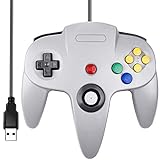
- Plug & Play: Standard USB controller; no drivers needed for compatible devices
- Compatible with Windows PC, macOS, Linux and Raspberry Pi
- Iconic original M-shaped configuration, featuring 10 action buttons, a precision analog Control Stick, and an 8-way D-pad.
- The 3D analog stick provides nuanced control for precise movements and enhanced gameplay comfort.
- Features a 6-foot (1.8 m) cable for comfortable gameplay.
What creates input delay in a local N64 match
The controller path
A button press travels through the controller, its USB or adapter electronics, the operating system, the emulator’s input plugin, the simulated N64 port, and finally the game. Every additional conversion or misconfigured plugin can add variability or prevent the intended device from reaching the correct player. A direct wired connection gives you the simplest path to verify first. Wireless controllers can be usable, but the supplied Smash Remix guidance does not publish a latency measurement for any wireless model, so treat them as a later variable rather than the baseline.
Emulator timing and frame pacing
Smash responds best when the emulator remains at full speed and produces frames at a consistent cadence. A nominal speed indicator can look acceptable while uneven frame delivery still makes controls feel inconsistent. Begin with conservative rendering settings and only add visual features after a stable match has been demonstrated. The Mupen64Plus documentation exposes rendering and frame-skip controls, but the cited material does not certify a universal lowest-lag renderer or a single frame-skip value.
Display and system variation
Latency is not determined by the emulator alone. The emulator build, renderer, controller path, operating system, and display all affect the result. Because the official material does not publish a controlled millisecond benchmark, use repeatable local tests on the actual PC and display instead of treating an internet number as a guarantee.
Choosing between Mupen64Plus and Project64
Both emulators are named as suitable for Smash Remix. The better choice is the one that keeps your four controllers correctly assigned and the game at stable full speed on your machine.
| Comparison point | Mupen64Plus | Project64 |
|---|---|---|
| Suitability in Smash Remix download guidance | Suitable | Suitable |
| Documented four-controller configuration | Separate sections for four simulated controllers, including device, plugged state, and plugin settings | Not stated in the supplied documentation |
| Documented controller paths in the cited material | Generic USB Input, Raphnetraw N64 Adapter, and GameCube Adapter paths are described | Not stated in the supplied documentation |
| Documented netplay architecture | Client/server model with TCP registration and synchronization, UDP input transfer, server buffers, and desync detection | Not stated in the supplied documentation |
| Best reason to choose it | Detailed per-port and input documentation makes verification straightforward | Use it if it is the build that gives your PC stable full speed and a correctly mapped controller setup |
Do not pick an emulator solely because a particular graphics option appears faster in a screenshot. First compare stable frame pacing, input-plugin compatibility, ease of assigning all four ports, and whether you need the documented netplay workflow as well as local play.
Set the emulator up in the right order
1. Start with a clean baseline
- Install a current, accurate build of Mupen64Plus or Project64 that your Smash Remix release supports.
- Launch the game without optional texture, filtering, or other visual enhancements. The goal is to establish consistent timing before adding presentation features.
- Confirm that the emulator reaches and maintains full speed in a practice situation. If speed fluctuates, solve that before evaluating controller latency.
2. Enable the Expansion Pak mode
Open the emulator’s game or memory configuration and select the 8 MB Expansion Pak mode. Smash Remix’s official guidance states that this mode is required. A match that launches without it is not evidence that the required configuration is active; verify the setting explicitly and restart the game if the emulator requires a reload.
3. Keep timing options neutral
Do not use a netplay-delay imitation option for local multiplayer. It intentionally makes a local session feel like an online session and therefore works against the low-latency goal. Likewise, do not use pause, frame advance, or manual speed adjustment during a match. Mupen64Plus documents those controls for the emulator core; they are useful for diagnostics, not play.
Recommended Free Tools
4. Add visual features only after timing is stable
Once a four-player session runs evenly, add one visual change at a time and replay the same test. If frame delivery becomes uneven, remove the last change. The documentation exposes renderer and frame-skip controls but does not identify one renderer as universally fastest, so the correct setting is the conservative one that remains stable on your hardware.
Rank #2

- Use the generic standard USB port, if your program or application accepts USB controller input, it can be used natively without drivers or patches, JUST PLUG AND PLAY!
- Supported Operating system: Windows 98, ME, Vista, 2000, 2003, XP, 7, 8, 8.1, 10; Linux UBUNTU, Linux Mint, Android Linux (via an USB OTG cable); Mac OS X and beyond; Retrogaming operating systems: RetroPie, Recalbox, Happi Game Center, Lakka, ChameleonPi, Piplay.
- Supported Device (With USB storage device): PC, Notebook Computer, Laptop Computer; Android Smartphone: connect via an USB OTG cable; Raspberry Pi (RPI, Raspberry pie): Raspberry Pi 1 Model B, Model A, Raspberry Pi 1 Model B+, Raspberry Pi Zero, Raspberry Pi 2, Raspberry Pi 3 Model B, Raspberry Pi 3, Retro Pie. --- Note: NOT SUPPORT Android TV BOX.
- Supported Game Emulators: Current: Project64, 1964, MAME (MESS), Mupen64Plus, Sixtyforce, CEN64; Historical: Project Unreality, Corn, UltraHLE, Nemu64.
- Super sensitive buttons for precision control. Third party controller, not original Nintendo 64 controller. But it works phenomenal with the Raspberry Pi game emulation and so on. Cord is approx 5.9 ft. Long.
Use the correct controller and adapter path
Wired N64 controllers
For N64 hardware connected through a compatible Raphnet adapter, select the Raphnetraw N64 Adapter plugin described in the Smash Remix setup guidance. Connect the adapter directly, select the corresponding device, and map or verify every button before assigning the next player. Avoid changing adapter drivers or plugin types after you have begun testing unless the current path fails; changing both at once makes the source of a problem difficult to identify.
Other N64-to-USB adapters
The guide directs users with other N64-to-USB adapters to choose Generic USB Input and configure the controls manually. The adapter may expose unfamiliar button names or axes. Map each physical control deliberately, then test the mapping in the same port before moving on. If two players react to one controller, the issue is almost always a device or port assignment that needs to be corrected before remapping individual buttons.
Modern USB controllers
Modern USB controllers use Generic USB Input in the documented setup. Wired models are the preferred starting point because the physical path is easy to inspect and does not add a wireless link. Select the exact device for each player rather than leaving a generic or automatically selected device when several controllers are connected.
GameCube controllers
Use the GameCube Adapter plugin for a compatible GameCube adapter. Confirm that the adapter is detected as the intended device and that each physical controller is mapped to a different simulated port. If the adapter is not supported by that plugin, fall back to the Generic USB Input path and map controls manually as described for other USB adapters.
Configure four local players in Mupen64Plus
Mupen64Plus documents separate configuration sections for four simulated controllers. The important fields are the device assignment, whether the controller is plugged, and the plugin settings. Configure all four, even if you initially plan to test with only two, so that an accidental fifth-device assignment or an unplugged port cannot confuse later testing.
- Open the controller configuration and go to the section for simulated controller 1.
- Select the physical device intended for player 1. Choose the appropriate plugin type: Generic USB Input, Raphnetraw N64 Adapter, or GameCube Adapter.
- Set the port to plugged and map the controls. Save the configuration.
- Repeat the same three actions for simulated controllers 2, 3, and 4, selecting a different physical device for each player.
- With the game at its controller-selection screen, press a distinctive button on each physical controller in turn. Confirm that only the intended player responds.
- If a device is missing, unplugged, or duplicated, stop and correct that port before starting a match. Do not compensate by changing unrelated graphics or speed settings.
This verification matters more than the order in which controllers were connected to the operating system. The emulator’s explicit device assignment is what determines which player receives the input.
Configure Project64 without guessing at latency
Project64 is also listed as suitable for Smash Remix, but the supplied material does not specify its exact controller-menu labels or publish a four-port workflow. Use its controller configuration to achieve the same outcome: one physical device per simulated N64 port, the plugin that matches the hardware, a plugged state for every active port, and a manual button check in the game.
When comparing Project64 with Mupen64Plus on the same computer, hold the controller hardware and display constant. Test a two-player session first, then four players, and watch for uneven frame delivery or a port that responds to the wrong device. If Project64 is stable and correctly mapped, there is no evidence in the supplied sources that changing emulators alone will produce a guaranteed millisecond improvement.
Rank #3

- Use the generic standard USB port, if your program or application accepts USB controller input, it can be used natively without drivers or patches, JUST PLUG AND PLAY!
- Supported Operating system: Windows 98, ME, Vista, 2000, 2003, XP, 7, 8, 8.1, 10; Linux UBUNTU, Linux Mint, Android Linux (via an USB OTG cable); Mac OS X and beyond; Retrogaming operating systems: RetroPie, Recalbox, Happi Game Center, Lakka, ChameleonPi, Piplay.
- Supported Device (With USB storage device): PC, Notebook Computer, Laptop Computer; Android Smartphone: connect via an USB OTG cable; Raspberry Pi (RPI, Raspberry pie): Raspberry Pi 1 Model B, Model A, Raspberry Pi 1 Model B+, Raspberry Pi Zero, Raspberry Pi 2, Raspberry Pi 3 Model B, Raspberry Pi 3, Retro Pie. --- Note: NOT SUPPORT Android TV BOX.
- Supported Game Emulators: Current: Project64, 1964, MAME (MESS), Mupen64Plus, Sixtyforce, CEN64; Historical: Project Unreality, Corn, UltraHLE, Nemu64.
- Super sensitive buttons for precision control. Third party controller, not original Nintendo 64 controller. But it works phenomenal with the Raspberry Pi game emulation and so on. Cord is approx 5.9 ft. Long.
A repeatable local-latency test
Use the same short procedure after every configuration change so that you compare like with like:
- Restart the emulator after changing the Expansion Pak, plugin, or rendering configuration.
- Connect the controllers directly and confirm the operating system sees each one.
- Open a local match with the intended number of players.
- Press a recognizable button on each controller and verify the corresponding port before playing.
- Play a short movement and attack sequence while watching for missed inputs, visible hitching, or a change in frame cadence.
- Repeat with four players. A setup that feels fine with one controller can reveal an incorrect port assignment or unstable timing when all ports are active.
- Change only one variable, such as a visual enhancement or plugin choice, and repeat the test.
Do not use the emulator’s pause, frame-advance, or speed-adjustment controls as part of the match test. They are diagnostic controls and can change the timing you are trying to measure.
Troubleshoot by symptom
| Symptom | First checks | Correction |
|---|---|---|
| Every player feels delayed | Full-speed status, frame pacing, rendering options, and whether netplay-delay imitation is enabled | Return to conservative rendering, remove the delay imitation, and establish stable full speed before testing input again |
| One controller moves another player’s character | Device field and simulated-port assignment | Assign a unique physical device to each port and retest at the controller-selection screen |
| A controller does nothing | Plugged state, selected device, plugin type, and manual mapping | Mark the intended port plugged, select the detected device, choose the matching plugin, and remap controls if necessary |
| N64 adapter buttons are misread | Whether the adapter is using the Raphnetraw path or Generic USB Input as appropriate | Use Raphnetraw for compatible Raphnet hardware; use Generic USB Input and manual mapping for other N64-to-USB adapters |
| GameCube controller is not responding | Adapter compatibility and plugin selection | Use the GameCube Adapter plugin when compatible, or Generic USB Input with manual mapping when it is not |
| Gameplay hitches after a graphics change | Renderer and other optional visual features | Remove the most recent enhancement and retest at the conservative baseline |
| Four players work inconsistently while two players are fine | All four simulated-controller sections, plugged states, and unique device assignments | Configure and verify ports 1 through 4 individually before starting another match |
Local multiplayer is not netplay
Same-machine multiplayer sends all controller input into one emulator instance; it does not require the network buffering model used by Mupen64Plus netplay. Mupen64Plus documents netplay as a client/server system: TCP handles registration and synchronization, UDP carries input data, and the server maintains buffers and detects desynchronization. Those network mechanisms are relevant when players are remote, not when four controllers are plugged into one PC.
Smash Remix’s netplay guidance says the server-list ping value represents connection latency and that lower is better. If an online session desynchronizes, its documented recovery is for the host to use Drop and Start to restart the game. Neither the ping display nor that recovery procedure is a setting for local input response.
Keep a separate profile or written checklist for online play if you use it. In particular, do not carry a netplay-delay imitation setting into local sessions, and do not interpret a low online ping as a measurement of local controller latency.
Four-player pre-match checklist
- 8 MB Expansion Pak mode is enabled.
- The emulator reaches stable full speed with even frame pacing.
- Optional visual enhancements are disabled during baseline testing.
- Each controller is connected through the intended wired or adapter path.
- Every simulated port is marked plugged for an active player.
- Each port has a unique device assignment.
- The plugin matches the hardware: Generic USB Input, Raphnetraw N64 Adapter, or GameCube Adapter.
- Buttons and sticks are mapped and tested in the correct port.
- No netplay-delay imitation setting is enabled.
- No player is using pause, frame advance, or manual speed adjustment during the match.
What you can and cannot conclude about latency
You can conclude that a clean wired path, explicit four-port assignments, required Expansion Pak mode, stable full-speed timing, and conservative rendering remove the main configuration variables documented for Smash Remix and Mupen64Plus. You cannot claim that one emulator, renderer, controller, or adapter has a universally lowest delay from the supplied evidence. No authoritative millisecond benchmark was published, and the result depends on the complete PC-to-display chain.
For that reason, keep the configuration that remains consistent in repeated one-, two-, and four-player tests on your own system. If a change introduces hitching, a wrong-port response, or a missed input, revert that change rather than masking the symptom with a netplay-delay option or an undocumented speed tweak.
Free tools Windows power users keep installed
One-click scans. No signup required.
Quick Recap
Product prices and availability are accurate as of the date/time indicated and are subject to change. Any price and availability information displayed on Amazon at the time of purchase will apply.

