Recommended Free Tools
Usually, no—not directly. A Windows PC generally cannot launch a PlayStation 3 game by simply inserting its disc into a Blu-ray drive. The practical PC method is to create a properly prepared dump of a disc you own and run that game data through RPCS3, the open-source PlayStation 3 emulator.
That process requires more than a USB Blu-ray drive. You may need a currently supported drive, sufficient PC hardware and storage, official PS3 system software, and game-specific troubleshooting. Whether the result works—and how well—depends on the exact title, region, Game ID, dump, and PC.
What “playing a PS3 disc on PC” actually means
There are three different things people mean by this:
- Direct playback: inserting the disc and launching it like a Windows game. This is generally not supported.
- Disc dumping: reading your legally owned disc and creating usable game files or an appropriate disc image.
- Emulation: running those prepared files through RPCS3.
A PS3 game disc is PlayStation 3-format BD-ROM media intended for the PS3 system, not a native Windows application. Sony’s documentation identifies BD-ROM as the relevant format for PS3 software, while RPCS3 requires prepared game data rather than treating the inserted disc as a normal PC game medium. See Sony’s playable-disc documentation and RPCS3’s current guides.
#1 Best Overall

- 【Wide Compatibility—Disc Formats】 This 8-in-1 all-in-one external Blu-ray drive supports reading and burning BD, DVD, and CD discs. Compatible with BD (read support for BD-ROM, BD-R/RE (25GB/50GB), and BD-XL (100GB, read-only); maximum burning support up to 50GB (BD-R DL)), DVD±R/RW (including DL 9.6GB), CD-R/RW, and M-Disc, and supports writing to SD/TF cards. Performance: BD read speed 6x / DVD 8x / CD 24x; write speed BD-R 6x, DVD±R 8x, CD-R 24x. Supports 3D Blu-ray playback. Third-party software ((such as PowerDVD, Leawo, AnyDVD, etc.)) is required to play Blu-ray discs.️⚠️Note: The maximum Blu-ray recording capacity is 50GB (dual-layer); 4K playback is not supported.
- 【 Widely Compatible】 Fully compatible with Windows 11/10/8.1/7/XP/ME/2000 and macOS 10.6 and later. Works seamlessly with laptops, desktops, all-in-one PCs, mini PCs, MacBook Pro/Air, Dell, Lenovo, HP, and other mainstream laptops and desktops, delivering truly hassle-free cross-platform use. Note: Not compatible with TVs, tablets, smartphones, or in-car devices.
- 【8-in-1 Multi-Function Blu-ray Burner + USB Hub】 This External blueray/dvd drive for pc supports burning and reading BD, CD/DVD discs, features 3D playback, and can be used as a USB hub for laptops. Equipped with 2 USB-C ports, 1 USB 3.0 port, 1 USB 2.0 port, and 1 TF/SD card slot, it is compatible with USB wired/wireless mice, keyboards, computer coolers, and other peripherals. Through this card slot, you can quickly transfer photos and videos from camera or phone memory cards to your computer, meeting the need to connect multiple devices simultaneously. This enhances expandability and makes usage more convenient. Note: TF and SD cards cannot be read simultaneously.
- 【Dual-Port All-in-One, High-Speed Reading]】This Bluray burner external has USB-A & USB-C 3.0 for . Even laptops without USB-A can connect via USB-C. Slim and portable, fits in a laptop bag; ideal for home, office, travel. Supports backup, software, media playback, and CD/DVD/Blu-ray for HD. Built-in cable stores in base. Includes USB power cable: if underpowered, connect to PC or 5V/2A adapter (⚠️no data transfer) to improve reading stability. Enjoy your discs anywhere, including Blu-ray.
- 【Ultra-slim and portable, comes with 1 carrying case + 4 CD sleeves】 This Blu ray drive— Lightweight and reliable, ensuring your data stays safe wherever you go Weighing just 300 grams, this external Blu-ray burner features an ultra-slim design (5.5 x 5.5 x 0.35 inches) that fits easily into a backpack or suitcase, making your travels hassle-free. It comes with a portable carrying case and 4 CD sleeves to effectively prevent scratches, avoid cable tangles, and keep your belongings organized and safe.
Why a normal PC Blu-ray drive is not enough
A PC may detect the disc, display its label, or read ordinary files without being able to produce a usable PS3 game dump. PS3 game data can be encrypted or arranged in a format that a simple drag-and-drop file copy does not correctly prepare for emulation.
That means an ordinary Blu-ray movie drive is not automatically suitable. The exact drive model, firmware, operating system, and dumping method can matter. Use the current RPCS3 disc-dumping guidance instead of relying on a permanent list of supposedly compatible drives.
A DVD-only drive will not work for the normal PS3 game-disc route: PS3 game software was distributed on Blu-ray-format media.
The main PC option: RPCS3
RPCS3 is an open-source PlayStation 3 emulator and debugger. It is available for Windows, Linux, macOS, and FreeBSD. It is not an official Sony product, and it does not provide the games themselves.
Do these 3 things before closing this tab:
1Repair Windows errors before they cause bigger problems2Fix the driver behind crashes, sound loss and screen glitches3Clear out junk files and repair common Windows errorsRPCS3 emulates PS3 hardware and software behavior on the host computer. Performance therefore depends on the game, CPU, GPU, drivers, operating system, cooling, and emulator version. A PC that runs one title well may struggle with another.
What you need
- A PC capable of running RPCS3.
- A compatible Blu-ray reader if you are dumping physical discs on the PC.
- The original disc, or game data you are legally entitled to use.
- Enough storage for the dump, updates, and backups.
- RPCS3 from its official website.
- Official PlayStation 3 system software, installed through RPCS3’s firmware function.
- On Windows, the Microsoft Visual C++ 2022 Redistributable listed in RPCS3’s setup guidance.
- Current graphics drivers and a controller supported by Windows and RPCS3.
A modern desktop may run many games well, but there is no universal CPU or GPU guarantee. Laptop power limits and cooling can reduce performance, while integrated graphics are not a safe recommendation for every title. Higher internal resolutions also increase the GPU workload.
How to run a PS3 disc dump through RPCS3
1. Check the exact game before buying hardware
Search the RPCS3 compatibility database for the game’s exact release. Record its region and Game ID, such as a BLUS, BLES, BCUS, or BLJS identifier.
Rank #2
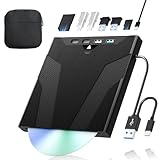
- 【High-Speed 50GB Blu-ray Reading Support】 This external Blu-ray drive supports DVD/CD read & write and 50GB Blu-ray reading only (NO Blu-ray burning). Max speed: 6X BD read, 8X DVD read/write, 24X CD read/write. Self-burned data discs can be opened directly via computer media players. This product No playback software included; recommended tools: VLC, PowerDVD (+AnyDVD HD), Leawo
- 【Slot-Loading Design & 8-in-1 Multi-Port Expansion】 Slot-loading structure realizes automatic disc intake; use the top eject button to take out discs and reduce abrasion. Equipped with SD, TF, USB 3.0, USB 2.0 and dual Type-C ports. Access optical discs while connecting peripherals simultaneously, perfect for creators and photographers. Note: SD & TF cards cannot work at the same time. Easily back up videos, games and install software
- 【USB 3.0 & Type-C + Extra Power Supply】 Built-in USB3.0 & Type-C cable supports up to 5Gbps transfer speed, 6 times faster than USB2.0. An additional USB power cord is included to guarantee stable performance during long-time use
- 【Wide System Compatibility】 Supports 1080P & 3D playback, compatible with laptops, desktops and MacBooks. Works with Windows 11/10/8/7, Mac OS and Linux. Note: not support 4K Blu-ray, phones, tablets, TVs, Chromebooks and projectors. Use "Cyberlink BD&3D Advisor" to verify computer compatibility
- 【Lightweight Portable】 Only around 14.1oz/400g lightweight design. Comes with a storage pouch for the drive and discs for easy carrying. If you're experiencing issues with your external CD drive, please feel free to contact us at any time
Disc and digital releases may have separate entries, and regional versions can behave differently. Check the listed status, known glitches, required updates, recommended patches, controller needs, and network limitations before spending money on a drive or PC upgrade.
The Tool Desk
Outbyte Driver Updater FREEScan for outdated or missing drivers - takes under a minuteDriver Scan →Outbyte PC Repair FREEClear out junk files and repair common Windows errorsFree Scan →2. Install RPCS3 and its prerequisites
Download RPCS3 from rpcs3.net, not from an unofficial emulator mirror. Follow the current operating-system instructions in the official guide. On Windows, the guide identifies the Visual C++ 2022 Redistributable as a prerequisite.
3. Install official PS3 firmware
RPCS3 requires official PlayStation 3 system firmware. Obtain it through Sony’s current PS3 support resources and install it using RPCS3’s documented firmware-installation workflow. Do not assume the emulator includes Sony’s firmware, and avoid unofficial firmware download sites.
Firmware versions and Sony’s support links can change, so consult the current Sony PS3 support page rather than relying on a fixed version number.
4. Dump the disc using a supported method
Use a Blu-ray reader and the current method documented by RPCS3. The supported process may produce a folder-format dump or an ISO-style image, depending on the hardware and procedure.
Outdated Drivers Are Slowing You Down
One free scan finds every outdated or missing driver and matches the right update for your exact hardware.Free scan · exact hardware matchPC Slower Than It Used to Be?
A free scan shows the junk files, broken settings and background clutter dragging Windows down - then fixes them in one click.Free scan · Windows 10 & 11A raw file-manager copy is not necessarily a valid dump. If the resulting data is encrypted, incomplete, or incorrectly structured, RPCS3 may report an unsupported format, invalid EBOOT, or invalid disc directory. RPCS3’s guide is the appropriate authority for current drive and dumping requirements.
5. Add or boot the prepared game data
Use RPCS3’s documented game-management or boot workflow. Preserve the expected PlayStation 3 directory structure and avoid adding an extra layer of folders around the game’s real root directory. Incorrect nesting is a common reason for “invalid disc directory” errors.
Rank #3

- 【Wide Compatibility – Read/Write All Disc Formats】This external blu-ray drives Supports reading and burning BD, DVD, and CD discs. Compatible with: BD-ROM, BD-R/RE (25GB/50GB), BD-R DL (50GB recording), BD-XL (100GB, read-only), DVD±R/RW (including DL 9.6GB), CD-R/RW, and M-Disc. Performance: BD read 6x / DVD 8x / CD 24x; BD-R burn 6x, DVD±R 8x, CD-R 24x. Supports 3D Blu-ray playback (requires third-party software such as PowerDVD or Leawo). ⚠️ Note: This drive does not support 4K Blu-ray playback. The maximum Blu-ray recording capacity is 50GB (dual-layer); BD-XL recording is not supported.
- 【Broad Compatibility】 Perfectly supports Windows 11/10/8.1/7/XP/ME/2000 and macOS 10.6 and above. Suitable for mainstream devices such as laptops, desktops, all-in-ones, mini PCs, MacBook Pro/Air, Dell, Lenovo, and HP.⚠️Not compatible with TVs, tablets, mobile phones, or in-vehicle devices.
- 【Multifunctional 8-in-1: Blu-ray Drive + USB Hub】 This external blu-ray/dvd drive for pc in addition to burning/reading BD/DVD/CDs, it features a built-in 4-port USB hub: 2 USB-C ports, 1 USB 3.0 port, 1 USB 2.0 port, and a TF/SD card slot (supports one at a time). Connect peripherals such as USB mice, keyboards, cooling fans, and USB flash drives, and quickly transfer photos and videos from camera or phone memory cards to your computer.⚠️TF and SD cards cannot be read simultaneously.
- 【Dual Interface, High-Speed Reading】 The Blu-ray burner features a dual-interface cable integrating USB-A and USB-C 3.0, allowing direct connection to computers without a USB-A port via USB-C. Its slim design (5.5 x 5.5 x 0.35 inches) and weight of only 300 grams easily fit into a laptop bag. The built-in data cable can be neatly stored in the dock; a USB-A to DC 5V power cable is included (connecting to a computer or a 5V/2A power supply can improve stability if the optical drive's power supply is insufficient; data transfer is not supported). Enjoy your disc collection anytime, anywhere.
- 【Ultra-Slim Portability + Storage Bundle】 This blu ray drive Weighing as little as 300 grams with an ultra-slim design, this drive comes with a portable carrying case and 4 CD/DVD protective sleeves to effectively prevent scratches and avoid cable tangles. Ideal for home, office, and travel scenarios: data backup, software installation, and multimedia playback (including Blu-ray). Keep your discs and devices organized at all times.
The physical disc is normally not used as RPCS3’s live boot medium. The emulator uses the correctly prepared dump.
6. Install updates or apply game-specific fixes
Some games require an update, patch, or particular configuration. Check the entry for the exact Game ID before changing settings. Do not apply large collections of unofficial “performance hacks” at random; a setting that helps one title can break another.
7. Configure controls and graphics
Choose a keyboard-and-mouse or gamepad handler, then map the controls. A modern Windows-compatible controller is usually simpler than trying to reproduce every original accessory.
Begin with conservative resolution and frame-rate settings. If the game works, increase visual settings gradually. Specialized peripherals—including PlayStation Move hardware, SingStar microphones, 3D displays, and other console accessories—may not have complete or convenient support.
8. Allow for first-run stutter and per-game tuning
The first launch can involve shader or PPU compilation, causing stutter that may lessen later. Compatibility and recommended settings can change with RPCS3 releases, so use the current game-specific documentation instead of treating a static configuration guide as universal.
How reliable is PS3 emulation?
RPCS3 reports compatibility by individual Game ID and media type. Its status labels mean:
What’s actually slowing this PC down?
Pick the symptom - the matching free tool is one click away.
- Playable: The game can be completed with playable performance and without game-breaking glitches.
- Ingame: The game runs, but may have serious glitches, insufficient performance, or may not be finishable.
- Intro: The game reaches an introductory screen or menu but does not progress normally.
- Loadable: The game displays an image but does not properly enter gameplay.
- Nothing: The game does not initialize correctly.
“Playable” does not mean perfect. Minor visual or audio defects, controller issues, inconsistent performance, or online limitations can remain. The status also does not guarantee the same frame rate on every desktop, laptop, or handheld.
Rank #4

- 【High-Definition 3D Blu-ray Experience】 Unlock the power of high-definition entertainment. This drive allows you to read 3D Blu-ray discs and watch movies with stunning clarity on your computer. It is the perfect companion for movie lovers. (Important: Professional 3rd-party Blu-ray player software is required to play BD movies on Windows/Mac and is not included)
- 【Plug and Play & Easy to Use】 Designed for simplicity, this external drive connects via a standard USB cable without the need for complex driver installations. It draws power directly from the computer, offering a stable and reliable connection for your daily tasks. Compatible with most laptops and desktops featuring standard USB ports (Important Note: Blu-ray burners operate at high speeds. For desktop PCs, it is recommended to connect the device to a USB port on the back of the case (i.e., directly to the motherboard). For laptops, it is recommended to connect the power adapter to ensure a stable power supply.)
- 【Versatile2-in-1 Media Solution】 Consolidate your media needs with this all-in-one device. It functions as a powerful Blu-ray CD burner and DVD writer. It supports reading and writing a vast array of formats including BD-R, BD-RE, DVD-R, DVD-RW, CD-R, and CD-RW, making it ideal for data backup and media creation
- 【Wide System Compatibility】 This drive is engineered to work seamlessly with major operating systems, including Windows 10/8.1/7 and Mac OS. Whether you are using a MacBook Air, MacBook Pro, or a Windows PC, it provides instant access to your physical discs. (Note: Not compatible with Chromebooks, TVs, Tablets, or Car systems,Due to different system versions, some Windows 11 installations may have compatibility issues.)
- 【Portable & Durable Design】 Built for life on the go, the slim profile easily fits into travel bags or laptop sleeves. The body features a scratch-resistant matte finish and anti-skid rubber feet, ensuring the drive stays secure on your desk during operation. A smart choice for mobile professionals and students
A compatibility page reviewed in July 2026 showed roughly 69.85% of tracked entries as Playable. That figure is a changing database snapshot—not the percentage of every PS3 game, every release, or every regional disc. Check the current entry for your own Game ID.
Independent reader supportYour contribution helps us test, update, and keep practical guides available for everyone.Common problems and what to check
The PC sees the disc, but RPCS3 does not
Possible causes include:
- The drive reads ordinary Blu-ray media but is not supported for PS3 disc dumping.
- The disc was copied rather than properly dumped.
- The dump is encrypted, incomplete, or corrupted.
- The folder is nested incorrectly.
- The title’s Game ID is not the one you expected.
- The game needs a different installation or boot procedure.
Start by comparing the dump method and folder structure with the RPCS3 guide. Community troubleshooting also documents invalid encrypted dumps and directory errors, but the official guide and current compatibility entry should come first.
The game boots, then crashes
- Confirm the exact Game ID and region.
- Read the current compatibility entry.
- Install any required game update.
- Apply only the listed patches or settings.
- Update the GPU driver and RPCS3.
- Check whether the crash is a known emulator limitation.
The game is marked Playable but runs badly
Compatibility and performance are different measurements. RPCS3’s Playable status concerns completion and major defects, not a universal performance target. CPU behavior, cooling, GPU drivers, resolution, background applications, and laptop power limits can all matter.
Free tools Windows power users keep installed
One-click scans. No signup required.
Will online multiplayer work?
Do not assume it will. Online play may depend on the game’s original servers, PlayStation Network availability, RPCS3 network support, community services such as RPCN, account restrictions, and game-specific compatibility. A title can run offline while its online features no longer work.
Can saves be transferred?
RPCS3’s FAQ says saves can be imported from a real PS3 using the standard USB flash-drive transfer method. Back up the original saves and follow the current save-management instructions carefully.
Legal and preservation considerations
RPCS3 is an emulator, not a game-download service. Use a disc or game data you are legally entitled to use, and do not obtain games or firmware from unauthorized “ROM” or ISO sites.
Copyright, personal-copying, encryption-circumvention, and backup rules differ by country and can depend on the source and purpose. The fact that you own a disc does not automatically resolve every legal question in every jurisdiction. This is general information, not legal advice.
Quick wins for a faster PC:
Clear out junk files and repair common Windows errorsFree Scan →Fix the driver behind crashes, sound loss and screen glitchesFind Drivers →Best Value

- 【Premium External Blu-ray Drive】 Enjoy seamless playback with this Portable Blu-ray Player, supporting BD reading up to 6X, DVD at 8X, and CD at 24X. Effortlessly burn CDs/DVDs with low noise and energy efficiency. (Note: Can read but cannot burn Blu-ray discs)
- 【Plug & Play CD DVD Burner】 This External Blu-ray Drive works instantly for CD/DVD playback and burning—just connect via USB 3.0 or Type-C. (Blu-ray playback requires third-party software like PowerDVD or Leawo)
- 【Ultra-Fast USB 3.0 & Type-C】 Experience rapid 5Gbps transfers with high-speed USB 3.0 and dual USB-A/C connectors. Perfect for laptops and desktops (Not compatible with Chromebook, TV,Tablet, iPad, Truck and Car)
- 【Sleek & Portable Blu-ray Player】 Featuring a brushed texture shell and embedded data cable, this lightweight drive is ideal for travel, work, or home entertainment
- 【Reliable Support Guaranteed】 Need help with setup or Blu-ray playback? Contact us via your Amazon order for quick assistance!
When a PS3 is the better choice
Use an actual PS3 if you want the simplest disc-in-and-play experience, depend on unusual accessories, need the original console’s behavior, or have a game listed as Ingame, Intro, Loadable, or Nothing.
A PS3 can also be the more dependable option for someone who already owns one and does not want to verify drive compatibility, prepare dumps, install firmware, and troubleshoot game-specific settings.
When RPCS3 is worth the effort
RPCS3 makes more sense if you want PC display options, higher-resolution rendering, convenient save management, modern controller integration, or a way to preserve access to a disc-based library while aging console hardware becomes less reliable.
Before buying anything, check the exact game entry and the current disc-dumping guide. If the game has an official PC port or remaster, that may offer easier installation and better modern hardware support—but availability is title-specific.
| Option | Ease | Uses the physical disc directly? | Best for |
|---|---|---|---|
| Actual PS3 | High | Yes | Plug-and-play use and original-console features |
| RPCS3 | Medium to low | No; it requires a prepared dump | PC flexibility, preservation, and enhanced display options |
| Official PC port or remaster | Usually high | No | Modern convenience, where available |
| Streaming or remote play | Medium | Usually no direct PC disc use | Owners who already have a compatible console and service setup |
Bottom line
You generally cannot insert a PS3 game disc into a PC and play it directly. You can often play a properly prepared dump of your own disc through RPCS3, but success depends on a supported Blu-ray drive and dumping method, official PS3 firmware, adequate PC hardware, and the exact game’s compatibility status.
For the least hassle, keep using a PS3. For a PC-based preservation or enhancement project, check the Game ID first, follow RPCS3’s current guide, and expect some game-specific troubleshooting.
Quick Recap
Product prices and availability are accurate as of the date/time indicated and are subject to change. Any price and availability information displayed on Amazon at the time of purchase will apply.



