Yes—if you have the wired HyperX Cloud II, connect its analog 3.5 mm headset plug directly to the ASTRO MixAmp’s front headset port. Leave the Cloud II USB control box out of the chain. Basic audio compatibility is straightforward; microphone chat and game/chat balancing depend on the MixAmp’s platform version and how the PC or console routes audio.
Which Cloud II and MixAmp are compatible?
This applies to the wired Cloud II, not the Cloud II Wireless. The wired model has an analog headset connection as well as an included USB audio control box. HyperX lists the headset for PC, PlayStation, Xbox, Switch and mobile, but that broad platform listing does not certify every third-party mixer or console chat setup. See HyperX’s Cloud II specifications.
ASTRO MixAmp Pro TR units are also platform-specific: Gen 3 and Gen 4 models come in Xbox/PC and PlayStation/PC versions. The 3.5 mm connection makes the wired headset suitable for the MixAmp’s headset input, but it does not make the MixAmp’s USB console features interchangeable. For the Gen 4 connection approach, see ASTRO’s MixAmp Pro TR guide.
| Setup | Game audio | Microphone/chat | Key qualification |
|---|---|---|---|
| Wired Cloud II → MixAmp → PC | Yes | Yes, with correct device routing | Use the analog plug and select the MixAmp endpoints. |
| Wired Cloud II → PlayStation MixAmp → PS4 | Yes | Yes, with the documented USB/optical setup | Follow the PS4-specific audio configuration. |
| Wired Cloud II → PlayStation MixAmp → PS5 | Possible | Depends on connection and routing | Older optical-based workflows may require an HDMI optical adapter. |
| Wired Cloud II → Xbox MixAmp → Xbox | Yes | Intended supported setup | Use the Xbox/PC MixAmp version and Xbox mode. |
| Cloud II Wireless receiver → MixAmp | Not the normal setup | Not established | The wireless receiver is not the wired headset’s analog connection. |
| Cloud II USB control box → MixAmp | Not recommended | Usually bypasses the MixAmp headset input | Use one audio interface, not both in series. |
Why the wired Cloud II works—and why its USB box should be bypassed
The MixAmp accepts a compatible 3.5 mm headset at its front headset port. The wired Cloud II’s analog connection carries its headphone and microphone signals to that port, so the MixAmp can handle the audio path. HyperX specifies a 60-ohm impedance and a detachable microphone for the wired Cloud II; those specifications identify the headset, but do not establish a guaranteed output level for every MixAmp revision.
#1 Best Overall

- [Inline Function] - When hold a button, you can mute the mic and release button to un-mute or activate the mic. This cable has no volume control.
- [Compatibility] - Inline mute cable is specifically designed for MixAmp Pro TR and works well on all A40TR headset. Please note that the Inline Mute button only works with the MixAmp Pro TR and not with previous versions of the MixAmp Pro.
- [Easy to Use] - 2 Meter(6.5ft) length cable compatible with PS4/PC via a 3.5mm jack.5 pole audio jack connect headset and 4 pole audio jack connect audio devices.5 pole audio jack connect headset and 4 pole audio jack connect audio devices.
- [Durable] - The mute line is made of high-quality, durable, and wear-resistant nylon braided rope.
- [What You’ll Get] - 1.[1 Pack] Inline Mute Cable. 2. 30 Days Worry-free Replacement or refund. 3. If there is any question, please feel free to contact us.
The HyperX USB control box is a separate USB audio device, not a passive adapter for the MixAmp. If the headset is connected through that box, the computer or console may see the HyperX device instead of the MixAmp, and the MixAmp may not receive the microphone signal through its analog headset input. The control box’s virtual surround processing can also conflict with MixAmp processing. HyperX describes its virtual 7.1 effect as a two-channel stereo signal for stereo headphones; see the product notes and specifications.
A separate PC splitter is not normally needed between the Cloud II and a MixAmp’s dedicated headset port. A splitter is for a different arrangement, such as a PC with separate headphone and microphone sockets. Avoid adding one unless the cable or port configuration actually requires it.
Connect the headset to the MixAmp
- Use the wired Cloud II and detach or bypass its USB control box.
- Insert the Cloud II’s analog headset plug into the MixAmp’s front headset port.
- Connect the MixAmp to the PC or console using the platform-appropriate USB connection and, where required, optical audio equipment.
- Set the MixAmp to the correct platform mode: PC, PlayStation, or Xbox as applicable to that unit.
- Choose the MixAmp as the playback and microphone device on the platform, then test game audio and voice input separately.
Signal path: wired Cloud II analog plug → MixAmp headset port → MixAmp USB and, for some console workflows, optical or HDMI audio path.
Rank #2
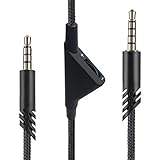
- [Inline Function] - Scroll a wheel button to control the in-line Volume. This cable has no mute mic control and no mic output function.
- [Compatibility] - Inline volume control cable is compatible with Astro A10 gaming headset and work with A40 headset.
- [Easy to Use] - 2 Meter(6.5ft) length cable compatible with PS4/PC via a 3.5mm jack.5 pole audio jack connect headset and 4 pole audio jack connect audio devices.5 pole audio jack connect headset and 4 pole audio jack connect audio devices.
- [Durable ] - The volume control cord is made of high-quality, durable, and wear-resistant nylon braided rope.
- [What You’ll Get] - 1.[1 Pack] Volume Control Cable. 2. 30 Days Worry-free Replacement or refund. 3. If there is any question, please feel free to contact us.
Set up the MixAmp on PC
- Connect the MixAmp to the PC by USB and put it in PC mode.
- Plug the Cloud II’s analog headset connection into the MixAmp front port.
- In Windows sound settings, choose the MixAmp game endpoint—often named “ASTRO MixAmp Pro Game”—for playback.
- Choose the MixAmp voice endpoint—often “ASTRO MixAmp Pro Voice”—as the communications playback and recording device where those endpoints are available.
- In the game’s audio and voice-chat settings, select the MixAmp endpoints or system defaults, then run the game’s microphone test.
- Use the MixAmp’s master volume and game/chat controls to adjust levels.
Names can vary by Windows version, driver state, and MixAmp generation. ASTRO’s setup guide describes separate Game and Voice devices so game audio and communications can be routed independently.
Quick wins for a faster PC:
Fix the driver behind crashes, sound loss and screen glitchesFind Drivers →Clear out junk files and repair common Windows errorsFree Scan →Scan for outdated or missing drivers - takes under a minuteDriver Scan →Set up the MixAmp on PlayStation
PS4
For the PS4 workflow in ASTRO’s Gen 4 guide, connect the MixAmp to the console by USB for chat and device detection, and connect a TOSLINK optical cable from the PS4’s optical output to the MixAmp’s optical input for game audio. Set the MixAmp to PlayStation mode, then select it in the PS4 audio-device settings. ASTRO’s instructions specify setting “Output to Headphones” to chat audio when using optical for game sound and USB for chat. Connect the Cloud II to the MixAmp’s front port. This is a model-specific documented setup, not a universal procedure for every MixAmp or PlayStation configuration.
PS5
PS5 does not provide the same optical-output path as PS4. Logitech’s product information describes the PlayStation MixAmp as designed for PS4 and PC/Mac and notes that PS5 use may require an HDMI adapter; see ASTRO/Logitech’s A40 TR and MixAmp information.
Rank #3

- Competitive Gamers and Livestreamers
- PRO QUALITY AUDIO
- SUPERIOR FIT & FINISH
- Headset into the PS5 controller: the simplest route for basic analog audio and microphone use, without the MixAmp’s controls.
- Older optical-based MixAmp workflow: an HDMI-to-optical extractor or another supported audio-routing method may be needed for game audio alongside USB chat.
- USB-only MixAmp connection: results depend on generation and console configuration; do not assume every Gen 3 or Gen 4 unit provides identical audio and chat behavior this way.
Set up the MixAmp on Xbox
Use the Xbox/PC MixAmp version if you want the MixAmp to provide native Xbox USB chat. Set it to Xbox mode, connect it to the console using the appropriate USB connection, and plug the Cloud II’s analog headset lead into the MixAmp. Then check Xbox headset, chat-mixer, and privacy settings.
HyperX’s Cloud II Q&A describes Xbox use through an auxiliary connection and distinguishes that from the USB control box route; see HyperX’s Cloud II Q&A. Logitech’s product information identifies separate PlayStation and Xbox MixAmp compatibility. A PlayStation MixAmp might pass analog audio in some improvised setups, but that is not a guarantee of native Xbox USB microphone or chat support.
Choose one surround-processing path
Start with plain stereo: turn MixAmp Dolby off and leave HyperX virtual 7.1 off. Then try one processing option at a time—MixAmp Dolby, game-level spatial audio, or HyperX virtual surround through the USB box without the MixAmp—and keep the setting that sounds clearest in the game you play. Stacking virtual-surround effects can make sound seem echoing, colored, or less precise; no mode is universally best.
Rank #4

- Original Astro M80 MixAmp. This product may come in either silver or black color. Please contact ienza right after placing your order to request a specific color.
- This product may come in mass packaging.
- IMPORTANT NOTE: This product does not include the controller.
Update and configure a Gen 3 or Gen 4 MixAmp
- Install Astro Command Center on a supported Windows system.
- Connect the MixAmp by USB and set it to PC mode.
- Check its firmware in the software and install an offered update if appropriate.
- Reconnect it to the intended console and test audio and microphone routing again.
Logitech lists Astro Command Center support for MixAmp Pro TR Gen 3 and Gen 4, and says configuration requires USB connection and PC mode. See the Logitech G Astro Series software page. A firmware update cannot guarantee a fix for every microphone or console issue; hardware revision, cable condition, and platform routing still matter.
Independent reader supportYour contribution helps us test, update, and keep practical guides available for everyone.Troubleshoot by symptom
No game audio
- Remove the HyperX USB control box from the chain and reseat the headset plug.
- Confirm the MixAmp’s platform mode and make it the system playback device.
- Check master volume and mute state.
- For optical setups, confirm the cable goes from the console or extractor output to the MixAmp optical input and that the console sends audio over that path.
- Test stereo with Dolby disabled before changing other settings.
Game audio works, but the microphone does not
- Check that the detachable microphone is fully seated in the Cloud II and the headset plug is fully inserted in the MixAmp.
- Turn off MixAmp microphone mute and select the MixAmp as the recording/input device.
- On console, verify the selected input device and microphone privacy settings; the console may be using another microphone.
- Test the headset directly on a controller or PC. If its microphone fails there too, isolate the headset, mic, or cable first. If it works directly but not through the MixAmp, check platform mode, routing, and firmware.
Chat works, but game/chat balance does not
The balance control can only adjust game and voice signals that arrive on separate MixAmp paths. Check that the platform is routing those sources separately, that the optical or HDMI audio path is present where required, and that the game is not combining voice chat with game audio internally.
Sound is distorted, echoing, or overprocessed
Disable HyperX virtual 7.1, MixAmp Dolby, and game spatial audio, then test plain stereo. Turn on one processing feature at a time. If Windows audio enhancements or an aggressive MixAmp EQ preset are active, disable them while isolating the sound.
Best Value
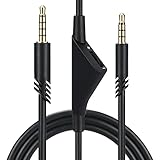
- Compatible With: Replacement aux cable for Astro A10 A40 A40 TR A50 A30 gaming Headphones, Works to Xbox-One, Car stereo, PS4, PC, tablets, laptops ,PC, smartphones and more . Length 2 Meters/ 6.5 FT
- Volume Control : Can make volume control through the volume roller wheel built-in very conveniently, Which can gain a more comfortable gaming experience
- Ultra Quality material: 3.5 mm Golden Plated Aux plug, No-Oxygen copper cord. Works perfectly and sturdy, provide a clear and stable sound transmission with high speed during your gaming and live time
- Easy to operation: There are two different size connectors , 3.5 mm 4 pole and 3.5 mm 5pole.Just plug the 5 pole into the headset and 4 pole to devices, then to play and enjoy
- Just Plug and Play : Enjoy your music time anytime, please don’t hesitate to contact us on Amazon for service if you need help or any questions
Channel imbalance or an unreliable microphone
Reseat the plug and check for a damaged cable, loose or dirty MixAmp port, or an incompatible adapter. Test the Cloud II directly and try another known-good 3.5 mm headset in the MixAmp to isolate which side is failing. Avoid multi-purpose adapters during diagnosis.
When is the MixAmp worth using?
Keep the MixAmp in the setup if you specifically want its physical game/chat balance, EQ or Dolby controls, or desk-side volume adjustment. If you only need basic stereo sound and a microphone, plugging the wired Cloud II directly into a compatible controller or device is simpler and avoids extra cables and platform routing. You do not need an ASTRO headset just to use the MixAmp with an analog headset.
Quick Recap
Product prices and availability are accurate as of the date/time indicated and are subject to change. Any price and availability information displayed on Amazon at the time of purchase will apply.




