Quick wins for a faster PC:
Clear out junk files and repair common Windows errorsFree Scan →Fix the driver behind crashes, sound loss and screen glitchesFind Drivers →Repair Windows errors before they cause bigger problemsFix Now →The PlayStation 3 and PlayStation Portable were designed as a connected home-and-portable system: the PS3 stored and served media, while the PSP accessed selected functions remotely or played copied files from a Memory Stick. Remote Play could expose photos, music, compatible video, media-server content, PlayStation Store pages and some PS1 Classics, but it was never a portable PS3. PS3 game streaming, DVD playback and Blu-ray playback were excluded from the tested workflow.
In 2026, this is primarily a legacy and preservation setup. Local media playback and USB transfers remain the most practical uses; PSP commerce ended on July 2, 2021, and Sony has announced staged PS3 store closures beginning in 2026, with global closure scheduled for July 2027.
What the PS3 and PSP were meant to do together
The PS3 was the home hub. Its hard drive, Blu-ray drive, USB ports, media-server support and PlayStation Network access gave it the storage and connectivity that a PSP lacked. The PSP supplied the portable screen, controls and local storage through Memory Stick media.
There were two fundamentally different ways to use the pair:
#1 Best Overall

- Sony PSP 3000 International Console, Fully Technician Tested.
- Remote access: the PSP controlled a selected portion of the PS3 interface while the media remained on the PS3 or an attached source.
- Copying: compatible music, photos, video, saves and downloads were transferred to the PSP for offline use.
That distinction matters. Remote Play required a functioning PS3, a network connection and compatible content. A copied file did not.
What Remote Play could access
Contemporary testing found that Remote Play could display the PS3’s XMB on the PSP and reach selected categories, including:
- Photos stored on the PS3.
- Music stored on the PS3.
- Compatible video files.
- Some content on USB storage connected to the PS3.
- Content supplied by a compatible media server.
- PlayStation Store navigation and downloads.
- Some original PlayStation games purchased through the store.
Sony’s 2007 example showed the practical idea: connect to the PS3 remotely, open the PlayStation Store and start a download so it could be underway before returning home. See Sony’s instructions at PlayStation Blog and period testing at Practically Networked.
What Remote Play could not do
Remote Play was not general-purpose PS3 streaming. The tested workflow could not:
- Play a PS3 game on the PSP.
- Play a DVD.
- Play a Blu-ray movie.
- Expose every PS3 application or media type.
- Guarantee a usable connection across the public internet.
Even video that appeared on the PS3 was not automatically streamable. File format, resolution, DRM, service restrictions and content type determined whether the PSP could display it.
Rank #2

- Sony PSP 3000 International Console, Fully Technician Tested.
How the original local setup worked
The following is the historical pairing procedure. Menu names and behavior can differ by PSP model, PS3 revision, region and installed software; the period sources cite PS3 system software 2.10 and PSP software 3.80 as minimums for that era, not as current universal requirements.
- Update both systems with compatible period software.
- Connect the PSP to the PS3 with a USB data cable.
- On the PSP, open Settings > USB Connection.
- On the PS3, open Settings > Remote Play Settings > Register Device.
- Wait for the PS3 to confirm registration.
- Disconnect the cable and exit USB mode on the PSP.
- On the PS3, open Network > Remote Play.
- On the PSP, open Network > Remote Play.
- Choose the private-network option.
- Select the PS3’s advertised connection rather than the household router when following the direct-link workflow.
- Wait for the PS3’s XMB to appear.
For a PSP that does not appear, leave USB mode, re-enter Remote Play on the PS3, register the device again and test the private connection before attempting internet access.
Private network versus internet Remote Play
| Feature | Private network | Internet |
|---|---|---|
| Initial pairing | Required | Required |
| Main connection | Direct PS3-to-PSP link in the historical procedure | PSP connects through Wi-Fi at the remote location |
| Account requirement | Not necessarily central to the local path | Sony’s procedure required the same PlayStation Network account on both systems |
| Reliability | Generally more predictable at home | Depends on NAT, router behavior, latency, bandwidth and legacy services |
| Best use | Nearby rooms or a home media library | Occasional remote access, if the connection still works |
The period-specific direct link was useful because it avoided requiring a household router to accommodate the PSP’s older 802.11b wireless behavior. Signal distance between the PSP and PS3, rather than distance to the normal router, was the relevant path in that arrangement. This is historical networking behavior, not a guarantee for every hardware revision.
Internet Remote Play required a configured remote Wi-Fi connection, the PSP’s Connect via Internet choice and sign-in with the PSN account associated with the PS3. It was not cloud streaming: the PS3 had to be awake or successfully awakened, home upload bandwidth had to be sufficient, and latency and wireless stability affected the session.
Remote Start was convenient, not dependable
Remote Start was intended to wake the PS3 so it could be reached without leaving the console in Remote Play mode. A contemporary test succeeded only intermittently, roughly one attempt in five for that tester; this is a single historical observation, not a universal failure rate.
Rank #3
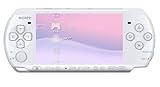
- This Certified Refurbished product is manufacturer refurbished, shows limited or no wear, and includes a 90-day warranty
- Play any of more than 360 games anytime, anywhere on the dazzling, 4.3” widescreen LCD
- Take your entertainment with you on the go by placing your downloaded videos on Memory Stick Duo
- Listen to music, watch movies, check the Internet, watch live and recorded TV, and jam to Internet Radio
Test it locally before relying on it. Router NAT behavior, standby settings, firmware and network changes could all interfere. The more predictable historical workaround was to leave the PS3 already in Remote Play mode, accepting extra power use and the risk that another person at home would need the console.
One PS3 user at a time
Remote Play occupied the PS3 rather than running as an independent background service. Someone using the television or console would see a Remote Play status message and could exit the mode locally. If that happens, the PS3 must be placed back into Remote Play before the PSP reconnects.
Copying media for offline playback
Streaming was not always the best travel solution. The PS3 could recognize a connected PSP as a media device, and period reports described browsing media from the PSP, USB storage and correctly structured folders. For reliable offline use:
- Encode video to a profile supported by the exact PSP model and firmware.
- Place files in the expected PSP media folders and use conventional filenames.
- Test one short, unprotected file before converting a large collection.
- Keep the original because conversion can reduce quality.
- Try local copying when a file appears on the PS3 but not through Remote Play.
- Use an information or options command on the PS3 to inspect media when it does not appear.
There is no single safe format table for every PSP revision, encoding profile and PS3 software version. An unprotected test file helps distinguish a compatibility problem from DRM.
PS1 games, saves and digital purchases
The ecosystem’s strongest gaming link was PS1 content rather than PS3 game streaming. PS1 Classics could be playable on PSP and, in some cases, PS3, while saves and activation or transfer rules depended on the title and account. A 2006-era report described buying PS1 games, connecting the PSP and moving between PS3 and PSP use; it did not establish that every purchase could be copied freely.
Rank #4

- Sony PSP 3000 International Console, Fully Technician Tested.
PSP commerce functionality was retired on July 2, 2021. Sony said previously purchased PSP content remained downloadable through the device’s Download List, but that is different from a functioning storefront. Sony’s notice is at this PlayStation Blog announcement; its legacy-service guidance is at PlayStation Support.
Recommended Free Tools
As of August 18, 2026, the PS3 store is also in a transition period. Sony announced selected-market closures beginning in 2026 and a global PS3 store closure scheduled for July 2027. Previously purchased content is expected to remain downloadable for the foreseeable future, but that wording is not a permanent guarantee. Details are in Sony’s announcement at PlayStation Blog.
Independent reader supportYour contribution helps us test, update, and keep practical guides available for everyone.Other services were part of the original pitch
Sony’s connected-media vision also included downloadable films, television, comics and music-video services. In 2009, Sony announced a PSP Digital Reader and Digital Comics service for territories including the United States, United Kingdom, Ireland, Australia, New Zealand and South Africa. Those announcements describe period availability, not services readers should assume can be joined today; see the contemporary report at Engadget.
What still makes sense in 2026
Existing hardware can still form a useful local media setup if the PS3, PSP, battery, charger, Wi-Fi and storage are healthy. The most defensible uses are:
- Playing copied music, photos and compatible video offline.
- Using a PS3 as a home source for occasional local Remote Play.
- Playing already-owned PS1 content and managing saves where the account and hardware still permit it.
- Preserving a historical Sony setup rather than building a new commercial media platform.
Do not buy the pair expecting a supported modern streaming box, reliable remote access across arbitrary public networks or a storefront for new PSP purchases. Sony’s current Remote Play documentation focuses on PS4 and PS5 systems and newer client devices, not PS3-to-PSP use: PlayStation Support.
What’s actually slowing this PC down?
Pick the symptom - the matching free tool is one click away.
Who should recreate the setup?
Good candidates
- Retro enthusiasts who already own both systems.
- Preservation projects documenting Sony’s early connected-device strategy.
- Readers who value PS1 Classics, save portability or a period-authentic media workflow.
Poor candidates
- Anyone seeking modern streaming services.
- Anyone expecting PS3 games on a PSP.
- Anyone buying specifically for new digital purchases in 2026.
- Anyone who needs dependable remote access rather than an experiment with legacy networking.
Buying and repair checks for used hardware
PlayStation 3
- Confirm regional power compatibility and working Wi-Fi and Bluetooth.
- Check hard-drive health, fan noise, overheating history and disc-drive operation.
- Verify that account sign-in and previously purchased downloads are possible before treating the console as a digital library.
- Check the exact model if PS2 backward compatibility matters.
PSP
- Inspect the screen, analog nub, buttons, UMD drive, USB port and Wi-Fi.
- Check for battery swelling or a battery that no longer holds charge.
- Confirm the correct charger and Memory Stick format.
- Remember that PSP Go is download-only for physical UMD purposes, while other models may accept UMDs.
Accessories and storage
- Use a data-capable Mini-USB cable for registration and transfers.
- Buy an exact-model-compatible charger and replacement battery.
- Test Memory Stick capacity and data integrity; avoid suspiciously cheap media.
- Do not use a swollen lithium-ion battery.
Troubleshooting branches
The PSP cannot see the PS3
- Exit USB mode on the PSP.
- Put the PS3 back into Network > Remote Play.
- Register the PSP again.
- Test the private-network option before internet Remote Play.
- Recreate the PSP’s wireless profile if it contains stale settings.
Internet Remote Play fails
- Prove that local Remote Play works first.
- Confirm that the PS3 is awake and in Remote Play mode.
- Check the PSP’s remote Wi-Fi connection.
- Use the same PSN account on both systems.
- Treat Remote Start as optional, not essential.
Media works on the PS3 but not the PSP
- Test an unprotected file.
- Re-encode video for the specific PSP.
- Check folder placement and filename conventions.
- Copy the file locally instead of streaming it.
A purchased PSP item is missing
- Sign in with the account that bought it.
- Check the account’s Download List rather than looking for the old PSP store.
- Confirm that the item supports the target PSP and available Memory Stick.
- Do not assume an item is lost solely because it is no longer sold.
The historical verdict
PS3-plus-PSP was an early version of a now-familiar idea: a powerful home device feeding a portable client. It worked best as selective media access, offline file transfer and PS1 integration—not as wireless PS3 gaming. In 2026, the hardware can still be rewarding for owners and preservationists, but the storefront and online infrastructure that made the original promise compelling are steadily disappearing.
Quick Recap
Product prices and availability are accurate as of the date/time indicated and are subject to change. Any price and availability information displayed on Amazon at the time of purchase will apply.




