Start with this diagnostic checklist
Quick wins for a faster PC:
Clear out junk files and repair common Windows errorsFree Scan →Scan for outdated or missing drivers - takes under a minuteDriver Scan →Repair Windows errors before they cause bigger problemsFix Now →Before changing Windows files, identify the application that is requesting cudart32_41_22.dll.
- Which program fails: Note the game or application name shown in the error, launcher, shortcut, or Task Manager.
- When it fails: Check whether the message appears at launch, after an update, following antivirus activity, or after reinstalling Windows.
- Application architecture: Older games using this file are commonly 32-bit. A 32-bit game needs 32-bit runtime files even on 64-bit Windows.
- Exact message: Record whether Windows says the file is missing, cannot be found, or could not be loaded.
- Installation source: Note whether the game came from Steam, Epic Games Store, another launcher, a disc, or a standalone installer.
cudart32_41_22.dll is a real, obsolete 32-bit NVIDIA CUDA runtime library commonly distributed with older NVIDIA PhysX 2.x games. It is not a Windows system component, and the safest fix is to repair the game or reinstall the legacy PhysX package that supplied it.
As an Amazon Associate I earn from qualifying purchases.
Fix 1: Verify or repair the game files
This is the quickest and most likely fix when the game was installed through a launcher. Verification can restore a deleted or damaged PhysX runtime without replacing unrelated Windows files.
Steam
- Open Steam.
- Select Library.
- Right-click the affected game and choose Properties.
- Select Installed Files.
- Click Verify integrity of game files.
- Wait for Steam to complete the scan.
- Start the game again from Steam.
If Steam reports that files were reacquired, launch the game after the download finishes. If the same error returns, open the game’s installation folder and look for a bundled installer under a folder named Redist, Redistributable, Support, or PhysX.
#1 Best Overall

- 【4GB VRAM for Smooth Multitasking】: Equipped with 4GB DDR3 memory and a 128-bit bus width, this GT 740 provides a significant performance boost over standard 2GB models. It ensures smooth 1080P video playback and lag-free performance for office multitasking and basic graphic design.
- 【Triple Display Versatility (HDMI+DVI+VGA)】: Features a comprehensive output interface including HDMI, DVI, and VGA ports. Connect to modern monitors or legacy projectors without needing expensive adapters. Ideal for setting up a dual-monitor workstation to increase productivity.
- 【The Perfect Legacy PC Upgrade】: An excellent, cost-effective solution for reviving older desktop PCs. This card supports DirectX 12 (11_0) and is fully compatible with Windows 11/10/7, making it the go-to choice for upgrading from integrated graphics to a dedicated GPU.
- 【Low Power & Plug-and-Play】: Designed for high efficiency, this graphics card draws all its power directly from the PCIe slot with no external power connector required. It is compatible with standard power supplies, making installation quick and hassle-free.
- 【Quiet & Reliable Cooling System】: Built with an optimized heatsink and a low-noise cooling fan that maintains stable temperatures even during extended use. Perfect for building a Quiet Office PC or a dedicated HTPC for the living room.
Epic Games Store
- Open the Epic Games Launcher.
- Select Library.
- Find the game and click the three dots beside it.
- Choose Manage.
- Select Verify.
- Wait for the process to finish, then start the game.
If verification does not find a problem, the game may have a separate PhysX installer that was never run. Continue with the official package step below.
Other launchers or disc installations
Use the launcher’s Repair, Verify, or Scan and repair command. For a disc or standalone installer, run the original setup program again and choose Repair if that option is offered.
Do not delete save files before reinstalling. Back them up first if the game stores them in its installation directory or under your user profile.
The Tool Desk
Outbyte Driver Updater FREEScan for outdated or missing drivers - takes under a minuteDriver Scan →Outbyte PC Repair FREEClear out junk files and repair common Windows errorsFree Scan →Fix 2: Reinstall the bundled PhysX runtime
Many older games include their own PhysX installer. This is preferable to copying an individual DLL because it restores the expected group of files and the correct runtime version.
- Open the game’s installation folder.
- Look for directories named
Redist,Support,_CommonRedist,Installers, orPhysX. - Search inside those folders for an installer with
PhysXin its name. - Right-click the installer and select Run as administrator.
- Follow the setup wizard.
- Restart Windows if the installer requests it.
- Launch the game using its normal shortcut or launcher.
If the installer offers to repair or remove PhysX, choose Repair first. If repair is unavailable, uninstall only the PhysX component through Settings > Apps > Installed apps, restart, and run the bundled installer again.
This approach is especially relevant to older PhysX titles such as Borderlands, Alice: Madness Returns, Unreal Tournament III, Trine, and Metro 2033. The exact game directory varies, so do not assume that cudart32_41_22.dll belongs in a Windows folder.
Fix 3: Install the appropriate official NVIDIA PhysX package
If the game has no usable bundled installer, obtain the legacy PhysX System Software package from NVIDIA’s official driver pages. The PhysX System Software release associated with this runtime supports older PhysX SDK versions and was designed to help older games launch.
Free tools Windows power users keep installed
One-click scans. No signup required.
For games from around 2007 and earlier, use NVIDIA’s PhysX Legacy System Software package instead. Some early AGEIA and PhysX titles require the older behavior provided by that package.
Rank #2

- 🎮【New RNDA architecturearchitecture and Superior Gaminig Experience】 This RX 5500XT 8G Adopting a new RNDA architecture, which brings highly realistic gaming experience. RX 5500XT helps users to pursue the extreme picture and immersive fast game world.
- 🖥【Multiple Interfaces and High Defination】The 5500XT graphic card included 3X DisplayPort 1.4a. +1X HDMI 2.0b. RX 5500XT is connected to the rest of the system using a PCI-Express 3.0 x16 interface which has higher resolution,show more character action details and clearer image quality, delivers more higher definition pc gaming effect and experience.
- 🔌【Low Consumption and Independently Powered】Being a dual-slot card, the RX 5500XT draws power from 1x 8-pin power connector, with power draw rated at 130 W maximum.If you have any questions about the product, please contact seller support.
- 🔇【low noise and Durable】This rx 5500XT 8g pc gaming video card has semi-automatic intelligent fans system, which can automatically sense the GPU temperature. When the GPU temperature is low or under low load, the fans will automatically stop running, providing a comfortable office experience with zero noise and extended service life of this 8g graphic cards.
- 🆒【Outstanding Heat Dissipation】Composite heat pipes of this RX 5500XT can directly and greatly contact the GPU core in order to quickly export the core heat, avoiding the problems such as GPU full load frequency reduction and improving the stability and life of long-term use.
- Download the PhysX package from NVIDIA’s official website.
- Close the game and its launcher.
- Right-click the downloaded installer and select Run as administrator.
- Accept the license terms.
- Choose the normal installation option unless you have a specific reason to change it.
- Complete the installation.
- Restart Windows.
- Test the affected game.
NVIDIA’s archived package pages officially list older Windows releases, including Windows XP, Vista, and 7. The installer may work on Windows 10 or Windows 11, but current-version compatibility is not guaranteed. If the installation refuses to run, right-click it, select Properties > Compatibility, choose an older Windows mode, and try again.
Do not install the newest CUDA Toolkit simply because the filename contains cudart. CUDA Toolkit 4.1 is an archived developer package, while a game usually needs the specific legacy runtime it was shipped with. A modern graphics-driver installation also does not necessarily restore an old game’s bundled PhysX files.
Fix 4: Check whether antivirus quarantined the file
Windows Security or another antivirus product may have removed a legitimate runtime after a game update or installation.
What’s actually slowing this PC down?
Pick the symptom - the matching free tool is one click away.
- Open Start and search for Windows Security.
- Select Virus & threat protection.
- Choose Protection history.
- Review recent detections.
- Open any entry associated with the affected game or PhysX.
- Confirm that the original path belongs to the game installation or a trusted NVIDIA installer.
- Restore or allow the file only when its source is trusted and the detection is not supported by other evidence.
- Run a scan after restoring it.
- Verify the game files again.
If the file came from an arbitrary download, do not restore it. Remove it and reinstall the game or official PhysX package instead. A clean reinstall gives you a better provenance trail than manually allowing an unknown DLL.
Fix 5: Check the 32-bit architecture
The 32 in cudart32_41_22.dll indicates the 32-bit runtime family. On 64-bit Windows, an older 32-bit game still requires 32-bit dependencies.
To check the game executable:
- Open the game’s installation folder.
- Right-click the main
.exefile. - Select Properties.
- Open the Details tab and note the product information.
- If the game includes documentation or a launcher setting identifying Win32 or x86, use that information.
- Check for separate
Win32,x86, orBinariesfolders.
Do not rename cudart64_41_22.dll, another CUDA DLL, or a different PhysX version to cudart32_41_22.dll. Matching the filename does not establish compatible functions or application binary interface behavior. The game may launch and then crash, display incorrect physics, or fail with a different loader error.
On 64-bit Windows, System32 is normally used for 64-bit Windows system components, while SysWOW64 contains 32-bit Windows components. Neither folder is the normal destination for this third-party game runtime. If a particular game’s official installer places the DLL beside its executable, let that installer do it.
Windows Errors? Fix Them Before They Spread
Repair common Windows errors and clear accumulated junk for a smoother, more stable PC - no reinstall needed.Free scan · no reinstallOutdated Drivers Are Slowing You Down
One free scan finds every outdated or missing driver and matches the right update for your exact hardware.Free scan · exact hardware matchFix 6: Update or reinstall graphics drivers
A driver problem can affect PhysX-dependent games, although installing a current graphics driver is not guaranteed to restore this obsolete DLL.
Rank #3

- The MAXSUN GeForce RTX 3050 is built with the powerful graphics performance of the NV Ampere architecture. Get a performance boost with NV DLSS (Deep Learning Super Sampling). AI-specialized Tensor Cores on GeForce RTX GPUs give your games a speed boost with uncompromised image quality.
- Integrated with 6GB GDDR6 14000MHz 96-bit memory interface
- 1042MHz gpu core clock and 1470MHz boost clock speeds to help meet the needs of demanding games.
- PCI-E X8 4.0 with HDMI 2.1, DP1.4a,full digital I/O interfaces, support 8K resolution output, multi monitors to enjoy wider audio and video entertainment.
- Slim Low profile desgin (6.65*2.71inch/16.9*6.9cm) perfect in Mini Small Form Factor SFF computer pc cases & easy to build a powerful small ITX AI PC
Through Device Manager
- Right-click Start.
- Select Device Manager.
- Expand Display adapters.
- Right-click the NVIDIA adapter.
- Select Update driver.
- Choose Search automatically for drivers.
- Restart Windows if a driver is installed.
For a clean reinstall, download the current driver from NVIDIA’s official website, run the installer, choose Custom installation, and select Perform a clean installation if available. Test the game after restarting.
Manually hunting through driver versions can be tedious, especially when Windows reports that a driver is current but the vendor package is not. Outbyte Driver Updater can scan for outdated drivers and show what needs attention; its free scan identifies the issue, while driver installation requires the full version. Reinstalling the game’s required PhysX runtime remains the definitive fix for this specific missing DLL.
Fix 7: Repair Windows components only if other system files are failing
Windows repair commands will not normally recreate cudart32_41_22.dll, because it is not a protected Windows file. Use them when you also see damaged Windows features, repeated system-file errors, or unrelated applications failing.
- Open Start.
- Search for Command Prompt.
- Right-click it and select Run as administrator.
- Run this command:
DISM.exe /Online /Cleanup-image /Restorehealth
- Wait for DISM to finish.
- Then run:
sfc /scannow
- Wait until the scan reaches 100 percent.
- Restart Windows and test the game.
Successful DISM and SFC results mean Windows component or protected-file corruption was repaired or was not found. They do not prove that the game’s PhysX runtime is installed. If the game still reports the same error, return to game verification and PhysX installation.
Repeatedly running repair scans without knowing what changed can waste time when the missing file belongs to a game. Outbyte PC Repair can scan and identify Windows issues before repair; its free scan shows what it finds, while repair requires the full version. For a game-owned DLL, repairing or reinstalling that game remains the definitive fix.
Independent reader supportYour contribution helps us test, update, and keep practical guides available for everyone.Do not use regsvr32 for this file
Do not run:
regsvr32 cudart32_41_22.dll
regsvr32 is intended for DLLs that provide registration entry points such as DllRegisterServer, commonly used by COM or ActiveX components. A CUDA runtime DLL is a loadable application dependency, not normally a self-registering component. Registration errors do not repair a missing PhysX runtime.
Microsoft’s regsvr32 documentation explains when the command applies. For this file, reinstalling the package that owns it is the correct path.
Recommended Free Tools
Why random DLL downloads are a poor fix
Downloading cudart32_41_22.dll from an arbitrary DLL site can provide malware, the wrong architecture, an incompatible build, or a file with no trustworthy provenance. It can also leave the game missing other PhysX dependencies.
A loose DLL copied to System32, SysWOW64, or a random directory may not be found by the game and can affect other applications. Use the original game installer, launcher verification, or an official NVIDIA PhysX redistributable instead.
Advanced diagnosis when the file exists
If the file is already beside the game executable but Windows still reports that it cannot be loaded, the error may refer to a dependency of that DLL.
Rank #4
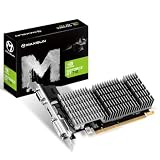
- Chipset: NVIDIA Geforce GT 710, Passive 0dB efficient cooling, huge heat sink radiator covers the area of GPU and memory. Providing a low noise & temperature environment for gaming and multimedia.
- Low profile design, Compatible with most of the computer case (even ITX or SFF), you can DIY slim or smaller system easier.
- Support: PhysX,NVIDIA CUDA,PureVideo HD 4K decode,HDR,MFAA,GeForce 3D Vision,GameWorks,G- Sync-Ready,GameStream-Ready,GeForce ShadowPlay,GPU Boost 2.0
- FUll HD I/O: HDMI + VGA + DVI-D support multi screens
- Support built-in DirectX 12 effect test
Work through this checklist:
- Confirm that the filename is exactly
cudart32_41_22.dll. - Check that the game executable is 32-bit.
- Run the launcher’s file verification again.
- Inspect antivirus Protection history for a second quarantined file.
- Remove unofficial renamed DLLs and reinstall the official runtime.
- Test another PhysX game if one is installed.
- Record the full error text and the executable that triggers it.
- Check whether the issue began after a driver, antivirus, Windows, or game update.
If only one game fails, its installation or configuration is the strongest suspect. If several old PhysX games fail, reinstall the appropriate PhysX package and graphics driver. If the error changes to a different missing module, repair the complete runtime chain instead of adding DLLs one at a time.
FAQ
Is cudart32_41_22.dll a Windows file?
No. It is associated with an old NVIDIA CUDA runtime and is commonly encountered through legacy PhysX games. Windows does not normally ship it as a system component.
Is the file malware?
The filename is a recognizable NVIDIA runtime filename, not a random generated name. That does not make every copy safe. Trust the copy supplied by the game or an official NVIDIA installer, and inspect antivirus history if the file was removed.
Is it part of the current CUDA Toolkit?
Usually not. The filename identifies an old, version-specific runtime associated with CUDA 4.1-era software. Installing the newest CUDA Toolkit is generally not the right repair for a game.
Why does a 32-bit DLL matter on 64-bit Windows?
A 32-bit application loads 32-bit dependencies. The operating-system architecture does not change the architecture required by the application.
Should I copy the DLL into System32?
No. Use the game’s repair process or the official PhysX installer. If the original installer places the file in the game directory, allow it to do so.
Will a current NVIDIA graphics driver fix the error?
Not necessarily. Graphics drivers and an application’s legacy PhysX runtime are separate installations.
What if reinstalling PhysX does not work?
Verify or reinstall the game, check antivirus quarantine, confirm the executable architecture, and investigate the complete dependency chain. The message may identify a dependent module rather than prove that this DLL alone is missing.
Quick Recap
Product prices and availability are accurate as of the date/time indicated and are subject to change. Any price and availability information displayed on Amazon at the time of purchase will apply.
Do these 3 things before closing this tab:
1Clear out junk files and repair common Windows errors2Scan for outdated or missing drivers - takes under a minute3Repair Windows errors before they cause bigger problems



