Start with this diagnostic checklist
dc120v15_32.dll is a missing 32-bit component associated with Kodak’s DC120 SDK Library Win32 Ver.1.5. If Windows says dc120v15_32.dll was not found, the safest fix is usually to repair or reinstall the Kodak software or another legacy application that originally installed it.
Before changing anything, check:
- Which program shows the error: Kodak Digital Science software, a TWAIN utility, an imaging application, or another program.
- When the error appears: during Windows startup, when opening the application, or while connecting the camera.
- What changed recently: Windows reinstallation, antivirus quarantine, disk cleanup, moving the application folder, or uninstalling old Kodak software.
- Whether the application is 32-bit: this DLL is identified as a Win32 component, so it belongs with a 32-bit application.
- Whether the file came from a legitimate installer: do not assume a file found in a random system directory is trustworthy.
The filename alone cannot identify the exact program that needs it. Kodak DC120 software is the strongest association, but another imaging utility using the same Kodak SDK may also depend on the file.
As an Amazon Associate I earn from qualifying purchases.
What is dc120v15_32.dll?
dc120v15_32.dll is a Windows DLL associated with DC120 SDK Library Win32 Ver.1.5. Available file metadata attributes it to Eastman Kodak Japan and identifies it as a 32-bit component.
It is not a normal Windows file. There is no reliable evidence that Microsoft distributes it with Windows 10, Windows 11, DirectX, .NET, or the Microsoft Visual C++ Redistributable.
#1 Best Overall

- SAVE OLD PHOTO MEMORIES: 1422MP Digital Film Scanner Lets You View, Edit and Convert Your Old Color and BandW Negatives 135, 110, 126mm and 50mm Slides 135, 110, 126mm to Digital Files and Save Directly to SD Card (NOT INCLUDED)
- 5” LCD DISPLAY WITH GALLERY MODE: Features Large, Crystal-Clear Screen with Wide Viewing Angle for Instantly Previewing and Editing Photos | Great for Sharing with Friends and Family or Using as an Elegant Digital Picture Frame in Home or Office
- CONVENIENT EASY-LOAD FILM INSERTS: Quick-Feeding Tray Technology Allows for Continuous Loading Action, Making Scanning Fast and Simple Includes 50mm Slide Holder, Adapters for 135, 110 and 126 Films, Cleaning Brush, USB and HDMI Cables
- EDITING WITH A SINGLE TOUCH: Advanced Capture Software Enhances, Resizes and Converts Photos Via Easy ‘Scan’ Button—No Complex Screens or Settings | Easy Options Let You Choose Film Type, Adjust ColorBrightness and Assign DateTime
- SUPER CHIC. UBER COMPATIBLE: Device Handles All Your Old Slides and Negatives, Supports SD or SDHC Cards Up to 32GB (NOT INCLUDED) and Connects to Any Type-C USB-Enabled Computer | Gorgeous Design Blends Seamlessly w Your Home Décor
Kodak’s DC120 camera software was designed for an old Windows environment and included camera-access, image-transfer, and TWAIN-related software. The DLL may therefore be loaded by the main Kodak application, a transfer utility, a scanner-style TWAIN workflow, or another program built against Kodak’s SDK.
The exact installation folder, exported functions, dependencies, and checksum cannot be independently confirmed from current vendor documentation. That is why replacing the file with a similarly named download is unsafe.
What the error message means
You may see messages such as:
- “This application failed to start because dc120v15_32.dll was not found.”
- “The file dc120v15_32.dll is missing or corrupted.”
- “The program cannot start because dc120v15_32.dll is missing from your computer.”
- “Error loading dc120v15_32.dll.”
- “The specified module could not be found.”
- “Cannot find dc120v15_32.dll.”
These messages do not all mean the same thing.
If Windows says the file is missing, the DLL may have been deleted, quarantined, or never installed. If it says the specified module could not be found, the named DLL may be present while one of its dependent DLLs is missing. If the application was moved to another folder, its relative dependencies may also no longer be available.
The Tool Desk
Outbyte PC Repair FREERepair Windows errors before they cause bigger problemsFix Now →Outbyte Driver Updater FREEScan for outdated or missing drivers - takes under a minuteDriver Scan →The correct approach is to restore the complete parent application, not to collect individual DLL files from the internet.
Fix 1: Repair or reinstall the parent application
This is the most likely solution.
Find the affected program
- Note the executable or program name in the error dialog.
- Open Settings.
- Select Apps.
- Choose Installed apps on Windows 11, or Apps & features on Windows 10.
- Search for Kodak, DC120, Digital Science, Digital Access, TWAIN software, or the imaging application that displays the error.
- Select the program and choose Advanced options, if available.
- Select Repair.
Start the program again after the repair completes. If the error is gone, the installer restored the DLL and any related files.
Reinstall if repair is unavailable
If there is no Repair button, or Repair does not help:
- Close the affected application.
- In Settings > Apps > Installed apps, select the program.
- Choose Uninstall.
- Restart Windows.
- Reinstall the software from the original Kodak CD or a trustworthy archived installer obtained from a legitimate source.
- Start the application from its installed shortcut rather than launching an old copy from a moved folder.
If you still have the original installer, inspect it before running it. A legitimate installer should include the application’s normal setup files and documentation. Do not download a standalone dc120v15_32.dll and place it beside the program unless the application’s own documentation explicitly instructs you to do so.
Windows Errors? Fix Them Before They Spread
Repair common Windows errors and clear accumulated junk for a smoother, more stable PC - no reinstall needed.Free scan · no reinstallCrashes, No Sound, or Screen Glitches?
Random freezes, missing sound and display glitches usually trace back to one bad driver. Find and replace yours safely.Free scan · under a minuteIf the application is not listed
The program may have been installed by an older utility that did not register itself with modern Windows.
Check:
- The Start menu for Kodak or DC120 entries.
- Desktop shortcuts by right-clicking them and choosing Properties.
- The shortcut’s Target field.
- Common application folders under
C:Program FilesandC:Program Files (x86). - Any original CD or backup containing
Setup.exeor another installer.
Do not delete the old application folder before checking whether it contains photographs, configuration files, or transfer settings.
Fix 2: Check Windows Security quarantine
Antivirus software may have removed or quarantined a legacy DLL. This is possible with old software, but a quarantine warning must not be ignored automatically.
- Open Windows Security from the Start menu.
- Select Virus & threat protection.
- Under Current threats, choose Protection history.
- Look for an entry involving the Kodak installer, the affected application, or
dc120v15_32.dll. - Expand the entry and review its location and detection details.
- Restore the file only if you can confirm that it came from the original, legitimate application installer.
Microsoft explains how Protection History records quarantined items and available actions in its Windows Security Protection History documentation.
Rank #2

- Efficient Scanning with Kodak: The Kodak Slide N Scan Max Film and Slide Scanner features a quick-feeding tray that ensures continuous scanning without the need to reposition each frame. Ideal for those digitizing family slides and negatives, it keeps your workflow smooth and efficient
- SD Card Convenience: Directly save your digital scans to SD/SDHC cards up to 32GB, eliminating the need for a computer. This feature enhances portability and efficiency for users creating a digital archive at home, making the slide converter for old slides to digital even more versatile
- Comprehensive Film Support: With the ability to handle 135mm, 110mm, and 126mm films, this versatile negative film scanner accommodates a wide range of formats. Perfect for adults with mixed film collections, it provides a comprehensive solution for preserving cherished memories
- One-Touch Editing Simplicity: Effortlessly resize, convert, and adjust images with intuitive one-touch editing features, avoiding complex menu navigation. This high resolution slide scanner simplifies the digitization process, making it accessible for all users seeking a straightforward workflow
- 7-Inch LCD for Easy Viewing: The 7" tiltable LCD screen doubles as a digital picture frame, offering an enhanced viewing and editing experience. This feature allows you to easily preview and share your digital conversions, making it a perfect picture scanner for photos to digital
If Windows Security quarantines the file again, stop restoring it repeatedly. Scan the original installer, verify its source, and obtain a clean copy of the complete application instead.
Restoring a DLL from quarantine may not be enough if other files were removed. Reinstalling the parent application is still the better repair.
Fix 3: Check whether the application was moved
Legacy Windows applications often expect supporting DLLs in their own installation directory. Moving only the executable, copying the program folder to another drive, or restoring an incomplete backup can break that relationship.
Check the shortcut:
- Right-click the application shortcut.
- Select Properties.
- Review the Target field.
- Select Open File Location.
- Confirm that the application is running from its complete installation folder.
If the program was moved, reinstall it to its original location if possible. Avoid copying individual DLLs between old folders because the file may be paired with other files from the same SDK version.
Several related Kodak SDK filenames exist, and a different DC-series DLL is not a safe substitute. A file with the right name but a different build can cause entry-point errors, crashes, or new missing-dependency messages.
Fix 4: Run the legacy application with compatibility settings
A restored DLL does not guarantee that the Kodak application will run correctly on a modern version of Windows. The original DC120 software belongs to an old camera ecosystem and may depend on obsolete assumptions about Windows, drivers, or camera interfaces.
Try compatibility settings only after reinstalling the application:
- Locate the application’s main
.exefile. - Right-click it and select Properties.
- Open the Compatibility tab.
- Select Run this program in compatibility mode for.
- Test an older Windows mode, starting with Windows XP.
- If necessary, test an older Windows 95/98 compatibility setting.
- Select Apply, then OK.
- Start the application again.
You can also select Run this program as an administrator if the program needs permission to write to its own old installation directory. Use that setting only for the affected legacy application.
Recommended Free Tools
Compatibility mode cannot supply a missing camera driver, recreate an obsolete USB interface, or make unsupported hardware work. If the program opens but cannot detect the camera, the problem is likely beyond this DLL.
Fix 5: Check 32-bit compatibility
The _32 portion of the filename and the Win32 SDK description indicate a 32-bit component. That means it is intended for a 32-bit application.
A 64-bit edition of Windows can run many 32-bit desktop applications through its compatibility subsystem. However, it cannot load a 32-bit DLL into a 64-bit process. The parent application and the DLL must use compatible architectures.
Rank #3

- Maximum Resolution: 600 dpi (Optical)
- Color Depth: 24-Bit (External)
- Grayscale Depth: 8-Bit (External)
- Light Source: LED
- Image Sensor: 2 x Contact Image Sensor (CIS)
Do not try to solve this by copying the file into both Windows system directories. On 64-bit Windows, the names System32 and SysWOW64 are counterintuitive, and manually placing third-party files there can create conflicts.
Do these 3 things before closing this tab:
1Repair Windows errors before they cause bigger problems2Fix the driver behind crashes, sound loss and screen glitches3Clear out junk files and repair common Windows errorsInstead:
- Reinstall the 32-bit Kodak application.
- Let its installer place the DLL in the application directory.
- Do not substitute a 64-bit DLL.
- Do not launch a 64-bit replacement executable expecting it to use this 32-bit component.
- If the installer itself cannot run, use an isolated older Windows environment.
A virtual machine with an older supported Windows installation may be practical when the software requires obsolete drivers or a camera interface that current Windows no longer supports. Keep the environment isolated and transfer photographs to the modern system using a safer workflow.
Fix 6: Check for another missing dependency
A Windows loader error can name dc120v15_32.dll even when the actual failure is caused by a dependency of that DLL.
This can happen when:
- The DLL is present but one of its required libraries is absent.
- A related Kodak SDK file was deleted.
- The application was copied without its supporting files.
- A required 32-bit runtime is unavailable.
- The file is damaged or incompatible with the application build.
First reinstall the complete parent application. That restores the application’s expected dependency set more reliably than searching for each missing file separately.
If you use a dependency inspection tool, inspect the application and the DLL together. Look for missing 32-bit libraries and architecture mismatches. Do not replace Windows DLLs indiscriminately, and do not install a runtime merely because a download page claims that every DLL requires it.
There is no verified evidence that dc120v15_32.dll specifically belongs to the Microsoft Visual C++ Redistributable. Install a Microsoft runtime only when the original application documentation or a clearly identified error indicates that it is required.
Fix 7: Update or reinstall related drivers
Device Manager can help when the application starts but cannot communicate with the camera or another imaging device. It is not a replacement for reinstalling the Kodak application.
- Right-click the Start button.
- Select Device Manager.
- Expand categories such as Cameras, Imaging devices, Portable Devices, Universal Serial Bus controllers, and Other devices.
- Look for a yellow warning icon or an unknown Kodak-related device.
- Right-click the device and select Properties.
- Review the General tab for a device status message.
- On the Driver tab, select Update Driver.
- Choose Search automatically for drivers if an appropriate current driver may exist.
- Restart Windows and test the application.
If the device is no longer needed, do not install an unknown legacy driver simply to remove the warning. A virtual machine or a modern card reader may be safer than weakening the current system for obsolete hardware.
Manually hunting through old driver packages can mean guessing which architecture and device revision is correct. Outbyte Driver Updater can scan for driver issues, while the full version performs driver installation; it is optional, and reinstalling the Kodak application remains the definitive fix for this DLL.
What’s actually slowing this PC down?
Pick the symptom - the matching free tool is one click away.
Fix 8: Repair Windows components only when Windows itself is damaged
System File Checker and DISM are intended mainly for protected Windows components. They do not normally retrieve a third-party Kodak SDK file, so they are not the first fix for dc120v15_32.dll.
Use them when the DLL error appeared alongside broader Windows problems, such as broken system features, failed updates, or widespread application corruption.
- Open the Start menu.
- Type Command Prompt.
- Right-click Command Prompt.
- Select Run as administrator.
- Run this command:
DISM.exe /Online /Cleanup-Image /RestoreHealth
- Wait for DISM to finish.
- Then run:
sfc /scannow
- Restart Windows.
- Test the affected application again.
Microsoft provides the documented DISM and SFC repair sequence.
Rank #4
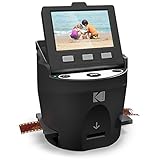
- FILM TO JPEG IN SECONDS – Powerful 14/22MP KODAK Film Scanner Converts Old 35mm, 126, 110, Super 8 & 8mm Negatives & Slides to JPEG Digital Files - NOTE; THE SCANZA WILL NOT CONVERT FILMS OTHER THEN 35mm, 126, 110, Super 8 & 8mm Negatives
- LARGE, BRIGHT 3.5” TFT LCD – High Definition Built-In Color Display Features Adjustable Brightness & Convenient Tilt for Easy Operation & Image Viewing
- AN ADAPTER FOR EVERYTHING – Unit Arrives w/Multiple Film Inserts & Adapters for Fast, Flexible Operation; Big One-Touch Buttons Allow for One-Step Scan & Save
- INTUITIVE USER INTERFACE – Includes Helpful Tray & Insert Directory; Easily Edit Image RGB & Resolution, Browse Gallery [SD Card NOT Included, supports up to 128GB] & More
- CABLES & EXTRAS INCLUDED – Mac & PC Compatible Converter Comes w/USB Power Cable, HDMI Cable, AC Adapter, Video Cable & FREE Film Cleaning Brush. Use the included brush to also clean the light box of dust and speckles, to avoid marks on the scanned images.
If these commands report that Windows files were repaired but the Kodak error remains, that result is expected for a missing third-party DLL. Return to the application installer rather than repeatedly running SFC and DISM.
Free tools Windows power users keep installed
One-click scans. No signup required.
When manually repeating SFC and DISM leaves you unsure what changed, Outbyte PC Repair can scan for system issues; its free scan identifies problems, while repair is handled by the full version. It is optional, and it does not replace reinstalling the Kodak application that owns this file.
Independent reader supportYour contribution helps us test, update, and keep practical guides available for everyone.Should you use regsvr32?
Usually, no.
regsvr32 is for DLLs that provide a registration entry point such as DllRegisterServer. It is not a general-purpose command for installing or repairing every missing DLL.
Microsoft documents the command’s behavior in its regsvr32 reference.
Running this command:
regsvr32 dc120v15_32.dll
may produce an error stating that the module was loaded but the DllRegisterServer entry point was not found. It may also fail because a dependency is missing or because the command is using the wrong 32-bit or 64-bit version of regsvr32.
Quick wins for a faster PC:
Fix the driver behind crashes, sound loss and screen glitchesFind Drivers →Clear out junk files and repair common Windows errorsFree Scan →There is no reliable public evidence that this Kodak SDK DLL is an ActiveX or COM server that must be registered. Do not use regsvr32 unless the original application documentation specifically requires registration.
Why random DLL downloads are unsafe
Avoid websites offering standalone copies of dc120v15_32.dll.
A random download may contain:
- Malware or a modified binary.
- The wrong Kodak SDK revision.
- A file for the wrong architecture.
- A file with a matching name but different exports.
- A DLL that still requires missing dependencies.
- A copy placed in the wrong directory.
It can also hide the real cause, such as an incomplete Kodak installation or a quarantined group of files.
The safe sources are the original Kodak application media, a verified archive of the complete installer, or an existing legitimate backup from the same application installation. Restore the complete program rather than treating the DLL as an independent Windows component.
When to use System Restore
System Restore can help if the error began immediately after a recent application removal, driver change, or system modification.
- Open the Start menu.
- Search for Create a restore point.
- Open the result.
- Select System Restore.
- Choose a restore point created before the problem began.
- Review the affected programs and drivers.
- Confirm the restore.
System Restore can change applications, drivers, settings, and later system changes. Microsoft describes its limitations in its System Restore documentation.
It is a fallback, not a substitute for a clean reinstall of the Kodak application.
Best Value

- Smart Touch functionality replaces complicated multi-step scanning processes with one-touch simplicity.
- Create email attachments, picture files, and searchable PDFs - and get your documents to the cloud, so they can be accessed wherever you are.
- The USB-powered capability lets you bring all this functionality with you, wherever you go. Capture, process, and send information effortlessly.
- With the i940, you can scan directly to cloud-based applications such as SharePoint, Evernote, and DocSCAN.
If the Kodak software still will not run
The DLL may be restored correctly while the overall camera workflow remains incompatible with current Windows.
Recommended Free Tools
Use an isolated older Windows virtual machine when:
- The original installer will not run in compatibility mode.
- The application requires an obsolete driver.
- The camera interface is not recognized by modern Windows.
- You need to access an old device temporarily.
Alternatively, use a compatible card reader, another supported transfer application, or a modern image workflow if the photographs can be accessed without the Kodak software.
Do not disable security protections broadly or install unsigned drivers simply to preserve an obsolete application. Copy recovered photographs to modern storage and keep the old environment disconnected whenever possible.
Frequently asked questions
Is dc120v15_32.dll a Windows system file?
No reliable evidence shows that Microsoft ships it with Windows. It is associated with Kodak’s DC120 SDK and should be restored through the application that installed it.
Quick wins for a faster PC:
Scan for outdated or missing drivers - takes under a minuteDriver Scan →Clear out junk files and repair common Windows errorsFree Scan →Is it 32-bit or 64-bit?
Available metadata identifies it as Win32, or 32-bit. It must be loaded by a compatible 32-bit application.
Which program installed it?
The strongest association is Kodak DC120 Digital Science software and related camera utilities. The exact consuming application cannot be determined from the filename alone.
Can I copy it to System32 or SysWOW64?
Do not do that as a first fix. Restore the DLL to the application’s own directory through the complete installer.
Should I register it with regsvr32?
Usually not. regsvr32 applies to DLLs with registration entry points, and there is no reliable evidence that this SDK component requires registration.
Free tools Windows power users keep installed
One-click scans. No signup required.
Will SFC restore the file?
Normally no. SFC repairs protected Windows files, while this is a third-party Kodak component.
Why does the error say “specified module could not be found” when the file exists?
The loader may be unable to find a dependency required by the DLL. Reinstall the parent application and its complete dependency set.
What if the file was quarantined?
Review Windows Security > Virus & threat protection > Protection history. Restore it only when its installer provenance is clear. If it is quarantined again, stop overriding the detection and obtain a clean complete installer.
What is the safest fix?
Identify the program named in the error, repair or uninstall it, restart Windows, and reinstall it from the original media or a trustworthy complete archive. If the application is no longer needed, uninstalling the orphaned software is safer than adding a standalone DLL.
Quick Recap
Product prices and availability are accurate as of the date/time indicated and are subject to change. Any price and availability information displayed on Amazon at the time of purchase will apply.




