What’s actually slowing this PC down?
Pick the symptom - the matching free tool is one click away.
“The code execution cannot proceed because dmusic16.dll was not found” means the program is requesting a legacy Microsoft DirectMusic component. dmusic16.dll is identified as the “Microsoft DirectMusic Legacy Port (16-bit thunk peer),” so the error may indicate either a damaged installation or an application that requires 16-bit support unavailable on modern 64-bit Windows.
Do not begin by downloading the file from a DLL website. The safest repair is to restore the application that requested it, then install the program’s official legacy DirectX prerequisites. If the application itself requires 16-bit execution, replacing one DLL will not make it compatible with Windows 10 or Windows 11.

Which fix applies to you
Use the description that best matches what you see:
- Only one old game or multimedia program fails: Verify, repair, or reinstall that program first.
- The failure started after moving the program, cleaning the disk, uninstalling software, or applying a patch: The application installation is probably incomplete or damaged.
- The program includes a
DXSETUP.exefile: Run that bundled DirectX installer before trying broader Windows repairs. - Several unrelated Windows programs fail: Check Windows Update, then use DISM and SFC.
- The error appears during every Windows startup: Look for an orphaned startup entry or unwanted software rather than assuming the DLL belongs in a Windows folder.
- The message says “not designed to run on Windows,” “bad image,” or shows
0xc000012f: Suspect incompatible architecture or a mismatched or corrupted file. - The application is clearly 16-bit and Windows is 64-bit: Plan for a modern replacement, a suitable virtual machine, an emulator, or a supported 32-bit Windows environment.
- An antivirus product quarantined the file: Review the detection details and restore it only when it came from the original trusted installer and the detection is supported as a false positive.
What dmusic16.dll is
dmusic16.dll is part of Microsoft DirectMusic, within the older DirectX multimedia stack. It is not a Visual C++ runtime, .NET library, ordinary sound-card driver, or general-purpose Windows DLL.
#1 Best Overall

- HIGH-RESOLUTION AUDIO - Delivers ultra-clear playback with 32-bit / 384 kHz and up to 120 dB SNR
- SURROUND SOUND - Supports discrete 7.1-channel analog output for immersive multi-channel audio on your PC
- VERSATILE CONNECTIVITY - Connects effortlessly to multi-channel PC speaker systems, SPDIF output and headset outputs, mic-in, as well as line-in sources
- ALL-NEW CREATIVE NEXUS APP - AutoEq customization that allows users to simulate the frequency response of various headphones for a tailored listening experience
- COMPACT LOW-PROFILE DESIGN - The card is 10.5 cm in length and comes with a half-height bracket to ensure compatibility with smaller cases and different build needs
The name reflects its historical role. “16-bit thunk peer” describes a compatibility layer that helps bridge older calling conventions or execution paths between legacy and newer DirectMusic components. Microsoft documents an older MIDI path in which the sequence includes:
DMusic.dll → DMusic16.dll → MMSystem.dll → WDMAud.drv → WDMAud.sys → vendor miniport driver
That documented path is associated with older Windows audio architecture and legacy WDM MIDI devices. Microsoft’s MIDI and DirectMusic filters documentation identifies DMusic16.dll as the Microsoft DirectMusic Legacy Port 16-bit thunk peer.
Historical Windows 98 files also included related DirectMusic components such as dmusic.dll, dmusic32.dll, and dmstyle.dll. That establishes its legacy distribution, not a current Windows 10 or Windows 11 installation requirement.
The file may be requested by an old game, MIDI utility, multimedia application, installer, or launcher. The filename alone does not identify a particular program. Start with the executable or error dialog that names the application.
Why a 32-bit program can still fail
A 32-bit application is not automatically a 16-bit application.
Modern 64-bit Windows uses WOW64 to run many 32-bit Windows programs. However, WOW64 does not provide general support for 16-bit binaries or components. Microsoft states that x64 Windows does not support 16-bit binaries, processes, or components in its guidance on 64-bit Windows and 16-bit components.
That creates an important distinction:
- A modern 32-bit game may run normally on 64-bit Windows.
- A 32-bit game can still depend on an older 16-bit DirectMusic component.
- Reinstalling the 32-bit game or copying a DLL cannot add general 16-bit execution support.
- Compatibility mode can change application settings, but it cannot turn 64-bit Windows into a 16-bit operating system.
If the error changes from “not found” to “not designed to run on Windows” after you copy a file, that is a warning that the architecture or release is wrong, not evidence that another random DLL is needed.
PC Slower Than It Used to Be?
A free scan shows the junk files, broken settings and background clutter dragging Windows down - then fixes them in one click.Free scan · Windows 10 & 11Outdated Drivers Are Slowing You Down
One free scan finds every outdated or missing driver and matches the right update for your exact hardware.Free scan · exact hardware matchFix 1: Repair or reinstall the affected program
This is the most likely solution when one application fails and Windows otherwise works normally.
Use the launcher’s repair function
- Open the game launcher or software launcher.
- Select the affected title.
- Open its settings, properties, or manage menu.
- Choose an option named Verify integrity, Verify files, Repair, Scan and repair, or similar.
- Allow the process to replace missing or damaged files.
- Restart the launcher.
- Start the application from its normal shortcut or launcher.
If the program starts without the missing-file message, the application repair restored the dependency or corrected its installation references.
Rank #2
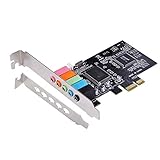
- PCIe sound card, 5.1 stereo audio card.
- Easily convert the PC into a cinematic entertainment system by providing a 5.1 3D stereo surrounding sound.
- With low profile bracket for 2U case, your best choice of sound card for PC desktop.
- 16-bit multimedia digital signal editing decoder inside, Supports 32/64-bit audio processing, recording and playback.
- Supports direct sound, A3D and EAX, HRTF 3D tone. Supports Windows XP / 7 / 10.
Use Windows Apps settings
For software registered with Windows:
- Press Windows + I.
- Select Apps.
- Select Installed apps or Apps & features.
- Find the affected program.
- Select the three-dot menu beside it.
- Choose Advanced options, if available.
- Select Repair.
- Test the program.
Use Reset only when you understand that it may remove application settings or local data.
Reinstall from the original source
If verification and repair are unavailable:
- Back up saved games, profiles, templates, and other personal settings.
- Uninstall the affected application from Settings > Apps > Installed apps or from its own uninstaller.
- Restart Windows.
- Reinstall it from the original vendor, legitimate game store, or installation media.
- Use the installer’s default location unless the vendor documents another requirement.
- Apply the program’s official updates.
- Start the application again.
If the program supplied a DirectX setup folder, do not skip it. The application’s own installer is often the correct source for the files and configuration it expects.
A clean reinstall is especially appropriate after a failed uninstall, disk cleanup, a moved program folder, a damaged patch, or restoring files from an incomplete backup.
Fix 2: Run the bundled DirectX setup
Older applications often include their required legacy DirectX files separately from the DirectX version built into Windows.
Look in the application’s installation media or folder for a directory named DirectX, Redist, Support, or Installers. The setup file is commonly named DXSETUP.exe.
- Close the affected application.
- Open File Explorer.
- Browse to the application’s installer media or installation folder.
- Open the DirectX or redist folder.
- Right-click
DXSETUP.exe. - Select Run as administrator.
- Follow the setup wizard.
- Restart Windows.
- Test the application.
Microsoft recommends that games install the appropriate DirectX redistributable components with the application. See Microsoft’s DirectX installation guidance for game developers.
Free tools Windows power users keep installed
One-click scans. No signup required.
This setup can restore optional side-by-side DirectX libraries used by older software. It does not guarantee support for a 16-bit component on 64-bit Windows.
Fix 3: Install Microsoft’s official legacy DirectX runtime
If the application has no usable bundled installer, use Microsoft’s official DirectX packages rather than an isolated DLL.
The DirectX End-User Runtime Web Installer installs optional legacy libraries used by older games and applications. Microsoft also provides the DirectX End-User Runtimes, June 2010 offline package.
Web installer
- Open Microsoft’s DirectX End-User Runtime Web Installer page.
- Download the installer from Microsoft.
- Run the downloaded setup file.
- Accept the license terms.
- Allow the installer to add its legacy side-by-side components.
- Restart Windows.
- Test the original program.
Offline package
- Download the June 2010 package from Microsoft.
- Save it to a local folder.
- Run the downloaded self-extracting package.
- Choose a temporary extraction folder.
- Open that folder after extraction completes.
- Run
DXSETUP.exeas administrator. - Complete the installation.
- Restart Windows.
- Test the affected application.
These packages do not replace or upgrade the DirectX version built into Windows. Also, do not assume that either current package is guaranteed to contain this exact historical dmusic16.dll; Microsoft’s download descriptions cover legacy DirectX components generally.
Rank #3
If the application still reports the same error after the official runtime setup, return to repairing or reinstalling the application. The dependency may be application-specific, damaged, or fundamentally incompatible with the operating system.
Fix 4: Check antivirus quarantine safely
An old unsigned installer or file restored from obsolete media can attract a security product’s attention. Do not disable antivirus protection just to force a DLL into a system directory.
- Open Windows Security.
- Select Virus & threat protection.
- Select Protection history.
- Review detections related to the affected application or installer.
- Read the detection name, file path, and source.
- If the file came from the original trusted installer, verify that source before considering Allow on device or Restore.
- Run a fresh scan of the installer and application folder.
- Repair or reinstall the application from the trusted source.
If the detection is unclear, leave the file quarantined and obtain a clean installer. A missing file caused by quarantine should be restored through a trusted application installation, not replaced with a file from an unrelated download site.
Fix 5: Repair broader Windows corruption with DISM and SFC
DISM and SFC are appropriate when multiple unrelated Windows components fail, Windows Update is damaged, or SFC has already reported system-file corruption. They are unlikely to recreate a historical dmusic16.dll that was never part of the current Windows image.
The Tool Desk
Outbyte Driver Updater FREEScan for outdated or missing drivers - takes under a minuteDriver Scan →Outbyte PC Repair FREERepair Windows errors before they cause bigger problemsFix Now →Install pending Windows updates and restart first. Then:
- Open Start.
- Type
Command Prompt. - Right-click Command Prompt.
- Select Run as administrator.
- Select Yes at the User Account Control prompt.
- Run:
DISM.exe /Online /Cleanup-Image /RestoreHealth
- Wait for DISM to finish.
- Run:
sfc /scannow
- Wait until verification reaches 100 percent.
- Restart Windows.
- Test the original application.
Microsoft specifically instructs users to run DISM before SFC in its System File Checker repair guidance.
If SFC reports that it repaired files, test Windows and the application again. If it reports no integrity violations, the missing file is probably not a current Windows system-file problem. If both commands report errors that cannot be repaired, review the Microsoft repair guidance and focus on the application installation or operating-system compatibility.
When the manual DISM and SFC process leaves you repeatedly hunting through logs without knowing what changed, Outbyte PC Repair can scan for the underlying Windows issues; its free scan shows what it finds, while repair is performed by the full version. It is optional, and reinstalling the affected game or application remains the definitive fix when that program owns the missing dependency.
Do these 3 things before closing this tab:
1Repair Windows errors before they cause bigger problems2Fix the driver behind crashes, sound loss and screen glitches3Clear out junk files and repair common Windows errorsFix 6: Investigate a startup-only error
If no particular program fails but the message appears each time Windows starts, the original application may have been removed while a startup reference remained.
- Press Ctrl + Shift + Esc to open Task Manager.
- Select Startup apps.
- Look for entries related to old games, MIDI tools, multimedia software, or unknown publishers.
- Right-click a suspicious entry and select Open file location, when available.
- Record the application name and path.
- Disable the entry temporarily.
- Restart Windows.
- If the message disappears, uninstall the originating software properly or remove its documented startup entry.
- Run a Microsoft Defender scan.
Do not delete registry entries or system files merely because a startup name looks unfamiliar. Identify the originating program first.
Fix 7: Check the program’s architecture and compatibility
After reinstalling the program and its official prerequisites, determine whether the application itself needs 16-bit support.
Rank #4

- ➤ This sound card uses /HT8738 chip. The chip's ‑to‑noise ratio reaches 120dB, PCI plug‑and‑play interface‑full duplex playback and recording‑HRTF 3D spatial positioning sound effects, supports dircet sound 3D and A3D interfaces.
- ➤ Support for 98 / for / / NT voltage (0.5V~5V).
- ➤ Support 4‑channel surround sound output, support sound library technology, support A3D 1.0 and DS3D, compatible with DirectSound 3D and sound effects. Supports 24‑bit SPDIF, OUT and SPDIF IN at the same time, and supports optical fiber input and output through a daughter card.
- ➤ This card supports music synthesizer, traditional sound card, and supportsfull duplex playback and recording.
- ➤ Support Direct Music ‑SPDIF digital audio indicators: 24‑bit stereo, 44KHzsound sampling recording and playback, 120dB sound quality full duplex playback recording.
Look for:
- Installer messages referring to 16-bit Windows.
- A program that predates modern 32-bit Windows conventions.
- An installer that refuses to start on 64-bit Windows.
- A “bad image” or “not designed to run on Windows” message.
- Documentation from the original vendor identifying a required Windows version or architecture.
You can try compatibility settings for ordinary older applications:
Recommended Free Tools
- Right-click the application executable or shortcut.
- Select Properties.
- Open the Compatibility tab.
- Select Run this program in compatibility mode for.
- Choose an older Windows version.
- Select Apply, then OK.
- Test the application.
Compatibility mode may help with older 32-bit software, permissions, display behavior, or installer assumptions. It cannot add 16-bit support.
If the application truly requires a 16-bit component, use one of these paths:
- Find a modern update, remake, or replacement from the original vendor.
- Run the software inside a suitable virtual machine with a compatible 32-bit Windows environment.
- Use an appropriate emulator when the software and licensing allow it.
- Use a supported 32-bit Windows installation where the required legacy component is supported.
Microsoft’s NTVDM compatibility guidance explains the limitations and the supported x86 scenario. Do not install an untrusted compatibility layer simply because it claims to add a missing DLL.
Independent reader supportYour contribution helps us test, update, and keep practical guides available for everyone.Fix 8: Check audio drivers only when the symptoms support it
DirectMusic used older MIDI and audio paths, so a damaged audio driver can produce broader sound or MIDI failures. It is not, however, a reason to replace dmusic16.dll manually.
Quick wins for a faster PC:
Clear out junk files and repair common Windows errorsFree Scan →Fix the driver behind crashes, sound loss and screen glitchesFind Drivers →Repair Windows errors before they cause bigger problemsFix Now →Check Device Manager only if the application also reports missing audio devices, MIDI failures, or driver errors:
- Right-click Start.
- Select Device Manager.
- Expand Sound, video and game controllers.
- Right-click the affected audio or MIDI device.
- Select Properties.
- Open the Driver tab.
- Check the provider, date, and status.
- If Windows reports a problem, choose Update Driver and follow the available prompts.
- Restart Windows and test the application.
Use the computer or sound-device manufacturer’s official driver source when Windows cannot find a suitable driver. Do not confuse an audio-driver repair with restoration of the legacy DirectMusic thunk DLL.
When checking drivers manually means comparing many device releases and guessing which one is stale, Outbyte Driver Updater can scan and identify driver issues; the free scan shows the findings, while driver installation is handled by the full version. It is optional, and it will not make an unsupported 16-bit application run on 64-bit Windows.
DirectPlay is not DirectMusic
Some old games require DirectPlay, but DirectPlay and DirectMusic are separate technologies.
If the error specifically mentions DirectPlay:
- Press Windows + R.
- Type
optionalfeatures. - Press Enter.
- Expand Legacy Components.
- Select DirectPlay.
- Select OK.
- Restart Windows if prompted.
Enabling DirectPlay does not repair dmusic16.dll and does not prove that DirectPlay is involved. Follow the component named in the actual error.
Why regsvr32 is not the fix
regsvr32 is intended for DLLs that expose registration entry points such as DllRegisterServer. Microsoft documents its use in the regsvr32 command reference.
Best Value

- REFERENCE-GRADE HI-RES AUDIO – Powered by the ESS ES9039Q2M DAC with up to 130 dB SNR, supporting 32-bit / 384 kHz playback for exceptional clarity and detail, far beyond typical onboard audio
- POWER FOR DEMANDING HEADPHONES – Built-in high-performance headphone amplifier delivers up to 350mW @ 32Ω. Easily drives studio-grade headphones
- LOW-LATENCY PERFORMANCE – Supports DSD256 and ASIO 2.3 for high-resolution playback and low-latency audio, ideal for music, gaming, and PC audio workflows.
- PRECISION SOUND PERSONALISATION – 10-band parametric EQ + AutoEq in Creative Nexus add meaningful personalization and offers advanced audio tuning and control
- FLEXIBLE CONNECTIVITY – Coaxial output and optical input for seamless integration with desktop audio setups.
dmusic16.dll is a legacy DirectMusic thunk/runtime component, not a documented self-registering COM or ActiveX control. Running:
regsvr32 dmusic16.dll
is therefore not an appropriate repair. It may return an entry-point or architecture error, and a successful command would not solve an unsupported 16-bit dependency.
Why copying the DLL is unsafe
Do not copy dmusic16.dll into C:WindowsSystem32 or C:WindowsSysWOW64.
On 64-bit Windows, System32 normally contains 64-bit system files, while SysWOW64 contains many 32-bit Windows components. Neither folder is a general-purpose destination for manually downloaded legacy files.
An isolated DLL can be:
- From the wrong DirectX release.
- The wrong architecture.
- Modified or infected.
- Dependent on other missing files.
- Dependent on registry or configuration state.
- Unable to execute because Windows does not support its 16-bit component.
Use the original application installer, its bundled DXSETUP.exe, or Microsoft’s official DirectX runtime pages instead. If the application requires an old environment, change the environment rather than forcing one file into a Windows directory.
Prevention after the repair
Once the application works:
- Keep its original installer and bundled prerequisite folders in a known location.
- Use the launcher’s verification feature after failed updates or interrupted downloads.
- Avoid “cleanup” utilities that remove files from application folders without identifying their owners.
- Back up saves and settings before uninstalling legacy software.
- Keep Windows and Microsoft Defender updated.
- Record whether the program needs a particular compatibility setting or virtual machine.
- Do not replace system DLLs manually during future repairs.
FAQ
Is dmusic16.dll part of Windows 10 or Windows 11?
Modern Windows includes current DirectX components, but that does not mean every historical DirectX DLL is installed. Do not assume dmusic16.dll should be present in System32 or SysWOW64.
Recommended Free Tools
Does DirectX June 2010 definitely restore this file?
No. The package provides legacy DirectX components for older applications, but its availability does not prove that it contains this exact historical 16-bit DLL. Run the affected program’s bundled setup first.
Should I install Visual C++ or .NET?
Not for this error alone. Install those runtimes only when the program’s documentation or a separate error identifies them as dependencies.
Can SFC restore dmusic16.dll?
Only if the file is part of the current Windows image and is recognized as a protected system file. SFC is not a guaranteed source for historical application files.
Why does a 32-bit game still fail?
The game may be 32-bit while requesting a separate 16-bit DirectMusic component. WOW64 supports many 32-bit applications but does not provide general 16-bit support.
The Tool Desk
Outbyte PC Repair FREEClear out junk files and repair common Windows errorsFree Scan →Outbyte Driver Updater FREEScan for outdated or missing drivers - takes under a minuteDriver Scan →When should I use a virtual machine?
Use one when the original program is confirmed to require a legacy Windows environment and no modern update or compatible replacement exists. A virtual machine is more appropriate than repeatedly replacing DLLs when the architecture itself is unsupported.
How do I know whether the file is missing or incompatible?
A “not found” message often points to an incomplete installation or missing prerequisite. “Bad image,” “not designed to run on Windows,” architecture errors, and persistent failure after official repair point more strongly to corruption, a mismatched release, or unsupported 16-bit execution.
Quick Recap
Product prices and availability are accurate as of the date/time indicated and are subject to change. Any price and availability information displayed on Amazon at the time of purchase will apply.



