Free tools Windows power users keep installed
One-click scans. No signup required.
To uninstall Escape from Tarkov on PC, open the Battlestate Games Launcher, locate the game’s installation directory, and run uninstall.exe. If the uninstaller is missing or fails, use Windows Installed apps, Control Panel, or Microsoft’s Program Install and Uninstall Troubleshooter; Steam users should also check BattlEye.
The correct cleanup path depends on how Escape from Tarkov was installed. The standalone launcher, Windows’ program lists, and Steam can leave different removal records or components behind.
As an Amazon Associate I earn from qualifying purchases.
Key takeaways
- The fastest standalone-PC method is to open the Escape from Tarkov installation folder and run
uninstall.exe. - Windows 10 and Windows 11 provide uninstall options under Settings > Apps > Installed apps and Control Panel > Programs and Features.
- Microsoft’s Program Install and Uninstall Troubleshooter is the safer remedy for damaged uninstall records or corrupted registry entries.
- Steam’s Escape from Tarkov listing says BattlEye requires manual removal after the game is uninstalled in that distribution context.
- Installation folders vary by drive and custom setup, so delete only files clearly belonging to Tarkov or its launcher.
How do you uninstall Escape from Tarkov with the Battlestate Games Launcher?
For a standalone Escape from Tarkov installation, use the game’s own uninstaller from its installation directory. Open the Battlestate Games Launcher, open its settings or account/menu area, use the option that opens the Escape from Tarkov game folder, and run uninstall.exe.
Recommended Free Tools
- Open the Battlestate Games Launcher.
- Open the launcher’s settings or account/menu area.
- Find the setting or link that opens the Escape from Tarkov installation directory.
- Open the game folder and locate
uninstall.exe. - Run
uninstall.exeand follow the Windows prompts. - Restart Windows if the launcher or game still appears to be active afterward.
The launcher layout can change between versions, so look for the current link that opens the game directory rather than relying on one fixed menu name. This practical route is supported by instructional references from CrispyJeb’s 2021 uninstall guide and CrispyJeb’s 2024 Unheard Edition guide; neither source is a current official Battlestate Games help article.
#1 Best Overall

- Custom made based on beanie from Escape from Tarkov
- A great gift for the holidays or to add to your Tarkov collection
- Perfect for raiding!
Which uninstall method should you use?
The best method depends on whether the launcher and game folder are still available, and whether Windows still has a working uninstall entry.
| Method | Best for | Launcher or folder needed? | Main limitation |
|---|---|---|---|
Game-folder uninstall.exe |
Standalone launcher users who can access the installation directory | Game folder needed; launcher usually makes it easier to find | The file may be missing, or launcher labels may have changed |
| Windows Settings | Users wanting the simplest built-in graphical option | No launcher required if Windows lists the game | Some programs may fail to uninstall from Settings |
| Control Panel | Users whose game appears in the traditional program list | No launcher required if an uninstall entry exists | The entry can be stale if the uninstaller was already deleted |
| Microsoft troubleshooter | Missing, corrupted, or incomplete uninstall records | No working game uninstaller required | It repairs removal information; it does not identify unrelated files for you |
| Manual cleanup | Steam users with BattlEye or clearly identified leftovers | Requires careful identification of files | Deleting the wrong component can affect other software |
How do you uninstall Escape from Tarkov through Windows Settings?
Windows 10 and Windows 11 users can try the built-in Installed apps page if Escape from Tarkov appears in the Windows program list.
- Open Start > Settings.
- Select Apps > Installed apps.
- Search for Escape from Tarkov.
- Open the program’s menu and select Uninstall.
- Complete the prompts shown by Windows.
Microsoft says there are multiple ways to remove apps and programs, so trying another location is appropriate when the first list does not contain the program. See Microsoft’s Windows uninstall guidance for the current Windows 10 and Windows 11 paths.
What should you do if Escape from Tarkov is not in Settings?
Use the traditional Control Panel uninstall list when Windows Settings does not show Escape from Tarkov or does not complete the removal.
Rank #2
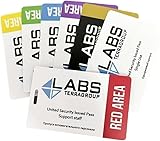
- Card's inspiration comes from Game, high similarity to the original.
- The cards is made of PVC.And all cards have a card holder to protect them.
- Excellent material and thickness.A great replica!
- Best choice for game fans,halloween cosplay prop and even cards collectors.
- Include:7pcs cards
- Search for and open Control Panel.
- Select Programs > Programs and Features.
- Select Escape from Tarkov.
- Choose Uninstall or Uninstall/Change.
- Follow the on-screen instructions.
Control Panel is especially useful when a desktop program has a traditional installer entry that is absent from the modern Settings interface. If Control Panel shows an entry but cannot locate the uninstaller, continue to the repair steps below instead of deleting random registry keys.
How do you fix a missing or broken uninstall.exe?
If uninstall.exe is missing, Windows Settings and Control Panel fail, or the game was deleted manually but still appears as installed, use Microsoft’s Program Install and Uninstall Troubleshooter.
- Open Microsoft’s Program Install and Uninstall Troubleshooter instructions.
- Download or launch the troubleshooter from Microsoft’s page.
- Choose the option for removing or uninstalling a program.
- Select Escape from Tarkov if it appears in the list.
- Allow the troubleshooter to repair the incomplete uninstall information.
Microsoft designed this tool for common problems that block programs from being installed, removed, or updated, including incomplete uninstall data and damaged registry information. Do not download an unverified “Tarkov uninstaller,” and do not edit registry entries simply because an old program entry remains visible.
The Tool Desk
Outbyte Driver Updater FREEScan for outdated or missing drivers - takes under a minuteDriver Scan →Outbyte PC Repair FREERepair Windows errors before they cause bigger problemsFix Now →What if the game files were already deleted?
If the Escape from Tarkov folder was deleted before the uninstall process finished, Windows may retain a stale uninstall record. Try the Installed apps route, then Control Panel, and finally Microsoft’s troubleshooter if the entry remains or removal fails.
Rank #3
- Brand: Zhipengwen
- Included components: Cards
- Quantity: 1
A stale entry does not necessarily mean that the full game is still consuming storage. Check the original installation drive for remaining files, but use the installation location and file ownership to identify Tarkov data rather than assuming a universal folder path.
What should you remove after uninstalling Escape from Tarkov?
After the uninstaller completes, inspect the original Escape from Tarkov installation directory for clearly identifiable leftover game files. Installation locations differ because players can choose different drives and custom directories.
- Remove only files and folders that are clearly associated with Escape from Tarkov.
- Check whether the Battlestate Games Launcher remains installed separately.
- Remove the launcher only if you also want the launcher gone; uninstalling the game does not automatically mean the launcher should be removed.
- Empty the Recycle Bin only after confirming that every selected item belongs to Tarkov or its launcher.
Avoid treating generic locations such as %AppData% or Documents as guaranteed Tarkov cleanup paths unless the specific files have been verified. Do not delete broad Battlestate Games folders if they may contain another installed product or shared launcher data.
Do Steam users need to remove BattlEye separately?
Steam users should check for BattlEye after uninstalling Escape from Tarkov because the Steam distribution listing gives separate manual-removal guidance. The Steam Escape from Tarkov listing states: “BattlEye – Requires manual removal after game uninstall.”
Rank #4
![TOP CUSTOMS Escape from Tarkov - Tagilla Figurine Replica [Updated Packaging]- Collectible Figurine Statue- FactoryBoss - Gift Idea - Gamers](https://m.media-amazon.com/images/I/41EZSWsEqsL._SL160_.jpg)
- Exclusive Top Customs design – crafted to closely resemble Tagilla’s in-game appearance with premium attention to detail
- Made from durable hard PVC, NOT 3D printed, using high-quality injection molding for a clean, professional finish
- Perfect for collection and display alongside your Tarkov gear or gaming setup!
- Ideal gift for your squadmates, friends, boyfriends/girlfriends
- A must-have for Tarkov fans. Whether you’re messing around in the hideout or building the ultimate 'Chad' loadout, this collectible hits hard.
This caveat is distribution-specific: it applies to the Steam listing and should not be treated as proof that every standalone Battlestate Games Launcher installation uses the same removal process. Remove only the BattlEye component clearly associated with the Steam installation, and avoid deleting anti-cheat files used by another game.
Independent reader supportYour contribution helps us test, update, and keep practical guides available for everyone.When should you contact official support?
Contact official support when the launcher, Windows uninstall tools, and Microsoft’s troubleshooter cannot remove the correct installation or when you are unsure which anti-cheat files belong to Tarkov.
For the Steam distribution, the Steam technical support page for Escape from Tarkov identifies Battlestate Games as the developer and publisher and provides the support route for technical issues. Include your distribution, the drive where Tarkov was installed, the exact error message, and which removal method you already tried.
Quick wins for a faster PC:
Clear out junk files and repair common Windows errorsFree Scan →Fix the driver behind crashes, sound loss and screen glitchesFind Drivers →Frequently Asked Questions
How do I uninstall Escape from Tarkov?
For the standalone installation, open the Battlestate Games Launcher, use its current settings or menu link to open the Escape from Tarkov game directory, and run uninstall.exe. If the launcher or uninstaller is unavailable, use Windows Installed apps or Control Panel.
Best Value

- Exclusive Top Customs design - Inspired by the iconic Customs boss from Escape from Tarkov, this Reshala figurine is designed for fans who want a piece of Tarkov on their shelf.
- Made using durable PVC injection molding for consistent detail and a clean finish — not 3D printed.
- Stands approx. 9 cm (3.54 inches) tall, ideal for desks, shelves, gaming setups, or collector displays.
- A unique collectible for Tarkov players, streamer fans, or anyone building a Tarkov-themed collection.
Where is the Escape from Tarkov uninstall.exe?
If uninstall.exe is missing, try Start > Settings > Apps > Installed apps, then Control Panel > Programs > Programs and Features. If the uninstall record is damaged or stale, use Microsoft’s Program Install and Uninstall Troubleshooter.
Why does Tarkov still appear after I deleted the launcher?
Deleting the launcher or game folder can leave a stale Windows uninstall entry or other clearly identifiable files on the original installation drive. Use Microsoft’s troubleshooter for a stale or damaged entry, and remove leftover files only after verifying their ownership.
How do I remove BattlEye after uninstalling Tarkov?
Steam’s Escape from Tarkov listing says BattlEye requires manual removal after the game is uninstalled. This is distribution-specific guidance, so remove only the BattlEye component associated with the Steam installation.
The Bottom Line
Start with uninstall.exe in the Escape from Tarkov game folder. If that fails, use Windows Installed apps, then Control Panel, and then Microsoft’s Program Install and Uninstall Troubleshooter. Clean up only verified leftovers, and check BattlEye separately if you used the Steam distribution.
Quick Recap
Product prices and availability are accurate as of the date/time indicated and are subject to change. Any price and availability information displayed on Amazon at the time of purchase will apply.




