
Outdated Drivers Are Slowing You Down
One free scan finds every outdated or missing driver and matches the right update for your exact hardware.Free scan · exact hardware matchWindows Errors? Fix Them Before They Spread
Repair common Windows errors and clear accumulated junk for a smoother, more stable PC - no reinstall needed.Free scan · no reinstallShort answer: The Elegoo Centauri Carbon 2 Combo is worth buying when four-color printing, an enclosed build chamber, and support for engineering filaments matter more than maximum build size or integrated filament drying. Its CANVAS system produces clean color changes in independent testing, while the enclosed CoreXY platform is compact and largely automated. The trade-offs are external, undried reels, purge waste, occasional spool slippage, limited advanced controls, and a build area that is modest for a machine aimed at advanced materials.
Single-color users should compare the Combo’s extra hardware and operating compromises with a simpler printer before paying for features they may not use. Multicolor hobbyists, households, and small makers get the clearest value from this model.
As an Amazon Associate I earn from qualifying purchases.
What the Elegoo Centauri Carbon 2 Combo is
The Centauri Carbon 2 Combo is an enclosed CoreXY FDM 3D printer built around ELEGOO’s CANVAS four-color system. Instead of mounting four print heads, CANVAS routes filament from as many as four external reels into one nozzle. The printer changes which filament is loaded, purges the previous color, and continues the same print through a single hot end. That approach keeps the toolhead relatively simple, but every color change takes time and creates purge material.
CANVAS is a color-switching system, not four independent extruders. ELEGOO states that it supports multicolor printing but not simultaneous printing with different filament types. In practice, you can assign colors to different parts of a model or use material changes at selected layers, but the machine is not depositing four materials at once.
#1 Best Overall
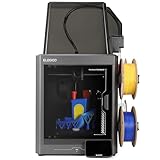
- 4-Color Printing with CANVAS - Enjoy seamless 4-color printing with the CANVAS system's instant color switching and smart filament detection. Auto refill and tangle detection maintain smooth, hassle-free multicolor printing
- Redefining Material Versatility - Print across a wide range of materials, from basic to engineering-grade, made possible through an advanced process and temperature control
- Easy from Start to Finish - Fully automated calibration and monitoring deliver reliable results with zero hassle. Just load, tap print, and walk away
- Designed for Speed - Enjoy blazing speeds up to 500 mm/s and acceleration of 20,000 mm/s². The advanced CoreXY system and rigid aluminum frame team up to deliver fast, precise, and stable prints every time
- Smoother, Sharper, Smarter - Enjoy smooth surfaces and crisp details forged through smart calibration and active vibration compensation
The printer’s principal dimensions are 256 × 256 × 256 mm. That is a useful cube for figurines, household parts, cosplay components, and many functional prototypes, while remaining smaller than large-format machines. The build chamber is enclosed, which helps retain heat and reduces drafts around the model. The four reels, however, sit outside the enclosure, so the filament is exposed to room humidity rather than being dried inside the printer.
ELEGOO lists full-auto calibration, 31 sensors, a 350 °C nozzle, and printing quieter than 45 dB as product claims. The noise and sensor figures are manufacturer statements, not independent measurements. A heated bed rated to 110 °C, Wi-Fi and USB connectivity, and an included 0.4 mm nozzle are also listed in the independent review.
Core specifications at a glance
| Specification | Centauri Carbon 2 Combo | How to interpret it |
|---|---|---|
| Printer type | Enclosed CoreXY FDM | CoreXY motion keeps the heavy bed from moving in X and Y; the enclosure helps with temperature stability. |
| Build volume | 256 × 256 × 256 mm | A practical medium-size cube, but not a large-format workspace. |
| Color system | CANVAS, up to four external reels | One nozzle switches between loaded filaments; color changes generate purge material. |
| Nozzle | 0.4 mm included; maximum temperature 350 °C | The included diameter suits general-purpose detail. The temperature rating enables a broad material range when the rest of the setup is appropriate. |
| Bed | Up to 110 °C | Useful for materials that need a warm build surface. |
| Rated print speed | Up to 500 mm/s | A top-line rating, not a guarantee that every model or material will print at that speed. |
| Calibration | Full-auto calibration (manufacturer claim) | Reduces manual setup, although first-layer and material checks still matter. |
| Noise | Under 45 dB (manufacturer claim) | Treat this as a claimed figure rather than an independently verified result. |
| Connectivity | Wi-Fi and USB | Supports network transfer as well as local file loading. |
| Materials cited by the review | PLA, PETG, PLA-CF, ASA, PC, PA and PET | Material success depends on drying, enclosure temperature, slicer settings and the specific filament. |
How CANVAS four-color printing works
Each of the four reels feeds through its own external path. CANVAS selects a reel, advances filament toward the hot end, and retracts it when the print calls for another color. Before the next color is laid down, the nozzle purges residual material. A purge tower, purge line, or model infill can collect that waste depending on the slicer configuration.
Free tools Windows power users keep installed
One-click scans. No signup required.
In the independent hands-on test, a white-and-purple print showed clean transitions with little visible contamination. That result is important because a single-nozzle system can leave traces of the previous color if the purge volume is too small. It does not mean every color pairing will behave identically: dark pigments, translucent materials and different melt temperatures can require more purging.
The system is best understood as an automated material-change workflow. It removes much of the manual swapping associated with a single-filament printer, but it does not eliminate the cost of extra filament, transition time or tuning. A four-color object can consume a surprising amount of purge filament, especially when colors change frequently across many layers.
Spool fit and adapters
ELEGOO specifies spool holders for reels with a 53–58 mm inner diameter. A reel with a larger center opening needs a printed adapter so it remains centered and feeds without wobbling. Check the actual reel geometry before loading it; outer diameter and width also affect whether a reel rotates freely on the holder.
Rank #2

- Easy from Start to Finish: Whether you’re a beginner or an experienced maker, automatic calibration and smart pre-print checks take care of setup before every job. Simply load your filament, start printing, and let the printer handle the rest
- Designed for Speed: Turn hours of waiting into finished creations with speeds up to 500 mm/s and 20,000 mm/s² acceleration. The high-speed CoreXY system and rigid aluminum frame deliver fast, stable printing for prototypes, models, and everyday projects
- Smoother, Sharper, Smarter: From the first layer to the final detail, intelligent calibration, vibration compensation, and precise extrusion control help produce clean surfaces, sharp edges, and consistent results—even on complex models
- A Seamless Workflow from Idea to Print: Find inspiration from thousands of ready-to-print models on Nexprint, prepare files easily with ElegooSlicer, and monitor your printer remotely through ELEGOO Matrix app. Create more with less effort
- Made for Easier Everyday Printing: A user-friendly 5-inch touchscreen simplifies operation, while the magnetic printhead cover, semi-automatic belt tensioner, and nozzle wiper make maintenance quicker and keep your printer running smoothly
TPU and flexible filament
TPU can be used with the flexible-filament adapter, but ELEGOO instructs users to disconnect the CANVAS cable for this configuration. Flexible filament has a greater tendency to buckle in feed paths, so the adapter and the disconnected CANVAS route are part of the intended setup rather than optional tweaks.
Do these 3 things before closing this tab:
1Scan for outdated or missing drivers - takes under a minute2Clear out junk files and repair common Windows errors3Fix the driver behind crashes, sound loss and screen glitchesFiber-reinforced materials
ELEGOO says CANVAS is compatible with fiber-reinforced filaments. Carbon-fiber-filled and other abrasive compounds can wear feed components over extended use, so the manufacturer recommends regular inspection and replacement of feed parts. No exact replacement part number or service interval is established here; inspect for grinding, inconsistent loading or failed retractions and use the current support documentation for the correct component.
Print quality: what independent testing found
TechRadar’s hands-on review awarded the printer 29 out of 30 for its print test. The reviewer reported an average X/Y dimensional error of 0.055 mm. That number describes the reviewer’s test conditions and sample, not a universal accuracy guarantee or a factory tolerance.
The white-and-purple multicolor sample had clean color output and little contamination, although the reviewer also noted some dimensional imperfections. Those observations point to a machine capable of attractive, usable parts without implying that every geometry will meet engineering tolerances out of the box. Wall count, cooling, layer height, belt tension, temperature and filament condition all influence the result.
Material condition proved especially significant. Fine filament hair appeared when reels were used in a cold, humid workshop. After the printer was moved to an office and the filament was changed, the hair disappeared. The episode illustrates the practical limit of an enclosed print area: the model benefits from an enclosure, but the stored filament does not receive the same environmental protection.
Recommended Free Tools
The review also observed occasional reel slippage with some plastic spools. A reel that drags, slips or rubs its holder can create under-extrusion or a loading error even when the printer itself is calibrated. Metal or better-fitting plastic reels may behave differently, but verify each spool rather than assuming all reels have the same friction and center dimensions.
Rank #3

- Print Right Out of the Box: ELEGOO Centauri Carbon arrives fully assembled and pre-calibrated, ready to go right away. With auto bed leveling, intuitive touchscreen controls, and 256x256x256 mm/10”x10”x10” build volume, it’s built for users of all skill levels. Whether you're a beginner or seasoned maker, enjoy smooth, frustration-free printing from the start
- Built for High-Speed Printing: Unlock ultra-fast printing with it’s advanced CoreXY structure, achieving up to 500 mm/s print speeds and 20000 mm/s² acceleration. Combined with a high-flow hotend and powerful heated bed, you can produce large, detailed parts rapidly and reliably
- High-Performance Material Ready: Equipped with a 320°C brass-hardened steel nozzle and enclosed chamber with enhanced cooling, Centauri Carbon is optimized for advanced filaments like carbon fiber reinforced filament and more. Create parts that are strong, lightweight, and heat-resistant, ideal for drones, automotive, and athletic applications
- Rock-Solid Die-Cast Frame for Precision: Centauri Carbon 3D printer features a rigid, integrated die-cast aluminum frame that minimizes vibrations and maintains exceptional stability, even at high speeds. Combined with automatic vibration compensation and pressure advance, it ensures smooth first layers, and consistent, high-quality prints
- Smart Monitoring & Flawless Printing: Monitor your prints in real time with the built-in chamber camera and dual LED lighting. Capture time-lapse videos and make remote adjustments with ease. The upgraded dual-sided plate features a new PLA Specific Surface with excellent adhesion and minimal warping, ensuring perfect PLA printing even at lower heatbed temperatures
Materials and environmental control
The cited material range covers everyday PLA and PETG as well as PLA-CF, ASA, PC, PA and PET. The 350 °C nozzle and 110 °C bed provide the temperature headroom associated with those materials, while the enclosure can help with drafts and temperature swings. Temperature capability alone does not guarantee successful prints: each material may require a dry spool, a suitable build surface, controlled cooling and a profile that matches the brand and additive load.
External storage is the most consequential design compromise. CANVAS reels remain outside the enclosure and are not held in an integrated drying box. Hygroscopic materials such as PA and some PETG formulations can absorb moisture during storage, leading to popping, rough surfaces, stringing and weaker layers. If a print develops these symptoms, dry the filament using the material maker’s recommended temperature and time, then keep the reel sealed with desiccant between jobs.
PLA is generally the easiest starting material and is useful for checking first-layer calibration, color changes and spool movement. Once that workflow is reliable, move to PETG or engineering materials one variable at a time. Loading four new materials simultaneously makes it difficult to identify whether a problem comes from the spool, the feed path, the profile or the model.
Setup and first-print workflow
The printer is designed to reduce manual calibration, but a careful first run prevents many problems later. Use this sequence when setting up a new machine or changing a group of reels.
- Choose a stable location. Place the enclosed printer on a rigid, level surface with clearance for the doors, ventilation and external reel paths. Keep the four reels aligned so their filament can unwind without sharp bends.
- Check each spool. Confirm the 53–58 mm inner-diameter requirement, inspect for damaged edges and make sure the reel turns freely. Install a printed adapter when the center opening is larger than the holder specification.
- Load one known-good filament first. PLA is a practical baseline. Confirm that the filament path is straight and that the reel does not slip before loading the other three channels.
- Run the printer’s automatic calibration. Follow the on-screen full-auto calibration routine. Auto calibration reduces setup work, but inspect the first layer rather than assuming the routine compensates for every surface or environmental issue.
- Connect the printer. Use Wi-Fi for network transfer or USB for local files. Keep the first test file simple so a feed or adhesion problem is easy to diagnose.
- Assign colors and purge behavior in the slicer. Map each model color to a CANVAS channel and allow enough purge volume for the color pair. Dark-to-light changes generally deserve more attention than similar shades.
- Watch the first color change. Verify that the selected reel advances, the previous filament retracts cleanly and the new color reaches the nozzle. Stop the job if the reel slips or the filament grinds.
- Inspect the finished object. Check color boundaries, stringing, dimensional features and any purge structures. Record the material, temperature and environmental conditions before changing another variable.
Enclosure, calibration and everyday usability
The enclosed CoreXY layout is one of the machine’s strongest practical features. It keeps the print area less exposed to drafts than an open-frame printer and gives the machine a sturdier, more appliance-like footprint. That is useful for ASA and other materials that can warp when room air cools one side of a part.
Full-auto calibration and the 31-sensor claim suggest an emphasis on out-of-box convenience. In daily use, convenience still depends on basic maintenance: keep the build surface clean, remove debris from the nozzle area, check that the belts remain taut and make sure each reel feeds with low resistance. Automatic routines cannot correct a spool that is physically jammed or a filament that has absorbed moisture.
Rank #4

- 4-Color Printing with CANVAS: Create vibrant multi-color models effortlessly with CANVAS 4-color printing. Independent motors, instant color switching, RFID filament recognition, and auto refill work together to deliver smooth color transitions without complicated setup, making colorful printing easier for beginners and creators
- Start Printing with Confidence: Full auto calibration and smart pre-print checks simplify setup, while 22 intelligent sensors monitor every print in real time. From first layer to final result, enjoy consistent printing with less manual adjustment, making it ideal for beginners and experienced makers alike.
- Designed for Speed: Experience faster creation with a high-speed CoreXY system reaching up to 500mm/s and 20,000mm/s² acceleration. The rigid aluminum frame and precision linear guides maintain smooth, stable motion, helping deliver accurate prints even at high speeds
- Smoother, Sharper, Smarter: From the first layer to the final detail, intelligent calibration, vibration compensation, and precise extrusion control help produce clean surfaces, sharp edges, and consistent results—even on complex models
- A Seamless Workflow from Idea to Print: Simplify your entire workflow with the ELEGOO ecosystem. Discover ready-to-print models on Nexprint, prepare projects with ELEGOOSlicer, and control your printer remotely through ELEGOO Matrix app. Create, manage, and print with ease.
The manufacturer claims operation below 45 dB. Because that figure has not been independently verified in the available testing, treat the printer’s actual sound as room- and mode-dependent. Fans, acceleration, purge movements and the surface supporting the enclosure can all change what you hear at a desk or in a shared room.
What’s actually slowing this PC down?
Pick the symptom - the matching free tool is one click away.
Advanced controls
TechRadar found the advanced settings relatively limited. That favors users who want a guided workflow, but it can frustrate owners who tune pressure advance, extrusion behavior, motion limits or specialized material profiles in detail. If you expect to modify firmware, rebuild the motion system or expose every low-level parameter, confirm the current software and firmware options before purchase.
Build area and physical trade-offs
A 256 mm cube accommodates most tabletop projects, but it sets a clear ceiling on single-piece parts. Helmets, large enclosures, long brackets and oversized terrain may need to be split and assembled. The compact footprint is an advantage for a home office or small workshop, yet it also means less room than larger enclosed machines designed around engineering workloads.
TechRadar described the printer as relatively compact, sturdy and capable, while noting that the print area is limited compared with larger machines. The same review considered the available area flexible enough for many projects. Decide based on the largest object you actually print, not the diagonal of the build plate: a part must fit within all three 256 mm dimensions, including clearance for supports and brim.
Independent reader supportYour contribution helps us test, update, and keep practical guides available for everyone.Price, consumables and total cost
Price depends on market and date. ELEGOO’s US product page displayed $399 for the standard Combo when accessed on October 13, 2026. TechRadar’s January 28, 2026 review reported $449 from ELEGOO US and £399 from ELEGOO UK. These are snapshots, not a guaranteed current price, so check the live regional store before ordering.
The purchase price is only part of the multicolor equation. Four-color work uses additional filament during purges and color transitions, and the cost varies with model geometry and the number of changes per layer. Budget for four compatible reels, possible adapters for oversized spools, and replacement feed parts if abrasive fiber-filled filament is used extensively.
Best Value

- Up to 16 Colors: Bring your designs to life with vibrant multi-color/multi-material printing capabilities, perfect for showcasing your creativity. Note: Connecting Bambu Lab AMS is required.
- 500mm/s and 20000 mm/s² Acceleration True High Speed: Don't wait around for your masterpieces. Lightning-fast printing speed lets you focus on creating, not waiting.
- Enclosed Design: Fully enclosed body improves print performance for advanced filaments. Automatic Bed Leveling: Say hello to high-quality, successful prints. Auto bed leveling makes 3D printing such an easy thing.
- Set Up in 15 Minutes: Spend more time printing and less time setting up. User-friendly design ensures a hassle-free assembly experience for all skill levels.
- Supported Filament: Ideal: PLA, PETG, TPU, PVA, PET ABS, ASA; Capable : PA, PC; Not Recommended: Carbon/Glass Fiber Reinforced Polymer.
For a buyer who prints mostly one color, the CANVAS hardware may remain idle while still adding complexity around spool routing and maintenance. For a buyer who would otherwise purchase a separate multicolor upgrade, the integrated workflow can justify the premium by reducing manual swaps and providing a ready-made enclosed system.
Who should buy the Centauri Carbon 2 Combo?
| Buyer profile | Fit | Reason |
|---|---|---|
| Hobbyist making multicolor figures, signs or household parts | Strong fit | CANVAS automates four-color changes and the enclosed cube handles a broad range of common filaments. |
| Family or shared household printer | Good fit | Enclosure, automatic calibration and Wi-Fi reduce routine setup for multiple users. |
| Small maker selling short-run multicolor items | Conditional fit | Color output is capable, but purge waste, reel condition and a 256 mm cube affect throughput and margins. |
| Single-color PLA user | Questionable fit | A simpler single-filament machine may provide the needed result with fewer feed components and less setup. |
| Engineer needing a large enclosed workspace | Limited fit | The material range is broad, but the build volume is smaller than large-format alternatives. |
| User who needs built-in filament drying | Poor fit | Reels are external and CANVAS does not provide an integrated drying box. |
| Hardware tinkerer seeking extensive low-level control | Conditional fit | The guided workflow is convenient, while the review found advanced settings relatively limited. |
Common problems and practical fixes
Stringing or fine hairs
First check filament condition and room humidity. The independent review saw hairs with reels in a cold, humid workshop, then no hairs after changing filament and moving the printer to an office. Dry the affected spool according to its material guidance, keep it sealed between prints and retest before changing multiple slicer settings.
Color contamination
Increase purge volume when a light color follows a dark one, and check that the nozzle reaches a stable flow before the model resumes. Similar colors may need less purge. Excessive purging raises waste, so tune using a small test model rather than a long production print.
Reel slips or fails to feed
Pause the print and inspect the spool center, holder adapter and filament path. Remove damaged or tangled filament, confirm that the reel rotates freely and make sure the center opening matches the holder range. If the problem occurs only with one plastic reel, its geometry or surface friction may be responsible.
TPU buckles during loading
Use the flexible-filament adapter and disconnect the CANVAS cable as ELEGOO directs for TPU. Feed slowly and avoid tight bends. Do not assume a PLA channel setup will behave the same way with a soft filament.
Under-extrusion after abrasive filament
Inspect the feed path for wear and look for grinding or failed retractions. ELEGOLOO recommends regular inspection and replacement of feed parts during extended fiber-reinforced use. Use the current manufacturer documentation to identify the correct service part; the available product information does not specify a universal replacement SKU.
Warping or poor adhesion
Clean the build surface, verify bed temperature for the chosen material and use the enclosure to limit drafts. If a material still warps, adjust the profile and consider a brim or revised part orientation. Auto calibration addresses machine setup, not every material’s adhesion needs.
Maintenance checklist
- Keep the build surface free of fingerprints, dust and residue.
- Check that all four reels rotate without drag before a multicolor job.
- Inspect feed parts more often when using fiber-reinforced filament.
- Remove purge buildup around the nozzle and surrounding components.
- Store hygroscopic filament sealed with desiccant and dry it when symptoms indicate moisture.
- Record material, spool, temperature and humidity when troubleshooting so successful settings can be repeated.
- Recheck firmware and slicer behavior after updates because software labels and controls can change.
Verdict
The Elegoo Centauri Carbon 2 Combo earns its place as a multicolor specialist rather than a universal best choice. Independent testing found strong color output, a 29/30 print-test score and 0.055 mm average X/Y dimensional error under the reviewer’s conditions. Its enclosed CoreXY frame, 350 °C nozzle rating and broad cited material support make it more versatile than a basic PLA-only printer.
The compromises are concrete: external reels are not dried, purge material increases consumption, some plastic spools can slip, advanced controls are limited, and the 256 mm cube rules out larger one-piece projects. Choose it when those limits are acceptable and four-color convenience is central to your work. Choose a simpler single-filament setup when you mainly print one material and color, and choose a larger or drying-focused machine when those requirements matter more than CANVAS.
Quick Recap
Product prices and availability are accurate as of the date/time indicated and are subject to change. Any price and availability information displayed on Amazon at the time of purchase will apply.

