Recommended Free Tools
If Escape from Tarkov will not launch, do not reinstall the entire game immediately. Start by identifying where the failure occurs: the Battlestate Games Launcher, Steam integration, the local game path, BattlEye, or the game client after an update. The repair that works depends on that symptom.
Use the steps below in order. They progress from low-risk checks—closing stuck processes and repairing files—to cache resets, launcher repair, BattlEye reinstallation, graphics troubleshooting, and finally a full reinstall.
1. Check whether Tarkov is down
Before changing local files, check the official service-status page at status.escapefromtarkov.com. An outage can prevent authentication or updates, but it will not normally cause a local installation error.
If you see “There is no game with name ‘eft’ (Parameter name: game)”, the problem is usually local launcher-to-installation mapping—not the game servers. Continue with the path checks below.
Do these 3 things before closing this tab:
1Clear out junk files and repair common Windows errors2Fix the driver behind crashes, sound loss and screen glitches3Repair Windows errors before they cause bigger problems#1 Best Overall

- Custom made based on beanie from Escape from Tarkov
- A great gift for the holidays or to add to your Tarkov collection
- Perfect for raiding!
2. Close every Tarkov-related process
The launcher window can close while its background processes remain active. A stuck process may prevent the next launch or keep files locked.
- Press Ctrl + Shift + Esc to open Task Manager.
- Under Processes, end any remaining
BsgLauncher,EscapeFromTarkov, andBattleEyeprocesses. - Exit Steam completely if you use the Steam edition. Also right-click the Steam icon in the system tray and choose Exit Steam.
- Start the supported launcher again and try Tarkov.
Do not make direct executable launching your normal routine. Running EscapeFromTarkov.exe as administrator is useful only as a diagnostic test: if it starts independently, the installation may be intact while the launcher or authentication layer is failing.
3. Repair the game from the launcher
In the Battlestate Games Launcher, click your profile name in the upper-right corner. Current reports show two relevant options:
- Integrity Check — checks the installed game files.
- Clear Cache — removes temporary launcher data.
Launcher wording can vary by version, so do not assume every installation displays identical labels. Run Clear Cache first if the launcher is stuck, missing controls, or behaving as though an update did not complete. Then run Integrity Check.
Clearing local cache can require you to sign in again. It does not delete your server-side account progress or stash.
Rank #2
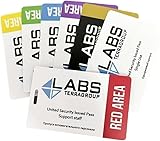
- Card's inspiration comes from Game, high similarity to the original.
- The cards is made of PVC.And all cards have a card holder to protect them.
- Excellent material and thickness.A great replica!
- Best choice for game fans,halloween cosplay prop and even cards collectors.
- Include:7pcs cards
4. Fix “There is no game with name ‘eft’”
This message means the Battlestate launcher cannot match its internal eft entry to the game files on your computer. Common causes include:
- the Tarkov folder was moved or renamed;
- the drive letter changed;
- the launcher is pointing to an old or incorrect location;
- launcher data is corrupted;
- permissions prevented the launcher from reading the installation; or
- the installation folder is incomplete.
Remap the existing installation
- Find the folder where Tarkov is installed.
- Confirm that it contains a
Livesubfolder. - Inside
Live, look forEscapeFromTarkov.exe. - In the launcher, use the available path option. Depending on the version, it may be called Game path, Installation folder, Locate installed game, or Set path.
- Select the main Escape from Tarkov directory containing
Live, unless the launcher specifically asks you to choose theLivedirectory.
A typical structure looks like this:
C:Battlestate GamesEscape from TarkovLiveEscapeFromTarkov.exeDo not rename the folders simply to make them match the internal eft name. The launcher needs the correct installation path, not a manually renamed directory. These path-mapping steps correspond to the troubleshooting guidance described by Appuals.
5. Steam edition: verify files, then repair the separate launcher data
The Steam edition uses Steam for installation, but it still depends on Battlestate Games launcher and authentication files stored locally. Steam lists the game under app ID 3932890; its official support entry is available through Steam Support.
Verify Steam files
- Open Steam Library.
- Right-click Escape from Tarkov and choose Properties.
- Open Installed Files.
- Select Verify integrity of game files.
Verification may repair or redownload damaged Steam-managed files, but it does not necessarily repair a separate Battlestate launcher or authentication cache.
Community-reported Steam cache workaround
If Steam verification completes but Tarkov still fails to launch or the launcher cannot authenticate, a current Steam-specific community report recommends this sequence:
Rank #3
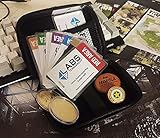
- Brand: Zhipengwen
- Included components: Cards
- Quantity: 1
- Close Steam completely, including its system-tray instance.
- Delete Battlestate Games data from
%AppData%Roaming,%AppData%Local, and%AppData%LocalLowwhere applicable. - Open the Steam Tarkov installation directory and delete only its
launcherfolder. - Restart Steam.
- Run Steam Library → Escape from Tarkov → Properties → Installed Files → Verify integrity of game files again.
This is a community-reported workaround, not an official Battlestate Games or Steam instruction. The report says Steam recreates the launcher and authentication files without redownloading the entire game, but that result is not an independently documented guarantee. Back up anything custom you may need before deleting local files, and expect to sign in again. The original report is available in the Steam community discussion.
6. Reinstall only the Battlestate Games Launcher
If the launcher freezes, fails to update, loses buttons, or closes after sign-in, reinstall the launcher before considering a full Tarkov reinstall.
- Open Settings → Apps → Installed apps.
- Find Battlestate Games Launcher.
- Choose Uninstall.
- Restart Windows.
- Download and install a fresh launcher from the official Escape from Tarkov website.
- When prompted, point it to the existing Tarkov installation directory.
A launcher reinstall is not a full game reinstall. It can replace damaged launcher components while preserving the large game download.
7. Repair BattlEye errors
For a BattlEye-specific failure—particularly the reported error 1,28—a community workaround is to reinstall BattlEye from the game directory:
- Open the Tarkov installation folder.
- Open the
BattlEyefolder. - Run
Uninstall_Battleye.bat. - Then run
Install_Battleye.bat. - Do not use administrator elevation for these two files according to the reported workaround.
- Launch Tarkov normally through Steam or the Battlestate Games Launcher.
This procedure is community-reported and is not confirmed as a universal fix. If Windows security software blocks the scripts, check the security notification rather than blindly disabling protection.
Rank #4
![TOP CUSTOMS Escape from Tarkov - Tagilla Figurine Replica [Updated Packaging]- Collectible Figurine Statue- FactoryBoss - Gift Idea - Gamers](https://m.media-amazon.com/images/I/41EZSWsEqsL._SL160_.jpg)
- Exclusive Top Customs design – crafted to closely resemble Tagilla’s in-game appearance with premium attention to detail
- Made from durable hard PVC, NOT 3D printed, using high-quality injection molding for a clean, professional finish
- Perfect for collection and display alongside your Tarkov gear or gaming setup!
- Ideal gift for your squadmates, friends, boyfriends/girlfriends
- A must-have for Tarkov fans. Whether you’re messing around in the hideout or building the ultimate 'Chad' loadout, this collectible hits hard.
8. Eliminate overlay and monitoring conflicts
A game that appears to do nothing after you press Play may be blocked by software that injects an overlay, frame counter, recording hook, or graphics modification. Temporarily disable or close:
The Tool Desk
Outbyte PC Repair FREERepair Windows errors before they cause bigger problemsFix Now →Outbyte Driver Updater FREEFix the driver behind crashes, sound loss and screen glitchesFind Drivers →- Discord overlay;
- Steam overlay;
- NVIDIA App or GeForce Experience overlay;
- AMD Software overlay;
- Xbox Game Bar;
- MSI Afterburner;
- RivaTuner Statistics Server;
- ReShade;
- recording utilities; and
- FPS counters or other hardware-monitoring tools.
Restart the computer after closing these utilities, then test Tarkov before re-enabling them one at a time. This helps identify the conflicting program without permanently removing software you use.
9. Check graphics-driver and NVIDIA Smooth Motion issues after updates
Recent community reports describe Tarkov terminating before the main menu after the 1.0.5.0 update. One report associated launcher-log code -1073741819 with a clean NVIDIA driver installation, but that is an individual report—not a confirmed Battlestate diagnosis.
For NVIDIA users, another June 2026 report says disabling Smooth Motion resolved a post-update startup failure. The reported path is:
NVIDIA App → Graphics → Escape From Tarkov → Smooth Motion → Off
Outdated Drivers Are Slowing You Down
One free scan finds every outdated or missing driver and matches the right update for your exact hardware.Free scan · exact hardware matchWindows Errors? Fix Them Before They Spread
Repair common Windows errors and clear accumulated junk for a smoother, more stable PC - no reinstall needed.Free scan · no reinstallBest Value

- Exclusive Top Customs design - Inspired by the iconic Customs boss from Escape from Tarkov, this Reshala figurine is designed for fans who want a piece of Tarkov on their shelf.
- Made using durable PVC injection molding for consistent detail and a clean finish — not 3D printed.
- Stands approx. 9 cm (3.54 inches) tall, ideal for desks, shelves, gaming setups, or collector displays.
- A unique collectible for Tarkov players, streamer fans, or anyone building a Tarkov-themed collection.
This is a community workaround, not an official compatibility requirement. If the problem began immediately after a game or driver update, also test a clean graphics-driver installation and remove overlays before attempting a full game reinstall.
Independent reader supportYour contribution helps us test, update, and keep practical guides available for everyone.10. Try the newer edge-case workarounds only when the symptoms match
Windows language or region settings
August 2026 community reports linked missing or broken controls after an update with Windows language or region settings. Reported workarounds included changing the region to the United States or temporarily switching the Windows display language to English (United States) and deleting the local controls file.
These reports do not establish a universal fix. Treat this as a targeted test when the game opens but controls or interface elements are missing—not as a first response to every launch failure.
Launching Arena first
Some August 2026 users reported that launching and then closing Escape from Tarkov: Arena allowed the standard Tarkov client to start. The reports speculate that the two clients share Battlestate backend or client files, but Battlestate Games has not confirmed this behavior. It is a low-risk diagnostic experiment if Arena is already installed; it is not a dependable repair method.
11. Flush the DNS cache only for update or connectivity symptoms
If the launcher is stuck on Checking Updates or repeatedly fails to update, a fan-run Tarkov guide reports this Windows command as a DNS-cache workaround:
ipconfig /flushdnsRun it in Command Prompt, then restart the launcher. This is not an official fix documented in the retrieved Battlestate or Steam support material. A VPN cannot repair a missing, moved, renamed, or incorrectly mapped game directory; consider network-routing workarounds only after the local installation path and launcher files are correct.
12. When a full game reinstall is justified
Reinstall the entire game only after you have:
- checked the official service status;
- closed stuck processes;
- verified Steam files, if applicable;
- checked or remapped the installation path;
- cleared launcher data;
- reinstalled the Battlestate launcher;
- repaired BattlEye when relevant; and
- tested with overlays and graphics features disabled.
A full reinstall is most reasonable when the expected Live structure is missing, important executables remain absent after verification, or the installation is clearly incomplete or damaged. It is not the correct first-line answer to every launcher, authentication, BattlEye, or post-update failure.
Quick Recap
Quick symptom-to-fix guide
| Symptom | Best first step |
|---|---|
| “There is no game with name ‘eft’” | Check the drive and remap the launcher to the directory containing Live. |
| Steam launches nothing or authentication fails | Close Steam fully, clear the reported Battlestate local data, delete only the Steam installation’s launcher folder, then verify Steam files. |
| Launcher freezes or loses buttons | Clear cache, then reinstall the Battlestate Games Launcher if necessary. |
| BattlEye error 1,28 | Run the BattlEye uninstall and install batch files without administrator elevation. |
| Play produces no window and then a generic error | Close overlays and monitoring tools; if it began after an update, test graphics-driver and Smooth Motion changes. |
| Launcher stuck on Checking Updates | Restart the launcher, check service status and network access, then optionally run ipconfig /flushdns. |
What not to do
- Do not rename the Tarkov installation folder to match
eft. - Do not assume Steam verification repairs Battlestate launcher cache files.
- Do not reinstall the whole game before trying a launcher reinstall.
- Do not treat running the executable as administrator as the supported launch method.
- Do not use a VPN as a fix for a path-mapping error.
- Do not assume an individual Reddit workaround is an official or permanent solution.
Product prices and availability are accurate as of the date/time indicated and are subject to change. Any price and availability information displayed on Amazon at the time of purchase will apply.
Quick wins for a faster PC:
Clear out junk files and repair common Windows errorsFree Scan →Fix the driver behind crashes, sound loss and screen glitchesFind Drivers →