
Recommended Free Tools
Before launching a new Final Fantasy XIV expansion, protect your configuration, confirm that your hardware and storage meet the current requirements, update graphics drivers, and establish a frame-rate target your system can sustain. Then tune upscaling, dynamic resolution, shadows, textures and ambient occlusion in that order. Console players should verify transfers and controller bindings, while PC players should resolve overlay shortcuts before the first patch-day session.
Start with a configuration backup
A major client update is a poor time to discover that a hotbar, HUD layout or controller mapping existed only on one machine. Make a record of the settings you would hate to rebuild before changing platform, reinstalling the client or enabling new graphics options.
| # | Preview | Product | Price | |
|---|---|---|---|---|
| 1 |
![Final Fantasy XIV Online: 60 Day Time Card [Online Game Code]](https://m.media-amazon.com/images/I/51bYMOf2hEL._SL160_.jpg)
|
Final Fantasy XIV Online: 60 Day Time Card [Online Game Code] | $29.99 | Buy on Amazon |
| 2 |

|
Final Fantasy XIV Online Complete Edition (PS4) | $59.99 | Buy on Amazon |
| 3 |
|
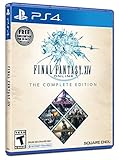
Final Fantasy XIV Online, Complete Edition - PlayStation 4 | $99.97 | Buy on Amazon |
| 4 |

|
Final Fantasy XIV: Stormblood - PlayStation 4 | $16.25 | Buy on Amazon |
| 5 |
|
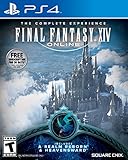
Final Fantasy XIV Online | $45.60 | Buy on Amazon |
As an Amazon Associate I earn from qualifying purchases.
Moving from PS4 to PS5
PS4 HUD and game-configuration settings do not transfer automatically to PS5. Use FFXIV‘s Server Backup Function before the move, then restore the backup on the PS5 version. This protects the server-side configuration that the platform transfer does not carry over by itself.
Also capture the items that are easiest to miss: hotbars, cross-hotbars, HUD layout, keybinds, gear-set macros and controller mappings. Screenshots are a useful fallback even when a server backup is available, because they give you a visual reference if a layout or assignment needs to be recreated.
#1 Best Overall
- Adventure awaits you beyond the horizon in FINAL FANTASY XIV.
- This product is a digital 60-Day Game Time Card for FINAL FANTASY XIV Online. It serves as a payment option that allows players to add 60 days of game time to their FFXIV account at the Standard subscription rate, subject to account limits. Both the game and game time are required to play.
- This product can be redeemed on service accounts registered with the Windows, Mac, PlayStation, or Steam versions of FINAL FANTASY XIV Online. However, it cannot be redeemed on service accounts that have only the XBOX or Nintendo Switch 2 versions registered.
Windows and Mac high-resolution interface assets
If you turn on the high-resolution UI asset option on Windows or Mac, plan to restart the game. The setting does not become active until the client is restarted, so enabling it immediately before a raid or launch event can leave you looking at the old assets until the next restart.
Check the current hardware and storage requirements
Square Enix’s 2026 system-requirements listing gives the following baseline for the current client. Treat the minimum column as a boot-and-play floor, not a promise of a steady frame rate in crowded cities or during effect-heavy battles.
| Component | Minimum listed requirement | Recommended listing |
|---|---|---|
| Operating system | Windows 11, 64-bit | Windows 11, 64-bit |
| Memory | 8 GB RAM | 16 GB RAM |
| Storage | 140 GB available space | 140 GB SSD |
| Display resolution | 1280×720 | 1920×1080 |
| Graphics API | DirectX 11 | DirectX 11 |
| Windows GPU class | GeForce GTX 970 (4 GB) or Radeon RX 480 (4 GB) | GeForce RTX 2060 (6 GB) or Radeon RX 5600 XT (6 GB) |
Leave additional free space beyond the stated 140 GB when possible. Expansion patches, temporary download files and operating-system updates need working room even when the installed game itself fits. An SSD is the recommended storage type and generally reduces loading waits and texture-streaming hiccups compared with a hard disk, but it cannot compensate for an underpowered GPU or insufficient memory.
The Tool Desk
Outbyte Driver Updater FREEScan for outdated or missing drivers - takes under a minuteDriver Scan →Outbyte PC Repair FREEClear out junk files and repair common Windows errorsFree Scan →Square Enix also states: “Graphics card drivers must be updated to the latest version to run the software.” Update the driver for your AMD, NVIDIA or Intel graphics hardware before the first launch after an expansion patch. If the installer offers a clean-install option and you have been troubleshooting corrupted profiles, record your custom driver settings first.
Choose a frame-rate target before raising image quality
An uncapped frame rate can fluctuate sharply as the camera enters a city, a hunt train or a large combat encounter. A cap that your system can hold consistently usually feels better than a higher peak followed by repeated drops.
Rank #2
- Access to all expansion content from Heavensward and Stormblood, unlocking additional jobs, areas, story quests and more ways to explore: flying, swimming and diving
- A flexible class system that allows players to switch freely between a variety of classes and jobs, including new additions red mage and samurai, and reach the new level cap of level 70
- All the hallmarks of the FINAL FANTASY franchise, including an engaging storyline, genre-leading graphics, and HD real time cut scenes.
- Robust gameplay features such as player-managed Free Companies, diverse party finder features to group up with other players with ease, and a variety of fun activities in the Gold Saucer area, all designed to accommodate a dynamic player community.
- Challenging trials, dungeons and raids for groups of up to 24, and exciting player-vs-player (PvP) content for groups of up to 72 players
| Platform | Frame-rate choices documented in Patch 7.0 | Practical starting point |
|---|---|---|
| Windows and Mac | None, Main Display Refresh Rate, 60 fps, 30 fps | 60 fps if the system can sustain it; otherwise 30 fps or a stable display-refresh target |
| PS5, PS4 and Xbox Series X|S | 30-fps cap option added in Patch 7.0 | Use the cap when an uncapped mode produces visible swings |
Set the display resolution and cap first. Test in a crowded capital city and in a fight with many spell effects, not only in an empty field. If frame time remains uneven, use the graphics sequence below rather than selecting Maximum and hoping the client will smooth out the load.
Tune graphics in an order that protects frame-time stability
1. Set resolution and an upscaling mode
Choose the monitor or television resolution you actually intend to use, then decide whether to render internally at a lower resolution and upscale. Patch 7.0 documents AMD FSR and NVIDIA DLSS on supported Windows graphics cards. Upscaling can preserve a higher output resolution while reducing the number of pixels the GPU must shade each frame.
What’s actually slowing this PC down?
Pick the symptom - the matching free tool is one click away.
Compare text, thin weapon edges and distant scenery after enabling an upscaler. A mode that looks clean while standing still can reveal shimmer during camera movement, so inspect both a static UI-heavy scene and a moving combat scene before committing.
2. Enable dynamic resolution only when its trigger matches your goal
Dynamic resolution can change the internal render resolution when performance falls. The documented threshold choices are below 30 fps, below 60 fps or always enabled. “Below 60 fps” is useful when you want the client to protect a 60-fps target; “below 30 fps” intervenes less often but allows larger slowdowns first. “Always enabled” gives the scaler permission to adjust continuously, which can make frame time steadier at the cost of a variable image.
Use one scaling strategy at a time while testing. If you combine an aggressive upscaler with always-on dynamic resolution, image softness can become difficult to diagnose because two systems are changing the internal resolution.
Rank #3
- A new adventure awaits in Norvrandt
- New jobs, including gun breaker and dancer
- New playable races: Viera and Hrothgar
- Level cap increase from 70 to 80
- New cities to explore: The Crystarium and Eulmore
3. Reduce shadows before textures
Shadow quality, distant-object level of detail, shadow softening and cast shadows can consume substantial GPU time, especially in populated areas. Lower these settings one step at a time and repeat the same city and combat tests. Shadow reductions generally affect frame rate more than texture reductions on a system with enough video memory.
Free tools Windows power users keep installed
One-click scans. No signup required.
4. Keep texture detail as high as memory allows
Texture detail and texture resolution influence surface sharpness rather than the number of characters the GPU must shade. If your graphics memory is adequate and you are not seeing hitching, keep textures higher while trimming shadows. If the client stutters when turning rapidly or entering a new area, test a lower texture setting and watch for reduced streaming pressure.
5. Select anti-aliasing deliberately
Patch 7.0 lists TSCMAA and TSCMAA + Camera Jitter. TSCMAA + Camera Jitter can change the appearance of fine edges during movement; compare both modes while rotating the camera around railings, hair and thin weapon effects. Pick the option that gives you the clearest motion at your chosen frame cap rather than assuming the more complex label is automatically better.
6. Adjust GTAO last among the major quality controls
GTAO, or ground-truth ambient occlusion in the graphics menu, adds contact shading around characters and nearby geometry. Patch 7.0 provides quality and standard choices. If you need another performance margin after shadows and resolution scaling, move from quality to standard and check whether the loss of depth is acceptable in dungeons and cities.
- After every change, repeat one crowded-city test and one effect-heavy combat test.
- Change one setting at a time so you know which adjustment solved a hitch or blur.
- Stop lowering quality once the frame cap is stable; maximum possible settings are not the objective.
Review controller, mouse and accessibility settings
Gamepad assignments
Patch 7.4 adds Gamepad Customization on PS4, PS5 and Xbox Series X|S. It allows configurable L3 and R3 assignments, including shortcuts for the Command Panel. Recheck these assignments after a platform move or major update, especially if pressing either stick previously opened a menu, sprinted or triggered a target action.
Rank #4
- Customer must have Final Fantasy XIV: A Realm Reborn to play Stormblood
- Increased level cap up to level 70
- New Jobs – Red Mage and Samurai
- New Beast Tribe and Primal
- New Alliance Raid
Open the gamepad configuration and verify every action you use in combat: confirm, cancel, target cycling, hotbar pages, camera controls and movement-mode toggles. A setting that feels harmless in a menu can become a lost cooldown or an accidental target change during a trial.
Visual alerts and color filtering
The Patch 7.4 Accessibility Settings tab on PS4, PS5 and Xbox Series X|S includes visual alerts and color filtering. Use visual alerts when audio cues are easy to miss, and test color filtering against telegraphs, party markers and status icons rather than judging it from a settings screen alone. Keep a screenshot of your preferred arrangement so it can be restored after a reset.
Mouse aids and cursor size
Patch 2.5 documents mouse sonar, cursor tracking, expanded mouse functionality and Normal, Large and Maximum cursor sizes on supported platforms. Mouse sonar can help locate the pointer when it disappears against a busy scene; cursor tracking keeps it easier to follow during rapid camera movement. Increase the cursor size until it remains visible without obscuring party frames or combat telegraphs.
Independent reader supportYour contribution helps us test, update, and keep practical guides available for everyone.Resolve overlay and keybind conflicts before launch
Patch 6.2 identifies a specific conflict: the Steam overlay shortcut Shift+Tab overlaps with FFXIV‘s default shortcut for cycling to the previous enemy. During combat, an accidental overlay can interrupt targeting or obscure the action bar.
Quick wins for a faster PC:
Clear out junk files and repair common Windows errorsFree Scan →Scan for outdated or missing drivers - takes under a minuteDriver Scan →Repair Windows errors before they cause bigger problemsFix Now →- Open Steam’s controller or in-game overlay shortcut settings and note the current key.
- Change the overlay shortcut to a combination you do not use for targeting, movement or hotbars, or change the corresponding FFXIV keybind.
- Enter a low-risk area and test the new shortcut while cycling targets, opening menus and dismissing the overlay.
- Repeat the check after an expansion patch if either application restores its default bindings.
Apply the same audit to capture software, chat overlays and peripheral utilities. The documented Shift+Tab collision is the one Square Enix calls out, but any program that hooks the keyboard, mouse or gamepad can create a similar symptom.
Best Value
- Increased level cap from 50 to 60
- Dark Knight: Tank - Wields a two-handed greatsword and the power of darkness to deal damage to their foes
- Astrologian: Healer - Tap the power of the stars to cast potent healing magicks, while drawing energies from constellation-based divining cards to support your party
- Machinist: DPS - Deal damage from afar using a combination of firearms enhanced with various attachments, and mechanical turrets deployed on the battlefield
- Included in this expansion pack is a new race called The Au Ra, a new City-State - Ishgard, new Primals Bismarck and Ravana, and Flying Mounts
A practical pre-expansion sequence
- Run the PS4-to-PS5 Server Backup Function if you are changing PlayStation generations.
- Screenshot or export hotbars, HUD layout, keybinds, gear-set macros and controller mappings.
- Confirm Windows 11 64-bit, available storage, RAM, GPU class and DirectX 11 against the current requirements.
- Update the graphics driver, then restart the computer if the installer requests it.
- Install the expansion and leave enough free storage for patch downloads and temporary files.
- Set display resolution and a frame-rate cap before changing quality presets.
- Test FSR or DLSS, then dynamic-resolution thresholds, shadows, textures, anti-aliasing and GTAO in that order.
- Recheck controller assignments, accessibility filters, alerts, mouse aids and cursor size.
- Change the Steam overlay shortcut or the conflicting in-game binding.
- Test a capital city, a crowded duty and an effect-heavy fight before committing to a long launch-day session.
What to change when stuttering remains
Stutter appears when entering cities or new zones
Verify that the game is installed on an SSD, close unnecessary background applications, and test lower texture detail or texture resolution. Confirm that free storage has not fallen to the point where patching or shader-related temporary work is constrained.
Frame rate collapses during large fights
Lower shadow quality, distant-object detail, shadow softening and cast shadows first. If the collapse still crosses your cap, enable dynamic resolution with the threshold matching your target, then reduce GTAO from quality to standard.
The image looks soft or shimmers after upscaling
Compare native resolution with FSR or DLSS at the same frame cap. Try a less aggressive scaling mode, disable always-on dynamic resolution, and inspect anti-aliasing choices while moving the camera. Keep the combination that preserves readable UI text and stable motion.
Do these 3 things before closing this tab:
1Repair Windows errors before they cause bigger problems2Scan for outdated or missing drivers - takes under a minute3Clear out junk files and repair common Windows errorsControls changed after moving platforms
Restore the server backup where applicable, then use your screenshots to rebuild hotbars, HUD elements, macros and controller assignments. On consoles, inspect the Patch 7.4 Gamepad Customization page for L3/R3 changes before entering a duty.
The game will not launch after an expansion update
Start with the requirement that Square Enix states explicitly: graphics card drivers must be updated to the latest version. Confirm the operating system, DirectX 11 support, free space and GPU class, then restart after any driver or high-resolution UI-asset change.
Which trade-off fits your setup?
| Priority | Settings direction | Cost |
|---|---|---|
| Steady frame time | Use a cap, upscaling or dynamic resolution, then lower shadows and GTAO | Less native-detail clarity and softer lighting |
| Maximum image detail | Use native resolution, higher shadows and quality GTAO | More GPU load and a greater risk of drops in crowded scenes |
| Reduced visual stimulus | Enable visual alerts or color filtering and tune effects for readability | Some effects may look less vivid or less natural |
| Fast, reliable input | Customize gamepad, cursor and mouse-sonar aids; remove overlay conflicts | Defaults may no longer match older guides or another platform |
| Console consistency | Use the available 30-fps cap and platform-specific accessibility controls | Lower peak frame rate than an adequately equipped PC |
The safest launch configuration is the one that stays predictable under load, preserves readable combat information and can be restored from a backup. Tune for the scenes you actually play, not for an empty benchmark area.
Quick Recap
Product prices and availability are accurate as of the date/time indicated and are subject to change. Any price and availability information displayed on Amazon at the time of purchase will apply.

