Quick wins for a faster PC:
Fix the driver behind crashes, sound loss and screen glitchesFind Drivers →Repair Windows errors before they cause bigger problemsFix Now →On PC, open HoYoPlay and select Repair Now. If you can open Genshin Impact, you can also run its resource integrity check from the login screen or in-game settings. These are the official first steps for related file and download problems; the phrase “failed to verify files” alone does not identify a specific cause.
Start with the platform and exact error
Check whether you are playing on PC through HoYoPlay, mobile, or console, and write down any error code shown with the message. The repair options differ by platform, and an error code can point to a download, extraction, or network problem rather than a general verification failure.


HoYoverse’s [Why can’t I download or update the game?] and [How do I fix common game errors and error codes?] guidance covers related download and resource issues. The displayed wording by itself is not enough to conclude that a particular checksum check failed.
Run the official repair or integrity check
If you use HoYoPlay on PC
Open HoYoPlay and click Repair Now. Let the check and any required downloads finish before launching the game again. HoYoverse recommends this route for relevant download and resource problems in its [download and update troubleshooting] guidance.
If the game client opens
At the login screen, select the wrench icon to check or repair resources. If you are already in the game, open Paimon Menu > Settings > Resources > Check Resource Integrity. These are the integrity-check locations documented in HoYoverse’s [Genshin Impact troubleshooting guidance].
Check the conditions that can interrupt a download
- Connection: Use a stable internet connection and retry the repair if a download was interrupted.
- Storage: Confirm that the installation drive has enough free space for the download and extraction.
- Security software: Check whether your antivirus or firewall blocked, modified, or removed game files. HoYoverse lists security-software interference and incomplete downloads among factors in [download/update troubleshooting].
If the message accompanies an extraction error
For HoYoPlay extraction errors 8002 or 2002, HoYoverse says downloaded game files are typically damaged or incomplete. Check whether antivirus software altered or deleted files; then delete the corrupted files and download them again, following the [official extraction-error steps]. If the problem persists, trying another installation drive or location can help check for storage or permission issues.
Independent reader supportYour contribution helps us test, update, and keep practical guides available for everyone.Escalate if repair does not finish or the error returns
Use HoYoverse’s official update or reinstall path if the launcher cannot repair the installation or the failure keeps returning. If that does not resolve it, contact HoYoverse support and include the exact message and error code, a screenshot, your platform or device and operating-system details, when and where the issue occurred, and any log files support requests. The official [common game errors and error codes] guidance provides escalation steps.
Stick to the official launcher or platform tools. The documented steps do not require replacement game archives from unofficial sites, deleting arbitrary folders, leaving security software disabled, or installing a third-party “PC repair” utility.
Quick Recap
Rank #4

- The ad-free feature is especially beneficial for a seamless gaming experience. Ads can often be disruptive and distracting, so having the option to play without them significantly improves overall enjoyment. With no interruptions, players can focus solely on strategy and gameplay, creating a smoother and more immersive experience.
Rank #3
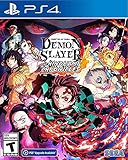
- It is the Taisho Period in Japan; Tanjiro, a kindhearted boy who sells charcoal for a living, finds his family slaughtered by a demon
- Tanjiro resolves to become a “demon slayer” so that he can turn his sister back into a human and kill the demon that massacred his family
- Follow Tanjiro through the story from the “Demon Slayer: Kimetsu no Yaiba” anime as he faces demons in order to turn his sister Nezuko, who has become a demon, back into a human
- Master the multitude of spectacular skills of a wide roster of characters from the anime, including Tanjiro and Nezuko, to overcome challengers in head-to-head battle, locally and online
Product prices and availability are accurate as of the date/time indicated and are subject to change. Any price and availability information displayed on Amazon at the time of purchase will apply.




