Recommended Free Tools
Steam Deck does not have a clearly documented, user-facing battery-calibration button. The safest practical method is to let a normal, undamaged battery discharge until the Deck shuts itself down at its low-battery cutoff, then charge it uninterrupted to 100%. This may resynchronize the battery gauge, but it cannot restore capacity lost through battery wear.
Battery Storage Mode is different: it is intended for long-term storage, transport, or repair—not as a standard calibration feature.
When battery calibration is worth trying
A gauge resynchronization cycle is reasonable if your Steam Deck:
- Shows an inaccurate percentage or remaining-time estimate.
- Shuts down while still displaying 20–40% charge.
- Shows a battery-health percentage that changes unexpectedly.
- Works normally on the charger but dies soon after being unplugged.
Valve’s current Steam Deck support documentation covers charging, BIOS access, recovery, and Battery Storage Mode, but does not document a dedicated calibration command or menu option.
PC Slower Than It Used to Be?
A free scan shows the junk files, broken settings and background clutter dragging Windows down - then fixes them in one click.Free scan · Windows 10 & 11Outdated Drivers Are Slowing You Down
One free scan finds every outdated or missing driver and matches the right update for your exact hardware.Free scan · exact hardware match#1 Best Overall

- PRECISE MODEL COMPATIBILITY: Engineered specifically as a direct replacement battery for handheld gaming consoles; fully compatible with OLED F7G and LCD F7A or F7GM models; restores original power levels for seamless gaming sessions
- UPGRADED ENERGY CAPACITY: Rated at 7.74 V 6880 mAh and 53 Wh to provide extended playtimes; high-density lithium-polymer cells deliver steady voltage and stable current output to keep your device powered during heavy processing loads
- COMPLETE DIY REPAIR TOOLKIT: Pack includes one replacement battery, a PH0 screwdriver, one anti-static nylon pry bar, one thin prying sheet, and two flexible disassembly cards; supplies all necessary elements to complete your installation
- IMPORTANT SAFE START NOTICES: Ensure your original battery is discharged below twenty-five percent before disassembly to prevent puncture risks; remove your microSD card before removing the back cover to avoid snapping or physical damage
- INTELLIGENT SYSTEM PROTECTIONS: Features built-in microchip to prevent overcharging, overheating, and short circuits; connects your original charger after installation to wake up the handheld console and ensure a safe power-on sequence
Before you start
- Update SteamOS and restart. Valve recommends updating and restarting as initial troubleshooting steps.
- Disable third-party power tools, plugins, and overlays temporarily. They can affect charging or battery reporting.
- Use the supplied charger or a known-good USB-C Power Delivery charger. Steam Deck uses USB PD and does not support proprietary Fast Charging or Quick Charge specifications.
- Connect the charger directly to the Deck. Remove docks and hubs from the troubleshooting chain.
- Check the battery condition. Do not perform this procedure on a swollen, punctured, leaking, unusually hot, or physically damaged battery. Stop using such a device and contact Valve or an authorized repair service.
These steps apply to both LCD and OLED models, although some BIOS behavior and recovery instructions differ between them.
How to recalibrate the Steam Deck battery gauge
- Charge to 100%. Leave the Deck connected until the displayed charge reaches 100%. After extended charging, the Deck may slowly discharge instead of remaining at exactly 100% as part of its battery-health management; that behavior alone is not proof of a fault.
- Shut down completely. In Game Mode, select Steam > Power > Shut Down. Do not use Sleep mode for this cycle.
- Open the BIOS. With the Deck off, hold Volume Up (+) and press Power. Release the buttons when the BIOS appears. Valve documents this procedure in its support guide.
- Disconnect the charger. Leave the BIOS screen open and allow the Deck to run down until it shuts itself off at its normal low-voltage cutoff. BIOS provides a relatively consistent workload compared with running a game, while avoiding game crashes, plugins, and other software interruptions.
- Do not force the battery below its cutoff. Do not repeatedly try to power the Deck back on after it shuts down, and do not open the device or remove the battery.
- Leave it off briefly. A short rest helps distinguish a genuine low-voltage shutdown from a simple display update.
- Charge directly from the supplied adapter or a known-good USB-C PD charger. Do not begin this recovery charge through a dock or hub. Leave the Deck connected without interruption until it reaches 100%, preferably while powered off or idle.
- Restart and test. Check whether the percentage falls smoothly, whether the Deck remains on when unplugged, and whether runtime is more consistent under comparable settings.
The discharge time varies substantially between LCD and OLED models, battery condition, temperature, and prior wear. There is no reliable fixed duration. This is a practical troubleshooting procedure—not an officially documented Valve calibration tool. If the problem remains, repeat the cycle once, not indefinitely.
How to tell whether it worked
Do not judge the result by the battery-health number alone. Compare:
Rank #2
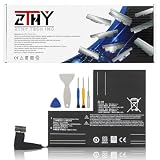
- Specifications: Battery type: Li-Polymer. Color: Black. Voltage: 7.7V. Capacity: 53Wh/6880mAh
- Compatible Part Number: F7A F7G F7GM
- Compatible with Models: Replacement for Replacement for Steam Deck LCD/OLED Handheld Gaming PC Series Battery Upgrade 2(ICP6/47/36+ICP6/57/80)-2
- Security: All ZTHY products are Certified by CE, UL for safety. Strict guidelines for compatibility, and standards compliance for environment safety
- Note: If the new battery is not recognized during the initial installation, please reinstall and check if the interface is fully connected. Discharge the new battery to 10-20% (not 0%), then charge and cycle 3-4 times to wake up the new battery
- Shutdown behavior: Does the Deck still turn off while showing substantial charge?
- Percentage behavior: Does the displayed charge decline smoothly rather than dropping suddenly?
- Unplugged operation: Does it continue working normally after the charger is removed?
- Comparable runtime: Test the same game with similar brightness, refresh rate, frame rate, TDP, Wi-Fi activity, and background processes.
Charge percentage is the estimated current state of charge. Battery health is an estimate of current maximum capacity relative to the design capacity. Runtime is influenced by workload and settings as well as battery health.
Free tools Windows power users keep installed
One-click scans. No signup required.
If the health figure changes after the cycle, that usually means the system revised its estimate. Calibration cannot reverse cell aging, increased internal resistance, chemical capacity loss, or physical damage.
Optional Desktop Mode diagnostic
For a more technical check, open Desktop Mode and launch a terminal. First list the available power-supply devices:
Rank #3
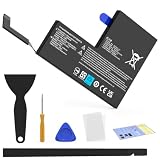
- Compatible with SteamDeck LCD & OLED Handheld Gaming Console.(Replacement Battery Model: F7A,F7G,F7GM)
- Replacement battery for Steamdeck internal battery, 53Wh large capacity, no need charge frequently or plugging chareging cable or power bank for your old battery.
- This is the upgraded 53Wh battery, offering increased capacity compared to the original 40Wh battery in the LCD console. When compared to the original 50Wh battery in the OLED console, this 53Wh battery delivers at least equivalent battery life, injecting new vitality into your gaming console for a smoother gaming experience.
- Replacement the battery requires the open the console cover, which may affect the warranty after replacing the battery if the machine is still under warranty. Please give due consideration before replacement.
- Note that if the new battery is not recognized on initial installation, reinstall and check that the interface is fully connected. Discharge the new battery to 10-20% (not 0%), then charge and cycle 3-4 times to wake up the new battery
ls /sys/class/power_supply/Then inspect the battery device shown by that command, rather than assuming a universal filename:
ls /sys/class/power_supply/<battery-device> && cat /sys/class/power_supply/<battery-device>/capacitySteamOS releases and hardware revisions can expose different device names and fields. A terminal reading is another view of the Deck’s battery-management reporting; it is not automatically more accurate than the percentage shown in SteamOS.
Battery Storage Mode is not calibration
Battery Storage Mode electrically places the battery into a low-power state. It is designed for long-term storage, transport, or internal repair and disassembly. It disables normal Power-button wake-up until external power is connected.
Rank #4

- Specifications: Battery type: Li-Polymer. Color: Black. Voltage: 7.7V. Capacity: 53Wh/6880mAh
- Compatible Part Number: F7A F7G F7GM
- Compatible with Models: Replacement for Replacement for Steam Deck LCD/OLED Handheld Gaming PC Series Battery Upgrade 2(ICP6/47/36+ICP6/57/80)-2
- Security: All ZTHY products are Certified by CE, UL for safety. Strict guidelines for compatibility, and standards compliance for environment safety
- Note: If the new battery is not recognized during the initial installation, please reinstall and check if the interface is fully connected. Discharge the new battery to 10-20% (not 0%), then charge and cycle 3-4 times to wake up the new battery
To enable it:
- Shut down the Deck normally.
- Hold Volume Up (+) and press Power to enter the BIOS.
- Select Setup Utility > Power > Battery storage mode.
- Confirm the action.
Valve documents different confirmation signals:
- LCD: The power LED blinks three times.
- OLED: After about eight seconds, the power LED blinks blue twice.
To exit Storage Mode, connect the supplied power adapter and power on normally. If the Deck is being stored for a long period, iFixit recommends leaving the battery around 50–60% before enabling the mode; that is a storage recommendation, not a calibration requirement. See the iFixit Storage Mode guide for the documented BIOS path.
Independent reader supportYour contribution helps us test, update, and keep practical guides available for everyone.What to do when calibration does not fix the problem
The Deck shuts down while showing 20–40%
Update SteamOS, restart, disable third-party power tools, check the charger and dock, and perform one controlled discharge/full-charge cycle. If the Deck repeatedly shuts down with charge remaining, the battery may have high internal resistance, degraded cells, a faulty gauge, or a charging/firmware problem. Calibration cannot make a worn battery deliver energy it no longer has.
The Deck will not turn on after discharging
- Connect the charger directly to the Deck.
- Confirm that the charging LED is lit.
- Leave it connected for at least 15 minutes before trying to power it on.
- If it remains unresponsive, hold Volume Up (+) while pressing Power to try to reach the BIOS.
If Storage Mode was enabled, the Power button will not wake the Deck without external power. Valve’s current guidance also distinguishes forced-shutdown timings: approximately 10 seconds for LCD and 16 seconds for OLED. Consult the official support instructions for your model.
Do these 3 things before closing this tab:
1Repair Windows errors before they cause bigger problems2Scan for outdated or missing drivers - takes under a minute3Clear out junk files and repair common Windows errorsBest Value

- Compatible Models: Fit for Steam Deck OLED (F7G) and LCD (F7A / F7GM) handheld gaming consoles
- Replace Part Number: Fit for F7A F7G
- Specification: Voltage: 11.55V. Capacity: 41.9Wh/3630mAh. Battery Type: Li-Polymer. Condition: Brand new, from durable materials, top circuit boards and smart chip
- Easy to install: Includes one replacement battery, one user manual, and a full set of installation tools such as three screwdrivers, an anti-static nylon pry bar, one prying sheet, and one flexible disassembly cards. No additional tools required
- Enhanced performance: Each products has undergone rigorous testing to ensure the correct voltage, circuit protection, stable current, low self-discharge and CE / FCC / RoHS Certified for safety. About 500 recharge cycles over the life
The charging LED is on, but the percentage does not rise
- Try another wall outlet.
- Test the charger with another USB-C device, if possible.
- Try a known-good USB-C PD charger and cable.
- Remove any dock or hub.
- Compare charging in Game Mode and Desktop Mode.
- Update SteamOS and restart.
iFixit’s charging troubleshooting guide lists Storage Mode as a possible charging-circuit reset in some situations. That does not make it a guaranteed calibration or battery-repair function.
The Deck reaches 100% but loses charge quickly
Calibration is unlikely to help if runtime is consistently poor under the same workload, the health estimate remains low, the Deck turns off immediately when unplugged, or readings remain contradictory across repeated tests. Compare behavior under controlled settings before concluding that the battery is defective.
LCD and OLED considerations
The core idea—reach the Deck’s normal low-voltage cutoff, then charge fully—is the same for both models, but firmware details are not identical. LCD and OLED models use different Storage Mode LED confirmations. Valve also documents different forced-shutdown timings, and their out-of-box shipping behavior differs: an LCD Deck may need charging before first power-on, while an OLED model can power on by holding Power for approximately seven seconds.
When to contact Valve or replace the battery
Contact Steam Support before buying parts if the Deck is still under warranty or if it:
The Tool Desk
Outbyte PC Repair FREEClear out junk files and repair common Windows errorsFree Scan →Outbyte Driver Updater FREEFix the driver behind crashes, sound loss and screen glitchesFind Drivers →- Repeatedly shuts down with substantial charge displayed.
- Will not operate unplugged.
- Charges abnormally or only in one software mode.
- Remains faulty after updates, charger checks, and one or two controlled cycles.
- Has a swollen, punctured, leaking, distorted, or unusually hot battery.
For an out-of-warranty repair, consult a qualified technician or the iFixit battery-replacement guide. Battery replacement involves lithium-ion safety risks and should not be attempted merely because the displayed percentage is inaccurate.
For normal battery care, avoid making full discharges a routine habit. Partial cycles are preferable to repeatedly running a lithium-ion battery to its cutoff. Keep the Deck within Valve’s stated normal operating range of 0–35°C (32–95°F), and do not charge or discharge a battery that appears damaged.
Quick Recap
Product prices and availability are accurate as of the date/time indicated and are subject to change. Any price and availability information displayed on Amazon at the time of purchase will apply.



