For most PS5 owners, the right target is NAT Type 2—not Type 1. Type 2 means the console is behind a router but can normally communicate with PlayStation Network and online games. Type 3 is the restrictive result that can cause failed matchmaking, party-chat problems, failed invites, and Remote Play trouble.
Check your result at Settings > Network > Connection Status > Test Internet Connection. If the PS5 reports Type 3, work through the fixes in this order: check PSN, restart your network, test Ethernet, enable UPnP, reserve the PS5’s local IP address, then use targeted port forwarding. If none of that works, look for double NAT or ISP-level CGNAT before trying risky settings such as DMZ.
What NAT Type means on PS5
NAT, or Network Address Translation, controls how devices on your private home network communicate through a router to the wider internet. Your router normally gives the PS5 a private address, shares the household’s public IPv4 connection, and blocks unsolicited inbound traffic unless a connection was requested or a port mapping allows it.
As an Amazon Associate I earn from qualifying purchases.
What’s actually slowing this PC down?
Pick the symptom - the matching free tool is one click away.
The PS5 reports three NAT results. Open, Moderate, and Strict are common gaming shorthand rather than Sony’s primary labels, and individual games can use their own definitions. The usual mapping is:
| PS5 result | Common gaming shorthand | Practical meaning |
|---|---|---|
| Type 1 | Open | The console is effectively connected directly to the internet without conventional router NAT. This is uncommon on a normal home network and is not usually necessary. |
| Type 2 | Moderate or acceptable routed NAT | The PS5 is behind a router, but the connection is generally usable for online play, matchmaking, chat, and downloads. This is the normal goal for most homes. |
| Type 3 | Strict or closed | The network is blocking more inbound connection attempts. Some games, players, chat sessions, invites, hosting features, and Remote Play connections may fail. |
This Type 1/2/3 interpretation is widely used in game-support documentation, including Bungie’s explanation of NAT types, but it should not be treated as a complete technical definition published by Sony. A Type 2 PS5 can still be labelled Moderate or even Open inside a particular game, while a game’s own NAT test may not map exactly to the console’s result.
#1 Best Overall

- 2.5 Gbps PCIe Network Card: With the 2.5G Base-T Technology, TX201 delivers high-speeds of up to 2.5 Gbps, which is 2.5x faster than typical Gigabit adapters. Performance varies by conditions, distance to devices, and obstacles such as walls
- Versatile Compatibility – The Ethernet Network Adapter is backwards compatible with multiple data rates(2.5 Gbps, 1 Gbps, 100 Mbps Base-T connectivity). The 2.5G Ethernet port automatically negotiates between higher and lower speed connection.
- QoS: Quality of Service technology delivers prioritized performance for gamers and ensures to avoid network congestion for PC gaming
- Wake on LAN – Remotely power on or off your computer with WOL, helps to manage your devices more easily
- Low-Profile and Full-Height Brackets: In addition to the standard bracket, a low-profile bracket is provided for mini tower computer cases
NAT type is also not a speed, ping, Wi-Fi quality, or packet-loss measurement. A PS5 can report Type 2 and still lag because of wireless interference, congestion, bufferbloat, a distant game server, or an overloaded service. Conversely, Type 3 can cause connection and matchmaking problems even when the speed-test numbers look good.
Symptoms of NAT Type 3
A restrictive NAT can cause:
- Difficulty joining a friend’s game or accepting an invitation.
- Long or failed matchmaking.
- Party-chat and voice-chat problems.
- Difficulty hosting or accepting peer-to-peer connections.
- Empty social spaces or failed player-to-player sessions in some games.
- Remote Play or PlayStation Portal connection failures.
These are possible effects, not proof that NAT is the cause. Bungie lists voice chat, empty social spaces, and matchmaking as examples in its game-specific troubleshooting. Sony says that NAT Type 3 may prevent Remote Play, rather than saying it always does. An outage, game-server problem, unstable Wi-Fi connection, firewall, or ISP restriction can produce similar symptoms.
Check your PS5’s current NAT Type
- From the PS5 home screen, open Settings.
- Select Network.
- Select Connection Status.
- Select Test Internet Connection.
- Record the internet connection result, PlayStation Network sign-in result, NAT Type, download speed, and upload speed.
This is the current menu path in Sony’s PS5 internet-connection guidance. Older Sony articles or different regional documentation may say View Connection Status, and menu wording can change with system software and locale.
If the test reports Type 2 and the game works, stop there. There is no benefit in exposing more ports or trying to force Type 1 simply to obtain a different number.
Try these fixes in order
1. Check PSN status before changing the router
Check the official PlayStation Network status page. If PSN is experiencing an outage or maintenance, port forwarding cannot repair it. Check the affected game’s own service-status page as well if the PS5 test succeeds but only one title is failing.
2. Restart the modem, router, and PS5 correctly
Close games and shut down the PS5. Power off the router and modem or ISP gateway. Wait at least five minutes, then turn the modem or gateway back on, wait for it to reconnect, start the router if it is separate, and finally start the PS5. Sony’s connectivity and error-code guidance commonly recommends powering off the modem or router for at least five minutes before restarting.
Quick wins for a faster PC:
Clear out junk files and repair common Windows errorsFree Scan →Scan for outdated or missing drivers - takes under a minuteDriver Scan →Run Test Internet Connection again. A restart can clear a stale UPnP mapping or temporary router fault, but it will not fix a permanent double-NAT or CGNAT arrangement.
3. Use Ethernet while diagnosing
If possible, connect the PS5 directly to the router with Ethernet. The wired setup path is:
Settings > Network > Settings > Set Up Internet Connection > Set Up Wired LAN > Connect
Ethernet does not automatically change NAT Type. It removes wireless interference, weak signal, and some packet-loss issues from the diagnosis. If the NAT result remains Type 3 over Ethernet, the problem is more likely to be router or ISP configuration than Wi-Fi.
4. Update the PS5 and router
Install available PS5 system software updates at:
Settings > System > System Software > System Software Update and Settings
Rank #2

- Ultra-Fast: 10/100/1000Mbps PCIe Adapter upgrade your Ethernet speed to Gigabit
- Automation: Wake-on-LAN supporting Auto-Negotiation and Auto MDI/MDIX
- Supports: IEEE802.3x Flow Control for Full-duplex Mode and backpressure for Half-duplex Mode; 4k Bytes Port: 1x 10/100/1000Mbps RJ45 Network Media
- Compatibility: Windows 11, 10, 8.1, 8, 7, Vista, XP
- Dual Bracket: Low profile and standard profile bracket inside works with both mini and standard size PCs.
Also check the router manufacturer’s administration app or website for firmware updates. Sony recommends updated router firmware when troubleshooting connectivity. Firmware updates can fix UPnP and port-forwarding bugs, although they do not guarantee a different NAT result.
5. Enable UPnP on a trusted home network
UPnP, usually shown as UPnP or UPnP IGD, lets a compatible device such as the PS5 request temporary port mappings from the router. The router creates and removes those mappings automatically instead of requiring you to enter every rule by hand. NETGEAR describes UPnP as an automatic alternative to manual port forwarding.
The exact menu differs by router and firmware, but the general process is:
The Tool Desk
Outbyte PC Repair FREEClear out junk files and repair common Windows errorsFree Scan →Outbyte Driver Updater FREEFix the driver behind crashes, sound loss and screen glitchesFind Drivers →- Sign in to the router’s local administration page or mobile app.
- Open a section such as Advanced, Network, NAT, Internet, or Administration.
- Find UPnP, UPnP IGD, or Allow automatic port forwarding.
- Enable it and save the change.
- Restart the router and PS5.
- Run the PS5 internet connection test again, then test the affected game.
Do not assume a universal router address or menu path. For example, the relevant controls differ between Linksys and ASUS routers. Search the exact router model and firmware version if the option is not obvious.
UPnP is convenient, but it is less controlled than manually approving a small set of ports. Devices on the local network can request mappings, and CISA warns that malware on a network could abuse UPnP to create an inbound opening. For a typical trusted home network, UPnP is a practical first-line gaming fix. Disable it if you do not need automatic mappings or your security requirements call for tighter control.
6. Reserve the PS5’s local IP address
Do this before creating manual forwarding rules. A router may normally assign the PS5 a different private IP address after a lease expires or the console reconnects. If a forwarding rule still points to the old address, it will appear to stop working. NETGEAR recommends a consistent destination IP for port forwarding.
To identify the console:
- On the PS5, open
Settings > System > System Software > Console Information. - Note the PS5’s IP address and MAC address.
- In the router, open DHCP, LAN, Connected Devices, or Address Reservation.
- Select the PS5 and choose Reserve, Static Lease, or Address Reservation.
- Save the change and reconnect the PS5 if the router requests it.
Sony documents the Console Information screen. A DHCP reservation on the router is usually safer than manually entering a static IP on the PS5 because the router automatically supplies the correct gateway and subnet details. Entering an arbitrary static IP, gateway, or subnet mask can break the connection. Sony does mention a manually configured static IP as an advanced troubleshooting step, but warns users to seek help if they are unfamiliar with advanced network settings.
Free tools Windows power users keep installed
One-click scans. No signup required.
7. Forward only the ports relevant to the problem
Use manual port forwarding when UPnP is unavailable, UPnP does not help, automatic mappings are unreliable, or a game publisher gives you a specific port requirement. Forward rules to the PS5’s reserved private IP address, not to a changing address.
Sony’s current general PSN port list
Sony’s current PS5 troubleshooting pages list:
| Protocol | Ports |
|---|---|
| TCP | 80, 443, 3478, 3479, 3480 |
| UDP | 3478, 3479, 49152–65535 |
See the lists in Sony’s NW-102650-4 guidance and Sony’s CE-106444-9 guidance. Sony phrases this as trying to open the ports if possible; it is not a guarantee that forwarding every listed UDP port will produce Type 1 or solve every game.
The broad UDP range is particularly important to treat cautiously. Start with UPnP, and if manual rules are necessary, open only the ports needed for the issue you are troubleshooting. For party voice chat, Sony’s separate guidance lists TCP 80, 443, and 3478–3480, plus UDP 3478–3479. For a particular game, use the game publisher’s current support page rather than blindly combining every port list found online.
Older guides commonly list TCP 1935 and UDP 3074, along with UDP 3478–3479. Those may belong to a particular game, publisher, or older troubleshooting document, not to a universal PS5 rule. For example, Bungie lists port 1935 for Destiny-related connectivity. Do not merge older or game-specific ports into a permanent universal ruleset without a reason.
Rank #3
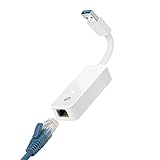
- 𝐌𝐨𝐫𝐞 𝐬𝐭𝐚𝐛𝐥𝐞 𝐜𝐨𝐧𝐧𝐞𝐜𝐭𝐢𝐨𝐧𝐬: UE300 is a Gigabit Ethernet Adapter that enables you to turn your laptop's USB port into an RJ45 Ethernet port. Switch from an unstable wireless connection to a stable high-speed Ethernet connection
- 𝐆𝐢𝐠𝐚𝐛𝐢𝐭 𝐬𝐩𝐞𝐞𝐝𝐬: Take your speed to the next level with the UE300 Ethernet adapter. Experience full 10/100/1000Mbps Gigabit Ethernet performance over your laptop's USB 3.0 port and elevate your browsing experience
- 𝐂𝐨𝐦𝐩𝐚𝐭𝐢𝐛𝐥𝐞 𝐰𝐢𝐭𝐡 𝐦𝐨𝐬𝐭 𝐝𝐞𝐯𝐢𝐜𝐞𝐬: does not support Nintendo Switch, Wii U, Wii. Compatible with IEEE 802.3, IEEE 802.3U, IEEE 802.3ab. Supports IEEE 802.3az (Energy Efficient Ethernet). backwards compatible with USB 2.0 and USB 1.2
- 𝐏𝐥𝐮𝐠 & 𝐩𝐥𝐚𝐲: Driver-free installation for Windows XP and later version, macOS 10. 9 and later version, Chrome OS and Linux OS. (Note: for Mac OS 10. 6-10. 8, a driver is required and needs to be downloaded from TP-Link website)
- 𝐔𝐥𝐭𝐫𝐚 𝐜𝐨𝐦𝐩𝐚𝐜𝐭 & 𝐟𝐨𝐥𝐝𝐚𝐛𝐥𝐞 𝐝𝐞𝐬𝐢𝐠𝐧: the UE300 conveniently folds down and is extremely portable, enabling you to take it with you wherever you go
What to enter in the router
Router interfaces use different names, but a port-forwarding rule normally contains:
- Service name: a descriptive label such as
PS5-PSN-TCP. - External or WAN port: the port exposed on the internet side.
- Internal or LAN port: normally the same number for PSN rules.
- Internal IP or device: the PS5’s reserved private IP address.
- Protocol: TCP, UDP, or separate rules for each protocol.
- Enabled: on.
For a range, enter the first and last port, such as 49152–65535, only if the source of the requirement specifically calls for that range. Linksys’ port-forwarding documentation illustrates these standard fields and emphasizes forwarding only the ports an application needs.
Save the rules, restart the router and PS5, and run the connection test. Change one group of settings at a time so you can identify what helped. Remove duplicate, stale, or contradictory rules after testing.
NAT Type still says 3? Check the network layers
Double NAT: two routers are routing the same connection
Double NAT occurs when two devices in sequence both perform routing and NAT. A common example is an ISP modem/router gateway connected to a separate personal Wi-Fi router. Normal web browsing may work while gaming, UPnP, and port forwarding fail because the first router is still blocking the traffic before it reaches the second router.
Do these 3 things before closing this tab:
1Repair Windows errors before they cause bigger problems2Fix the driver behind crashes, sound loss and screen glitches3Clear out junk files and repair common Windows errorsGoogle identifies double NAT as a possible cause of online-gaming, port-forwarding, and UPnP problems. To investigate:
- Sign in to your personal router.
- Open its status, internet, or WAN page.
- Inspect the router’s WAN/Internet IPv4 address.
- If that address is private, another routing layer may be upstream.
Private IPv4 ranges include:
10.0.0.0/8172.16.0.0/12192.168.0.0/16100.64.0.0/10, which is shared address space commonly associated with carrier-grade NAT
A private WAN address is a strong indicator of another upstream layer, but the exact cause depends on the provider and network design. The 100.64.0.0/10 range is defined for shared ISP addressing in RFC 6598.
Ways to remove double NAT
- Bridge the ISP gateway: Put the modem/router combo into bridge or modem-only mode so the personal router is the only device performing NAT. Google recommends bridge mode when another router is being used.
- Use access-point mode on the second router: If the ISP gateway must remain the router, change the personal router to Access Point mode. This keeps its Wi-Fi but disables its routing and NAT functions. ASUS describes this behavior for Access Point mode.
- Remove the extra router: Use the ISP gateway alone if it provides sufficient coverage and features.
Bridge mode can disable or change ISP-provided TV, telephone, parental-control, mesh, or management features. Follow the ISP’s instructions for that particular gateway rather than guessing. If you cannot change the upstream equipment, ask the ISP or network administrator for help.
CGNAT: the ISP is doing NAT outside your home
Carrier-grade NAT, or CGNAT, places another translation layer inside the ISP’s network. Multiple customers share one public IPv4 address, and the subscriber does not control the carrier NAT device. RFC 6888 describes this subscriber-managed-NAT limitation.
PC Slower Than It Used to Be?
A free scan shows the junk files, broken settings and background clutter dragging Windows down - then fixes them in one click.Free scan · Windows 10 & 11Crashes, No Sound, or Screen Glitches?
Random freezes, missing sound and display glitches usually trace back to one bad driver. Find and replace yours safely.Free scan · under a minuteCGNAT is more common on some mobile broadband, 5G home-internet, satellite, apartment, and low-cost ISP services, although availability varies by provider and plan. If your router’s WAN IPv4 address is in 100.64.0.0/10, or otherwise does not match the public IPv4 address shown by an internet service, ask the ISP whether the connection uses CGNAT.
With CGNAT:
- UPnP on your home router may create a mapping only inside your home, not a usable public inbound path.
- Port forwarding on the home router may have no effect.
- Putting the PS5 in your home router’s DMZ may also fail.
Ask the ISP whether it can provide a public IPv4 address, remove CGNAT, or offer a plan with inbound connectivity. Do not expect a DNS change, MTU change, new Ethernet cable, or home-router DMZ setting to defeat NAT performed in the ISP network.
Should you put the PS5 in the router’s DMZ?
Use DMZ host mode only as a temporary diagnostic test, and only for the PS5. A consumer router’s DMZ host feature generally forwards all unsolicited inbound ports to one internal device. NETGEAR and Linksys warn that this removes much of the router’s firewall protection and exposes the designated device.
Rank #4

- 2.5 Gbps Next-gen Connection: Unleash extreme speeds on your desktop PC with this 2.5 Gb PCIe network card. It boosts your connectivity to new heights by delivering 2.5x faster speeds than a typical Gigabit PCIe network adapter
- Ultra-fast Internet Access: With a boost in speed, latency and responsiveness, this PCIe ethernet card lets you win every gaming battle and enjoy flawless streaming. Harness the latest 2.5 GBASE-T technology to make the most of your Internet speeds
- Instant Local Network Transfer: Whether incorporated into your client computer or host server, it builds a blazing-fast connection with other devices in your local network. Elevate local data transmission with this PCIe Ethernet card
- Durable Metal Shielding: Reduces electromagnetic interferences and improves stability and reliability for every connection. Excellent heat dissipation also ensures a longer lifespan for this PCIe nic
- Latest Realtek Chip: Works with various systems, including Windows 11/10/8.1/8/7, Windows Server 2022/2016/2012 R2/2012/2008 R2/2008/2003 and Win XP/Vista/2000. Supports Wake on LAN
If you need to test it:
- Reserve the PS5’s IP address first.
- Open the router’s DMZ host setting.
- Enter only the PS5’s reserved IP address—not a computer, NAS, work device, or the whole network.
- Enable DMZ temporarily and retest the PS5 and affected game.
- Disable DMZ immediately if it does not help.
- Replace it with UPnP or targeted forwarding if you identify the required ports.
DMZ may change Type 3 to Type 2, but it does not necessarily produce Type 1. Router DMZ is also not the same thing as bridge mode on an ISP gateway. Do not leave DMZ enabled just to obtain a particular NAT number.
Recommended Free Tools
Remote Play and PlayStation Portal problems
For Remote Play, first enable the feature at:
Settings > System > Remote Play > Enable Remote Play
Keep the PS5 system software and Remote Play app or compatible client up to date. Sony’s Remote Play troubleshooting material identifies UDP port 8572 for the console-to-client connection and warns that users on NAT Type 3 may be unable to use Remote Play. See Sony’s Remote Play settings and its Remote Play connection troubleshooting.
If online games work at home but Remote Play fails from another location, investigate UDP 8572, the PS5’s Remote Play setting, the home router, and the remote network. The remote network may itself be a hotel, campus, office, mobile, or guest network that blocks inbound or peer connections. A Type 2 result at home does not guarantee that every outside network will permit Remote Play.
Special cases that affect port forwarding
Two PS5 consoles on one network
A fixed external port can generally be forwarded to only one internal destination. Sending the same manual external-port rule to two PS5 consoles creates a conflict because the router cannot send one incoming connection to both devices. Linksys describes single-port forwarding as routing a port to a specific device.
UPnP may handle multiple consoles dynamically, but results depend on the router and the games. Some routers offer console or gaming profiles designed for several devices. Troubleshoot one PS5 at a time, reserve each console’s IP separately, and remove stale manual rules. Do not assume that identical port mappings can be assigned to both consoles.
IPv6-only connections
The PS5 supports IPv6, but Sony says it does not support an IPv6-only network. If the router is configured as IPv6-only, change it to provide IPv4 or dual-stack connectivity. Sony’s internet-connection guidance covers this limitation.
IPv4 port forwarding and IPv6 firewall rules are not the same. Google explains that IPv6 networks do not use IPv4-style NAT port forwarding; IPv6 addressability and firewall policy work differently. Do not disable IPv6 blindly. The immediate requirement is that the PS5 has working IPv4 connectivity where the service needs it.
Decision tree: what to do when NAT remains Type 3
- PSN status is down: wait for the service to recover. Do not change forwarding rules.
- The PS5 internet test fails entirely: fix the basic internet connection, Wi-Fi or Ethernet link, modem, router, or ISP service first.
- The PS5 is Type 2 but one game fails: check that game’s server status, account services, and publisher-specific ports. Do not assume the PS5 NAT result is the cause.
- The PS5 is Type 3 behind one router: try UPnP, reserve the PS5’s IP, and then use targeted forwarding.
- The PS5 is Type 3 behind an ISP gateway and another router: remove double NAT with bridge mode, access-point mode, or by removing the extra router.
- The router WAN address is private or in
100.64.0.0/10: investigate upstream NAT or CGNAT with the ISP. - The PS5 is on a hotel, campus, apartment, guest, or mobile network: the network operator may block inbound traffic. You may not have permission or ability to change it.
- Remote Play fails while online games work: check Remote Play settings, UDP
8572, and the network used by the remote client. - NAT is Type 2 but the connection still lags: investigate Wi-Fi interference, congestion, bufferbloat, distance from the router, packet loss, and game-server routing. NAT is not a latency cure.
Sony advises contacting your ISP or network administrator when persistent port filtering or connectivity problems cannot be resolved locally. See Sony’s port-filtering troubleshooting guidance.
Why Type 2 is usually enough
Type 1 is not a superior version of Type 2 that every gamer should pursue. Type 1 means the PS5 has a direct public connection without conventional router NAT, which is unusual for a protected home network. It may also remove useful router firewall separation.
Type 2 means the console remains behind a router while the router allows the necessary return traffic and mappings. It is generally sufficient for online multiplayer, PSN services, party chat, and most Remote Play setups. If your games and chat work on Type 2, stop troubleshooting instead of opening additional ports or placing the console in DMZ.
Best Value

- Unparalleled 5 Gbps Speed: Future-proof your desktop PC's wired connection with the 5 Gbps PCIe network card. It takes your connectivity to the next level with speeds 5 times faster than a typical Gigabit PCIe Ethernet card
- Hyper-Fast Internet Access: Experience boosted speed, reduced latency, and enhanced responsiveness with the PCIe network card, making your computer ideal for intense gaming and flawless streaming. Harness your ISP's speeds with added 5GBASE-T technology
- Instant Local Network Transfer: Whether integrated into your client PC or host server, the PCI Express network card establishes lightning-fast connections with other devices in your local network, elevating the efficiency of data transmission
- Crafted for Maximum Reliability: Enhanced with dense fins and high-quality aluminum construction, the PCIe nic optimizes heat dissipation, ensuring consistent performance and reliability
- Supports Windows 11 / 10 / Windows Server 2022: Simply install the driver from the included disc or download it from our website to achieve the full 5Gbps speed. Supports Wake on LAN and QoS
If NAT is open but the game still has problems
Changing NAT does not fix every online problem. Check these possibilities:
- Service outage: check PSN and the game publisher’s status page.
- Wi-Fi instability: test Ethernet, move the router or console, reduce interference, or use a less congested wireless band.
- Congestion or bufferbloat: another device uploading or downloading can cause lag even when NAT is Type 2.
- Game-specific networking: follow the publisher’s current requirements. Do not treat older lists containing TCP
1935or UDP3074as universal PS5 ports. - DNS errors: Sony’s advanced connection settings may allow a different DNS server to help with name-resolution failures. DNS can help resolve a DNS-specific error, but it does not open inbound ports or bypass CGNAT.
- MTU problems: change MTU only when testing identifies fragmentation or a path-specific issue. It is not a general NAT fix.
- VPN routing: a VPN can add another NAT layer or increase latency. It is useful only when the provider and plan specifically support the required inbound port mapping.
Safe final configuration checklist
- PSN and the relevant game service are online.
- The PS5’s internet test completes successfully.
- The console reports Type 2, or the game’s required features work despite its displayed label.
- The PS5 is connected by Ethernet for testing, or Wi-Fi has been ruled out as the cause.
- The router and PS5 are updated.
- UPnP is enabled only if you accept its convenience and security trade-off.
- The PS5 has a DHCP reservation before manual forwarding.
- Forwarding rules are limited to Sony’s or the game publisher’s actual requirements.
- DMZ is disabled after testing.
- Double NAT and CGNAT have been ruled out before repeatedly changing local settings.
Frequently Asked Questions
Can I change NAT Type directly on the PS5?
Usually no. The PS5 can test and report NAT Type, but the result is primarily controlled by the modem, router, gateway firewall, and ISP network. Change the relevant router or ISP configuration, then rerun Settings > Network > Connection Status > Test Internet Connection.
Quick wins for a faster PC:
Clear out junk files and repair common Windows errorsFree Scan →Fix the driver behind crashes, sound loss and screen glitchesFind Drivers →Is NAT Type 2 bad on PS5?
No. Type 2 is the normal routed result for a home network and is generally sufficient for online multiplayer, PSN, party chat, and many Remote Play setups. Do not pursue Type 1 if everything works.
Does Ethernet change NAT Type?
Not by itself. Ethernet removes Wi-Fi interference and packet loss from the diagnosis, but NAT is controlled by the router and upstream network.
Does changing DNS open NAT?
No. A different DNS server may help a name-resolution problem, but it does not create inbound port mappings or bypass double NAT or CGNAT.
Does putting the PS5 in DMZ make it Type 1?
Not necessarily. Router DMZ forwards inbound traffic to the PS5 but the console is still behind that router, so it may become Type 2 rather than Type 1. DMZ also exposes the console to more inbound traffic and should be temporary only.
Why does port forwarding not work?
Common causes include forwarding to the wrong or changing private IP, configuring the wrong router in a double-NAT setup, conflicting rules, an ISP firewall, or CGNAT. Check the router WAN address and reserve the PS5’s IP before creating rules.
Can I forward the same PS5 ports to two consoles?
Usually not with identical external ports. A single incoming port can generally point to one internal device. UPnP or a router’s multi-console gaming feature may handle several consoles, but behavior varies.
Can I fix CGNAT from home?
Usually no. CGNAT is performed in the ISP network. Ask the ISP for a public IPv4 address, removal from CGNAT, or a service option that supports inbound connectivity.
Why does Remote Play fail when online gaming works?
Remote Play has its own requirements, including the PS5 Remote Play setting and UDP port 8572. The remote client’s network may also block the connection. Sony says NAT Type 3 may prevent Remote Play even when some ordinary online services work.
The Bottom Line
Check the PS5’s NAT at Settings > Network > Connection Status > Test Internet Connection. Type 2 is normally the correct result. For Type 3, start with a restart and Ethernet test, then enable UPnP or reserve the PS5’s address and use targeted forwarding. If the result remains Type 3, investigate double NAT and CGNAT with the router or ISP. Avoid chasing Type 1 and avoid leaving the PS5 in DMZ merely to change the number.
Quick Recap
Product prices and availability are accurate as of the date/time indicated and are subject to change. Any price and availability information displayed on Amazon at the time of purchase will apply.




