The Tool Desk
Outbyte PC Repair FREEClear out junk files and repair common Windows errorsFree Scan →Outbyte Driver Updater FREEScan for outdated or missing drivers - takes under a minuteDriver Scan →To charge the original SteelSeries Arctis 7, plug a micro-USB cable into the charging jack on the left earcup, then connect the other end to a suitable USB power source. The power-button light gives an approximate battery range. Do not buy a USB-C cable until you have confirmed that you own an Arctis 7+ model.
First, confirm which Arctis 7 you own
Important: Original Arctis 7 uses micro-USB. Arctis 7+, 7P+, and 7X+ use USB-C. Check the physical port and your product documentation before ordering a replacement cable.
SteelSeries lists the older wireless models as micro-USB products and the “+” family as USB-C products in its replacement-cable guidance.
| Model | Charging connector |
|---|---|
| Arctis 7 | Micro-USB |
| Arctis 7P / 7X | Micro-USB-era models; verify the exact unit |
| Arctis 7+ | USB-C |
| Arctis 7P+ / 7X+ | USB-C |
A USB-C cable intended for an Arctis 7+ will not fit the original Arctis 7 charging jack.
Free tools Windows power users keep installed
One-click scans. No signup required.
#1 Best Overall

- REAL-TIME GAME AUDIO CONTROL — Pinpoint enemies with what GamingTrend calls “the biggest cheat code in the industry. 200+ game specific audio presets to choose from
- IMPROVED 50H+ BATTERY LIFE — Over 40% more charge than the previous generation, plus optimized USB-C Fast Charge
- SIMULTANEOUS 2.4GHZ + BLUETOOTH — Mix game and mobile audio
- PLUG-&-PLAY USB-C — Unlock 2.4GHz cross-platform gaming with the portable wireless dongle. USB-A adapter included
- NEODYMIUM MAGNETIC DRIVERS — Custom-designed high-fidelity audio drivers for clear audio. Set your sound quality to glorious with a deep and detailed soundscape and 360° Spatial Audio support.
What you need
- The original Arctis 7 headset.
- A physically compatible, undamaged micro-USB cable. SteelSeries recommends a data-capable replacement cable rather than a charge-only cable.
- A working USB power source: a computer or laptop, console USB port, powered hub, power bank, or normal USB wall adapter.
The cable does not have to carry the SteelSeries brand, but it should fit firmly without forcing, have intact insulation, and have no bent or damaged plug.
How to charge the original Arctis 7
- Locate the correct jack. On the left earcup, find the port identified in the official guide as the “Micro-USB Charging Jack.” Do not use the nearby 3.5-mm mobile/console audio jack, headphone-share jack, or the USB connection on the wireless transmitter.
- Inspect the cable. Check both connectors for fraying, bent metal, dirt, or a loose fit.
- Insert the micro-USB plug carefully. Micro-USB fits in only one orientation. If it does not slide in easily, turn it over and check the port rather than forcing it.
- Connect USB power. Plug the other end into a computer, laptop, console, powered hub, power bank, or standard USB wall adapter. These are USB power options, not a proprietary charging dock.
- Check the power-button light. Use the color ranges below as an estimate of the battery state.
- Leave it connected until it has enough charge. The official guide does not establish one universal charging time, so do not rely on an invented hour figure.
- Test wireless operation. After disconnecting the cable, hold the power button for at least three seconds and confirm that the headset starts normally.
The official Arctis 7 guide illustrates the charging connection and controls: SteelSeries Arctis 7 Product Information Guide. Charging while powered off is practical because it avoids using battery power during charging, but the guide does not make power-off charging a mandatory requirement.
Rank #2

- REAL-TIME GAME AUDIO CONTROL — Pinpoint enemies with what GamingTrend calls “the biggest cheat code in the industry. 200+ game specific audio presets to choose from
- IMPROVED 50H+ BATTERY LIFE — Over 40% more charge than the previous generation, plus optimized USB-C Fast Charge
- SIMULTANEOUS 2.4GHZ + BLUETOOTH — Mix game and mobile audio
- PLUG-&-PLAY USB-C — Unlock 2.4GHz cross-platform gaming with the portable wireless dongle. USB-A adapter included
- NEODYMIUM MAGNETIC DRIVERS — Custom-designed high-fidelity audio drivers for clear audio. Set your sound quality to glorious with a deep and detailed soundscape and 360° Spatial Audio support.
What the Arctis 7 indicator colors mean
The power-button indicator reports broad battery ranges, not an exact percentage:
| Indicator | Approximate battery level |
|---|---|
| Green | 100–50% |
| Yellow | 49–20% |
| Red | 19–10% |
| Rapidly blinking red | 9–1% |
These ranges come from the official guide. A green light therefore does not, by itself, prove a precise 100% reading, and the color may not change immediately after you connect a cable.
Rank #3
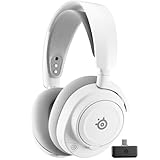
- REAL-TIME GAME AUDIO CONTROL — Pinpoint enemies with what GamingTrend calls “the biggest cheat code in the industry. 200+ game specific audio presets to choose from
- IMPROVED 50H+ BATTERY LIFE — Over 40% more charge than the previous generation, plus optimized USB-C Fast Charge
- SIMULTANEOUS 2.4GHZ + BLUETOOTH — Mix game and mobile audio
- PLUG-&-PLAY USB-C — Unlock 2.4GHz cross-platform gaming with the portable wireless dongle. USB-A adapter included
- NEODYMIUM MAGNETIC DRIVERS — Custom-designed high-fidelity audio drivers for clear audio. Set your sound quality to glorious with a deep and detailed soundscape and 360° Spatial Audio support.
Choosing a USB power source
SteelSeries’ charging guidance supports several ordinary USB sources. The practical differences are about convenience and whether the port remains powered:
| Source | Practical consideration |
|---|---|
| Computer or laptop | Easy to test, but a sleeping computer may stop supplying power and charging behavior can vary. |
| USB wall adapter | Convenient for an unattended or overnight charge when it is a normal, compatible USB adapter. |
| Console USB port | Useful at a gaming setup; power availability depends on the console’s state and settings. |
| Powered hub | Helpful when direct ports are scarce; use a known-working, powered hub. |
| Power bank | Portable for charging away from a desk. |
These options are confirmed as source categories in SteelSeries’ troubleshooting guidance, but no source establishes a reliable speed ranking among them. See SteelSeries’ charging troubleshooting article.
Rank #4
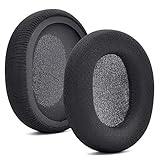
- 【Compatible with】Fit perfectly on Arctis 1/3/5/Arctis 7/7+/7P/7P+/7X/7X+/9/9X/Pro/Prime(Do Not Fit Any Arctis Nova) ' model before purchase. Before making a purchase, please make sure to confirm your headset's model to ensure compatibility.
- 【 OUR INGENUITY】defean is a factory specializing in ear pad acoustics. Buying defean products gives you a high price/performance ratio,We have excellent ear pad development engineers and skilled technical workers. Upgrade your headphones with defean Ear Pads for ultimate comfort.Experience effective noise isolation while wearing your headphones
- 【Easy to install】Just remove the old ear pads and put the new ear pads into the ear cups of the earphones, then you can easily snap the ear pads into the earphones without any auxiliary tools.
- 【Service guarantee】All defean are produced under strict quality inspection, and come with a 12-Month worry-free warranty and free
- 【 Package Includes】1 Pair of Ear Pads (Headphone no included) If you have any questions about the replacement pads, please feel free to contact us. We hope you have a good shopping experience!
If your Arctis 7 will not charge
Work through the checks in this order so a dead cable or USB port is not mistaken for a failed headset:
- Inspect and clean the charging jack. Remove visible dust carefully. Do not scrape the contacts with a sharp object.
- Try another micro-USB cable. Use a sound, data-capable cable suited to the original Arctis 7.
- Try another USB source. Move from a computer to a wall adapter, console port, or powered hub, or test the reverse.
- Test the suspected cable and source with another device. This confirms that the cable and port actually provide power.
- Leave the headset connected overnight if the battery may be deeply discharged.
- Perform the hardware reset using the procedure below if there is still no light or power response.
- Contact SteelSeries Support if the headset remains unresponsive after these checks.
Hardware-reset procedure
- Unplug the headset and allow it to remain disconnected for up to 48 hours so a deeply depleted battery can drain fully.
- Remove the cushion from the left earcup, the side with the microphone.
- Find the reset pinhole beneath the cushion.
- Use a paperclip or pin to press and hold the reset switch briefly—approximately one to two seconds.
- Release it, reconnect the charger, and try powering on the headset.
SteelSeries’ current charging article describes about two seconds, while an older Arctis 7 support instruction describes about one second. A brief one-to-two-second press reflects both documents; neither timing should be treated as an exact electronic threshold. The current instructions are at SteelSeries Support, and the older instruction is preserved in this related support article.
What’s actually slowing this PC down?
Pick the symptom - the matching free tool is one click away.
Best Value

- REAL-TIME GAME AUDIO CONTROL — Pinpoint enemies with what GamingTrend calls “the biggest cheat code in the industry. 200+ game specific audio presets to choose from
- IMPROVED 50H+ BATTERY LIFE — Over 40% more charge than the previous generation, plus optimized USB-C Fast Charge
- SIMULTANEOUS 2.4GHZ + BLUETOOTH — Mix game and mobile audio
- PLUG-&-PLAY USB-C — Unlock 2.4GHz cross-platform gaming with the portable wireless dongle. USB-A adapter included
- NEODYMIUM MAGNETIC DRIVERS — Custom-designed high-fidelity audio drivers for clear audio. Set your sound quality to glorious with a deep and detailed soundscape and 360° Spatial Audio support.
When it charges but the battery does not last
A headset that accepts a charge but quickly falls from a high indicator to low battery is a different problem from a headset that never shows a charging response. Runtime can be affected by battery age, listening volume, wireless use, temperature, and charging history. The reviewed official material does not establish a current universal runtime figure for the original Arctis 7, so an exact number of hours would be misleading. If capacity has deteriorated sharply, seek SteelSeries support rather than assuming the 3.5-mm cable will restore the internal battery.
Why the 3.5-mm cable does not solve charging
The 3.5-mm mobile/console connection provides wired audio. It is separate from the micro-USB charging jack, so a headset that works through 3.5-mm audio can still have a faulty cable, USB source, charging port, or battery. Test the micro-USB path independently.
Replacement-cable guidance
For an original Arctis 7, look for a reputable, data-capable micro-USB cable with a firm connector and undamaged insulation. SteelSeries says it no longer sells micro-USB cables directly and points owners toward widely available replacements. Its official Arctis cable page is for the 7+ family’s USB-C connection, not the original Arctis 7. For persistent faults, use the Arctis 7 support section.
Quick Recap
Product prices and availability are accurate as of the date/time indicated and are subject to change. Any price and availability information displayed on Amazon at the time of purchase will apply.




