What’s actually slowing this PC down?
Pick the symptom - the matching free tool is one click away.
You can connect a GameCube to a modern TV with a GCVideo HDMI adapter if the console has a Digital AV Out port, or with a compatible analog cable and an external scaler. These options make the console’s standard-definition video easier to use on an HDTV; they do not make games render natively in HD.
Choose the right connection for your GameCube
Start by checking the console’s rear panel. The plug-in Retro-Bit Prism HD Adapter, for example, requires the Digital AV Out port found on the DOL-001 model. If your console lacks that port, this adapter will not connect; consider an analog cable and scaler, or investigate a documented console modification instead. The GCVideo project notes that third parties may offer boards and modification services, but does not establish the compatibility or reliability of any particular provider.
| Route | Best fit | What to check |
|---|---|---|
| GCVideo HDMI adapter, such as the Retro-Bit Prism | A direct digital connection with minimal extra equipment | The Prism requires Digital AV Out (DOL-001). It can line-double supported input modes, but does not give games native HD rendering. Prism manual |
| Analog cable plus an external scaler, such as the RetroTINK-5X Pro | Using different analog consoles or having more scaling and deinterlacing options | Match the cable’s output to an input the scaler accepts. The RT5X lists composite, S-Video, component, RGB, and SCART inputs. RetroTINK-5X Pro |
| Console modification or installation service | Owners without the required digital port who want a digital-output solution | Compatibility and service quality depend on the specific modification and provider; the GCVideo project does not verify a particular service. GCVideo project |
What “GameCube HD” actually means
HDMI describes the connection to the TV, not the resolution at which a game was rendered. The Prism manual lists GameCube input modes from 240p through 576p, including 480i and 480p, and says the adapter starts in 480i. Its line doubling and the scaling performed by a TV or scaler can make a standard-definition signal work on an HDTV, but do not turn the game into native 720p or 1080p.
Get the best available video mode
Progressive scan can produce a cleaner result than interlaced video, but availability depends on game, region, and setup. GCVideo’s firmware documentation says most PAL-region games do not offer progressive video by default. For NTSC games, the progressive option may appear when you hold B during boot. Swiss can sometimes force PAL games to output progressive video; this is not a guarantee for every game or configuration.
#1 Best Overall

- 【Enhance Your Gaming Experience】This product includes a N64 HDMI adapter converter, HDMI cable, and USB cable to bring your old-school games into the modern gaming world. Note: Depending on the TV device, this HDMI cable cannot increase the screen resolution.
- 【Enjoy High-Quality Graphics】RuntoGOL HDMI converter compatible with Gamecube/N64/SNES/SFC, which supports 1080P/720P aspect ratio output switch, allowing you to fully experience the stunning graphics of your classic games.
- 【Easy to Use】Simply plug and play with our HDMI adapter to instantly upgrade your gaming setup, no driver is needed. Note: Only for N64, NGC, SNES, SFC.
- 【Versatile Compatibility】The N64/NGC/SNES/SFC compatible design allows you to connect your favorite classic game consoles using this N64 to HDMI adapter.
- 【Multiple Uses】With the GameCube HDMI converter, this set is complete for gaming or streaming your favorite vintage games on any HDMI-equipped device. Don't miss out on this must-have Gamecube adapter/N64 HDMI converter set!
When an external scaler makes sense
A scaler is worth considering if you already connect several older consoles or want choices beyond a direct HDMI adapter. The RetroTINK-5X Pro product page lists composite, S-Video, component, RGB, and SCART inputs, digital HDTV output, scaling, and motion-adaptive deinterlacing. Check the specific cable and signal format against the scaler’s inputs: a scaler’s digital output does not mean it accepts HDMI input.
The RT5X page gives latency figures that vary by buffering mode: approximately 0.25 frames in Framelock mode and 0.25–1.25 frames in Triple Buffering. Those are mode-dependent specifications, not a single latency figure for every setup.
Rank #2

- RCA Female to HDMI Video Converters Adapter : The cable is used to convert analog composite input to HDMI 1080p output, displayed on a 1080p HD TV/TV/monitor.
- Input ports: 1xRCA Female (Yellow, White, Red), Output ports: 1xHDMI 1.3 1080p. NOT support 3D and 4K, NOT support HDMI Converts to AV
- AV to HDMI Converter: Plug and Play, Easy to Install and Operate, Powered by External USB Cable. Note: Please hook up the USB power cable (included) to 5V 1Apower source during use (not included power supply ).
- Support PAL, NTSC3.58, NTSC4.43, SECAM, PAL/M, PAL/N standard TV formats input. For PS2,PS3,Xbox,N64,STB, VHS, VCR, DVD Players and other devices with standard composite AV input.
- You Will Get : 1x RCA Female TO HDMI Converter, 1xHDMI cable, 1xUSB cable, 1xUser Manual. ONE YEAR WARRANTY - if you are not satisfied for any reason whatsoever, do not hesitate to contact us .
Check region, cable, and display compatibility
The entire signal chain matters: console revision, region, cable, adapter or scaler settings, and display compatibility can all affect the result. GCVideo documents display-dependent RGB range and compatibility settings. RetroTINK’s PAL GameCube notes recommend using the Digital AV port when practical and describe image-quality issues with the tested PAL RGB-SCART approach. Do not assume every PAL cable and RGB combination will produce the same image.
Quick Recap
Rank #4

- 【HDMI Cable Included】Nintendo 64/ Game Cube/SNES to HDMI converter,Support 720P/1080P Convert on HDTV.
- 【Easy to Use】Plug and play with HDMI adapter,no screen lag.Note: External power supply required.
- 【Clear and Smooth Picture Quality】For legacy systems to run on newer tvs,better gaming experience.
- 【Note】No sound or blue screen appears, please check if the connection is successful.
- 【Customer Service】 We have undergone strict testing before leaving the factory to ensure normal use. If you have any questions, you can contact us.
Rank #3
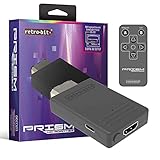
- Compatible with GameCube
- Customizable on screen display
- USB-C data port for easy installation of firmware updates and additional languages
- Scan filters includes IR remote with 3ft range
- Plug-and-play setup
A practical setup checklist
- Inspect the rear of the console. Confirm that Digital AV Out is present before buying a plug-in adapter that depends on it; the Prism manual identifies DOL-001 as compatible.
- Pick a connection route. Use a compatible GCVideo HDMI adapter for a straightforward digital connection. Choose an analog cable and scaler if you need the scaler’s inputs or processing features.
- Match the cable to the input. Verify the cable’s output format and the receiving adapter or scaler’s supported input; do not infer input compatibility from its output connector.
- Try progressive scan where available. On an NTSC game, hold B during boot to check for the progressive option. On PAL, expect that most games do not offer it by default; Swiss may force it in some cases.
- Adjust compatibility settings if needed. If the image has a display or RGB-range problem, consult the adapter firmware documentation and the display’s settings rather than assuming the console or cable is defective.
How to decide
- Choose a plug-in HDMI adapter if your GameCube has Digital AV Out and you want a simple digital connection.
- Choose a scaler if its analog inputs and processing are useful for your broader retro-console setup.
- For a console without Digital AV Out, compare an analog route with a specific, documented modification; do not assume a plug-in digital adapter will fit.
Product prices and availability are accurate as of the date/time indicated and are subject to change. Any price and availability information displayed on Amazon at the time of purchase will apply.




