Use Razer Synapse to remap Tartarus V2 Pro keys, make application-specific profiles, and create and assign macros. These steps are for the Razer Tartarus V2 Pro (RZ07-0552); Synapse labels may vary by version, and the macro and profile instructions below are general Synapse guidance unless noted otherwise.
Before you start: identify the keypad and open Synapse
Razer’s Tartarus V2 Pro support listing identifies the model as RZ07-0552 and links to Synapse setup resources. Razer’s product FAQ says to install the latest version of Synapse, select the Tartarus V2 Pro, and open its customization controls. Razer lists up to 31 programmable controls; that is a manufacturer specification, not an independently tested count.
Once Synapse is open, select the keypad from the device dashboard. The instructions below assume the keypad is recognized by Synapse.
How to change a key binding
For this model, Razer’s product FAQ describes assigning a keyboard key or shortcut from the keypad’s Customize tab; it says changes save automatically.
Recommended Free Tools
#1 Best Overall

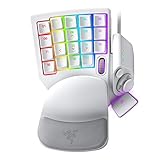
- HIGH-PERFORMANCE MECHA-MEMBRANE SWITCHES — Provides the tactile feedback of mechanical key press on a comfortable, soft-cushioned, membrane, rubber dome switch suitable for gaming
- 32 MECHA-MEMBRANE KEYS FOR MORE HOTKEYS AND ACTIONS — Perfect for gaming or integrating into creative workflows with fully programmable keys
- THUMBPAD FOR IMPROVED MOVEMENT CONTROLS — The 8-way directional thumbpad allows for more natural controls for console-oriented players and a more ergonomic experience
- FULLY PROGRAMMABLE MACROS — Razer Hypershift allows for all keys and keypress combinations to be remapped to execute complex commands
- ULTIMATE PERSONALIZATION and GAMING IMMERSION WITH RAZER CHROMA — Fully syncs with popular games, Razer hardware, Philips Hue, and gear from 30 plus partners; supports 16.8 million colors on individually backlit keys
- In Synapse, select the Tartarus V2 Pro and open Customize.
- Click the key in the on-screen keypad image that you want to change.
- Choose the function to assign, such as a keyboard key or shortcut, then follow the on-screen prompts.
Some controls may be reserved by the system or software. Razer’s general macro-assignment guidance, for example, says Windows and FN cannot be remapped or assigned a macro through that workflow. If a control is unavailable, choose another programmable key rather than assuming all controls can be reassigned.
How to create an application-specific profile
An application profile associates a Synapse configuration with a game or other app, so you can use a different setup for different software. The profile workflow below is Razer’s general Synapse guidance, not a keypad-specific walkthrough; exact labels can vary by version.
Rank #2

- MAXIMUM SPEED AND PRECISION — Dominate fast-paced FPS, MMO, and action games with Razer Analog Optical Switches Gen-2 featuring Rapid Trigger, adjustable 0.1-4.0 mm actuation, and up to 100 million keystrokes
- COMFORT FOR EXTENDED GAMING SESSIONS — Maintain natural wrist alignment with a fully adjustable ergonomic wrist rest that moves across multiple axes, creating an ideal setup for long raids, grinding sessions, and competitive play
- GREATER CONTROL WITH ANALOG INPUT — Execute precise movements, navigate radial menus, and expand your gameplay options with a full-sized anti-drift TMR thumbstick and 31 fully programmable controls via Razer Synapse
- CUSTOMIZE FOR EVERY GAME — Store and switch between up to 24 configurable keymaps across 3 profiles, making it easy to optimize controls for MMOs, RPGs, shooters, strategy games, and productivity workflows
- ULTRA-RESPONSIVE PERFORMANCE — Gain near-zero latency with true 8000 Hz HyperPolling, delivering input updates up to 8x faster than conventional gaming peripherals for quicker reactions during critical moments
- Open the profile dropdown in Synapse.
- Open the ellipsis beside Application Profiles, then choose Add Profile.
- Choose an empty or default profile, associate it with the target application, and give the profile a name.
- Select that profile and configure the Tartarus V2 Pro key assignments you want for the associated app.
A profile is the configuration associated with an application; a keymap is a set of key assignments within that configuration. Razer advertises 24 configurable keymaps across three profiles, with a custom toggle assignment for switching. This is the manufacturer’s stated capacity, not an independently tested result.
How to create and assign a macro
Razer defines a macro as an automated set of instructions—multiple keystrokes or mouse clicks—that can be triggered by one action. The creation and assignment workflow below is Razer’s general Synapse 4 guidance.
PC Slower Than It Used to Be?
A free scan shows the junk files, broken settings and background clutter dragging Windows down - then fixes them in one click.Free scan · Windows 10 & 11Crashes, No Sound, or Screen Glitches?
Random freezes, missing sound and display glitches usually trace back to one bad driver. Find and replace yours safely.Free scan · under a minuteRank #3
- #1 SELLING PC GAMING PERIPHERALS BRAND IN THE U.S. — Source: Circana, Retail Tracking Service, U.S., Dollar Sales, Gaming Designed Mice, Keyboards, and PC Headsets, Jan. 2019- Dec. 2023 combined
- RAPID TRIGGER — Instead of a fixed reset point, keys reset instantly with an upward motion as low as 0.1 mm. This allows for faster repeated keystrokes compared to standard keyboards, which significantly enhances in-game responsiveness
- ADJUSTABLE ACTUATION — Supporting a range of actuation from 1.5 to 3.6 mm, customize the switches to be sensitive as wanted and achieve a setting that best suits different playstyle
- 32 KEYS FOR MORE HOTKEYS AND ACTIONS — Perfect for gaming or integrating into creative workflows with fully programmable keys
- THUMBPAD FOR IMPROVED MOVEMENT CONTROLS — The 8-way directional thumbpad allows for more natural controls for console-oriented players and a more ergonomic experience
Create the macro
- Open MACRO in Synapse and select New Macro.
- Rename the macro so you can identify it later, then record or configure the sequence using Synapse’s controls.
Assign it to a Tartarus V2 Pro key
- Return to the dashboard, select the Tartarus V2 Pro, and open Customize.
- Choose the programmable key you want to use.
- Select MACRO, choose the macro you created, and select the playback option that suits the task.
- Save the assignment.
Razer’s general assignment article notes that some keys, including Windows and FN, cannot be assigned a macro through this workflow. If the selected key does not offer the macro option, choose another programmable key.
Independent reader supportYour contribution helps us test, update, and keep practical guides available for everyone.Switch profiles and account for older Synapse software
Razer says Tartarus V2 Pro profiles can contain distinct keymaps and can be switched using a custom toggle assignment. Configure that toggle through the available on-screen options; the support material does not establish a universal button sequence for switching, so follow the controls shown in your current Synapse version.
Rank #4

- #1 SELLING PC GAMING PERIPHERALS BRAND IN THE U.S. — Source: Circana, Retail Tracking Service, U.S., Dollar Sales, Gaming Designed Mice, Keyboards, and PC Headsets, Jan. 2019- Dec. 2023 combined
- RAPID TRIGGER — Instead of a fixed reset point, keys reset instantly with an upward motion as low as 0.1 mm. This allows for faster repeated keystrokes compared to standard keyboards, which significantly enhances in-game responsiveness
- ADJUSTABLE ACTUATION — Supporting a range of actuation from 1.5 to 3.6 mm, customize the switches to be sensitive as wanted and achieve a setting that best suits different playstyle
- 32 KEYS FOR MORE HOTKEYS AND ACTIONS — Perfect for gaming or integrating into creative workflows with fully programmable keys
- THUMBPAD FOR IMPROVED MOVEMENT CONTROLS — The 8-way directional thumbpad allows for more natural controls for console-oriented players and a more ergonomic experience
If you still use Synapse 2.0, Razer says its cloud-related features ended on October 28, 2025. Existing local profiles and macros remain, and settings can be exported manually. The current walkthrough above is centered on Synapse 4, not Synapse 2.0.
Quick Recap
Best Value

- LOW-PROFILE LINEAR OPTICAL SWITCHES — Perform quicker keystrokes with all-new switches that have a shorter actuation height for reduced key travel, backed by a 70-million keystroke lifespan for long-lasting performance
- TOP-CLASS CONNECTIVITY — Experience lag-free gaming and instant response with Razer HyperSpeed Wireless (2.4GHz) connection or unlock greater functionality with Bluetooth 5.0 and toggle between 3 devices
- ULTRA-LONG UP TO 200-HOUR BATTERY LIFE — Power through an entire day of gaming without breaking a sweat, also includes a detachable Type-C cable for continued use while charging
- ULTRA-SLIM CASING WITH DURABLE ALUMINUM TOP PLATE — The keyboard’s slim profile ensures neutral hand positioning for long hours of use with little strain, while its aluminum alloy top plate provides greater durability with a satisfying heft
- LASER-ETCHED KEYCAPS WITH HYPERGUARD COATING — Greater protection against wear and tear compared to regular keycaps
Product prices and availability are accurate as of the date/time indicated and are subject to change. Any price and availability information displayed on Amazon at the time of purchase will apply.




