If your PS5 controller mic is not working, check the DualSense mute button first, then verify the console’s selected input and microphone level. If those settings look right, check automatic mute preferences, compare with a compatible headset mic, and then update or reset the controller.
1. Check whether the DualSense mic is muted
Press the mute button on the controller once. A lit button means the microphone is muted; an unlit button means it is unmuted. Holding the button also mutes the controller’s audio output and the TV; when both are muted, the button blinks. Press it again to return to the previous state. See PlayStation’s PS5 audio settings guide and the DualSense quick start guide.
2. Select the controller mic and check its input level
- On the PS5, open Settings > Sound > Microphone.
- Under Input Device, select the microphone you want to use, such as the DualSense controller mic.
- Choose Adjust Microphone Level, speak normally, and watch the input meter. Adjust the level until your voice falls in the Good range.
If the meter does not respond, confirm the selected input is the controller mic and that the controller is unmuted. Sony’s voice chat troubleshooting guide and audio settings guide describe these controls.
3. Review automatic microphone mute settings
In Settings > Sound > Microphone, check Microphone Status When Logged In and Microphone Status When Starting Voice Chat or Broadcast. The latter can be set to Switch to Mute, which mutes the microphone when a voice chat or broadcast starts. If friends can hear you in one situation but not another, these preferences are worth checking.
#1 Best Overall

- Product model: PS5 V1.0 BDM-010 new internal microphone speaker flex cable PS5 left/right microphone flex cable LR flex cable
- Product material: Utilises a polyimide (PI) substrate with high-purity copper circuitry.
- Compatible model: PS5 BDM-010
- Product advantages: Precise model compatibility, straightforward installation, stable audio transmission, and durable premium materials.
- This product is specifically tailored for the PS5 V1.0 BDM-010 model. The connector dimensions and wiring layout of the ribbon cable perfectly match the console's internal structure, ensuring seamless integration with corresponding components. This prevents installation difficulties or functional anomalies caused by specification discrepancies.
4. Compare the controller with another microphone
If you have a known-compatible headset with a microphone, connect it and select it under Input Device. Check whether the microphone-level meter responds. If the headset works while the controller mic does not, that can help narrow the problem to the controller, but it is an inference—not a PlayStation-confirmed diagnostic test. Sony notes that not every audio device works with PS5, so check compatibility with the device maker before relying on a headset.
5. Update the DualSense software, then reset the controller
Update the controller
PlayStation says DualSense device software updates are added when PS5 system software is updated. You can also check manually at Settings > Accessories > Controller (General) > DualSense Wireless Controller Device Software. Follow the on-screen instructions if an update is available.
Rank #2
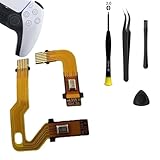
- 【Compatibility】Microphone flex cable only for PlayStation 5 BDM-030 replacement. Please confirm your controller model before purchasing.
- 【Packing List】 Microphone flex cable*2 (left cable and right cable) and a set of tools (2.0+-screwdriver*1, tweezer*1, crowbar*1,triangle paddles*1). Help you replace microphone flex cables more easily.
- 【Quality Guarantee】Microphone flex cables are made of high quality materials. High temperature, wear and corrosion resistance.
- 【Suggestion】When your microphone retractable cable breaks or the controller's sound is too low, replace the old and faulty parts by replacing them with new ones.
- 【After-sale Service】For inquiries about our products, feel free to reach out to us through Amazon Message.
Reset the controller
- Turn off the PS5.
- Find the small reset button on the back of the DualSense and press it with a pin or similar tool.
- Connect the controller to the console with a USB cable, then press the PS button.
PlayStation says resetting does not reconfigure the controller or affect its pairing settings. The update and reset instructions are in PlayStation’s accessories support guide.
Independent reader supportYour contribution helps us test, update, and keep practical guides available for everyone.6. When to contact PlayStation Repairs
If the mic still does not work after checking settings, trying another input, updating, and resetting, use PlayStation’s Repairs diagnostic tool. Repair options and availability vary by region. A replacement DualSense may be worth considering only if the built-in mic appears to have a hardware fault; the settings checks and reset can help rule out simpler causes first.
Quick Recap
Best Value
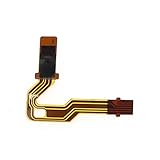
- It's a replacement Mic Ribbon Cable for PS5 Controller only.
- The replacement Mic Ribbon Cable is compatible with PS5 only. Warm tips: Please confirm the correct model carefully before purchase.
- Professional repairment skills requried.
- The Replacement Microphone Flex Cable is only for repairing your broken, damaged or defective one of PS5.
- Package: 1pcs of PS5 Controller
Rank #4

- Microphone Mic Ribbon Flex Cable for PS5 PlayStation 5 BDM-020 BDM-030 V2 2.0 V3 3.0 Controller.
- These Flex cable will only fit for PS5 BDM-020 BDM-030 V2 V3 2.0 3.0 controllers, which not suit for BDM 010 V1 1.0 Controller. you can open your controller and check controller models belong.
- Those pictures or photos are take by ourselves, so pls double check which shape flex cable you need buy, you also can check difference from V1.0&V2.0/V3.0. pls check clearly aviod waste money.
- Package included: 1 pair (2pcs) for PS5 PlayStation 5 BDM-020 030 V2 V3 Controller Microphone Mic Ribbon Flex Cable, 1*Screwdriver 1*Open tool 1*Tweezer.
- This Microphone Mic Ribbon Flex Cable for PS5 controller easy broken, or your controller no voice or bad voice, you can buy for PS5 controller Microphone Mic Ribbon Flex Cable to replace bad or old flex.
Rank #3

- Compatibility: Compatible for Sony PlayStation 5 PS5 BDM-020 BDM-030(Not for BDM-010)replacement. Please confirm your game model, if you can’t make sure it, please contact us to confirm.
- Scope of Application: Use for fix BDM-020 microphone flex cable are broken or handle's voice too small not working or defective
- Easy to Install: Comes with microphone flex cable(left cable and right cable) and set tools(1* screwdriver、 1* anti-static precision tweezers、1* anti-static spudger and 1* stainless steel opening pry tool). Help you to replace the microphone flex cable more convenient and easily.
- Quality Guarantee: The microphone flex cable for Sony PS5 are made of premium material. High temperature resistance、wear resistance and corrosion resistance.
- Suggestion: Please take care to install the microphone flex cable for PS5 .If you have any problem about microphone flex cable for PS5 or need installation video , please leave a message to us.
Product prices and availability are accurate as of the date/time indicated and are subject to change. Any price and availability information displayed on Amazon at the time of purchase will apply.




