
If your Surface touch screen is completely dead, works only in part of Windows, misses gestures, responds slowly, or produces phantom taps, first test it outside Windows. Shut down, hold Volume Up, press Power, and test touch at the Surface UEFI screen. Touch that fails in UEFI most likely indicates a hardware failure; touch that works there points to Windows or a touch driver. That single test tells you whether to continue with software repairs or arrange service.
What a non-working Surface touch screen can look like
Microsoft’s Surface guidance covers several different symptoms, and they do not all indicate the same fault:
As an Amazon Associate I earn from qualifying purchases.
- No touch input anywhere on the display.
- Only part of the screen responds.
- Two-finger or other multi-touch gestures fail.
- Taps register in the wrong place or require unusual pressure.
- The display generates taps or swipes that you did not make (often called ghost or phantom touch).
- Touch eventually responds but is noticeably slow.
Begin with the least disruptive checks. A restart can clear a temporary Windows state, while the UEFI test separates a Windows or driver problem from a likely hardware problem. Do not repeatedly reinstall Windows before performing that test: if touch also fails in UEFI, software reinstallation is unlikely to solve it.
Outdated Drivers Are Slowing You Down
One free scan finds every outdated or missing driver and matches the right update for your exact hardware.Free scan · exact hardware matchPC Slower Than It Used to Be?
A free scan shows the junk files, broken settings and background clutter dragging Windows down - then fixes them in one click.Free scan · Windows 10 & 11Use this decision path before changing drivers
| Where touch fails | What the result suggests | Next action | Effort and risk |
|---|---|---|---|
| Windows only; touch works in UEFI | The display can accept touch outside Windows, so Windows configuration or the touch driver is the probable area to repair. | Reinstall the touchscreen entries in Device Manager, then install Windows and Surface updates. | Low to moderate; driver removal temporarily removes the device entry. |
| UEFI and Windows | Microsoft says touch that does not work in UEFI most likely reflects a hardware failure. | Move to Microsoft service, authorized in-person support where available, or carefully evaluate self-repair. | Service availability and warranty options vary by region and device status. |
| Windows is frozen and you cannot reach the normal restart controls | The immediate problem may be an unresponsive Windows session rather than a confirmed panel failure. | Force a restart, then perform the UEFI test. | Low, but unsaved work will be lost. |
| Touch works after a restart but later becomes inaccurate, slow, or phantom | A transient Windows or driver state remains possible; the symptom alone does not prove hardware failure. | Test UEFI when the problem is present, then complete driver and update checks if UEFI touch is normal. | Low to moderate. |
Prepare an alternate way to control the Surface
When touch is unavailable, you may need a keyboard or mouse to complete the Windows steps. A USB mouse is a practical way to open menus, select Device Manager entries, run Windows Update, and read diagnostic results. Connect it before starting the software procedures. If your Surface model requires an adapter for a USB accessory, connect the adapter and mouse before you begin.
#1 Best Overall

- Compatible Model: Replacement for Microsoft Surface Pro 7 1866 (2019) LCD Touch Screen Display Panel.
- Size Screen: 12.3" ;Resolution: 2736x1824 .
- Each display panel passes comprehensive pre-delivery tests covering brightness, color uniformity and display performance to rule out dead pixels or flickering issues.
- Multi-layer shockproof foam paired with rigid carton packaging shields the screen from extrusion, vibration and impact throughout international logistics transportation.
- Screen replacement requires professional laptop repair experience. You can contact our official support team under brand PEHDPVS if you need compatibility verification guidance before ordering.
Keep the Surface connected to power during updates and diagnostics. Save work before restarting; the force-restart procedure intentionally ends the current Windows session.
Restart the Surface, including a force restart when Windows is frozen
Normal restart
- Use your mouse or keyboard to open the Windows power menu.
- Select Restart and wait for the Windows sign-in screen.
- Test a few points across the display, including an area that previously failed, and try the gesture that was not responding.
A normal restart is a useful first check, but it does not establish whether the fault is hardware. If the symptom returns, continue to UEFI.
Force restart an unresponsive Surface
- Press and hold the Power button.
- Keep holding it until the Surface shuts down and restarts and the Windows logo appears. Microsoft describes this as about 20 seconds.
- Release the button, allow Windows to load, and test touch once.
Use this only when Windows will not respond to normal controls. It can discard unsaved changes. If touch remains unavailable, do not assume the force restart fixed or disproved a hardware issue; perform the independent UEFI test next.
Test touch in Surface UEFI
UEFI is the key diagnostic split because it operates independently of Windows. A successful UEFI touch test shows that the panel can respond outside the Windows driver stack; a failure there is strong evidence for a hardware fault.
Rank #2
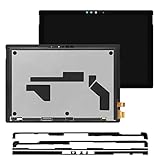
- Compatible Model: Replacement for Microsoft Surface Pro 5 1796 1807 1809 LCD Touch Screen Display Panel.
- Size Screen: 12.3" ;Resolution: 2736x1824 .
- Each display panel passes comprehensive pre-delivery tests covering brightness, color uniformity and display performance to rule out dead pixels or flickering issues.
- Multi-layer shockproof foam paired with rigid carton packaging shields the screen from extrusion, vibration and impact throughout international logistics transportation.
- Screen replacement requires professional laptop repair experience. You can contact our official support team under brand PEHDPVS if you need compatibility verification guidance before ordering.
- Shut down the Surface completely.
- With the device off, press and hold Volume Up.
- While holding Volume Up, press and release Power.
- Continue holding Volume Up until the Microsoft or Surface logo appears, then release it.
- Use your finger on the UEFI screen. Try several locations, including the area that failed in Windows, and test more than one touch if the interface allows it.
If touch fails in UEFI
Microsoft’s guidance says the touchscreen most likely experienced a hardware failure when touch does not work in UEFI. Stop treating this as a routine Windows-driver problem. Repeating driver removal, updates, or a full Windows reinstall is unlikely to correct a fault that is present before Windows loads.
If touch works in UEFI
Return to Windows and proceed with the driver procedure below. UEFI success does not guarantee that every Windows symptom will disappear, but it makes a Windows configuration or touchscreen-driver problem the more likely path to investigate.
Reinstall the touchscreen drivers when UEFI touch works
Use this procedure only after confirming that touch works in UEFI. Microsoft specifically warns not to use the described driver-uninstall procedure on Surface Pro X, because restoring its drivers requires a full system reset. For a Surface Pro X, skip driver removal and use Windows and Surface updates or Microsoft support instead.
Do these 3 things before closing this tab:
1Repair Windows errors before they cause bigger problems2Fix the driver behind crashes, sound loss and screen glitches3Clear out junk files and repair common Windows errorsRemove the touchscreen entries
- In Windows, open Device Manager using your mouse or keyboard.
- Expand Human Interface Devices.
- Find Intel(R) Precise Touch Device. Select it, choose the uninstall option, and confirm removal.
- Find HID-compliant touch screen and uninstall it as well.
- If two HID-compliant touch screen entries appear, uninstall both entries rather than leaving one behind.
Read each device name before removing it. The procedure is aimed at the touchscreen entries under Human Interface Devices, not unrelated keyboard, mouse, audio, or sensor devices.
Rank #3

- 🧡【for Surface Book 1 Screen Replacement】: This LCD display for Microsoft Surface Book 1 is compatible with Microsoft Surface Book 1/2 1703 1704 1705 1706 1803 1804 1805 1806 13.5 inch, please confirm your device model before placing an order.
- 💛【Installation Instructions】: Before installing this screen replacement for Microsoft Surface Book 1, we recommend that you watch some installation videos on YouTube. We strongly suggest that you have some experience before attempting the installation to avoid any potential damage to your device.
- 💚【Superior Quality】: Our lcd display for Microsoft Surface Book 1 with full perspective, anti-fingerprint, smooth touch. And our screen replacement for Microsoft Surface Book 1 have passed rigorous quality control checks and we will pack them well before shipment.
- 💜【Package Including】: The package including 1 * LCD display for Microsoft Surface Book 1 + 1 * Repair Kit + 1 * Spudger + 1 *Tweezer +1 * Tape.
- 💙【Customer Satisfaction Guarantee】: We provide 3 months product warranty service to protect your rights and interests. If you find quality problems during the screen replacement for Microsoft Surface Book 1 warranty period, you can contact us at any time, and we will provide you with free repair or replacement service.
Make Windows detect the hardware again
- In Device Manager, select Action > Scan for hardware changes.
- Wait while Windows redetects the touchscreen hardware.
- Restart the Surface if the touchscreen entry does not return immediately or if touch is still unavailable.
- Keep the Surface connected to the internet. Microsoft says Windows should download and reinstall the touchscreen driver when an internet connection is available.
After Windows starts again, test the whole display, a previously unresponsive section, a multi-touch gesture, and the symptom that led you to troubleshoot. If the entries return but the problem remains, continue to updates and diagnostics rather than uninstalling the same devices repeatedly.
Install Windows and Surface updates
Check Windows Update
- Open Windows Settings and go to Windows Update.
- Select the option to check for updates and install everything offered for your device.
- Restart when Windows requests it, then test touch again.
Update labels and restart prompts can vary by Windows release. Complete any required restart before deciding whether the update changed the symptom.
Check the Surface app
- Open the Surface app in Windows.
- Use its device or driver-and-firmware health checks.
- Install any Surface updates it identifies, then restart and retest.
Microsoft notes that missing or flagged Surface Touch firmware or HID drivers may require manual driver and firmware installation. Follow the model-specific instructions presented by Microsoft for that device rather than applying a package intended for a different Surface model.
Free tools Windows power users keep installed
One-click scans. No signup required.
Run the official Surface Diagnostic Toolkit
After the UEFI test, driver reinstall, and updates, run Microsoft’s Surface Diagnostic Toolkit. It performs feature tests and reports the outcome in a Details view that includes next steps. The test suite varies by Surface model, so two devices may not display exactly the same checks.
Rank #4

- Compatible Model: Replacement for Microsoft Surface Pro 3 1631 LCD Touch Screen Display Panel.
- Size Screen: 12" ;Resolution: 2160x1440 .
- Each display panel passes comprehensive pre-delivery tests covering brightness, color uniformity and display performance to rule out dead pixels or flickering issues.
- Multi-layer shockproof foam paired with rigid carton packaging shields the screen from extrusion, vibration and impact throughout international logistics transportation.
- Screen replacement requires professional laptop repair experience. You can contact our official support team under brand PEHDPVS if you need compatibility verification guidance before ordering.
- Launch the Surface Diagnostic Toolkit from Windows.
- Allow it to run the available feature tests for your model.
- Open the Details view and read each result, including any recommended action.
- Record failures or instructions before closing the tool; that information can help support staff decide whether service is needed.
The toolkit is a diagnostic aid, not a substitute for the UEFI decision. A failed UEFI touch test remains the stronger indication that the issue is hardware-related.
Independent reader supportYour contribution helps us test, update, and keep practical guides available for everyone.Handle partial response, inaccurate taps, phantom touch, and slow response
Only part of the screen responds
Test the same region in UEFI. If that region also fails there, treat the result as likely hardware trouble and move toward service. If the region works in UEFI, complete the touchscreen-driver reinstall and update sequence, then retest multiple points rather than checking only the original spot.
Touch is inaccurate or gestures fail
Use a mouse to complete the Device Manager and update steps, then test single taps and multi-touch gestures separately. A successful UEFI test keeps the investigation focused on Windows or drivers; a failed UEFI test changes the next step to service.
The Tool Desk
Outbyte PC Repair FREEClear out junk files and repair common Windows errorsFree Scan →Outbyte Driver Updater FREEScan for outdated or missing drivers - takes under a minuteDriver Scan →Ghost or phantom touches appear
When unintended taps or swipes occur, perform the UEFI test while the Surface is stable and safe to operate. If phantom input continues in UEFI, software repair is not the appropriate next experiment. If UEFI is normal, reinstall the touchscreen entries, apply updates, and run the Diagnostic Toolkit. Do not use the Surface for critical selections while it is generating unintended input; use a mouse where possible.
Best Value

- [Compatible Model]:Suitable for Microsoft Surface Go 2 /GO3 1901 1926 1927 10.5 inches screen replacement.Please make sure you have the correct model number you need before purchasing. If you are not sure of your model, you can provide us with a picture of the flex cable on the back of the screen.We are not responsible for the cost when returning the wrong parcel purchased because of the buyer's reason.
- [Use of products]:Broken screen, screen malfunction, dead pixels, touch inactivity, touch response problems, cracked LCD, display problems, false colour problems, non-functional LCD, etc. Before purchasing, please be sure to find a professional technician to test and repair the screen to determine the reason for the screen failure. If it is because the motherboard of the tablet device is faulty, the power supply is faulty, etc., even if you replace the screen assembly can not solve the problem!
- [Packing List]:1*lcd screen、1 *screen repair tools、1*screen protector. We offer free tools, the price of which is not included in the package. They cannot fit all models. In the event that a tool does not fit, please do not try to use an unsuitable tool as it may scratch the device!
- [quality]:All products are strictly test before shipment, and we will ship them only after confirming that there is no problem. If you receive a product that is not working, please don't worry, we will definitely give you a satisfactory solution.
- [Great Service] : We provide 24-hour quick reply, 30-Day Money Back, 3 months warranty. Our LCD Screen are packed in strong boxes, avoid damage during shipping. If you need help, please contact us via Amazon message. We will reply you ASAP.
Touch responds slowly
Restart first, then compare behavior in UEFI. Slow response limited to Windows belongs in the driver, update, and diagnostic path. Slow or failed response in UEFI supports escalating as a possible hardware problem.
When to stop troubleshooting and arrange service
Arrange Microsoft service or authorized in-person support where available when touch fails in UEFI, or when the complete software sequence does not restore a device that passes the UEFI test. Microsoft provides a service-order route and self-repair information for technically experienced users who have the appropriate tools. Choose self-repair only if you understand the risks and have model-appropriate instructions and equipment.
- Check warranty or service eligibility before opening the device or authorizing paid work.
- Keep the Diagnostic Toolkit’s Details results and note whether UEFI touch worked.
- Describe the exact symptom: complete loss, a dead region, failed gestures, inaccurate input, phantom touches, or slow response.
- State which driver entries were removed and whether Windows and Surface updates were installed.
- Confirm regional availability, because service and authorized support options differ by location.
If UEFI touch fails, repeated resets and driver experiments add effort without addressing the evidence you already have. Preserve your data and move to the service decision instead.
Quick Recap
Surface touchscreen troubleshooting checklist
- Connect a keyboard or USB mouse so you can work without touch.
- Restart normally; force-restart only if Windows is frozen.
- Enter UEFI with Volume Up plus Power and test several screen areas.
- If UEFI touch fails, prepare for service.
- If UEFI touch works, avoid the driver-uninstall procedure on Surface Pro X.
- On other applicable Surface models, remove Intel(R) Precise Touch Device and HID-compliant touch screen entries under Human Interface Devices.
- Use Action > Scan for hardware changes and restart.
- Install Windows Update and Surface app updates, including any required firmware or HID packages.
- Run Surface Diagnostic Toolkit and save its Details results.
- Escalate with the recorded results if the symptom persists.
As an optional shortcut for the driver-focused part of this process, Outbyte Driver Updater can scan more than 100 devices, identify outdated, corrupted, or missing drivers, install official drivers, show current and recommended versions, and provide driver backup, restore, and scheduled scans. It runs on Windows 11, 10, 8, and 7; a 2-day free trial does not require a credit card, after which a subscription applies. Results vary, and no driver tool repairs every touchscreen problem.
Product prices and availability are accurate as of the date/time indicated and are subject to change. Any price and availability information displayed on Amazon at the time of purchase will apply.

