Recommended Free Tools
Start with Armoury Crate SE updates and calibration. If the stick still moves by itself in the calibration screen, Windows, and multiple games, increase the dead zone only as a temporary workaround. Persistent drift usually needs ASUS service or joystick replacement—not repeated recalibration.
This guide applies primarily to the 2023 ROG Ally (RC71L) and 2024 ROG Ally X (RC72LA). ROG Xbox Ally models (RC73YA/RC73XA) use related Armoury Crate SE features, but menus and compatible parts can differ.
As an Amazon Associate I earn from qualifying purchases.
Confirm that it is really stick drift
Stick drift is unintended input while the thumbstick is physically at rest. It can make the mouse cursor move, cause a character to walk, rotate a camera, scroll menus, or trigger one direction constantly. A stick that does not return to center is also a warning sign.
Quick wins for a faster PC:
Repair Windows errors before they cause bigger problemsFix Now →Fix the driver behind crashes, sound loss and screen glitchesFind Drivers →A loose or cracked thumbstick cap is not automatically electronic drift. The cap may be damaged while the joystick module underneath still works—or the module may be failing even when the cap looks normal.
#1 Best Overall

- Compatibility: The 3D Joysticks is for Asus ROG Ally RC71L/ for GPD win3 Windows 10 handheld console. Not for other model. Please confirm your model before placing the order.
- Application: The replacement for Asus ROG Ally RC71L joystick are apply to the problem of the drifting, blind spots, dead spots, can't center, damaged or broken, long time to use, not sensitive, etc. The joystick for GPD win3 Windows 10 will better to solve the problem of drifting.
- Quality Guarantee: For GPD win3 Windows 10 joystick replacement was test before shipment,and for Windows 10 joystick replacement are made of good quality, metal+ABS plastic material make it use more accurately and has longer working life. The handheld console will use as a new one after replacing for win3 Windows 10 joystick, for GPD Windows 10 joystick replacement will bring a new life.
- Installation Suggestion: For ROG Ally RC71L joystick to replace need to WELD, if do not have any installation experience, we suggest to find the professional to replace for Ally RC71L joystick. After replacing the RC71L joystick, if it show the problem of drifting not center, it means it will need to manual calibrate.
- Set of Tools: Comes with set tool:Screwdriver、Opening Tools、Pry Tool and Tweezer. Helps to disassemble and replace more convenient. Please make sure the joystick replacement for Ally RC71L/Windows 10 package is good when you received it, if you have any problem about the product, please leave a message.
- Open the Armoury Crate SE calibration screen and leave the affected stick untouched.
- Check whether the Windows cursor or desktop selection moves without input.
- Test at least two games.
- Try the other stick if the game allows it.
- Connect an external controller. If only the Ally’s stick misbehaves, the game is less likely to be the cause.
If the problem occurs in only one game, suspect that game’s dead-zone setting, a custom Armoury Crate profile, Steam Input, or another remapping layer. Reports on ASUS forums describe drift in different games and control modes, but those anecdotal reports do not establish a universal Armoury Crate bug.
Before opening the handheld, identify the model number, save important data, and photograph any visible damage. If the drifting stick makes navigation difficult, use the touchscreen, a keyboard, mouse, or external controller.
Fix 1: Update Armoury Crate SE, firmware, and drivers
Outdated firmware, an Armoury Crate profile, or a controller-related driver can create input problems. Updating is the safest first step.
- Open Armoury Crate SE.
- Open Settings.
- Select Update Center.
- Choose Check for Updates.
- Install available Armoury Crate, BIOS, MCU, firmware, and related driver updates.
- Restart the Ally and retest before changing dead-zone settings.
ASUS documents Update Center as the place to check for driver and firmware updates. Labels can vary by model and software release; use the closest equivalent if your interface differs. See the ASUS Armoury Crate SE documentation.
Do not interrupt a BIOS or firmware update. If updating does not stop drift in the calibration screen, continue to recalibration.
Fix 2: Recalibrate the affected stick
Calibration can correct a misidentified center point or stick range. It cannot restore worn sensor tracks, repair liquid or impact damage, or fix a stick that physically cannot recenter.
Rank #2

- Compatibility: The 2PCS 3D Joysticks is for Asus ROG Ally RC71L/ for GPD win3 Windows 10 handheld console. Not for other model. Please confirm your model before placing the order.
- Application: The replacement for Asus ROG Ally RC71L joystick are apply to the problem of the drifting, blind spots, dead spots, can't center, damaged or broken, long time to use, not sensitive, etc. The joystick for GPD win3 Windows 10 will better to solve the problem of drifting.
- Quality Guarantee: For GPD win3 Windows 10 joystick replacement was test before shipment,and for Windows 10 joystick replacement are made of good quality, metal+ABS plastic material make it use more accurately and has longer working life. The handheld console will use as a new one after replacing for win3 Windows 10 joystick, for GPD Windows 10 joystick replacement will bring a new life.
- Protection and Convenient Installation: Come with 4pcs thumbsticks replacement for GPD win3 Windows 10. Good replacement for your broken or cracked joystick.This 3D thumb stick replacement will help you to improve your playing experience. And it comes with set tool:Screwdriver、Opening Tools、Pry Tool and Tweezer. Helps to disassemble and replace for GPD win3 Windows 10 joystick more convenient.
- Installation Suggestion: For ROG Ally RC71L joystick to replace need to WELD, if do not have any installation experience, we suggest to find the professional to replace for Ally RC71L joystick. After replacing the RC71L joystick, if it show the problem of drifting not center, it means it will need to manual calibrate.If you have any problem about the product, please leave a message.
- Open Armoury Crate SE.
- Go to Settings, then the controller or Control Mode settings.
- Select Configure.
- Open Calibration advanced settings.
- Choose Left Stick or Right Stick.
- Start recalibration and follow the on-screen instructions.
- Leave the stick untouched during the center step.
- Rotate it through its full range when instructed, release it, and let it return naturally.
- Save the result, restart the Ally, and test again.
ASUS’s current documentation confirms calibration controls for both sticks, although the exact confirmation prompt may appear as A or another control depending on the interface.
Do these 3 things before closing this tab:
1Clear out junk files and repair common Windows errors2Fix the driver behind crashes, sound loss and screen glitches3Repair Windows errors before they cause bigger problemsWhat the calibration result means
- Calibration fixes the problem: The cause may have been a center-offset or profile issue, but monitor it. Calibration can temporarily compensate for a deteriorating module.
- The marker jumps while untouched: Suspect a failing joystick, connector, or daughterboard.
- The stick cannot complete its range: Suspect hardware or physical obstruction.
If calibration makes the behavior worse, restart and repeat it once carefully. Restore the default Armoury Crate profile if necessary. Repeated recalibration is unlikely to repair a failing sensor.
Fix 3: Increase the dead zone
A dead zone tells the system to ignore small movements near the stick’s center. It can make a mildly drifting stick usable without opening the device.
- Open the affected game’s Armoury Crate profile.
- Open the stick or control settings.
- Increase the affected stick’s inner dead zone gradually.
- Test after each small adjustment.
- Use the smallest value that stops unwanted movement.
- Save it only to the affected game profile when possible.
Also check the game’s own controller settings. Applying a large dead zone in both Armoury Crate and the game can make aiming sluggish. A larger dead zone reduces accidental input but sacrifices fine control near center, especially in shooters.
Do not confuse anti-deadzone with drift correction. ASUS describes anti-deadzone as useful when a game fails to detect small legitimate movements. Increasing it on a drifting stick can make unwanted input more obvious.
What’s actually slowing this PC down?
Pick the symptom - the matching free tool is one click away.
Dead-zone compensation is a workaround, not evidence that the joystick is healthy. If you need an uncomfortably large setting, drift appears outside games, or the problem is getting worse, move to service or replacement.
Rank #3

- 【Compatible model】-- The replacement Joysticks is for Asus ROG Ally RC71L and for GPD win3 Windows 10 handheld console. (Not for other model)
- 【What you get】Package include -- 2 x Joystick, 4 x Thumbstick, 2 x Phillips Screwdriver, 1 x Metal Tweezer, 1 x Spudger, 1 x Metal Pry tool.
- 【Quality and Application】Quality -- The joystick replacement was test before shipment. And it is made of high quality metal, ABS plastic material. Make it has longer working life and used more accurately. Application -- Repair your worn-out, damaged, drift, blind spots, dead spots, can't center analog joystick .
- 【Complete Repair Tools】-- Includes all tools for this replacement joystick, no need to buy anything else. Helps to disassemble and replace more convenient.
- 【Installation Suggestion】-- 1. For ROG Ally RC71L joystick to replace no soldering is required for this installation. However, if you are inexperienced, we recommend that you seek help from a professional. 2. After replacing the RC71L joystick, If there is a Deadzone issue, please resolve it through Armory Crate SE – Calibration. It's not caused by Thumb Stick. 3. You can search how to replace the joystick for ROG Ally RC71L on video sites to find installation guides.
Fix 4: Inspect and clean the stick area
Dust, debris, a displaced cap, or rubbing can stop the stick from returning cleanly to center. External inspection is worth trying, but cleaning is not a guaranteed cure for electronic sensor wear.
- Shut down the Ally completely.
- Disconnect the charger and accessories.
- Inspect the cap and the gap around the stick.
- Look for debris, cracks, rubbing, or a cap lifting from the shaft.
- Use a soft, dry brush or carefully directed low-pressure air around the exterior.
- Move the stick slowly through its full range.
- Restart, recalibrate, and retest in Armoury Crate and multiple games.
Do not spray liquid or contact cleaner into the mechanism, flood it with solvent, use excessive air pressure, or pry the cap aggressively. Do not open the device while powered or connected to power.
If the stick is cracked, detached, or will not spring back to center, avoid forcing it. Photograph the condition before requesting service. ASUS lists drift, inability to recenter, and a joystick that does not function when pressed among relevant customer-induced-damage criteria, while impact damage and breakage may be excluded from normal warranty coverage. Eligibility depends on region, purchase date, inspection, and warranty terms.
Fix 5: Replace the joystick or request ASUS service
In-warranty and official repair
Before opening the Ally, record its model and serial number, check the purchase date, photograph its exterior condition, and record a short video showing drift in the calibration screen. Then contact ASUS Support or use the appropriate ROG Ally 2023 service page or ROG Ally X service page.
Describe the symptom precisely—for example: “The right stick registers downward input while untouched and does not consistently recenter.” Ask whether it qualifies for warranty service before authorizing paid work. ASUS does not provide one universally applicable repair price; quotes vary by model, region, warranty status, and damage.
DIY replacement
The original RC71L Ally uses separate left and right analog-stick daughterboards. ASUS’s service manual shows the removable board structure. Parts catalogs such as iFixit’s ROG Ally parts catalog list model-specific replacement boards.
Rank #4
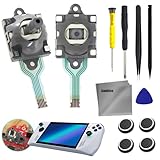
- COMPATIBLE MODE: Joystick thumb stick 3D analog rod replacement for ASUS ROG Ally RC71L console, for GPD Win 3 Windows 10, Not applicable to other models, please confirm your model before placing an order
- JOYSTICK FAILURE: The replacement for GPD win3 Windows 10 and for Asus ROG Ally RC71L joystick are apply to the problem of the problem of the drifting, blind spots, dead spots, can't center, damaged or broken, long time to use, not sensitive, etc, Elevate your gaming The joystick for GPD win3 Windows 10 will better to solve the problem of drifting
- HIGH QUALITY: The handheld console will be used as a new one after replacing for win3 Windows 10 joystick, for GPD Windows 10 joystick replacement will bring a new life. High-quality hall effect experience the same quality hall effect as the stock joystick of Asus ROG Ally, with zero drift and zero dead zones, essential for hardcore gamers
- INSTALLATION RECOMMENDATIONS: After replacing the for RC71L joystick, if it shows the problem of drifting not center, it means it will need to be manually calibrated. For ROG Ally RC71L joystick to replace needs to WELD, If you do not have any installation experience, we suggest finding a professional to replace for Ally RC71L joystick
- COMES WITH SET TOOL: Please make sure the joystick replacement for Ally RC71L/Windows 10 package is good when you receive it 1 x Screwdriver(3.0), 1 x Screwdriver(1.5), 1 x Pry Tool, Opening Tools, and 1 x Tweezer.If you have any problems with the product, please leave a message
For the RC72LA Ally X, iFixit lists a pair of Gulikit Hall-effect joysticks mounted on circuit boards and described as solder-free. The listing was observed at $29.99 during the research pass, but price, stock, and compatibility can change. This is an aftermarket option, not an ASUS warranty repair.
The Tool Desk
Outbyte PC Repair FREERepair Windows errors before they cause bigger problemsFix Now →Outbyte Driver Updater FREEFix the driver behind crashes, sound loss and screen glitchesFind Drivers →Never assume RC71L, RC72LA, RC73YA, and RC73XA parts are interchangeable. Confirm the exact model, left/right side, connector, and revision before ordering.
General replacement sequence
Use a verified model-specific repair guide rather than improvising screw locations:
- Shut down completely and remove power and accessories.
- Remove the rear cover with the correct driver.
- Disconnect the battery before handling internal components.
- Disconnect the affected joystick daughterboard and remove its retaining screws.
- Install the matching replacement board.
- Reconnect the board and battery, then reassemble the cover.
- Boot the Ally, update firmware if needed, recalibrate, and test both sticks.
DIY risks include damaged clips, cables, screws, connectors, or the rear cover. A wrong or defective part may produce abnormal input, and a replacement cannot fix a damaged motherboard, cable, or connector. Hall-effect and TMR parts reduce contact-wear concerns but are not immune to installation errors, calibration problems, electrical faults, or every possible kind of drift.
Independent reader supportYour contribution helps us test, update, and keep practical guides available for everyone.Which fix should you choose?
| Symptom or situation | Best next step |
|---|---|
| Drift began after software changes or appears only in one game | Reset profiles and mappings, update, then adjust the game’s dead zone. |
| Stick is physically centered and drift is minor | Calibrate, then use the smallest effective dead zone. |
| Drift appears in Armoury Crate calibration | Recalibrate once; if it persists, seek service or replace the module. |
| Stick does not physically return to center | Inspect for obstruction or damage and prioritize ASUS service. |
| Device may be under warranty | Document the symptom and contact ASUS before opening it. |
| Out of warranty, correct part identified, and repair skills available | Consider a model-specific daughterboard or compatible Hall-effect replacement. |
When dead-zone adjustments are no longer enough
Stop treating drift as a settings problem when the required dead zone keeps increasing, the calibration marker jumps while untouched, one direction registers constantly, the stick will not recenter, or the problem spreads from one game to Windows and Armoury Crate. Those patterns point more strongly to a mechanical or electrical fault.
For official repair documentation and self-repair resources, consult ASUS repair information. ASUS notes that parts and tools may be available through ASUS or listed resellers, with availability varying by product and region.
Best Value

- [Compatibility] Only compatible with ROG Xbox Ally and ROG Xbox Ally X (2025)
- [Tailored Protection for ROG Xbox Ally (X)] This carrying case is custom-built for ROG Xbox Ally/Ally X, giving your console a perfect fit. It shields your handheld from daily bumps, scratches, and dust while keeping it lightweight and portable
- [Compact & Portable Design] The travel case is slim and lightweight, around 30% lighter than typical EVA cases, and fits easily into backpacks or travel bags without adding extra bulk. Perfect for gamers who love portability and a minimalist look
- [Felt Exterior & Soft Inner] The outer shell combines durable felt, a reinforced laminated layer, and stitched fabric detailing for protection against scratches and daily wear. Inside, the soft lining fits the console snugly, with a hook-and-loop strap that keeps it stable
- [Thoughtful Details] Raised zones protect the joysticks, while a wrist strap and smooth zipper make it easy to carry and use. Inside, dedicated slots hold your SD and microSD cards, keeping everything organized wherever you go
Frequently Asked Questions
Can software permanently fix ROG Ally stick drift?
Updates and calibration can correct a software or center-point error. They cannot permanently repair a worn or electrically failing joystick. Persistent drift in Armoury Crate calibration usually requires service or replacement.
What dead-zone percentage should I use?
There is no universal correct percentage. Increase it gradually and use the smallest value that stops unwanted movement. A large dead zone reduces fine aiming precision.
Is the original Ally different from the Ally X?
Yes. The original Ally is RC71L and the Ally X is RC72LA. Do not order replacement parts or follow a disassembly guide unless it explicitly supports your model and stick side.
Are Hall-effect sticks guaranteed not to drift?
No. They reduce contact-wear concerns but can still suffer from incorrect installation, calibration, firmware, electrical, or component problems.
Does opening the Ally void the warranty?
Warranty outcomes depend on region, terms, inspection, and whether the repair caused damage. Check ASUS support before opening an in-warranty device.
Is a loose thumbstick cap the same as stick drift?
No. A loose cap is physical damage to the external control. It may exist without an electronic sensor fault, although damage beneath the cap can also affect centering.
Should I replace one stick or both?
Replace the affected side unless both show symptoms. A two-stick upgrade can make sense for an out-of-warranty Ally X owner, but it costs more and adds installation risk.
Free tools Windows power users keep installed
One-click scans. No signup required.
The Bottom Line
Update Armoury Crate SE, recalibrate once, and use a modest dead-zone increase only if you need a temporary workaround. If drift remains in the calibration screen or the stick cannot recenter, document the fault and choose ASUS service or a model-specific replacement rather than repeatedly changing settings.
Quick Recap
Product prices and availability are accurate as of the date/time indicated and are subject to change. Any price and availability information displayed on Amazon at the time of purchase will apply.




