E203 usually points to an Xbox One startup or system-update failure, not proof that the console’s hard drive has failed. Start with a full power cycle. If the console remains on the “Something went wrong” screen, use the Xbox Startup Troubleshooter to try an official Offline System Update (OSU1), then choose Reset this Xbox > Keep games and apps if needed. Save Remove everything and repair for last.
What does Xbox One error E203 mean?
E203 commonly appears when the console cannot finish a system-software update or load the updated operating system. An interrupted or corrupted update is one possible cause, but the code alone does not identify the fault or prove that internal storage is bad. Microsoft’s Xbox system-update guidance and startup-error steps provide the supported recovery path.
Before changing anything, photograph or write down the entire error code, including any numbers after E203. Also note your Xbox One model, whether the error began during an online update, whether the console is restarting repeatedly, and whether external USB storage is connected. A changed or longer code after a recovery attempt is useful diagnostic information; do not assume every E203 variant has the same cause.
Try a full power cycle first
- Hold the Xbox power button on the console for about 10 seconds, until it shuts down.
- Unplug the power cable and wait at least 30 seconds.
- Disconnect external hard drives, USB sticks, and other accessories.
- Reconnect the power cable and turn the console on.
A power cycle clears the current powered state and temporary startup condition; it does not erase games, accounts, or saved data. It can help when the failure was temporary, but a persistent E203 generally needs recovery through the Startup Troubleshooter. Reconnect accessories only after the Xbox boots normally.
#1 Best Overall
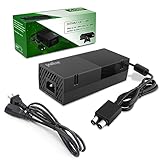
- 【Latest version Power Supply for Xbox One】The cooling fan and the internal design of the xbox one power brick have seen significant upgrades by our engineers. It is quieter and more durable with no noise.Xbox 360 Adapter
- 【Global Power Supply Adapter for Xbox One】The output voltage is DC 220W 12V--17.9A; 5Vsb--1A, with an input AC voltage range of 100-240V 4.91A 50-60Hz. The auto voltage allows the xbox 1 power supply can be used in any country in the globe.
- 【Safe Build】Ponkor's Xbox One power supply brick is made of ABS fireproof material and has a smart chip put in to protect against overheating, overcurrent, overvoltage, and shortcircuiting.
- 【Power supply Compatible with Xbox One】This power brick replacement only works with the Xbox One and cannot be used by others. When you're not using it, please unplug this power supply.
- 【What You Get】The package comes with 1x Xbox One power supply brick, 1x ac power cord and after sales service.
Open the Xbox Startup Troubleshooter
For original Xbox One, Xbox One S, and Xbox One X models with both controls:
- Turn the console off completely. Unplug its power cable, wait about 30 seconds, then reconnect it.
- Press and hold the Bind/Pair and Eject buttons.
- While holding them, press the Xbox power button on the console.
- Keep holding Bind/Pair and Eject until you hear the startup tones, commonly two tones with a short pause between them, then release the buttons.
The Xbox Startup Troubleshooter should appear. Use the tones as the signal rather than relying on an exact number of seconds. The Xbox One S All-Digital Edition has no Eject button; follow Microsoft’s model-specific startup-error instructions instead of trying to press a control it does not have. If a wireless controller will not respond in the troubleshooter, try connecting a controller by USB.
Rank #2

- 【Advanced No Noise Design】An latest updated radiator fan system that makes for little fan noise.The quietest high quality power supply in the market at moment,it adopts optimized motherboard to make sure it does a great job.Prevent overheating when charging and provide a longer life time.And it has longer lasting life,you can enjoy the fun of games longer.
- 【Buit-in Smart Chip】Against Over-Heated/Over-Current/Over-Voltage/Short-Circuit.A new generation of Synchronous Rectifier (SR) controller ICs is used to obtain under-voltage protection and internal over-temperature protection.Its high level of integration allows the design of a cost-effective power supply with a very low number of external components.
- 【Worldwide Compatible】It is Global Universal Adapter,Input:AC 100-240V ~ 4.91A 47-63Hz, Output:DC 220W 12V—17.9A;5Vsb—1.0A(Standby), auto voltage (100-240V) allows the ac adapter power supply to be used worldwide.Let the happy game time follow you anywhere in the world.
- 【Dual LED Light Indicaters】The power supply has different LED indicators to show its status.When the connection is secure,LED lights up: Green-Power On,Orange-Standby.When the connection is error,state of LED Light is off or blinking.
- 【What You Get】One AC Adapter Charger, One Charging Cable,One Package Box. And Brand Warranty provides 12 months Warranty,30-Day money-back guarantee for any reason and 24H x 7 email support.
Try an Offline System Update (OSU1)
An offline update is a good next step when the console reaches the Startup Troubleshooter but an online update fails, loops, or cannot complete. It requires a Windows PC with internet access and a USB flash drive formatted as NTFS with enough free space for Microsoft’s current package. The required space can change, so check the current Xbox Offline System Update instructions rather than relying on an old capacity figure.
Prepare the USB drive
- Back up anything on the USB drive; preparing it may require reformatting.
- Format the drive as NTFS. FAT32 and exFAT are not the specified format for this procedure.
- Download the current OSU1 ZIP file from Microsoft’s Offline System Update page. Avoid unofficial mirrors, which may offer an outdated or incorrect package.
- Extract the ZIP on the PC. Copy the extracted
$SystemUpdatefolder directly to the USB drive’s root—the top level of the drive. Do not nest or rename it. - Safely eject the USB drive.
Run the update
- Open the Startup Troubleshooter and insert the prepared USB drive into the console.
- Select Offline system update and confirm with the controller.
- Wait for the update and restart to finish. The console may restart more than once and take several minutes; do not disconnect power during the update.
If Offline system update is unavailable or greyed out, check that the drive is NTFS, the extracted folder is at the root, and the package came from Microsoft. If those checks are correct, the console may be on an unsupported preview configuration or may need a reset instead. Microsoft’s offline-update guidance is the reference for package and eligibility details.
Quick wins for a faster PC:
Clear out junk files and repair common Windows errorsFree Scan →Scan for outdated or missing drivers - takes under a minuteDriver Scan →Rank #3
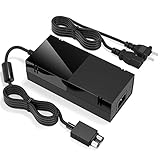
- Designed for Xbox One - This Power Brick (Non-OEM) is specifically designed for Xbox One Console, but not Xbox One S or Xbox One X. It's really a great replacement for your official power cord.
- Heat Dissipation - This Power Supply brick for Xbox One Brick Maintain great heat dissipation even at max performance. Thanks to the enhanced mute fan design which ensures the better air flow inside the brick.
- LED Lights Indicate the Status- It's very easy to use the Xbox One power supply cord, when plug it in, the orange LED shows the adapter on stand by mode while the green LED shows that the adapter is ON. This power cable is auto-voltage 100-240V, you may use it worldwide.
- Usage Tips - If the power brick supply is still on while the console is off, you'd better turn it on energy saving mode instead of instant-on. To increase the lifespan of the accessory, unplug your Power Supply cord from the outlet whenever it's not in use.
Reset the Xbox and keep games and apps
If OSU1 fails or E203 remains, select Troubleshoot > Reset this Xbox > Keep games and apps from the “Something went wrong” screen. Confirm the reset and let it complete without disconnecting power.
This option is less destructive than removing everything and is intended to preserve installed games and apps where possible while repairing or reinstalling console software. You may still need to sign in to accounts again and restore settings. Cloud-synchronized saves can normally resynchronize after signing in, but an unsynchronized local save is not guaranteed to survive if recovery escalates or storage is failing. A damaged game or app may need reinstalling.
Rank #4

- Fast charging with wonderful LED light indication: Power source connected Red light turns on,Green light shows the ac adapter start working
- High efficiency working and powerful motor which make this power supply supply durable and sustainable.
- Upgraded Advanced technology chip allow the power supply working longer time than previous version.Overheat protection and it will automatically cut off if met high heat caused by long time working.
- No more power troubles, low loud noise. Charge and Use your Xbox one console conveniently. Compatible with Xbox One console only. Voltage ranges from 100 to 240V.You can take it and use wherever you go.It support all countries power source.
- TROUBLESHOOT STEPS: If you find this power supply stopped working,pls unplug it for seconds and then plug into power source again. This power supply will work normally as before.
Use “Remove everything” only as a last software step
If power cycling, OSU1, and the keep-games reset have failed—and you accept the data loss—choose Troubleshoot > Reset this Xbox > Remove everything. This removes local accounts, installed games and apps, settings, and unsynchronized saved data. Cloud saves are only available to restore if they had synchronized. A full reset can address severe software corruption, but it cannot fix a failing drive or another hardware fault.
When recovery fails
Do not repeat resets indefinitely. Seek help if OSU1 or either reset repeatedly fails, E203 returns immediately after a reset, the Startup Troubleshooter will not open, or the console freezes, shuts down, or cannot recognize a correctly prepared USB drive. A history of slow loading, corrupted installations, disappearing games, or repeated update failures makes a storage or other hardware problem more plausible, but E203 by itself is not a hardware diagnosis.
Free tools Windows power users keep installed
One-click scans. No signup required.
Record any new full error code and contact Xbox Support or check service options for your account, region, and model at Microsoft devices. Internal-drive replacement is not a routine next step: it can involve model-specific parts, recovery complications, and data loss.
If the console reaches the dashboard
If the Xbox boots normally after recovery, check for updates under Profile & system > Settings > System > Updates & downloads > Update console. To record the installed console software version, open Profile & system > Settings > System > Console info. These dashboard paths are useful only when the console can start; they do not replace the Startup Troubleshooter for a console stuck at E203. See Microsoft’s Xbox One system update information.
Quick Recap
Product prices and availability are accurate as of the date/time indicated and are subject to change. Any price and availability information displayed on Amazon at the time of purchase will apply.




