Windows Errors? Fix Them Before They Spread
Repair common Windows errors and clear accumulated junk for a smoother, more stable PC - no reinstall needed.Free scan · no reinstallOutdated Drivers Are Slowing You Down
One free scan finds every outdated or missing driver and matches the right update for your exact hardware.Free scan · exact hardware matchStart with the least destructive fixes: restart Windows, close overlays, clear VALORANT’s local cache, and test the game in a clean boot. If the entire PC freezes, reboots, or blue-screens, stop treating it as only a VALORANT installation problem and investigate graphics drivers, temperatures, overclocking, RAM, power, and Windows stability.
There is no universal fix for every VALORANT freeze. The right solution depends on whether only the game stops responding, the display goes black, the game freezes after Alt+Tab, or Windows itself locks up.
First, identify what kind of freeze you have
Before changing drivers or reinstalling anything, note exactly what happens. A network problem can feel like a freeze, but it requires a different solution.
| Symptom | Most likely areas to investigate |
|---|---|
| Freezes immediately after launching | Riot Client cache, Vanguard, permissions, antivirus, or GPU driver |
| Stuck on the loading screen | Game files, Vanguard, graphics driver, background software, or network |
| Freezes when entering a match | Shader or driver problems, overlays, unstable overclock, or high system load |
| Freezes only after Alt+Tab | Windows multitasking, fullscreen optimization, overlays, or display driver |
| Black screen while audio continues | GPU/display driver, fullscreen mode, or an overlay |
| Whole PC locks up or reboots | Temperature, power, RAM, GPU/CPU instability, BIOS settings, or a kernel driver |
| Only one account or installation is affected | Local profile, cache, or corrupted installation |
| Every game freezes | System, driver, hardware, or Windows rather than VALORANT alone |
If the image and audio stop, inputs do nothing, or Windows says VALORANT is not responding, treat it as a client, driver, software, or hardware problem. If the game remains responsive but players teleport and actions arrive late, investigate connection quality instead.
What’s actually slowing this PC down?
Pick the symptom - the matching free tool is one click away.
#1 Best Overall
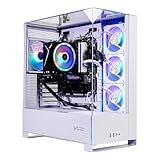
- AMD Ryzen 7 7700 3.8GHz (5.3GHz Turbo Boost) CPU Processor | 1TB NVMe M.2 SSD – Up to 30x Faster Than Traditional HDD | High-Performance Air Cooler
- NVIDIA GeForce RTX 5060 8GB GDDR7 Graphics Card (Brand may vary) | 32GB DDR5 RAM 6000 RGB Gaming Memory with Heat Spreader | Windows 11 Home 64-bit
- 802.11 AC | No Bloatware | Graphic output options include 1 x HDMI, and 1 x Display Port Promised, Additional Ports may vary | USB Ports Including 2.0, 3.0, and 3.2 Gen1 Ports | HD Audio & Mic | Free Gaming Keyboard & Mouse
- High-Performance Air Cooler: Maximum Airflow & ARGB Fans | Skytech Archangel 5 Gaming Case with Tempered Glass, White | 1 Year Warranty on Parts and Labor | Free Technical Support | Assembled in the USA
- This powerful gaming PC is capable of running all your favorite games such as Call of Duty, Fortnite, Escape from Tarkov, Grand Theft Auto V, Valorant, World of Warcraft, League of Legends, Apex Legends, PLAYERUNKNOWN’s Battlegrounds, Overwatch 2, Counter-Strike 2, Battlefield V, Minecraft, ELDEN RING Shadow of the Erdtree, Rocket League, Baldur’s Gate 3, Dota 2, HELLDIVERS 2, Monster Hunter, Terraria, Rainbow Six Siege, Black Myth Wukong, Marvel Rivals, Stellar Blade, more at Ultra settings, detailed 1080p Full HD resolution, and smooth 60+ FPS gameplay.
Quick fixes that take a few minutes
- Close VALORANT and the Riot Client. If necessary, press Ctrl+Shift+Esc, open Task Manager, select the related processes, and choose End task.
- Restart the PC rather than merely closing the game.
- Temporarily disconnect unnecessary USB devices and external displays.
- Close overlays and game-hooking utilities before launching VALORANT.
- Test one Practice or Unrated session after each major change.
Temporarily close Discord overlay, Xbox Game Bar, NVIDIA or AMD overlays, OBS Game Capture, MSI Afterburner, RivaTuner Statistics Server, RGB utilities, motherboard monitors, fan-control tools, remapping software, macro utilities, and third-party antivirus modules. These programs are not universally incompatible with Vanguard, but conflicts can occur in particular configurations.
If the problem began directly after a VALORANT, Windows, or graphics-driver update, record the date and version. Do not assume a particular patch is responsible unless Riot has published a notice confirming it. Historical notices, such as the launch and black-screen issue associated with patch 10.05, should not be treated as a current explanation for every freeze. Check Riot’s VALORANT support and service-status information for current notices.
Fix VALORANT freezing at startup
1. Clear the local VALORANT and Riot cache
Riot’s startup troubleshooting path includes clearing local AppData data. This removes regenerable cache and configuration data; it does not delete your Riot account or purchased content. Your settings may need to be recreated.
- Press Windows+R.
- Enter
%localappdata%and press Enter. - Find the VALORANT-related game folder and remove it.
- Open the Riot Games folder and remove the VALORANT-related local cache folders.
- Restart Windows.
- Launch the Riot Client and test VALORANT.
Folder names and support instructions can change. Delete only clearly named VALORANT or Riot cache folders. Do not delete the entire AppData directory, unrelated folders, or the installed game directory unless Riot’s current reinstall procedure specifically requires it. See Riot’s startup-crash troubleshooting guidance.
Free tools Windows power users keep installed
One-click scans. No signup required.
2. Check antivirus and firewall interference
Security software can interfere with game files, Riot Client processes, or Vanguard in some configurations. Use your antivirus vendor’s game mode or an appropriate exclusion where available. If you temporarily pause third-party protection for a controlled test, reconnect protection immediately afterward. Do not permanently disable antivirus, Windows security features, Secure Boot, TPM, Memory Integrity, or Exploit Protection as a generic freeze fix.
3. Do not force administrator compatibility mode
Running every game as administrator is not a universal solution. For a Windows file-access error, Riot specifically instructs users to ensure that Run this program as an administrator is not selected in the game executable’s Properties > Compatibility tab. Follow the error-specific Riot instructions rather than enabling elevated privileges automatically.
Use a clean boot to find background conflicts
A Microsoft clean boot starts Windows with essential drivers and startup programs. It is a diagnostic test for third-party services or startup utilities that interfere with applications and games; it is not a configuration to leave enabled permanently.
- Sign in with an administrator account.
- Search for System Configuration, or press Windows+R, type
msconfig, and press Enter. - Open the Services tab.
- Select Hide all Microsoft services.
- Select Disable all.
- Open the Startup tab and select Open Task Manager.
- Disable enabled third-party startup items.
- Close Task Manager, select OK in System Configuration, and restart.
- Test VALORANT.
Do not disable Microsoft services indiscriminately. Hiding them first prevents essential Windows services from being selected. If VALORANT works in the clean boot, re-enable services and startup items in small batches, restarting and testing after each batch. This identifies the conflict instead of leaving Windows permanently stripped down. Microsoft’s complete procedure is available in its clean-boot documentation.
Restore normal startup afterward
- Open
msconfigagain. - On the General tab, select Normal startup.
- On the Services tab, enable the services you disabled.
- Re-enable startup items in Task Manager.
- Restart Windows.
Fix mid-game freezes, black screens, and “Not responding”
Disable overlays and monitoring hooks
Run VALORANT once with nonessential overlays and monitoring tools closed. Start with Discord, Xbox Game Bar, NVIDIA App or GeForce Experience, AMD Adrenalin, OBS Game Capture, MSI Afterburner, RivaTuner Statistics Server, RGB software, hardware monitors, fan controllers, and remapping or macro tools. Re-enable utilities individually only after the game is stable.
Rank #2

- AMD Ryzen 7 7700 3.8GHz (5.3GHz Turbo Boost) CPU Processor | 1TB NVMe M.2 SSD – Up to 30x Faster Than Traditional HDD | High-Performance Air Cooler
- NVIDIA GeForce RTX 5060 Ti 8GB GDDR7 Graphics Card (Brand may vary) | 32GB DDR5 RAM 5600 Gaming Memory with Heat Spreader | Windows 11 Home 64-bit
- 802.11 AC | No Bloatware | Graphic output options include 1 x HDMI, and 1 x Display Port Promised, Additional Ports may vary | USB Ports Including 2.0, 3.0, and 3.2 Gen1 Ports | HD Audio & Mic | Free Gaming Keyboard & Mouse
- High-Performance Air Cooler: Maximum Airflow & ARGB Fans | Skytech Crystal Case with Triple Tempered Glass, Black Edition | 1 Year Warranty on Parts and Labor | Free Technical Support | Assembled in the USA
- This powerful gaming PC is capable of running all your favorite games such as Elden Ring, Baldur's Gate 3, Cyberpunk 2077, Hogwarts Legacy, Black Myth: Wukong, Helldivers 2, Diablo IV, Starfield, Valorant, Counter-Strike 2, Forza Horizon 5, Resident Evil 4, Alan Wake 2, Warhammer 40,000: Space Marine 2, God of War Ragnarök, Overwatch 2, Dragon's Dogma 2, Marvel's Spider-Man, more at Ultra settings, detailed 1080p Full HD resolution, and smooth 60+ FPS gameplay.
Reset the graphics driver
If Windows still responds and the screen is frozen or black, press:
Windows + Ctrl + Shift + BThe display may flicker or make a sound. Microsoft documents this as a graphics-driver reset. It is a temporary recovery step, not a permanent repair. If it restores the display, prioritize a driver update or rollback, overlay removal, borderless mode, and checking Event Viewer for display-driver errors. The shortcut is covered in Microsoft’s blank-screen troubleshooting guidance.
Update or roll back the GPU driver based on timing
The latest driver is not automatically the best diagnostic choice. If freezing began immediately after a driver update, try a rollback first:
Do these 3 things before closing this tab:
1Repair Windows errors before they cause bigger problems2Scan for outdated or missing drivers - takes under a minute3Clear out junk files and repair common Windows errors- Right-click Start and open Device Manager.
- Expand Display adapters.
- Right-click your GPU and select Properties.
- Open Driver and select Roll Back Driver.
- Restart Windows and test.
The rollback option may be unavailable if Windows has no previous driver stored. Microsoft documents rollback, updating, and reinstalling as alternatives based on when the display problem began.
If the driver is old, corrupted, or multiple games show similar symptoms, install a current package from the official manufacturer:
On a laptop, prefer the manufacturer’s driver if the laptop vendor warns against generic packages, particularly on systems with hybrid graphics. A clean driver installation is reasonable after repeated driver updates, display-driver resets, black screens, or freezes across multiple games. Third-party driver-cleaner utilities are optional and higher risk; they are not mandatory for troubleshooting.
Fix freezes caused by Alt+Tab or fullscreen mode
If VALORANT freezes only when switching windows, focus on Windows multitasking, display drivers, overlays, and fullscreen behavior before reinstalling the game.
- In VALORANT, test Windowed Fullscreen or borderless mode instead of exclusive fullscreen.
- Open Settings > System > Multitasking.
- Set Alt+Tab to show only open windows.
- Reduce or disable Windows animation effects for a test.
- Right-click the VALORANT executable, open Properties > Compatibility, and test Disable fullscreen optimizations if appropriate.
Fullscreen optimization is an experiment, not a guaranteed improvement; keep whichever setting is stable on your system. Riot’s Alt+Tab troubleshooting guidance also recommends limiting Alt+Tab to open windows and reducing animation effects.
Repair Windows system files
Install pending Windows updates and restart before running repair commands. Then open Command Prompt as administrator and run these commands in order:
Rank #3

- AMD Ryzen 7 7700 3.8GHz (5.3GHz Turbo Boost) CPU Processor | 1TB NVMe M.2 SSD – Up to 30x Faster Than Traditional HDD | High-Performance Air Cooler
- AMD Radeon RX 9070 XT 16GB GDDR6 Graphics Card (Brand may vary) | 16GB DDR5 RAM 5200 Gaming Memory with Heat Spreader | Windows 11 Home 64-bit
- 802.11 AC | No Bloatware | Graphic output options include 1 x HDMI, and 1 x Display Port Promised, Additional Ports may vary | USB Ports Including 2.0, 3.0, and 3.2 Gen1 Ports | HD Audio & Mic | Free Gaming Keyboard & Mouse
- High-Performance Air Cooler: Maximum Airflow & ARGB Fans | Skytech Rampage Black Edition with Front Mesh | 1 Year Warranty on Parts and Labor | Free Technical Support | Assembled in the USA
- This powerful gaming PC is capable of running all your favorite games such as Elden Ring, Baldur's Gate 3, Cyberpunk 2077, Hogwarts Legacy, Black Myth: Wukong, Helldivers 2, Diablo IV, Starfield, Valorant, Counter-Strike 2, Forza Horizon 5, Resident Evil 4, Alan Wake 2, Warhammer 40,000: Space Marine 2, God of War Ragnarök, Overwatch 2, Dragon's Dogma 2, Marvel's Spider-Man, more at Ultra settings, detailed 4K Ultra HD resolution, and smooth 60+ FPS gameplay.
DISM.exe /Online /Cleanup-image /Restorehealth
sfc /scannow
Microsoft recommends DISM before SFC. DISM repairs the Windows image; SFC checks protected system files and replaces corrupted files where possible. These commands do not repair GPU hardware, RAM, overheating, game files, or Vanguard configuration.
- If DISM reports The operation completed successfully, proceed to SFC.
- If SFC reports Windows Resource Protection did not find any integrity violations, it found no protected system-file corruption.
- If SFC repairs files, restart and retest VALORANT.
- If either command fails, record the exact error instead of repeatedly rerunning it.
See Microsoft’s DISM and System File Checker instructions.
Check Vanguard-specific symptoms
If the displayed message includes a VAN code, use the specific Vanguard error guidance. Do not apply broad security changes based on a different code.
Possible Vanguard-related actions include restarting Windows, installing pending Windows updates, and reinstalling Riot Vanguard. Security requirements such as Secure Boot, TPM, or Exploit Protection should be checked or changed only when the exact error requires it. For example, Riot’s VAN 9002 guidance associates that code with Windows Exploit Protection being disabled; other VAN codes concern different conditions.
Do not randomly disable Secure Boot, TPM, Memory Integrity, or Exploit Protection, and do not make unrelated BIOS changes. Riot notes that outdated Windows can interfere with Vanguard installation and provides reinstall guidance through its support resources.
Reinstall Riot Vanguard and VALORANT only after targeted tests
Reinstallation can repair missing or corrupted installation files and dependencies, but it cannot fix overheating, unstable overclocking, faulty RAM, failing storage, or a defective GPU.
The Tool Desk
Outbyte PC Repair FREERepair Windows errors before they cause bigger problemsFix Now →Outbyte Driver Updater FREEScan for outdated or missing drivers - takes under a minuteDriver Scan →- Open Settings > Apps > Installed apps.
- Uninstall Riot Vanguard.
- If the issue persists, uninstall VALORANT.
- Restart the PC.
- Download the installer from Riot’s official site.
- Install VALORANT again.
- Restart when Vanguard requests it.
- Test the game before reinstalling overlays or tuning utilities.
Do not delete arbitrary Riot, Windows, or AppData folders. Riot’s reinstall instructions should take precedence if the current installer or support page uses different labels. Reinstalling the game repeatedly is low-value when every game freezes or the whole computer reboots.
Independent reader supportYour contribution helps us test, update, and keep practical guides available for everyone.If the whole PC freezes, reboots, or blue-screens
A hard lock, automatic reboot, blue screen, or required power-off points toward system stability rather than a simple VALORANT cache problem. Take these steps:
- Return CPU, GPU, RAM, and motherboard settings to stock.
- Temporarily disable GPU undervolts, CPU overclocks, and memory profiles such as XMP or EXPO.
- Monitor CPU and GPU temperatures during a session.
- Compare readings with the specifications for your exact hardware model; there is no universal safe temperature threshold for every CPU or GPU.
- Test another demanding game.
- Run a Windows memory diagnostic if crashes occur outside VALORANT.
- Check whether the PC reboots, blue-screens, or merely loses the display.
- Confirm that the power supply is appropriate and power cables are firmly connected.
- After rebooting, check Event Viewer for display-driver, hardware, or unexpected-shutdown events.
If several games fail, prioritize the GPU driver, temperatures, RAM, power delivery, storage, BIOS stability, and Windows. If the problem began after enabling XMP/EXPO or an overclock, restore stock settings before blaming VALORANT.
Rank #4

- AMD Ryzen 7 8700F 4.1GHz (5GHz Turbo Boost) CPU Processor | 1TB NVMe M.2 SSD – Up to 30x Faster Than Traditional HDD | High-Performance Air Cooler
- NVIDIA GeForce RTX 5060 Ti 8GB GDDR7 Graphics Card (Brand may vary) | 16GB DDR5 RAM 6000 Non-RGB Gaming Memory with Heat Spreader | Windows 11 Home
- WI-FI 5 802.11ac | No Bloatware | Graphic output options include 1 x HDMI, and 1 x Display Port Promised, Additional Ports may vary | USB Ports Including 2.0, 3.0, and 3.2 Gen1 Ports | HD Audio & Mic | Free Gaming Keyboard & Mouse
- High-Performance Air Cooler: Maximum Airflow & ARGB Fans | Skytech Shadow 5 Gaming Case with Tempered Glass, Black | 1 Year Warranty on Parts and Labor | Free Technical Support | Assembled in the USA
- This powerful gaming PC is capable of running all your favorite games such as Elden Ring Nightreign, Baldur's Gate 3, Cyberpunk 2077, Hogwarts Legacy, Helldivers 2, Diablo IV, Starfield, Valorant, Counter-Strike 2, Forza Horizon 5, Resident Evil 9, Alan Wake 2, Warhammer 40,000: Space Marine 2, God of War Ragnarök, Overwatch 2, Dragon's Dogma 2, Marvel's Spider-Man, Clair Obscur: Expedition 33,, more at Ultra settings, detailed 1080p Full HD resolution, and smooth 60+ FPS gameplay.
Submit a useful Riot support ticket
If cache clearing, overlay testing, clean boot, driver testing, Windows repair, and Vanguard/VALORANT reinstallation do not resolve the problem, provide evidence rather than only saying “the game freezes.” Record:
- Windows version and edition
- GPU model and driver version
- CPU and RAM specifications
- VALORANT patch date or version, if known
- Whether only the game freezes or the entire PC locks up
- Exact error text or VAN code
- Whether the issue began after a game, Windows, or driver update
- Whether overlays and monitoring tools were disabled
- Whether the issue occurs in other games
Attach a screenshot or short video when possible. If Riot requests logs, use the Riot Repair Tool instructions. Riot’s support form directs Windows users to download and run the tool as administrator, then attach the generated archive to the ticket. The download shown in Riot’s support form is Riot Repair Tool.
Recommended troubleshooting order
- Restart Windows and close overlays.
- Determine whether the freeze affects only VALORANT or the entire PC.
- Clear VALORANT and Riot local cache folders.
- Test borderless mode and Alt+Tab settings.
- Perform a clean boot and restore normal startup afterward.
- Roll back or update the graphics driver according to the timing of the problem.
- Run DISM, then SFC.
- Check temperatures, overclocks, RAM, power, and other games.
- Reinstall Vanguard and VALORANT.
- Collect logs and contact Riot Support.
Frequently Asked Questions
Why does VALORANT freeze while other games work?
VALORANT may be affected by its local cache, Riot Client, Vanguard, an overlay, or a game-specific driver interaction. Clear the Riot/VALORANT cache, disable overlays, test a clean boot, and check for a VAN code before investigating hardware.
Why does VALORANT freeze only when loading into a match?
Match loading can expose driver, shader, overlay, Vanguard, or system-stability problems that do not appear in menus. Disable overlays, test the graphics driver, remove overclocks or undervolts, and check whether other demanding games also freeze.
Can Vanguard cause VALORANT to freeze?
Vanguard can be a possible factor, especially when a VAN code or Vanguard installation error appears, but freezing alone does not prove Vanguard is the cause. Follow the exact guidance for the displayed code.
Quick wins for a faster PC:
Clear out junk files and repair common Windows errorsFree Scan →Scan for outdated or missing drivers - takes under a minuteDriver Scan →Repair Windows errors before they cause bigger problemsFix Now →Should I run VALORANT as administrator?
Not as a universal fix. Riot’s guidance for a Windows file-access issue specifically says to ensure the administrator option is not selected in the executable’s Compatibility settings.
Will reinstalling VALORANT fix freezing?
It can repair missing or corrupted game files or dependencies, but it will not fix overheating, unstable BIOS settings, faulty RAM, power problems, or a defective graphics card.
What if my entire PC locks up or reboots?
Treat it as a system-stability problem. Return overclocks and XMP/EXPO to stock, test graphics drivers, check temperatures and power, run memory diagnostics, inspect Event Viewer, and test another demanding game.
What if the freeze started after an update?
Record which update preceded the problem. If it was a GPU-driver update, try Device Manager’s Roll Back Driver option. Also check Riot’s current support notices rather than assuming a historical patch issue still applies.
Recommended Free Tools
What should I do when I receive a VAN error?
Use Riot’s article for the exact VAN code. Do not broadly disable Secure Boot, TPM, Exploit Protection, or other security features because different VAN codes have different causes.
The Bottom Line
Restart, remove overlays, clear the VALORANT/Riot cache, and use a clean boot before reinstalling. Match the next step to the symptom: roll back a newly problematic GPU driver, test borderless mode for Alt+Tab freezes, repair Windows with DISM and SFC, and investigate temperatures or hardware when the whole PC locks up.
Quick Recap
Product prices and availability are accurate as of the date/time indicated and are subject to change. Any price and availability information displayed on Amazon at the time of purchase will apply.




