Quick wins for a faster PC:
Repair Windows errors before they cause bigger problemsFix Now →Scan for outdated or missing drivers - takes under a minuteDriver Scan →The Sims 4 has no documented infinite-money switch, but you can effectively get unlimited Simoleons by repeating money cheats or setting your household funds to a chosen amount. Use motherlode for 50,000 Simoleons at a time, rosebud or kaching for 1,000, or use EA’s Money X method to set a specific balance.
Open the cheat console
Enter cheats while playing, using the input method for your platform. EA’s official instructions are in the The Sims 4 Cheats FAQ.
PC and Mac
- Press Ctrl + Shift + C during gameplay.
- Type the cheat command.
- Press Enter.
PlayStation and Xbox
- While in the game, hold all four shoulder buttons at once to open the console.
- Enter
testingcheats true. - Enter the money cheat you want and confirm it.
On PlayStation and Xbox, enabling cheats that require testingcheats true disables achievements or trophies for the current save. Other saves are not affected.
Money cheats and what each one does
| Goal | Command | Result |
|---|---|---|
| Add a small amount | rosebud or kaching |
Adds 1,000 Simoleons. |
| Add a large amount | motherlode |
Adds 50,000 Simoleons. |
| Set a chosen household balance | testingcheats true, then Money X |
Sets funds to the amount represented by X, according to EA’s PC/Mac instructions. |
| Add a specified amount | money [number] |
EA’s Live Mode cheat list describes this as adding the specified funds. |
How to give your household unlimited money
Fastest method: repeat motherlode
- Open the cheat console.
- Type
motherlodeand press Enter. - Repeat the command whenever you need another 50,000 Simoleons.
This is the practical meaning of “unlimited” in The Sims 4: the documented command adds a fixed amount each time, so you can keep using it rather than activating a literal infinite balance.
Do these 3 things before closing this tab:
1Clear out junk files and repair common Windows errors2Scan for outdated or missing drivers - takes under a minute3Repair Windows errors before they cause bigger problems#1 Best Overall

- With broad game support, the Logitech Gamepad F310 works with old standbys to today's biggest titles, so it's easy to set up and use with your favorite games.
- Profiler software allows the gamepad to be programmed to perform keyboard and mouse commands for games without gamepad support.* * Requires software installation.
- A familiar control layout that doesn't require a learning curve to be able to use, with all the same buttons as on an Xbox 360.
- The unique floating D-pad rests on four switches-instead of a single pivot point-making it responsive to quick changes in direction.
- The six-foot cord lets you lean back and play a comfortable distance from your PC monitor.
Use a smaller top-up
Enter rosebud or kaching to add 1,000 Simoleons. These commands are useful when you want a controlled increase instead of another 50,000.
Set the balance you want
- Open the console on PC or Mac.
- Enter
testingcheats trueand press Enter. - Enter
Money X, replacingXwith the desired amount, such asMoney 250000. - Press Enter and check the household funds.
EA documents this amount-setting procedure for PC and Mac. Its console Live Mode list separately shows money [number] as adding the specified funds, so do not assume that every platform presents the command in exactly the same way.
Rank #2

- Compatible with Switch/Switch 2, PS4, PS3, Xbox Series S/X, Xbox One, Xbox 360, PC Windows, macOS, Steam Deck, Android.
- Compatible with Sanwa Denshi buttons and joystick that is perfect for customization
- Supports the XINPUT and DINPUT when being used on PC
- Supports the Turbo functions with different speed settings.
- F300 is compatible with PS5 by MAYFLASH Magic-S Ultimate adapter or MagicBoots-S5 Converter.
Move into an expensive home without paying
If your real goal is a costly house rather than a large bank balance, use FreeRealEstate on at the world or neighborhood screen. It allows a household to move into any residential lot regardless of its listed cost.
- Go to the world or neighborhood view before selecting the lot.
- Open the cheat console.
- Enter
FreeRealEstate on. - Choose the residential lot and move in.
To restore normal lot pricing, return to the world or neighborhood screen and enter FreeRealEstate off.
Recommended Free Tools
Rank #3

- 【With Vibration Function】This flight stick is ONLY for PC/Computer and ONLY compatible with Windows 7/8/10/11 (Mac/Apple computers/Apple devices/PS3/PS4/PS5/Xbox One/Switch not supported).PXN2113 PRO gaming joystick for pc will never let you down with realistic fly experience. Compatible with many flight joystick pc games: World of Tanks,World of Warplanes,War Thunder,Assault Horizon,Microsoft Flight Simulator,X Plane 10,etc. Vibration Switch is at the bottom,please switch to“ON”.If less than 20%,you will almost not feel the vibration.Please set the vibration strength in the driver to 50% or higher for this joystick pc flight simulator.
- 【Immersive Fly Experience for Your Flying Dream】You can make the right moves with rapid fire trigger,4 axis controlling,8-Way hat switch and 12 programmable buttons of this computer joystick for gaming pc flight.Advanced software,Support various custom adjustment and keyboard mapping,enjoy exciting joystick flight simulator controls for pc games now! Not only a game, but also a dream of flying!
- 【FAQ】:Q1:Why doesn't it work on my pc/Xbox? A: It is ONLY for PC and Windows 7/8/10/11(Not for Mac/Apple devices/Xbox).Please turn on pc First and then connect with this joystick.If not,some pc may not identify it. Q2: How to install the driver? A: No need to install the driver and can play games directly.If you need driver,please find "Installation" section in manual or follow below steps: 1:Visit PXN official website→Support→Driver→Find PXN-2113PRO driver to download. 2:Extract the driver and install. 3:Plug joystick into PC USB port,pc will identify new hardware and install automatically. 4:Play games or set the joystick in driver.The drive can test and calibrate the pc flight joystick.
- 【Comfortable to Hold, Agile to Operate】This usb joystick for pc is with a solid and smooth feeling,very comfortable.Four power-grip suction cups at the bottom of this pc joystick for flight simulator pc games,they can fix firmly and easily when the table is smooth.Precise throttle control,Ergonomic design,Single hand control full function with this flight joystick for pc games.(Note:Force Feedback/Minecraft/Asphalt 8/Ace Combat 7 not supported).This Flight simulation pc controller with Friendly and Easy-to-Reach Customer Service.If any problem,please contact us directly(Contact Seller),Fengying will reply within 12 hours.
- 【Setup Guide for Microsoft Flight Simulator】For PXN 2113 flight sim joystick pc setup in Microsoft Flight Simulation,please refer to below images and follow below steps: Step 1: Launch the game and click"MENU.FLOWBAR_ OPTIONS",select“MENU.OPTIONS CONTROLS". Step 2: Except the keyboard and mouse mode, also have joystick mode in game.Please click“GENERIC USB JOYSTICK" to map the key. (Note:The joystick should be plugged into PC before this setting). Step 3: For function settings,take “INPUT.KEY_ _SWITCH_ CAMERA"as an example,scroll down to select“Select an input",click No.12 button,finally click“VALIDATE”to save.
Important limits and save consequences
- EA lists fixed effects for the named commands: 1,000 Simoleons for
rosebudandkaching, and 50,000 formotherlode. - EA does not document a literal infinite-money toggle or publish a maximum household-funds balance. Treat “unlimited” as repeated additions or choosing an amount.
- On PlayStation and Xbox, cheats that require
testingcheats truedisable achievements and trophies only on the save where they are enabled; other saves remain unaffected.
The Bottom Line
For the quickest cash, repeatedly enter motherlode. For a precise balance on PC or Mac, enable testingcheats true and use Money X. Use FreeRealEstate on instead when you only need to move into a home without its purchase price.
Quick Recap
Best Value

- Enhance Your DIY Projects: The dual-axis Joystick module features (X,Y) analog outputs and a digital output for added versatility. Perfect for creating innovative remote controls and interactive projects with Arduino sensor expansion boards
- Easy Integration: With separate X, Y, and Z axis circuits conveniently exposed, this module ensures seamless connection to standard interfaces like Arduino boards. Simply plug in using the dedicated 3-pin ARDUINO cable for hassle-free setup
- Precise Performance: This module operates within a wide input voltage range of 3.3V to 5V, delivering accurate (X, Y) axis offset values through analog signals and indicating Z-axis button presses with a digital switch signal
- Responsive Controls: The 10K resistor dual-axis joystick responds to directional movements by varying resistance values. Supplying power at 5V, it produces voltage readings around 2.5V in the neutral position, reaching 5V when fully pressed in one direction and 0V in the opposite direction
- Versatile Compatibility: Compatible with PS2, Arduino, and Raspberry Pi, this module is ideal for gaming, controller applications, sensor projects, and more. Get creative with this high-quality joystick sensor module for your next tech endeavor!
Rank #4
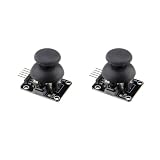
- PRECISE DUAL-AXIS ANALOG CONTROL: Features two independent 10K potentiometers for X and Y axis control, providing smooth and accurate analog output. Operating on a 5V supply, the module outputs approximately 2.5V at the center position, with a full range from 0V to 5V, allowing for proportional control ideal for robotics, RC vehicles, and camera gimbals.
- BROAD MICROCONTROLLER COMPATIBILITY: Designed with a standard 2.54mm 5-pin interface for seamless integration with a wide range of development boards. It is fully compatible with Arduino, Raspberry Pi, ESP32, and other microcontrollers, making it a versatile choice for students, hobbyists, and professional electronics projects.
- INTEGRATED PUSH-BUTTON FUNCTION: Includes a built-in momentary push-button that activates when the joystick is pressed down. This third dimension of control (Z-axis) is accessible via the SW pin and is perfect for select, fire, or mode-switching functions in your custom game controllers and user interfaces.
- VERSATILE FOR DIY PROJECTS AND REPAIRS: The perfect input device for a variety of applications, from building custom gamepads and remote transmitters to controlling robot arms. It also serves as a high-quality replacement part for repairing worn-out or broken analog thumbsticks in existing game controllers and other electronic devices.
- DURABLE CONSTRUCTION FOR RELIABLE USE: Built with a robust metal joystick mechanism for long-lasting performance and a reliable tactile feel. We provide comprehensive after-sales support: complete digital documentation including user guides and technical references is available through our store customer service, and our support team is ready to assist with installation, programming, and troubleshooting to help you get started quickly.
Product prices and availability are accurate as of the date/time indicated and are subject to change. Any price and availability information displayed on Amazon at the time of purchase will apply.




