To play with friends or join a public world in RuneScape: Dragonwilds, use the Worlds options in the game. A dedicated server is a separate setup: you can rent one through Jagex’s named hosting partner, run it on a home computer, or configure a cloud computer. The steps below distinguish those two ways of hosting so you can choose the right one.
Create or join an ordinary multiplayer world
These worlds are managed through the game. The host creates a world from the main menu, and other players join through the Friends or Public list.

Create a world for friends or the community
- From the main menu, select Play, then Create World.
- Choose Play with Friends or Play with Community, then select Friends or Public.
- Enter a world name and, if you want to restrict access, an optional password. Create the world.
The host can choose whether friendly fire is enabled. An existing world can also be switched between solo and multiplayer when you enter it. See Jagex’s Dedicated Servers – How-to Guide for server options and Jagex’s Multiplayer – How-to Guide for the in-game multiplayer flow.
Join a friend or public world
- Open the Worlds screen.
- For a friend’s world, open the Friends tab. For community worlds, open the Public tab.
- Select the world and choose Join. Enter its password if prompted.
Remove or restore players
The creator of an ordinary multiplayer world can open the menu, select the Server tab, choose a player, and use Kick or Ban. The kicked and banned lists include options to restore players.
The Tool Desk
Outbyte Driver Updater FREEScan for outdated or missing drivers - takes under a minuteDriver Scan →Outbyte PC Repair FREERepair Windows errors before they cause bigger problemsFix Now →#1 Best Overall
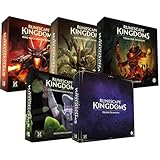
- Immerse yourself in a thrilling tabletop adventure filled with strategy, storytelling, and dynamic character interactions designed to challenge every decision.
- Experience high replayability through immersive roleplay, unpredictable encounters, and evolving tactical choices that keep every session intense and fresh.
- Master your destiny with customizable heroes, intricate quests, and deep world-building that fuel creative expression and competitive gameplay.
- Perfect for RPG enthusiasts seeking complex mechanics, cooperative missions, and richly detailed scenarios that spark imagination and rivalry.
- Premium components, atmospheric artwork, and narrative depth make this board game a must-have centerpiece for any tabletop gaming collection.
Choose a dedicated-server hosting route
A dedicated server runs separately from an individual player’s session. Jagex lists three ways to arrange one: rent through its third-party hosting partner Shockbyte, host on a computer at home, or configure a cloud computer yourself. Jagex characterizes rented hosting as the easiest route, home hosting as hard, and cloud hosting as the hardest. It does not publish current prices or a controlled performance comparison, so compare providers and costs directly before choosing.
| Route | Setup and ongoing work | Cost and networking | Who manages saves and maintenance? |
|---|---|---|---|
| Rent through Shockbyte | Jagex describes this as the easiest route; setup details depend on the hosting service. | Jagex describes the cost category as a set price; a current price is not stated in its guide. Provider networking setup is not specified there. | Provider-specific; confirm what server maintenance and save backups are included. |
| Host at home | Jagex describes this as hard. You supply a compatible computer and configure the server and inbound networking. | Jagex describes the cost category as electricity. You may need to configure firewall and router rules, and an ISP may block port forwarding. | You maintain the computer and server and are responsible for keeping an independent save backup. |
| Configure a cloud computer | Jagex describes this as the hardest route. Its guide says cloud-provider setup documentation is in progress, so the implementation depends on the provider. | Jagex describes the cost as capacity-dependent; it does not provide a current price. | You manage the cloud setup and should verify how maintenance and save storage are handled. |
For home hosting, Jagex’s current guide specifies a 64-bit operating system and supports Windows and Linux. Its memory guidance is 2 GB plus 1 GB per player; the guide gives 4 GB for two players and 8 GB for six. The six-player maximum is stated for version 0.11 (March 2026), so check the current guide for any later change. Jagex does not specify an exact CPU or bandwidth requirement. A suitable computer you already own may be enough; there is no particular computer model endorsed in the guide.
Set up a home dedicated server
Jagex distributes its dedicated-server software through Steam or SteamCMD. The SteamCMD app ID is 4019830. The following setup details are for a home server; cloud-provider steps and rented-host controls may differ.
Install the server and configure its world
- Install the dedicated-server software using Steam or SteamCMD. Jagex’s guide provides installation instructions and the app ID
4019830. - Set the mandatory configuration values: the owner’s in-game Player ID, server name, default world name, and admin password. Find the Player ID at the bottom of the in-game Settings menu.
- Set a world password only if you want one. The configured password can override a password stored with the world; leave it empty for an open world.
- Use the configuration file for your operating system. On Linux, Jagex gives the path
RSDragonwilds/Saved/Config/Linux/DedicatedServer.ini. On Windows, copy the settings from the Linux configuration and createRSDragonwilds/Saved/Config/WindowsServer/DedicatedServer.ini.
Make the server reachable
Jagex’s home-server instructions use UDP port 7777 by default; another server uses 7778. Allow the relevant UDP port through the computer’s firewall and forward it through each router between the server and the internet. Your ISP must also permit inbound port forwarding; some do not. The required ports can vary by server arrangement, so follow the applicable instructions rather than assuming another hosting method uses the same configuration.
Recommended Free Tools
Rank #3

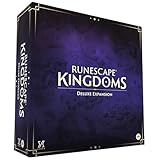
- Grab your capes and party hats, because we’re going to Gielinor!
- Inspired by the record-breaking online universe that’s captured the imagination of millions worldwide, RuneScape Kingdoms: Shadow of Elvarg is the official cooperative board game for 1-5 players.
Join a dedicated server
- Open the Worlds screen and select the Public tab.
- Search for the server’s exact world name. The name is case-sensitive.
- Select the matching result and choose Join. Enter the world password if required.
If you operate the server with the RuneScape-maintained Docker container, its sample publishes UDP 7777 for game traffic and UDP 8888 for the beacon, and supports environment variables for owner ID, world name, password, and admin password. It can mount persistent storage. For a LAN connection using that container setup, direct the client to the host’s LAN address on the game port. These are container-specific details, not universal settings for every host. See the RuneScape-maintained dedicated-server container repository.
Troubleshoot a missing or unjoinable server
The server does not appear in Public Worlds
- Check that the client and server versions match. An update or hotfix can leave them out of sync.
- Confirm the current world name and search it with the exact capitalization.
- Verify the required configuration, especially the owner Player ID and other mandatory values.
- Inspect the server log at
RSDragonwilds/Saved/Logs/RSDragonwilds.log.
The server appears but cannot be joined
Jagex says a listed but unjoinable server likely has a port-forwarding failure. Check that the correct UDP port is open in the server computer’s firewall and forwarded through every router, then confirm that the ISP allows inbound forwarding. Also verify that client and server versions match, the world name is current, and required configuration is complete; use the server log to investigate further.
Rank #4

- Deep in the dangerous wasteland to the north east — the place they call the Wilderness — lies the lair of the King Black Dragon. A fearsome, three-headed beast infamous for dealing burning, freezing, electrifying, poisonous death to unfortunate adventurers. But lucky for you, Bob the Cat is here to lend a helping paw! Still, you may want to say a prayer before taking this quest on…
- The King Black Dragon expansion grows your RuneScape Kingdoms universe with an infamous new boss to face, Bob the Cat to meet, Prayer skill to master, Wilderness location to explore, and a whole new campaign, A Cat’s Tale of Triple Trouble, that will test your dragon-slaying mettle!
- It’s packed with new side quests, vault cards, and events, plus new items to discover, craft, and equip on your path to victory.
- Please note, you’ll need a copy of RuneScape Kingdoms: Shadow of Elvarg to use this expansion.
Move a world and protect its save
A dedicated server loads the latest .sav file in RSDragonwilds/Saved/Savegames. If there is no save there, it creates a default Standard world with default settings.
To use an existing local world, stop the server, back up the destination save folder, replace its files with the local .sav, and restart the server. Jagex also describes creating a custom local world and importing its save. Keep a separate copy of important saves: Jagex explicitly recommends copying them elsewhere for backup. A separate drive is one option, but existing local, cloud, or other storage can also hold the copy.
Do these 3 things before closing this tab:
1Repair Windows errors before they cause bigger problems2Fix the driver behind crashes, sound loss and screen glitches3Clear out junk files and repair common Windows errorsQuick Recap
Best Value
Understand dedicated-server roles
- Owner: The configured Player ID identifies the owner, who can ban or unban users, whether they are online or offline.
- Admin: A player who enters the admin password can ban online regular users, but cannot unban users.
- Regular user: A player without owner or admin privileges.
Product prices and availability are accurate as of the date/time indicated and are subject to change. Any price and availability information displayed on Amazon at the time of purchase will apply.



