You can run Windows on a Steam Deck from a microSD card while leaving SteamOS on the internal drive, or install Windows to the internal SSD for better storage performance—usually erasing SteamOS in the process. For most people trying Windows for the first time, the microSD method is the lower-risk choice. Valve provides Windows drivers, but describes Windows support as “as is”; its official SteamOS dual-boot wizard is not currently available. Check Valve’s current Windows resources and model-specific instructions before you begin.
Which Windows installation method should you use?
| Method | What happens to SteamOS? | Best for | Main trade-off |
|---|---|---|---|
| Windows on microSD | SteamOS stays on the internal SSD. The Deck boots Windows from the card when you choose it in the boot manager. | Trying Windows, occasional Windows-only games or apps, and preserving the factory setup. | Slower storage, removable-media risks, and possible delays or stutter in Windows and games. |
| Windows on internal SSD | A clean install normally erases SteamOS and the internal drive’s data. | Frequent Windows use and better storage responsiveness. | Destructive if you do not have a backup; restoring SteamOS requires recovery media. |
| Windows on external SSD | SteamOS remains on the internal SSD. | Faster removable storage than many microSD setups when portability is less important. | A cable or hub can be awkward in handheld use, and disconnects can interrupt Windows. |
| Unofficial internal dual boot | Both systems share the internal SSD through manual partitioning. | Experienced users comfortable managing partitions and bootloaders. | Advanced and unsupported as a turnkey Valve workflow; updates can complicate booting. |
Valve confirms that the Deck can boot from microSD and supports multiple operating systems at the firmware level. That does not mean Windows on a card is a conventional internal dual-boot installation. Valve says its official SteamOS dual-boot wizard is not currently available. See Valve’s Steam Deck FAQ and Windows resources page.
Choose microSD if keeping SteamOS intact matters more than speed. Choose the internal SSD if Windows will be your primary system and you have a recovery plan. A faster SSD improves storage responsiveness and loading, not the Deck’s CPU or GPU performance.
What you need before installing
- A Steam Deck LCD or OLED, connected to AC power throughout setup.
- A second computer to prepare the media; the simplest workflow uses Windows and Rufus.
- A Windows 11 x64 ISO. The Microsoft download page currently identifies Windows 11 2025 Update, version 25H2. The Deck uses x64 hardware; do not download the Arm64 edition. Get Windows 11 from Microsoft.
- Valve’s current Windows driver packages for your Deck model, downloaded from Valve’s Windows resources page.
- A reliable internet connection for activation and updates. Have a USB-C hub or adapter, keyboard and mouse available for setup and troubleshooting.
- A backup of important files, saves and personal data. For the SSD method, prepare a separate SteamOS recovery drive before changing the internal storage.
For the microSD method
Use a reputable, blank, high-endurance microSD card. At least 128GB is a practical starting point; 256GB or 512GB leaves more room for Windows updates, applications and games. A card’s advertised sequential speed alone does not guarantee good Windows performance: sustained writes and random access matter too. Confirm the card’s capacity and identity before allowing any tool to erase it.
#1 Best Overall
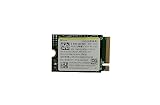
- Capacity: 256GB / Interface: M.2 2230 PCIe NVME SSD
- Dimension: 22mm x 30mm x 2.38mm / Key Type: M Key
- Size: Fits 2230 as is / Compatibility: Laptop & Desktop Compatible
- Bulk Packaging - Only the Drive is included. Any screws, cables, or adapter needed are sold separately
- Warranty: 1-Year Oemgenuine Warranty
For the internal SSD method
You need a bootable Windows installer on a USB drive, a USB-C connection for that drive, and a SteamOS recovery drive kept separate from the Windows installer. If replacing the SSD, the Deck takes an M.2 2230 NVMe drive; confirm compatibility with your model before buying. Valve notes that the SSD can be replaced and points owners to repair information in its FAQ.
Opening the Deck adds repair risk. If you are not comfortable with the procedure, do not treat the SSD route as a routine software install. Valve’s repair information is available through iFixit’s Steam Deck parts and repair page.
Windows edition and activation
Installing Windows and licensing Windows are separate matters. You can proceed without entering a product key when Setup offers I don’t have a product key, then activate later with a valid license. Install the edition—Home or Pro—that matches your license; do not assume a license from another computer is transferable. Microsoft’s installation-media instructions explain the key prompt and edition matching. Avoid unclear third-party key sellers.
Download Windows and Valve’s drivers
- On the working computer, download the Windows 11 x64 ISO from Microsoft’s Windows 11 download page.
- Download Rufus from the official Rufus site. The site listed version 4.15, released June 30, 2026, at the time this guide was prepared; use the current release shown there.
- Open Valve’s Windows resources page and download the packages for your LCD or OLED model. Save them in a clearly named folder on the target card or a separate USB drive so they are available before Windows has networking.
- Check Valve’s live instructions for model-specific prerequisites. Valve’s page currently notes that OLED Bluetooth functionality requires obtaining the relevant BIOS update through SteamOS Beta update 3.6.9 or later before installing Windows. Follow the live page rather than assuming the same requirement applies to every model or remains unchanged.
Valve’s packages can cover the APU/graphics, Wi-Fi, Bluetooth, SD card reader and audio, among other components. Package formats vary. Follow Valve’s current instructions for each file, and note the download date so you can identify which package set you used.
Recommended Free Tools
Method 1: Install portable Windows on a microSD card
Create Windows To Go media with Rufus
This process erases the selected microSD card. Double-check the drive name and capacity before starting; do not proceed if you cannot positively identify the card.
- Insert the microSD card into the working computer’s card reader.
- Open Rufus. Under Device, select the microSD card. If it does not appear, try a direct card reader or another reader; do not select a drive based on guesswork.
- Under Boot selection, choose Disk or ISO image, then select the Windows 11 x64 ISO.
- Set Image option to Windows To Go. Use GPT for the partition scheme and UEFI as the target system; leave other settings at their defaults unless the current Rufus interface directs otherwise.
- Start the process, confirm the erase warning, and choose an edition if prompted. Rufus may offer Windows User Experience options, including removal of installation checks. Bypassing checks does not make the Deck a Microsoft-certified Windows 11 device or guarantee future update eligibility.
- Wait for Rufus to finish, then copy Valve’s driver folder to the card if it is accessible, or keep the drivers on a separate USB drive. Safely eject the card.
Windows To Go is a portable Windows setup, not a standard Windows installation on the internal SSD. Microsoft’s Windows media creation tool also supports USB installation media and lists 8GB as a minimum blank USB size for that process; that minimum is not a useful capacity recommendation for a Windows system or game library on the Deck. See Microsoft’s media options.
Boot Windows from the card
- Fully shut down the Deck; do not just put it to sleep.
- Insert the Windows microSD card.
- Hold Volume Down, press Power, and release when the boot manager appears or after the boot sound.
- Select the entry for the card. It is commonly labeled EFI SD/MMC Card, though wording can vary by media, firmware and model.
- Complete Windows setup. If setup cannot connect to Wi-Fi, choose I don’t have internet, then Continue with limited setup, if those options appear. Install the local Valve drivers before relying on Windows Update for connectivity.
Valve confirms microSD boot support in its Steam Deck FAQ. A practical Windows To Go workflow using the card’s EFI boot entry is also described by Windows Central.
Install drivers and test the Deck
Use the driver packages from Valve’s current page, in the formats and order Valve specifies. Run executable installers normally. If Valve supplies a batch or command file and instructs you to do so, right-click it and choose Run as administrator. For an INF driver, right-click the file and choose Install; on Windows 11 you may first need Show more options. Valve’s page is the authority for current packages, and Windows Central’s walkthrough notes that audio packages can require manual INF installation.
Restart when the driver instructions call for it. Then check the following before judging performance or troubleshooting a game:
- Touchscreen, both trackpads, buttons and triggers respond; test gyro in a compatible game if you use it.
- Wi-Fi connects, and Bluetooth can pair with a controller or headphones.
- Both speakers, the headphone jack and microphone work.
- Display resolution is 1280×800, with supported refresh-rate options available.
- Sleep and resume are acceptable for your use, and Windows can see the internal storage and removable card.
- Install the Steam client if you want Steam’s Big Picture interface and controller configuration.
Windows may initially use generic drivers or lack some Deck functions. A correct driver installation is a prerequisite to a fair functionality check, but it does not guarantee every game or feature will work. Optional third-party utilities can add control mapping, frame limits or battery and fan controls; they are not Valve products and may be affected by Windows or driver updates.
Rank #2

- Top choice for STEAM Deck capacity upgrade. Top choice for capacity upgrade on lightweight devices
- Small-size and High Performance 22x30mm small form factor with sequential read/write speeds up to 5,000 / 3,500 MB/s
- Heat dissipating graphene label for enhanced heat dissipation and system operating stability.
- Gen4 read/write speed compatible with PCIe Gen3 interface
- Small-size solution offering TB-grade massive capacity.
Method 2: Install Windows on the internal SSD
Understand the erase risk and prepare recovery media
A clean Windows install can erase SteamOS, recovery partitions, personal files, settings and game data on the selected internal SSD. Back up anything you need and create a separate SteamOS recovery drive before proceeding. Keep that recovery drive untouched until Windows is confirmed working and you are certain you no longer need it.
Valve provides a recovery image and instructions through its Steam Deck recovery resources. Use a separate USB drive for recovery; creating the Windows installer on the same drive will overwrite its contents.
Free tools Windows power users keep installed
One-click scans. No signup required.
Choose whether to replace or wipe the SSD
If installing Windows on a replacement SSD, shut down, disconnect power, open the Deck using model-appropriate repair instructions, and replace the M.2 2230 NVMe drive. If you keep the existing SSD, the standard clean install still normally deletes SteamOS and data on that drive. Do not open the Deck or remove the SSD unless you are prepared to follow a repair guide and accept the associated risk.
Create the Windows installer
- Insert a USB drive into the working computer and launch Rufus.
- Select the USB drive under Device and the Windows 11 x64 ISO under Boot selection.
- Choose Standard Windows Installation, not Windows To Go.
- Use Rufus’s Windows User Experience options if Setup needs its hardware checks bypassed for the Deck. This changes the installer’s checks; it does not establish official Microsoft support or guarantee future updates.
- Start writing only after confirming the USB drive is the intended target, then safely eject it when complete.
Install Windows
- Connect the installer to the Deck through USB-C. Connect AC power, and use a hub or adapter for a keyboard and mouse if needed.
- Shut down the Deck, hold Volume Down, press Power, then select the EFI entry corresponding to the USB installer.
- Follow Windows Setup. If asked for a key, you can choose I don’t have a product key and activate later with a valid license.
- At the disk and partition screen, verify the selected disk by its identity and capacity. Delete partitions only on the intended Windows target. Microsoft warns that deleting partitions removes data and customizations; install Windows to the resulting unallocated space only after confirming the correct disk. Read Microsoft’s clean-install instructions.
- Complete setup, install the model-specific Valve drivers, restart as instructed, then run Windows Update.
- Test Wi-Fi, Bluetooth, audio, input, sleep and resume, storage, and external display output before relying on the Deck as your Windows system.
For a replacement SSD, the same installer steps apply once the new drive is installed. If you want SteamOS back later, boot Valve’s recovery media and follow Valve’s recovery process; restoring the factory system is separate from reinstalling Windows.
Can you dual boot Windows and SteamOS on one SSD?
It is possible to place Windows alongside SteamOS by shrinking partitions, creating a Windows layout, managing EFI boot files and choosing a boot manager. It is an advanced, unofficial arrangement rather than a simple supported installation path. Valve says the SteamOS dual-boot wizard is not currently available, and operating-system updates can change boot behavior. Unless you are comfortable repairing partitions and boot entries, use a microSD card to preserve SteamOS or dedicate the internal SSD to Windows instead.
Troubleshooting Windows on a Steam Deck
The card or USB installer does not appear in Rufus
- Try a direct card reader rather than an unreliable hub, or try another reader.
- Check Rufus’s option to list USB hard drives if appropriate for the reader.
- Verify the device’s capacity and drive identity before writing. Never continue if the target is unclear.
The Deck boots straight into SteamOS
- Shut down fully, then hold Volume Down before pressing Power.
- Reseat the card or USB device and try the boot manager again.
- If the expected EFI entry is absent, recreate the media and confirm that Rufus completed successfully.
Wi-Fi is missing during setup
Use limited setup if offered, install Valve’s Wi-Fi driver from the saved folder, restart if instructed, and then connect to Windows Update.
Audio, Bluetooth or controls do not work
- Install Valve’s model-specific APU and other driver packages, then restart.
- For missing audio, install both audio packages if Valve currently lists two; install INF files through Windows’ context menu when directed.
- On OLED, check Valve’s current BIOS prerequisite for Bluetooth, then install its Bluetooth driver and restart before pairing.
- Use a USB keyboard or mouse during setup if Deck input is incomplete. Check Device Manager for unknown devices after driver installation.
Windows updates affect booting
Keep Windows installation media and the SteamOS recovery drive. Recheck the boot manager and original boot options. If you have an unofficial internal dual-boot setup, an update may require repairing EFI entries or the third-party boot manager.
Games load slowly or stutter from microSD
Windows updates, applications and games with heavy asset streaming can expose a card’s weaker random or sustained performance. Move demanding games to the internal SSD or a faster external SSD if available. Treat microSD Windows as a convenience and compatibility option, not a guarantee of good gaming-storage performance.
You selected the wrong disk in Windows Setup
Stop before deleting or formatting anything. Confirm the disk’s identity and capacity; deleting partitions on the wrong disk can irreversibly erase its contents. If SteamOS was erased, use Valve’s recovery image and instructions to restore it.
Quick Recap
Product prices and availability are accurate as of the date/time indicated and are subject to change. Any price and availability information displayed on Amazon at the time of purchase will apply.
Do these 3 things before closing this tab:
1Repair Windows errors before they cause bigger problems2Scan for outdated or missing drivers - takes under a minute3Clear out junk files and repair common Windows errors



