
What’s actually slowing this PC down?
Pick the symptom - the matching free tool is one click away.
Nintendo Switch 2 moves eligible software data—including downloaded games, add-on content, and update data—through System Settings > Data Management. Open the move-data command, select the items, and confirm with OK. Save data is different: it remains in the console’s system memory and cannot be moved to a microSD Express card. Moving software also does not permanently force future downloads or updates to one location.
What the move command actually does
The Nintendo Switch 2 storage tool relocates eligible software data between the console’s internal system memory and a compatible microSD Express card. That category includes downloaded software, downloadable add-on content, and update data. It is a storage-management operation, not a save-transfer or backup feature.
As an Amazon Associate I earn from qualifying purchases.
Nintendo’s support guidance specifically warns that save data and some update data cannot be migrated. A game can therefore have part of its software on the card while its save remains in system memory. The move command also does not establish a permanent installation preference: after you continue using the software, later update data may be written to the other storage location.
Outdated Drivers Are Slowing You Down
One free scan finds every outdated or missing driver and matches the right update for your exact hardware.Free scan · exact hardware matchPC Slower Than It Used to Be?
A free scan shows the junk files, broken settings and background clutter dragging Windows down - then fixes them in one click.Free scan · Windows 10 & 11What you need before moving anything
A compatible card, if you are moving to expanded storage
Nintendo identifies microSD Express as the supported expanded-storage card type for Switch 2. The card can hold screenshots and software data such as downloads, updates, and DLC. The cited Nintendo guidance does not establish a particular manufacturer, model, capacity, price, or performance level, so compatibility should be confirmed for the exact card you intend to use.
#1 Best Overall

- NEXT GEN GAMING: Works with Nintendo Switch 2.
- READY FOR TOMORROW. Ready for future products with a PCIe-NVMe interface; performs at UHS-I speeds with microSD UHS-I and UHS-II devices.
- EXPONENTIALLY FASTER PERFORMANCE. Up to 4.4 times faster transfer speeds than our fastest microSD UHS-I cards [9]. Transfer a 2-hour HD movie in less than 3.5 seconds [1]; save up to 2.8 minutes transferring 60 minutes of 4K UHD video [4] shot at 30 fps when paired with the SanDisk PRO-READER SD Express Dual Card (sold separately) [9]
- DURABILITY YOU CAN COUNT ON: Cards are waterproof, temperature-proof, humidity-proof, drop-proof, shock-proof, magnetic-proof, x-ray proof, and wear-out proof [5].
- HEAT MANAGEMENT REIMAGINED. SanDisk ThermAdapt helps keep devices from overheating with a specially designed enclosure and controller that uses dynamic adaptive thermal management.
If you already have a recognized microSD Express card, you do not need to buy another card merely to open the move menu. A card is relevant when the internal space is becoming limited or when you want software data stored on removable media. It cannot be used as a destination for save data.
Know the console’s internal-space limit
Nintendo’s Switch 2 Data Management FAQ lists 256 GB of total console storage, with part of that capacity reserved for system use. The usable amount shown on your console will therefore be lower than the headline capacity. Nintendo also stated in that FAQ, at the time it was written, that no individual games required additional storage to play. That statement can change as software releases change, so treat it as a point-in-time note rather than a permanent guarantee.
Close the question you are trying to solve
- Need room for another download? Move eligible software data from system memory to the microSD Express card.
- Want to move a save? This tool cannot do that; save data stays in system memory.
- Trying to force every future update to the card? The move command does not provide a permanent install-location setting.
Step-by-step: move Switch 2 software data
- Open the HOME Menu. From the console’s HOME screen, select System Settings.
- Open Data Management. Scroll through System Settings and choose Data Management.
- Choose the move-data command. Select the option for moving data between system memory and the microSD Express card. Nintendo’s Americas and Australia support pages label it Move System / microSD Express Card Data. The wording displayed on your console can vary by region, so choose the function that describes moving data between those two locations.
- Select a direction. Choose whether to move eligible data from system memory to the microSD Express card or from the card back to system memory.
- Select the software data. Choose the game, downloadable software, add-on content, or update data you want to relocate. The screen’s available choices are the data the console can migrate; save data is not part of this selection.
- Review the selection. Check that the chosen items and destination are correct. If the purpose is to free internal space, verify that the destination is the microSD Express card. If you are removing the card or need a title in system memory, verify the reverse direction.
- Confirm with OK. Select OK to start the move and let the console complete the operation. Do not treat the command as a save-data backup: saves remain in system memory even when the associated software is moved.
The exact list of selectable items depends on what Nintendo allows the system to migrate. If an item is not offered by the move screen, do not assume that repeatedly trying will make it movable; Nintendo’s stated limitation is that some update data cannot be migrated.
Rank #2

- TRANSFER SPEEDS UP TO 800 MB/S: With sequential read speeds up to 800 MB/s, get into your game up to 4× faster than our standard microSD cards (UHS I)¹.
- DYNAMIC THERMAL GUARD: Keeps its cool even when the action heats up. Dynamic Thermal Guard helps reduce overheating for fast, smooth gameplay.
- ALL YOUR GAMES ON ONE TINY CARD: Store all your games and downloadable content (DLCs) with up to 512GB of reliable storage. No deleting. No compromises.
- 6-PROOF PROTECTION WITH 3-YEAR LIMITED WARRANTY: Built to last, made for peace of mind. Anything can happen when you’re gaming on the go. With 6 types of protection²⁻⁹, the P9 Express can handle it all—helping maintain your game progress.
- NEXT-GEN AND BACKWARD COMPATIBLE: Your microSD Express card is compatible with Nintendo Switch 2¹⁰ and microSD UHS-I¹¹ devices, including tablets, drones, cameras and more.
What can move and what must stay
| Data type | Can the move tool migrate it? | Where it belongs or what to expect |
|---|---|---|
| Downloaded games and other downloaded software | Yes, when listed as eligible | Can be moved between system memory and a compatible microSD Express card. |
| Downloadable add-on content (DLC) | Yes, when listed as eligible | Moves as software data; eligibility is determined by the console. |
| Update data | Some can move; some cannot | Nintendo says some update data cannot be migrated. |
| Save data | No | Stored in system memory and cannot be copied to a microSD Express card. |
| Screenshots | Supported on a microSD Express card | Nintendo lists screenshots among the content a microSD Express card can store; the move command’s software-data list is a separate function. |
Moving a game does not create a second independent copy of its software data in both places. The operation is intended to relocate eligible data so that one storage location has more available space. The save remains associated with the console’s system memory rather than following the software files onto the card.
Internal system memory versus a microSD Express card
The practical choice is not “which one is faster?” The available Nintendo guidance establishes the storage roles and migration rules, but it does not provide a speed benchmark, price comparison, brand recommendation, or model ranking. Use the following distinction instead:
| Consideration | System memory | microSD Express card |
|---|---|---|
| Capacity context | Switch 2 has 256 GB of total internal storage, with some reserved for system use. | Capacity depends on the compatible card you choose; no particular capacity is established here. |
| Software data | Stores downloaded software, DLC, and updates when they are installed there. | Can store downloaded software, DLC, updates, and screenshots when the card is supported and recognized. |
| Save data | Save data is stored here. | Cannot store Switch 2 save data. |
| Need for expansion | No additional purchase is needed, but usable space is reduced by reserved system capacity. | Useful when you need additional space for software data; a card is optional rather than required for the move menu itself. |
| Future-install behavior | May receive later update data even after a title was moved away. | May receive later update data even after a title was moved to system memory. |
| Documented performance or price | Not stated in the cited Nintendo guidance. | Not stated in the cited Nintendo guidance. |
This means a card is best understood as extra space for eligible software files, not as a replacement for the console’s internal save-data storage and not as a guaranteed permanent install target.
Rank #3
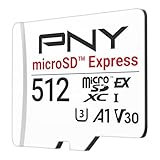
- ELEVATE YOUR GAMING: Engineered with next-generation PCIe Gen 3x1 microSD Express technology to achieve blazing fast performance up to 890MB/s Read and up to 810MB/s Write speeds.²
- LIGHTNING FAST DOWNLOADS: Experience extreme performance up to 4.4x faster than standard UHS-I microSD cards, to spend less time waiting and more time playing! More than double your gaming device’s internal storage with up to 512GB of expanded AAA game space.¹,²
- READY FOR NEXT-GEN GAMING: Compatible with microSD Express Host Devices, including Nintendo Switch 2, and backwards compatible with microSD UHS-I and UHS-II devices like portable gaming devices and more!⁴
- STAY COOL UNDER PRESSURE: Engineered to maximize cooling efficiencies with a heat dissipation dissipative design and adaptive thermal technology.³
- A1 APP PERFORMANCE: A1 Application Performance rating allows users to run gaming apps directly from the microSD card when gaming and delivers faster app launch and performance.
Why a game can still use both locations after you move it
Nintendo cautions that moving data does not permanently select where future data will be installed. Suppose you move a downloaded game and its currently eligible files to the card, then play it later. An update released afterward may be saved in system memory instead of joining the existing card data. The reverse can also happen after a move into system memory.
This is why the storage totals can look surprising after a move. The game’s main software may be on one destination while a later update, or an update that was never migratable, remains on the other. The move command works on the data the system exposes as eligible at that time; it is not a rule that every future file for that title must follow the same path.
Choosing a direction in common situations
You are running low on internal space
Open the move command and choose eligible downloaded software, DLC, or update data for transfer to the microSD Express card. Prioritize large titles or add-on packages that the console actually lists. Leave room for system use and remember that save data will continue occupying system memory.
Rank #4

- NEXT GEN GAMING: Works with Nintendo Switch 2.
- READY FOR TOMORROW. Ready for future products with a PCIe-NVMe interface; performs at UHS-I speeds with microSD UHS-I and UHS-II devices.
- EXPONENTIALLY FASTER PERFORMANCE. Up to 4.4 times faster transfer speeds than our fastest microSD UHS-I cards [9]. Transfer a 2-hour HD movie in less than 3.5 seconds [1]; save up to 2.8 minutes transferring 60 minutes of 4K UHD video [4] shot at 30 fps when paired with the SanDisk PRO-READER SD Express Dual Card (sold separately) [9]
- DURABILITY YOU CAN COUNT ON: Cards are waterproof, temperature-proof, humidity-proof, drop-proof, shock-proof, magnetic-proof, x-ray proof, and wear-out proof [5].
- HEAT MANAGEMENT REIMAGINED. SanDisk ThermAdapt helps keep devices from overheating with a specially designed enclosure and controller that uses dynamic adaptive thermal management.
You want to remove or replace the card
Move any eligible software data you need back to system memory before changing your storage arrangement. Check each title in the move screen rather than assuming every associated file can return: some update data cannot be migrated, and saves are not on the card in the first place.
You are looking for a backup of progress
Do not use the move command as a backup plan. It relocates software files and does not copy save data to the card. A successful software move therefore does not create a second recoverable copy of your progress.
You moved a title but an update appears elsewhere
This is consistent with Nintendo’s warning about future update data. Check both storage locations through Data Management and move any newly eligible data if you need to reclaim space. If the update is not offered as movable, the console is applying the stated limitation on some update data.
Best Value

- Ultra-Fast Read Speeds — Experience read speeds up to 900 MB/s and write speeds up to 620 MB/s, delivering rapid file transfers and smooth performance for gaming, photography, and 4K video recording.
- Optimized for Gaming & Devices – Tested with Switch 2 and compatible with laptops, tablets, cameras, and Android devices that support microSD Express or UHS-I. Ideal for expanding storage without lag.
- 4K Video & High-Resolution Support – Capture and store 4K UHD videos and high-res photos seamlessly thanks to Class 10, U3, V30, and A2 performance ratings.
- Reliable & Durable Design – Built for long-term use with shockproof, temperature-resistant, waterproof, and X-ray-resistant protection, keeping your data safe wherever you go.
- Multiple Capacity Options – Available in 256GB, 512GB and 1TB options to suit your storage needs. Note that actual usable storage may be slightly less due to system formatting and a portion reserved for card management functions, which is a standard industry practice to ensure optimal performance and reliability.
Troubleshooting the move menu
The move option is not visible
- Confirm that you are in System Settings > Data Management, not in the game’s software-information screen.
- Look for the regional wording that describes moving data between system memory and a microSD Express card; Nintendo’s English support pages use Move System / microSD Express Card Data.
- If you are trying to use removable storage, verify that the console recognizes a compatible microSD Express card. The official guidance identifies microSD Express—not a generic, unspecified card type—as the supported expansion format.
The game is not listed as movable
The move screen only offers data the console can migrate. Nintendo explicitly says that save data and some update data cannot be migrated. A missing item may therefore be a restriction rather than a failed transfer.
The transfer did not free as much internal space as expected
Save data remains in system memory, and some update data may remain there as well. Future updates can also be written to the location you did not select. Review the storage categories after the operation instead of expecting every byte associated with a game to leave one destination.
You expected the next update to use the card
The move command has no permanent install-location setting. After the software is used again, an update can be stored in the other location. If space becomes tight, return to Data Management and move whatever eligible data the console offers.
A practical storage routine
- Check available space in Data Management before choosing titles. The 256 GB headline figure includes space reserved for system use, so plan around the capacity shown by the console.
- Separate software space from save space. Moving a large download can recover room for another download, but it will not relocate saves.
- Move only eligible items. Use the console’s selection list as the authority for what can migrate; do not count on moving every update.
- Recheck after future updates. Because later update data may use the other destination, periodically inspect storage rather than assuming a previous move still describes the entire title.
- Keep the card requirement in perspective. A compatible microSD Express card is an optional expansion path for software data and screenshots, not a requirement for save storage.
Key limits to remember
- The command is located at System Settings > Data Management.
- Its purpose is moving eligible software data, including downloads, DLC, and some updates.
- Save data stays in system memory and cannot be moved to a microSD Express card.
- Some update data cannot be migrated.
- Moving data does not permanently choose where future updates or other data will be written.
- Nintendo identifies microSD Express as the supported card type for Switch 2 expanded storage.
Bottom line
Use System Settings > Data Management > Move System / microSD Express Card Data to relocate eligible Switch 2 downloads, DLC, and updates. Treat the operation as software-space management only: saves remain in system memory, some updates are immovable, and future updates can appear in either storage location.
Quick Recap
Product prices and availability are accurate as of the date/time indicated and are subject to change. Any price and availability information displayed on Amazon at the time of purchase will apply.

