What’s actually slowing this PC down?
Pick the symptom - the matching free tool is one click away.
To play Core Keeper with friends, one player starts or loads a world, opens the pause menu, copies the world’s Game ID and sends it to the group. Friends select Join Game and enter that ID. The host’s game must remain active for this normal session. If you need a world that stays available when that player is away, run the official Core Keeper Dedicated Server instead.
Prefer not to run the server on your own PC? Godlike.Host offers hosted Core Keeper servers with free DDoS protection and up to three free backups a day.
What you need before inviting anyone
Every player needs an installed copy of Core Keeper on a supported platform, an internet connection and the Game ID for the session. The game uses an ID-based join flow rather than a conventional friends-list invitation: the person who owns or starts the session shares a code, and everyone else enters it from the main menu.
As an Amazon Associate I earn from qualifying purchases.
Recommended Free Tools
Check platform compatibility before troubleshooting connection errors. The developer’s pinned FAQ lists the game on Steam, Epic Games, GOG, Microsoft Store, Nintendo Switch, Nintendo Switch 2, PlayStation 4, PlayStation 5, Xbox Series X|S and Xbox One. It also distinguishes PC-storefront compatibility from cross-platform play.
- Steam, Epic Games, GOG and Microsoft Store players can play together as supported PC storefronts.
- Cross-platform play between PC and console families is not available according to the current developer FAQ.
- PlayStation, Xbox and Nintendo players should form groups within the compatible platform grouping rather than assuming that every listed platform can connect to every other one.
Platform rules can change with later updates, so confirm the current pinned developer FAQ if your group is buying the game specifically for multiplayer.
#1 Best Overall

- DISCOVER 50+ GAMES — Explore a curated library of more than 50 games playable across XBOX consoles, PC, and supported devices, with new favorites ready to discover.
- PLAY ACROSS YOUR FAVORITE DEVICES — Enjoy included games across supported XBOX consoles, PC, and other compatible devices for more ways to play wherever you are.
- PLAY TOGETHER ONLINE — Connect with friends and communities with online console multiplayer included with XBOX Game Pass Essential.
- STREAM WITH XBOX CLOUD GAMING — Enjoy up to 5 hours of cloud playtime per month and stream supported games to compatible devices with XBOX Cloud Gaming.
- EARN REWARDS WHILE YOU PLAY — Earn Rewards points by playing games, completing eligible activities, and shopping in the Store with your XBOX Game Pass membership.
How to host a normal multiplayer world
This is the quickest way to play together when one person can start the game and stay connected during the session.
- Launch the game. The player who will host opens Core Keeper and selects Start Game from the main menu.
- Create or load a world. Choose an existing save or make a new world. Wait until the character has entered the world before sharing the join information.
- Open the pause menu. On PC, the default key is Esc. Console controls use the platform’s pause/menu button.
- Copy the Game ID. Select Copy game ID in the pause menu. The copied value is the key friends need to enter; it is not the world name.
- Send the ID privately. Paste it into your group’s normal chat or a direct message. Treat it like an invite code: only send it to people you want in the world.
- Have friends join. Each friend launches Core Keeper, chooses Join Game on the main menu and enters the Game ID.
- Keep the host session running. In this host-and-play arrangement, the host must remain in the world while the others play. Closing the host’s game ends access to that session for the other players.
The official developer FAQ summarizes the same sequence: one player selects Start Game and creates or loads a world; other players select Join Game and enter the Game ID.
Free tools Windows power users keep installed
One-click scans. No signup required.
What friends should do when joining
Enter the code from the main menu
Joining is done from Join Game, not from the world-selection screen. A friend should return to the main menu, select that option and enter the complete Game ID exactly as received. If the sender copied the code with a trailing space or additional message text, copy only the ID itself.
Rank #2

- System: Intel Core i5-13400F 2.5GHz 10 Cores | Intel B760 Chipset | 16GB DDR5 | 1TB PCIe 4.0 NVMe SSD | Windows 11 Home
- Graphics: NVIDIA GeForce RTX 5060 8GB Graphics | 1x HDMI | 2x DisplayPort
- Connectivity: 1 x USB-C 3.2 | 2 x USB-A 3.2 | 6 x USB-A 2.0 | 1 x LAN | WiFi 6 | Bluetooth 5.3 | 7.1 Channel Audio
- Tempered Side Case Panel | Custom RGB Lighting | Keyboard and Mouse
- 1 Year Parts & Labor Warranty, Free Lifetime Tech Support
Use the same session’s current ID
Ask the host to open the pause menu and copy the Game ID again if the original message is old or unclear. Sharing a newly copied value removes transcription mistakes and confirms that the host is currently in the intended world.
Confirm the platform grouping first
An otherwise correct ID will not make an unsupported platform combination work. Steam, Epic and GOG can connect across PC storefronts, but the developer FAQ says cross-platform crossplay is unavailable. A PC player therefore should not expect a PC-to-PlayStation, PC-to-Xbox or PC-to-Nintendo session to work under the current published rule.
PC storefront cross-play and console limits
“Cross-play” means different storefronts or hardware can share one multiplayer session. For Core Keeper, the documented support is narrower than universal cross-platform play.
Rank #3

- Intel Core i7 14700F, NVIDIA GeForce RTX 5070 12GB, 32GB DDR5 RGB 4800MHz 16x2 1TB NVMe SSD, WIFI Ready, Windows 11 Home
- Connectivity: 6 x USB 3.1 | 1x RJ-45 Network Ethernet 10/100/1000 | Audio: On board audio
- Special Add-Ons: Tempered Glass RGB Gaming Case | 802.11AC Wi-Fi Included | 16 Color RGB Lighting Case | Free iBUYPOWER Gaming Keyboard & RGB Gaming Mouse | No Bloatware | AI Workstation PC ready
| Players’ setup | Support described by the developer | Practical action |
|---|---|---|
| Steam with Epic Games | Supported PC-storefront cross-play | Use the normal Game ID flow, or a dedicated server configured from its current README. |
| Steam with GOG | Supported PC-storefront cross-play | Share the host or server Game ID and join through Join Game. |
| Epic Games with GOG | Supported PC-storefront cross-play | Use the same Game ID process. |
| PC storefronts with Microsoft Store PC | The August 2025 update includes Microsoft Store PC among storefronts that can share dedicated servers when configured correctly. | For a dedicated server, follow the installed server’s README; for a regular world, use the host’s Game ID. |
| PC with PlayStation | Cross-platform crossplay is not available in the current developer FAQ. | Do not purchase or troubleshoot on the assumption that this pairing is supported. |
| PC with Xbox | Cross-platform crossplay is not available in the current developer FAQ. | Use compatible players within the same supported platform grouping. |
| PC with Nintendo Switch or Nintendo Switch 2 | Cross-platform crossplay is not available in the current developer FAQ. | Switch players should organize sessions with compatible Nintendo players. |
| PlayStation with Xbox or Nintendo | Cross-platform crossplay is not available in the current developer FAQ. | Check for a newer official statement before planning a mixed-console group. |
The August 2025 official update specifically says PC players using Steam, Epic, GOG or Microsoft Store can share dedicated servers when the server is configured according to the bundled README. That statement concerns PC storefront compatibility; it does not add PC-to-console crossplay.
When a dedicated server is the better choice
A normal world is tied to the player who starts it. A dedicated server is a separate server process that keeps the world available without that usual player acting as the in-game host. This is useful for a group whose play times do not overlap or for a shared world that should be available during the day.
Install the official server through Steam
- Open the Steam client and go to Library.
- Change the library filter to Tools.
- Install Core Keeper Dedicated Server.
- Launch the server tool and wait for it to finish starting.
- Read the server window for the generated Game ID.
- Send that Game ID to the group.
- Have each player open Core Keeper, choose Join Game and enter the server’s ID.
- Leave the dedicated-server window or process running for as long as the world should be reachable.
The server process, rather than a player’s normal game client, is what keeps this session available. If the process is closed, the server is no longer available to join.
Rank #4
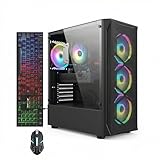
- This Gaming PC Desktop is well-suited for a variety of tasks including gaming, study, business, photo and video editing, streaming, day trading, crypto trading, and so on,ideal for Home, Office, School work
- This high-performance Gaming Computer Desktop is capable of running a wide range of popular PC games for pc gamer, including Fortnite, Call of Duty Warzone, Escape from Tarkov, GTA V, World of Warcraft, LOL, Valorant, Apex Legends, Roblox, Overwatch, CSGO, Battlefield V, Minecraft, Elden Ring, Rocket League, The Division 2, and Hogwarts Legacy with 60+ FPS
- PC Gaming System: This gaming computer desktop is loaded with Intel Core i7 up to 3.9GHz | 16GB Memory | 512GB Solid State Drive | Genuine Windows 11 Home 64-bit
- Gaming Desktop Connectivity: This gaming pc comes with RGB Fan x 4 | 1x RJ-45 | Wi-Fi 6 | Bluetooth 5.0 | Radeon RX 580 8G | HDMI | DisplayPort
- Gaming Computer Special Feature: This gaming pc equips with RGB Gaming Mouse & Keyboard |1 Year parts & labor | Free lifetime tech support,ARGB lighting that brings your gaming setup to life, with easy plug-and-play setup that gets you started in minutes. Built for long-lasting performance, it holds up well over time, while secure packaging ensures it arrives in perfect condition. Backed by reliable customer support for quick issue resolution
Keep the server’s branch aligned
The older official dedicated-server instructions require all players and the server to use the same game branch. A branch mismatch can prevent joining after an update or beta-channel change. Before changing a client to an alternate branch, check the README installed with the current server package and make the same branch choice on every participating client.
Independent reader supportYour contribution helps us test, update, and keep practical guides available for everyone.Ports, routers and outside-LAN access
The older official server instructions list UDP ports 27015–27016 as the default dedicated-server ports. Those numbers are historical defaults, not a promise that every current release uses them unchanged. Read the README bundled with the installed server before editing router settings.
When port forwarding is needed
Players on the same local network may be able to reach a server without exposing it to the internet. Friends connecting from outside that network generally need the server’s UDP ports forwarded from the router to the computer running the server, and the connection must have a public IP address. Router menus differ by manufacturer, so look for a section named Port Forwarding, NAT or Virtual Server.
Best Value

- This Gaming PC Desktop is well-suited for a variety of tasks including gaming, study, business, photo and video editing, streaming, day trading, crypto trading, and so on,ideal for Home, Office, School work
- This high-performance Gaming Computer Desktop is capable of running a wide range of popular PC games for pc gamer, including Fortnite, Call of Duty Warzone, Escape from Tarkov, GTA V, World of Warcraft, LOL, Valorant, Apex Legends, Roblox, Overwatch, CSGO, Battlefield V, Minecraft, Elden Ring, Rocket League, The Division 2, and Hogwarts Legacy with 60+ FPS
- PC Gaming System: This gaming computer desktop is loaded with Intel Core i7 up to 3.9GHz | 16GB Memory | 512GB Solid State Drive | Genuine Windows 11 Home 64-bit
- Gaming Desktop Connectivity: This gaming pc comes with RGB Fan x 6 | 1x RJ-45 | Wi-Fi 6 | Bluetooth 5.0 | GeForce RTX 3050 6G | HDMI | DisplayPort
- Gaming Computer Special Feature: This gaming pc equips with RGB Gaming Mouse & Keyboard |1 Year parts & labor | Free lifetime tech support,ARGB lighting that brings your gaming setup to life, with easy plug-and-play setup that gets you started in minutes. Built for long-lasting performance, it holds up well over time, while secure packaging ensures it arrives in perfect condition. Backed by reliable customer support for quick issue resolution
Safe order for network setup
- Start the dedicated server and read its current README for the configured ports.
- Give the server computer a stable local address, such as a DHCP reservation, so the forwarding rule does not point to a changing device.
- Forward the documented UDP ports to that local address.
- Allow the server application through the computer’s firewall when prompted.
- Start the server, copy its generated Game ID and test from a player outside the local network if possible.
Do not forward ports simply because an old guide lists them. A version-sensitive port setting copied from another release can waste time or expose the wrong service.
Troubleshooting a failed join
The Game ID is rejected or does nothing
- Return to the host’s pause menu and copy the ID again instead of retyping it.
- Make sure the friend selected Join Game from the main menu.
- Remove any spaces, punctuation or chat text accidentally copied with the ID.
- Confirm that the host has actually loaded the intended world and has not closed the game.
- Check that both players are on supported PC storefronts or the same compatible console grouping.
Friends can join, then lose the world
- For a normal session, verify that the host has not exited the world, disconnected or put the game into a state where it is no longer hosting.
- For a dedicated server, verify that the server window or background process is still running.
- Check the server README and confirm that every client uses the same branch.
- If outside-LAN players are affected, recheck the current UDP port settings, forwarding destination, public-IP requirement and firewall rule.
One player cannot connect while others can
That pattern usually points to the individual player’s platform grouping, local firewall, network or game-branch setting rather than an invalid world. Have that player verify the storefront or console, update or switch back to the same branch as the others, restart the game and re-enter a freshly copied ID.
The group is planning to buy on different systems
Decide the platform grouping before purchase. A Nintendo Switch player should plan around compatible Nintendo participants, while a PC group can mix the supported PC storefronts. Do not rely on a retailer listing or an old forum post to infer PC-to-console support; use the current developer FAQ because cross-play availability is subject to change.
Choosing between the two multiplayer methods
| Situation | Use a normal hosted world | Use the dedicated server |
|---|---|---|
| Friends play at the same time as one person | Yes. Start or load the world and share its Game ID. | Usually unnecessary. |
| The usual host is often offline | No; access depends on that host’s active session. | Yes. Keep the server process running instead. |
| You want the simplest setup | Best fit: no separate server installation or router configuration in the basic case. | Requires installing and operating a separate tool. |
| Players use Steam, Epic, GOG or Microsoft Store PC | Supported PC storefronts can use the Game ID flow. | Supported for PC storefronts when configured according to the current README. |
| Players mix PC and console | Not supported by the current developer FAQ. | A dedicated server does not override the platform cross-play rule. |
Keeping a shared world manageable
- Send the Game ID only to the intended group, especially for a long-running world.
- Keep a copy of the world’s save and server configuration before major updates or branch changes.
- Tell friends whether they are joining a player-hosted session or a dedicated server so they know whether the world depends on one person being online.
- When updating, update the server and clients consistently, then check the bundled README for changed ports or launch instructions.
- If a new player cannot join, diagnose platform compatibility before changing router settings.
The essential distinction is simple: use Start Game, Copy game ID and Join Game for a same-time session; install Core Keeper Dedicated Server when the world needs to remain available independently of the usual host.
Quick Recap
Product prices and availability are accurate as of the date/time indicated and are subject to change. Any price and availability information displayed on Amazon at the time of purchase will apply.




