Yes—you can play Free Fire on a computer. On Windows, the cleanest current option is Google Play Games on PC for Free Fire MAX. BlueStacks 5 is the main Windows emulator alternative. On an Apple Silicon Mac, the practical route is BlueStacks Air. Use official installers and avoid modified APKs, scripts, macros, and cheat tools, which can expose your account to theft or permanent bans.
Can you play Free Fire on PC or Mac?
Free Fire is primarily a mobile game, but that does not mean every PC method is unofficial or identical. There are three different things to distinguish:
As an Amazon Associate I earn from qualifying purchases.
- Free Fire and Free Fire MAX: the Android and iOS editions of Garena’s game.
- Google Play Games on PC: Google’s Windows gaming platform, where the current Free Fire MAX listing offers a PC installation in supported regions and configurations.
- Android emulators: desktop applications such as BlueStacks that run the Android version of the game.
Free Fire MAX is currently listed for Google Play Games on Windows. That is different from a conventional native Windows game client. Google Play Games is not a Mac solution, so Mac users generally need an Android runtime instead. Availability can vary by country, Google account, game edition, and hardware.
Do not assume that every claim in older guides still applies. In particular, “Free Fire has no official PC version” is too broad now: Free Fire MAX has a current Google Play Games on PC listing. It is also not safe to assume that Free Fire and Free Fire MAX have identical matchmaking or that PC players are always placed in separate matchmaking pools; the supplied official sources do not establish either rule universally.
#1 Best Overall

- PLEASE NOTE:This product only contains two removable stereos, the picture is only to show the product disassembly effect, please pay attention to distinguish!
- 【2 in 1 PC Speakers】OFFSIR computer speakers can be a soundbar after easily splicing, innovative 2-in-1 design, which is convenient for you to layout the computer desktop. With compact size, OFFSIR RGB gaming Speakers are ideal for the desktop PC laptop computer.
- 【Hi-Fi Stereo Sound Quality】OFFSIR PC speakers are equipped with advanced dual 5W sound drivers with a full-range 2.0-channel enhanced stereo core, providing you with a superior listening experience.
- 【Plug & Play for Broad Compatibility】Equipped with a USB cable and 3.5mm audio cable, the gaming speaker is plug-and-play for a wide range of PC, laptop, tablet compatibility (No drivers needed). Suitable for windows (Vista / 7 / 8 / 10), Mac OS, Chrome OS, Linux, UNIX, etc.
- 【Touch Breathing Light】Gently touch the top of the speaker to change the light color and light on/off, four modes of light give you the perfect gaming atmosphere.
Best Windows method: Google Play Games on PC
Choose this first if your Windows computer meets Google’s requirements and Free Fire MAX appears in your regional catalog. It provides the simplest first-party Google installation path, without configuring a general-purpose emulator.
Requirements
The current Free Fire MAX PC listing and Google’s general Google Play Games requirements specify:
- Windows 10 version 2004 or later
- An SSD with at least 10 GB of available space
- 8 GB of RAM
- A processor with four physical CPU cores
- Intel UHD Graphics 630 or a comparable GPU
- A Windows administrator account
- Hardware virtualization enabled
These are baseline requirements, not a promise of a particular frame rate. A laptop with limited cooling, little free storage, or many background applications may still stutter.
Installation steps
- Download Google Play Games on PC from Google’s official site.
- Install it and sign in with your Google account.
- Search for Free Fire MAX inside Google Play Games—not only on the mobile Play Store website.
- Check that the listing shows a Play on PC option and an appropriate compatibility indicator.
- Install the game and launch it from Google Play Games.
- Sign in with the same supported account method you use on mobile, where applicable.
- Follow any prompt to enable virtualization or Windows components. Google Play Games may request Windows Hypervisor Platform.
Google warns that compatibility labels are not continuously tested across every possible hardware configuration. If the game is missing, the cause may be regional availability, disabled virtualization, an unsupported PC, or a catalog change.
Limitations
Google Play Games on PC is Windows-only. Its catalog and compatibility status can differ by country and account. The PC listing found for this title is specifically for Free Fire MAX, so do not assume the standard Free Fire edition has the same Google Play Games support.
Rank #2
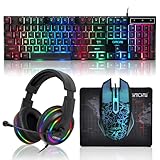
- 【Rainbow LED Gaming Keyboard】Keyboard with rgb backlit function can be switched between static 7-color rainbow lights, breathing mode and off.The 19 commonly used keys in the game do not conflict, ensuring perfect game performance.WIN key that can be disabled, 4 interchangeable "W/A/S/D" keys. Non-slip, splash-proof, mechanical feeling keys and sense of rhythm
- 【LED Wired Game Mouse】The ergonomically designed mouse can easily switch between 4 DPIs (1200,1800,2400,3600). 6 buttons (2 side buttons). Long press and hold the DPI button to switch between 7-color breathing and red light modes
- 【LED Backlit Gaming Headset】 The breathable soft fabric ear pads and adjustable memory foam headband keep you gaming comfortably for a long time. The 50mm drivers and 105 dB sensitivity provide powerful and clear sound (Package includes 1 3.5mm female to 2 RCA male adapter cables, allowing you to use both headphones and microphone)
- 【Gaming Mouse Pad】Size:10*7.8 inches, providing plenty of space for mouse movement. The ultra-smooth and waterproof surface ensures smooth movement of the mouse. The bottom is made of non-slip natural rubber, which is suitable for all kinds of tabletops
- 【Compatible System】 The light up keyboard and mouse combo is compatible with Windows 2000/2003/XP/Vista/Win7/Win8/Win10/Win11/PS3/PS4/PS5/Xbox/Mac. The headset is only suitable for PCs and laptops. Connect the USB to a 3.5 mm jack audio adapter (not included) to be compatible with PS4/Xbox One
Windows alternative: BlueStacks 5
BlueStacks 5 is worth considering if you want more detailed keyboard and mouse mapping, emulator graphics controls, or access to both Free Fire editions where they are available. Its published minimums are lower than Google Play Games’ baseline, but a 4 GB RAM minimum is not the same as a comfortable competitive setup.
How to install Free Fire or Free Fire MAX
- Download BlueStacks only from its official website or the official support guide.
- Install and launch BlueStacks 5.
- Sign in to the Google Play Store.
- Search for Free Fire or Free Fire MAX.
- Select the official Garena listing and choose Install from Google Play.
- Launch the game from the BlueStacks home screen.
- Use your normal, supported account login.
- Open the controls editor and verify movement, aiming, firing, weapon switching, reload, jump, crouch, healing, grenades, skills, and Gloo Wall bindings.
BlueStacks’ published requirements
For Free Fire MAX, BlueStacks lists Windows 7 or newer, or macOS 11 Big Sur or newer, an Intel, AMD, or Apple Silicon processor, at least 4 GB of RAM, 10 GB of free storage, administrator access, and current graphics drivers. For better results, it recommends Windows 10 or 11 64-bit, 8 GB or more RAM, a modern Core i5/i7- or Ryzen 5/7-class processor, an SSD, and updated drivers. These are BlueStacks platform requirements, not a universal Garena performance guarantee.
Recommended Free Tools
How to play Free Fire on Mac
For a Mac, the current practical option covered by the supplied sources is BlueStacks Air, especially on Macs with Apple Silicon processors such as the M-series chips. BlueStacks describes BlueStacks Air as built for Apple Silicon and says it is free. Google Play Games on PC is a Windows product and cannot be used as the Mac installation method.
Apple Silicon installation
- Open the official BlueStacks Mac page.
- Download BlueStacks Air.
- Open the downloaded
.dmgfile. - Drag BlueStacks into the Applications folder.
- Launch BlueStacks Air and complete any macOS security prompts.
- Sign in to Google Play.
- Search for Free Fire or Free Fire MAX.
- Install the official Garena listing.
- Launch the game and configure or verify keyboard and mouse controls.
Mac compatibility can differ from Windows compatibility. Graphics, input capture, updates, and performance may behave differently, and a MacBook can throttle under sustained heat. Keep adequate free storage and close demanding applications.
What about an Intel Mac?
Do not treat “Mac support” as a guarantee for every Mac. BlueStacks Air is specifically marketed for Apple Silicon. Intel-Mac support should be checked on the current official BlueStacks download page for the exact model and macOS version. Do not rely on an older guide’s general Mac requirements as proof that a particular Intel Mac is supported.
Rank #3
![Redragon Updated S107 Gaming Keyboard and Mouse, RGB Gaming Keyboard and 10000 DPI Mouse Combo with 25-Key Anti-Ghosting, 1K Hz Programmable Mice with Software, Plug & Play to PC, Laptop [Upgrade]](https://m.media-amazon.com/images/I/41g0DeahAqL._SL160_.jpg)
- 【RGB Gaming Keyboard and Mouse】The gaming keyboard has 6 RGB lighting modes to choose from & the gaming mouse has 8 lighting effects to switch between, and the keyboard and mouse set can be adjusted for speed and brightness to suit your preference. Whether it's a single light, changing light effects or no light at all, the Redragon gaming keyboard and mouse will meet your needs!
- 【DPI Adjustable Gaming Mouse】You can adjust the DPI up to 5000 via the DPI button, or adjust it up to 10000 via the software driver to easily meet your different needs in gaming or work. (The software also supports adjusting the mouse polling rate up to 1000Hz)
- 【Professional Customised Software Support】S107RGB gaming keyboard and mouse is equipped with professional Redragon customization software support, where you can freely adjust the Macro, DPI, Report rate, and RGB lighting effects and customize the buttons to meet your customization needs (redragon.com)
- 【Efficient & Convenient】This gaming keyboard and mouse combo is equipped with 12 Multimedia Function Keys, simple and convenient to operate. It not only improves efficiency but also makes your gaming process more convenient and faster
- 【Comfortable Gaming】The keyboard's foldable stand, skin-friendly coating, and floating Keycaps increase typing comfort. This keyboard and mouse are dedicated to providing an efficient gaming experience while ensuring maximum comfort
Which edition should you install?
| Edition | Best fit | Trade-off |
|---|---|---|
| Free Fire MAX | Windows users whose systems meet the Google Play Games requirements and players who want the higher-fidelity edition | Uses more storage and system resources; availability can vary by region and hardware |
| Free Fire | Players with weaker systems who find the standard edition available through an emulator | Its availability and compatibility may differ from Free Fire MAX |
Free Fire MAX is the edition explicitly identified in the current Google Play Games PC listing. If your computer struggles, start with moderate graphics settings rather than assuming the more demanding edition will run smoothly.
What’s actually slowing this PC down?
Pick the symptom - the matching free tool is one click away.
Keyboard and mouse controls
BlueStacks documents the following typical Free Fire bindings. Treat them as a starting profile, not permanent universal controls: updates, emulator versions, and personal layouts can change them.
| Action | Typical binding to verify |
|---|---|
| Move | W/A/S/D |
| Sprint | Shift |
| Jump | 3 or a selected key |
| Crouch | C |
| Prone | Z |
| Reload | R |
| Healing | 4 |
| Grenade | 5 |
| Release the mouse cursor | F1 |
| Weapon switching | Number keys or mouse wheel |
| Gloo Wall | Q |
| Character skill | E |
| Aim and fire | Mouse controls |
If aiming does not respond, activate the emulator’s shooting or mouse-lock mode, press its configured toggle key, and confirm that the intended control profile is active. Rebind controls through the editor if an update has changed them. Avoid overlays that capture the mouse.
A controller may work through an emulator only if the emulator and game build recognize it correctly. Keyboard and mouse support is the more dependable setup described by the supplied guides; verify any controller mapping in a noncompetitive match before relying on it.
Independent reader supportYour contribution helps us test, update, and keep practical guides available for everyone.Performance settings that are usually sensible
- Install the game and emulator on an SSD.
- Close browsers, recording software, launchers, and unnecessary background processes.
- Enable hardware virtualization where the chosen platform requires it.
- Keep Windows or macOS, graphics drivers, Google Play Games, and BlueStacks updated.
- In BlueStacks, start with roughly four CPU cores and 4 GB of allocated RAM only when the host system has enough resources.
- Use High performance mode if available.
- Begin with moderate graphics quality and raise it gradually.
- Disable shadows or other nonessential effects if frame pacing deteriorates.
- Enable high-frame-rate modes only if the computer remains stable. BlueStacks advertises settings up to 120 FPS for Free Fire MAX, but actual FPS depends on the game build, emulator instance, hardware, drivers, settings, and display.
- Prefer stable frame pacing over the highest displayed number.
- Use wired Ethernet or a strong 5 GHz/6 GHz Wi-Fi connection where possible.
BlueStacks’ recommendations are starting points rather than guarantees. A lower, stable frame-rate target is normally preferable to frequent spikes and drops.
Quick wins for a faster PC:
Repair Windows errors before they cause bigger problemsFix Now →Scan for outdated or missing drivers - takes under a minuteDriver Scan →Rank #4

- Surge Stereo Sound - 4 large amplifier IC horns! Computer speakers achieved Distortion Free and Noiseless in stunning sound. Immersive cinema effect for movies, videos, games and music.
- Touch Angular Game Lights - Unique Dynamic Angular Game Atmosphere design! Desktop speaker with latest One Touch to turn on/off lights, avoid the traditional cumbersome button design.
- All In One Compact - Fits any desktop computer! Perfectly under the monitor without taking up any extra desktop space. Cables are glued together to avoid desktop clutter.
- Plug And Play - No need for any driver! Must Plug in the USB powered cable and 3.5mm audio cable to enjoy now! Top volume knob for easier volume adjustment.
- Type C Adapter Included & Compatibility - USB speakers match computers, desktops, PCs, laptops. Suitable for windows(Vista/7/8/10), Mac OS, Chrome OS, etc.
Fix lag, crashes, black screens, and broken controls
| Symptom | What to try |
|---|---|
| Free Fire MAX is missing from Google Play Games | Search inside Google Play Games, check the compatibility badge, confirm your region and account, verify virtualization, and make sure the PC meets Google’s requirements. |
| Installation fails | Check free disk space, restart the computer, use administrator rights, update Windows or macOS, update Windows graphics drivers, enable virtualization, and close conflicting virtualization software. |
| Black screen or crash at launch | In BlueStacks, switch between Performance and Compatibility graphics modes, reduce resolution or graphics quality, close background applications, update BlueStacks, and clear the game cache if the installation is corrupted. |
| Low FPS or stutter | Reduce the FPS target and graphics quality, check temperatures, stop recording or streaming, close browser tabs, and confirm that the display refresh rate supports the chosen target. |
| Mouse aim is wrong | Enable shooting or mouse-lock mode, check the toggle key, select the correct control profile, rebind controls, and disable competing overlays. |
| Controls stopped working after an update | Reopen the controls editor, restore or recreate the profile, test every essential action, and avoid assuming an older layout is still valid. |
If reinstalling becomes necessary, secure and bind the account first. Reinstall only from Google, BlueStacks, or another authorized app store; a random APK is not a safe recovery method.
Account progress and sign-in
The safest approach is to use the same supported login method and account on the PC or Mac that you use on mobile. Bind or secure the account before changing devices or testing an emulator. Progress synchronization depends on the account, login method, region, and game edition. Do not assume that every combination transfers progress automatically.
Guest accounts are particularly risky because their progress may be tied to the original device. Never share your password or download an “account transfer” utility from an unofficial site.
Is playing through an emulator safe?
Use only the official Google Play Games site, the official Google Play listing, the BlueStacks website, or an authorized app store. Garena’s Anti-Hack FAQ, ban policy, and warning about unlicensed applications make modified clients and unauthorized tools a serious account risk.
PC Slower Than It Used to Be?
A free scan shows the junk files, broken settings and background clutter dragging Windows down - then fixes them in one click.Free scan · Windows 10 & 11Crashes, No Sound, or Screen Glitches?
Random freezes, missing sound and display glitches usually trace back to one bad driver. Find and replace yours safely.Free scan · under a minuteDo not use modified APKs, scripts, macros, automation, third-party aim tools, or cheat software with Free Fire. BlueStacks may advertise macros and scripts as platform features, but that does not make them safe to use in this game. The conservative choice is to use ordinary, manually configured controls only.
Using a legitimate Google Play Games or emulator installation is not the same as using cheats, but the supplied Garena sources do not establish a blanket guarantee that every emulator configuration is permitted in every circumstance. Follow Garena’s current rules and stop using any tool that alters gameplay or provides an unauthorized advantage.
Google Play Games or BlueStacks?
| Method | Choose it when | Main drawbacks |
|---|---|---|
| Google Play Games on PC | You have Windows 10 2004 or later, 8 GB RAM, an SSD, virtualization, and compatible graphics | Windows only; stricter baseline; catalog and compatibility vary |
| BlueStacks 5 | You want detailed controls, graphics settings, or broader emulator flexibility on Windows | Third-party runtime; more configuration; performance varies |
| BlueStacks Air | You have an Apple Silicon Mac | Not Google Play Games; Mac-specific compatibility and performance issues are possible |
| Mobile device | Your computer is underpowered or unsupported | Touch controls and a smaller screen |
Bottom line: try Google Play Games first on a supported Windows PC, BlueStacks 5 when you need emulator flexibility, and BlueStacks Air on an Apple Silicon Mac. If the system is too weak or an Intel Mac is not confirmed as compatible, the native mobile device remains the least complicated option. No paid “PC APK,” optimization service, account, script, or cheat is worth the security and ban risk.
Quick Recap
Product prices and availability are accurate as of the date/time indicated and are subject to change. Any price and availability information displayed on Amazon at the time of purchase will apply.
Free tools Windows power users keep installed
One-click scans. No signup required.




