Free tools Windows power users keep installed
One-click scans. No signup required.
Short answer: Nintendo Switch games do not run natively on the ASUS ROG Ally. The Ally is a Windows 11 gaming PC, not a Nintendo Switch, so it cannot access the Nintendo eShop, read Switch cartridges, or install Switch software directly.
There are three practical routes: install an authorized Windows version of the game, connect a real Nintendo Switch to the Ally through a USB capture card, or investigate unofficial emulation with significant legal, safety, and compatibility caveats. For most players, the first option is the best; the second is useful when you already own the Switch version; the third is not a simple or universally reliable solution.
What the ASUS ROG Ally can—and cannot—do
The ASUS ROG Ally runs Windows 11 and is designed to play compatible Windows games from services such as Steam, Epic Games, Battle.net, and Xbox or PC Game Pass. It can also run supported cloud-gaming services and accept video from a USB capture device.
That Windows foundation does not provide Nintendo Switch compatibility. The Ally has no Nintendo Switch operating system, Nintendo eShop support, or Nintendo-approved method for installing Switch game software. A Switch cartridge cannot be inserted into the Ally, and copying a Switch download to its SSD or microSD card will not make it playable.
What’s actually slowing this PC down?
Pick the symptom - the matching free tool is one click away.
The original 2023 ROG Ally specification includes Windows 11 Home, an AMD Ryzen Z1-series processor configuration, 16 GB of memory, and a 512 GB SSD. The 2025 ROG Xbox Ally is a separate product line with Windows 11, AMD Ryzen Z2 hardware, 16 GB of memory, a 512 GB SSD, and USB-C connectivity for DisplayPort and power delivery. The newer model should not be treated as the same device simply because it shares the Ally name.
If you are buying the handheld specifically for Windows versions of games, the ASUS ROG Ally is a suitable type of device to consider. Its suitability for Windows gaming does not mean it can natively run Switch software.
#1 Best Overall

- Controller Adapter Compatibility: The second-generation receiver compatible with 8BitDo bluetooth controllers, Xbox Series X | S, Xbox One Bluetooth controllers, PS5/PS4/PS4 Pro/PS3 controllers and Switch Pro, Switch Joy-Con, Wii U Pro, Wiimote controller. Make sure to update the receiver to the latest firmware. Switch 2 compatibility requires the Adapter to be updated to the latest firmware. (Note: Please ensure it is Bluetooth controller.)
- System compatibility: Switch (3.0.0 and above), Switch 2 (20.1.1 and above), SteamOS Holo 3.4 and above, Windows 10 and above, macOS, Raspberry Pi, Android TV Box, Retrofreak. Friendly reminder: Make sure to update the receiver to the latest firmware. Systems and controllers not mentioned above are not compatible.
- Bluetooth Controller Adapter: Four modes available, X-input, D-input, Mac and Switch mode. Support 6-axis motion on switch mode and vibration on X-input mode.
- Supports ultimate software - customize button mapping, adjust stick & trigger sensitivity, vibration control and create macros with any button combination.
- Please Note: One adapter works for one controller. If you wish to use multiple controllers at a time, you would need to use multiple adapters. Non-bluetooth controller such as 2.4g wireless controller is NOT Compatible. Systems and controllers not mentioned above are not compatible. If you have any questions about our products we're always available to provide assistance.
Option 1: Install an official Windows version
This is the safest and simplest way to play a Nintendo-published or formerly Switch-exclusive game on an Ally—provided the publisher has released a separate PC version.
How to check
- Search the publisher’s official website and authorized PC storefronts for the exact game title followed by PC or Windows.
- Confirm that the listing is for Windows rather than Nintendo Switch, a console-only edition, or a streaming service.
- Check the game’s PC system requirements, controller support, online-service requirements, and launcher requirements.
- Verify save-transfer and cross-play details on the publisher’s support page. Do not assume that a Switch save will transfer to Windows.
- Install the authorized PC edition through its supported store and launch it from Windows.
A PC port is a different product from the Switch edition. It may have different graphics settings, control mappings, performance requirements, updates, online features, and save behavior. Steam, Epic Games, Battle.net, and Xbox or Game Pass availability are title-specific, so the existence of one version does not imply that every storefront offers it.
Does buying the Switch version unlock the PC version?
Usually, you should expect to need a separate PC license unless the publisher explicitly documents cross-buy or another entitlement program. Nintendo’s store and purchase terms describe digital software as licensed for Nintendo Switch systems; a Switch purchase should not be treated as a general Windows license.
The same caution applies to physical cartridges. Owning a cartridge does not automatically provide a downloadable PC installer, a Windows activation key, cloud saves, or permission to use a publisher’s separate PC release.
Setting up controls for the PC version
Once the Windows version is installed, the Ally’s built-in controls should work when the game recognizes an Xbox-style controller profile. If a game does not map the controls correctly, use Windows controller settings or an Armoury Crate control profile to select or adjust the input mode. The exact options can differ by Ally model, Armoury Crate version, launcher, and game.
Start with the game’s own controller settings before changing advanced profiles. Check whether the game expects a controller, keyboard and mouse, or a particular input mode. A PC game can launch successfully while still requiring manual button mapping.
Rank #2
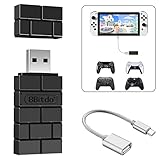
- Bluetooth Controller Adapter: Accessories for Switch 2, Switch/Switch OLED - Compatible with PS5 Controller, PS4 Controller, PS3 Controller, Xbox Series X/S, Xbox One, Wii Mote, Wii U Pro wirelessly on Switch / Switch OLED. Please upgrade the firmware to the latest version. Note: Supports Xbox One Controller / Xbox Elite Wireless Controller Series 2 with Bluetooth only.
- Wide System Support: Compatible with 8Bitdo Controllers, Switch Pro, Switch controller for Joycons, PS5, PS4, PS3, Wii Mote, Wii U Pro, Xbox Series X/S, Xbox One Bluetooth controller on Switch, Switch 2, Windows, Steam Deck, Raspberry Pi, Android TV Box and Retrofreak, for versatile gaming across multiple platforms.
- Less Lag Performance: Wireless Bluetooth connection provides reduced lag for responsive gameplay. It's one controller per 8Bitdo USB adapter. Vibration is supported on Switch and X-input mode. An OTG cable enables you to use the adapter to connect your Switch and enjoy the handheld mode directly.
- Plug and Play Functionality: Simply connect the controller adapter with your Wireless Controller to enable the same wireless experience you are used to on all the best platforms.
- Complete Package: Package includes an OTG cable, so you can use the converter to connect your Switch Console via an OTG cable and then enjoy the Undocked Mode directly.
Option 2: Play the real Switch through a capture card
If you want to use the Switch software you already own, the Ally can serve as a screen, recording computer, or streaming computer for the actual console. In this arrangement, the Switch—not the Ally—runs the game.
The basic signal path is:
- Connect the Nintendo Switch dock’s HDMI output to the capture card’s HDMI input.
- Connect the capture card’s USB output to the ROG Ally.
- Open OBS Studio on Windows.
- Add the capture card as a Video Capture Device source.
- View the Switch feed in OBS, record it, stream it, or route it to another display.
The Ally’s built-in controls do not automatically control the Switch in this arrangement. Pair and use the controllers supported by the Switch, while the Ally handles the captured video.
Capture-card setup in OBS Studio
- Connect the dock, HDMI cable, capture card, and Ally in the order shown above. Make sure the Switch is powered and producing a docked video signal.
- Launch OBS Studio and look at the Sources panel.
- Select +, choose Video Capture Device, and create a new source.
- In the device list, select the connected capture card.
- Use the capture card’s supported resolution and frame-rate settings if OBS does not automatically choose a usable signal.
- Confirm that the preview shows the Switch output. If audio is not present, inspect the capture device’s audio settings and configure monitoring through OBS or Windows if you need to hear it through the Ally.
OBS officially supports video-capture-device sources on Windows, including capture cards. The available resolution, frame-rate, audio, and buffering controls depend on the particular capture device and its Windows support.
A USB video capture card is the key accessory for this method. Choose one with documented Windows support and, if you want to play on a television while sending a separate feed to the Ally, consider a model with HDMI pass-through. Pass-through can make the television the gameplay display while OBS records or streams the captured signal, but the result depends on the hardware and setup.
What about power and extra USB ports?
The Ally’s USB-C connection can support external peripherals through compatible adapters or docks. If you need to charge the Ally while connecting a capture card, you may need a USB-C hub for ROG Ally or a dock with USB data, power delivery, and the ports required by your setup.
Do not assume that every USB-C dock behaves the same way with every Ally model. Check the exact model, power-delivery requirements, USB data support, HDMI behavior, and the capture card’s connection before buying. A dock expands connectivity; it does not add Nintendo Switch compatibility.
Capture latency and the best way to play
Watching the Switch through the OBS preview can introduce some delay. The amount varies with the capture card, USB connection, OBS settings, drivers, and whether the signal is being displayed through a software preview or hardware pass-through. No third-party capture setup should be described as guaranteed to have zero latency.
For slower games, the preview may be adequate. For timing-sensitive games, a television or monitor connected to the capture card’s HDMI pass-through is generally the more appropriate gameplay display, with the Ally handling the recording or streaming feed. Pass-through is a preference rather than a universal solution, because the exact behavior depends on the chosen hardware.
Do these 3 things before closing this tab:
1Fix the driver behind crashes, sound loss and screen glitches2Repair Windows errors before they cause bigger problems3Scan for outdated or missing drivers - takes under a minuteRank #3

- FASTSNAIL EXCLUSIVE MATERIALS - FASTSNAIL grips made of exclusive materials, with premium rubber non-slip matte surface for excellent grip. DIFFERENT with the other grips on Amazon. Scratch free, attractive appearance, touch is the best.
- ERGONOMIC DESIGN - IMPROVER SL and SR buttons to extend the lifespan. Ergonomic design provides superior grip and enhanced comfort. Allow you to play for longer such as Mario Kart and Street Fighter Ultra.
- COMFORTABLE TO HOLD - Perfect for those extended, high-stress gaming sessions. Grab control and elevate your game with the FastSnail Grip Kit.
- ONE MODEL FOR BOTH SIDES - Since it is a dedicated design, operation of each terminal and button can be convenient while keeping the case attached.
- PROTECTION - Since it is a special cover, it can protect your Joy-Con firmly from everyday wear and tear, scratches and dirt.(NOTE: No include Switch and Joy-Cons.)
Capture troubleshooting
- OBS does not list the capture card: Reconnect the USB cable, try a direct USB connection instead of an unpowered hub, close other programs using the device, and check whether the manufacturer provides a Windows driver or support utility.
- The preview is black: Confirm that the Switch is docked and powered, the HDMI cable runs from the dock to the capture card’s HDMI input, and OBS is using the correct capture-device source.
- There is video but no audio: Review the capture source’s audio settings and OBS monitoring configuration. Some devices expose audio separately from video.
- The picture is delayed: Test the capture card’s pass-through output on a television or monitor. Software preview delay is affected by the entire signal path and cannot be reduced to one universal number.
- The Ally’s controls do nothing: This is expected unless you have created a separate, carefully configured control arrangement. The Switch normally needs its own paired controller.
- The Ally cannot charge while capturing: Check whether the hub or dock supports power delivery at the required level and whether it leaves enough USB bandwidth and ports for the capture device.
Option 3: Unofficial Switch emulation on Windows
Third-party Switch emulation has existed on Windows, but it is not an official ASUS or Nintendo feature. It is also not a dependable universal answer. An emulator may launch one game and fail to run another, or require different settings after a game, driver, or emulator update.
The Ryujinx project, for example, has stated that it was discontinued. Older guides, mirrors, and abandoned download pages should therefore not be presented as current, supported instructions.
Legal and safety warning
This article does not provide instructions for obtaining or using pirated ROMs, leaked encryption keys, unauthorized firmware, or tools intended to bypass Nintendo’s protections.
Nintendo’s Switch User Agreement describes software as licensed for personal, noncommercial use on the console and places restrictions on copying, reverse engineering, decompilation, distribution, and bypassing or tampering with console protections, subject to applicable law. In the United States, the Copyright Office explains that Section 1201 of the DMCA generally restricts circumventing technological measures that control access to copyrighted works, including video games. Any exemptions are limited and fact-specific.
Quick wins for a faster PC:
Repair Windows errors before they cause bigger problemsFix Now →Scan for outdated or missing drivers - takes under a minuteDriver Scan →Consequently, owning a Switch, cartridge, or digital purchase does not automatically make every form of game dumping, decryption, firmware extraction, or emulation lawful. The rules also vary by country. Readers considering emulation should consult current local law and the applicable software licenses independently.
Even setting legal questions aside, emulation performance cannot be generalized across the Switch library. Results can depend on the game’s graphics API, shader compilation, Windows and graphics drivers, emulator build, power mode, resolution, controller features, motion controls, online services, and game updates. A title launching successfully does not guarantee stable performance, correct graphics, working motion input, online functionality, or usable battery life.
Rank #4

- Controller Adapter for Gamecube - Compatible with Nintendo Switch / Wii U / PC / Switch 2 works for nintendo gamecube controller, up to eight player for wii u or switch(need two adapter). Ideal gamecube controller adapter to play super smash bros ultimate.
- Support 4 NGC Controller - The gamecube adapter come with 4 gamecube controller input ports, and most up to 8 player at same time play with two adapter input. 180CM/5.9FT/70IN wired long USB A cable allows you to play no limit.
- Plug and Play No Driver Need - Just plug and then play your games. No lag and no drive install need on wii u/switch. Change the adapter button on WII U to play on WII U and Switch mode, Change the adapter button on PC to play on PC mode.
- Super Smash Bros Choice - You can play the super smash bros on Wii U and Switch, Plug the two usb into game console and then choice Mario or Luigi or what your want to battle with your friends. NOTE: you need enter ssb game by wii u remote control and only support ssb on wii u.
- 70 inch Long Cable - Play more freedom no more distance limited. Support turbo feature that What turbo actually does is replicates the same button pushed by the user over and over again at an extremely fast rate,Enhance your gaming experience.
For those reasons, unofficial emulation should be treated as an unsupported, compatibility-variable, and legally sensitive research subject—not as an official way to install Switch games on the Ally. Do not use a generic Windows repair or performance utility as a supposed compatibility layer; ordinary Windows maintenance cannot turn the Ally into a Switch.
Which method should you choose?
| Route | What actually runs the game? | What the Ally does | Main advantage | Main limitation |
|---|---|---|---|---|
| Authorized Windows release | The Windows PC version | Runs the game directly | Simplest and safest when a PC version exists | Requires a separate PC release and often a separate purchase |
| Capture card | The Nintendo Switch | Displays, records, or streams the Switch output | Uses the Switch software and hardware you already have | Requires a dock/HDMI path, capture hardware, and may add latency |
| Unofficial emulation | A third-party emulator attempting to reproduce Switch hardware | Runs Windows emulation software | May provide handheld access without a capture setup | Unofficial, compatibility-variable, legally sensitive, and unsuitable for piracy |
A quick decision checklist
- You want the cleanest handheld experience: Look for an official Windows version and install it through an authorized PC storefront.
- You already own the Switch game and want to see it on the Ally: Use the real Switch, its dock, a Windows-compatible capture card, and OBS.
- You want to play on the Ally without owning a Switch: Check for a legitimate PC release or a supported cloud service. A capture card alone cannot replace the console.
- You are considering emulation: Research current law and software licensing first, avoid unauthorized downloads and protection-bypass materials, and expect game-by-game compatibility rather than a guaranteed library.
- You are buying accessories: Verify the exact Ally model, available USB-C ports, power delivery, HDMI requirements, capture-card drivers, and whether pass-through is supported.
Frequently Asked Questions
Can I insert a Nintendo Switch cartridge into an ASUS ROG Ally?
No. The Ally has no Switch cartridge reader and cannot install or run Switch software directly. You need an authorized Windows version, or you can connect an actual Switch to the Ally through a capture card.
Does buying a Switch game give me the PC version?
Not by default. A Switch purchase and a Windows PC release are normally separate products and licenses. Only rely on cross-buy or cross-save when the publisher explicitly documents it.
Do I need a Nintendo Switch to use a capture card with the Ally?
Yes. A capture card only transfers the Switch’s HDMI output to Windows. The Switch still runs the game, and its compatible controller still handles gameplay.
Can the ASUS ROG Ally’s built-in controls control a connected Switch?
Not automatically. In a normal capture setup, the Ally receives video from the Switch while the Switch uses its own paired controller.
The Bottom Line
Bottom line: You cannot natively install or play Nintendo Switch games on an ASUS ROG Ally. Use an official Windows port when one exists, or connect a real docked Switch to the Ally with a USB capture card and OBS. Treat emulation as unofficial, legally sensitive, and highly variable rather than as a guaranteed solution.
Quick Recap
Product prices and availability are accurate as of the date/time indicated and are subject to change. Any price and availability information displayed on Amazon at the time of purchase will apply.



