Start with the calibration settings in the game you’re playing, then adjust audio, visuals, or input timing according to what actually feels out of sync. There is no universal lag number: the right setting depends on the game and your display, sound system, and controller.
First identify what feels out of sync
“Input lag” can describe different problems. Music may sound early or late relative to the notes; note icons may appear out of time with the beat; or your strums may register only when you play early or late. These symptoms can call for different settings, so don’t copy a calibration number from another game or setup.
Reduce display delay and calibrate in the game
- Turn on your TV’s Game Mode, if available. Harmonix recommends this for Rock Band 4 because display processing can affect timing. See Harmonix’s Rock Band 4 calibration guidance.
- Open the game’s calibration settings. In Rock Band 4, go to Options > System Settings > Calibration. Use automatic calibration if your guitar controller is supported, or choose manual calibration. Epic describes the available methods and display-category starting values in its Rock Band 4 calibration instructions.
- Calibrate with your usual equipment connected. Use the same TV, sound system, and controller you play with, then test a song. Treat any preset as a starting point, not a guaranteed match for your setup.
- Change one relevant setting at a time. Retest after each adjustment so you can tell whether the timing improved or got worse.
Fine-tune Rock Band 4 audio and video separately
Rock Band 4 has separate audio and video calibration. Epic’s audio-and-notes sync troubleshooting steps use Practice Mode at 50% speed to make the mismatch easier to judge.
Adjust audio when music and notes disagree
- In Practice Mode, watch when the music hits relative to the notes reaching or passing the target line.
- If the music plays before the notes reach the line, increase audio calibration by 10–15 ms.
- If the music plays after the notes pass the line, decrease audio calibration by 10–15 ms.
- Test again and repeat in small increments if needed.
Adjust video when inputs seem early or late
- Mute the audio and focus on whether your inputs register early or late.
- If inputs register only early, decrease video calibration.
- If inputs register only late, increase video calibration.
- Retest between changes rather than making a large adjustment all at once.
Use the right offset in Guitar Hero Live
Guitar Hero Live distinguishes note placement from the timing window that accepts a strum. Activision’s Advanced Calibration instructions describe two controls:
The Tool Desk
Outbyte PC Repair FREERepair Windows errors before they cause bigger problemsFix Now →Outbyte Driver Updater FREEScan for outdated or missing drivers - takes under a minuteDriver Scan →#1 Best Overall

- Guitar-shaped controller layout brings a dedicated format to rhythm gaming, making it suitable for setups, desktop play and music game sessions.
- Built-in tilt control provides an additional input method for supported rhythm games, giving players another way to interact during gameplay.
- Designed around guitar-style rhythm gameplay, making it suitable for players who enjoy music games, rhythm challenges and guitar controller setups.
- The controller fits home gaming desks, entertainment areas and dedicated rhythm game stations, providing a physical guitar-style interface for compatible software.
- This is a third-party accessory. Model and software references are used only to indicate compatibility and do not imply affiliation, sponsorship or endorsement.
- Video Lag Offset moves note icons without changing their hit windows. Use it when the notes look too early or too late.
- Input Lag Offset moves the hit boxes without changing note-icon positions. Use it when you have to strum too early or too late for the game to register the input.
Choose the control that matches the symptom, adjust it, and check the result in play. These settings are specific to Guitar Hero Live; they are not interchangeable with Rock Band calibration values.
Check guitar recognition in Fortnite Festival
If you’re troubleshooting Fortnite Festival, first distinguish a timing problem from a controller or instrument-part setup issue. Epic says a supported connected guitar should make Pro Lead and Pro Bass available when selecting an instrument. If those options are missing, open Festival settings and enable Always Display Pro Parts, as described in Epic’s guitar-controller instructions. That setting makes the parts visible; Epic does not describe it as an input-lag adjustment.
Rank #2

- MULTI-PLATFORM COMPATIBILITY: Compatible with PC, PC handhelds, Nintendo Switch 1|2, Android devices, including Smart TVs, tablets, mobile devices, and cloud streaming services such as Xbox Cloud Gaming and Luna.
- KEYJAM MODE: (Mode 9) transforms the guitar controller into a keyboard and mouse, enabling seamless compatibility with Fortnite Festival on PC, Xbox Series X|S, Xbox One, PlayStation 5 and PlayStation 4. Powered by CRKD’s KEYJAM Mapping feature, the fret buttons, strum bar, and other inputs are mapped to keyboard controls, while the right thumbstick functions as a mouse for intuitive menu navigation. KEYJAM Mode offers a seamless, plug-and-play experience — making everything from song selection to rocking out smooth, fast, and effortless.
- PREMIUM FRETS & STRUM BAR - Mechanical Frets offer a superior playing experience providing unmatched precision and responsiveness. Hall effect strum bar allows you to customize your actuation point while guaranteeing a long lifespan. Also featuring haptic feedback to give you a tactile feel with each strum.
- MODULAR DESIGN: The modular design allows you to swap out your neck to match your perfect feel. Swap it out for the solo neck design featuring 5 additional solo frets or opt for the classic standard buttons.
- EASY NAVIGATION: Two integrated analog sticks, an ergonomic D-pad on the headstock, and an eight-button navigation hub for easy in-game menu navigation.
How to tell when calibration is good enough
After each change, play a song and judge whether the mismatch has become more consistent. Stop when the timing feels reliable in normal play. Calibration values depend on the game and equipment chain, so a number that works on one TV or sound system is not a universal recommendation. Official guidance supports calibration and existing display settings; it does not establish a guaranteed amount of lag reduction or a purchase that fixes lag for every player.
Quick Recap
Best Value
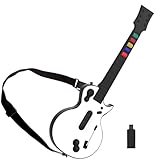
- 【Compatible with Multiple Games】The wireless controller simulates a real guitar and supports both PC and PS3 platforms. The PC platform supports Guitar Hero 3, Guitar Hero 3 Legends Of Rock, Guitar Hero World Tour, Guitar Hero Aerosmith and other games; The PS3 platform Guitar Hero 3, Guitar Hero 4, Guitar Hero 5, Rockband 1and Rockband 2
- 【2.4G Wireless Connection】This Guitar Hero guitar is a two-in-one wireless guitar with 2.4G radio frequency technology connection is very convenient, plug and play. Simply plug the receiver into a PS3 console or computer USB port to connect wirelessly to the guitar end
- 【High-Quality Guitar】The pc hero guitar with the Improved multi-colored frets design for quick-reaction gameplay and an elongated strum bar for an enhanced music shredding experience.Highly responsive chrome whammy bar
- 【Removable】This Guitar Hero guitar's guitar shaft and body are detachable for easy storage. When using, just insert the guitar rod into the main body as shown in the picture, and hear the sound of "click", indicating that it has been inserted in place and automatically locked
- 【Long Service Life】The pc guitar hero package comes with a sponge, which protects the probe in the main body from being oxidized after an electric shock. When the guitar is not used for a long time, please put the absorbent sponge back in place to prevent oxidation
Rank #4

- Compatible with Fortnite Festival and Rock Band 4
- Officially licensed by Xbox
- 30-foot low latency wireless connection
- Rechargeable battery for up to 36-hours of play time per charge
- Designed for both left and right-handed guitarists
Rank #3

- MULTI-PLATFORM COMPATIBILITY: Compatible with PC, PC handhelds, Nintendo Switch 1|2, Android devices, including Smart TVs, tablets, mobile devices, and cloud streaming services such as Xbox Cloud Gaming and Luna
- KEYJAM MODE: (Mode 9) transforms the guitar controller into a keyboard and mouse, enabling seamless compatibility with Fortnite Festival on PC, Xbox Series X|S, Xbox One, PlayStation 4, and PlayStation 5. Powered by CRKD’s KEYJAM Mapping feature, the fret buttons, strum bar, and other inputs are mapped to keyboard controls, while the right thumbstick functions as a mouse for intuitive menu navigation. KEYJAM Mode offers a seamless, plug-and-play experience — making everything from song selection to rocking out smooth, fast, and effortless.
- CLASSIC FEEL: The Black Tribal Guitar Controller is equipped with standard fret buttons and a mechanical strum bar for the classic rhythm gaming experience. Provides a familiar and reliable playing experience for all your favorite rhythm games while also boasting dynamic RGB lighting and customizable features via the CRKD companion app
- MODULAR DESIGN: The modular design allows you to swap out your neck to match your perfect feel. Upgrade to a neck with mechanical frets or, if you prefer it, swap it out for the solo neck design featuring 5 additional solo frets.
- EASY NAVIGATION: Two integrated analog sticks, an ergonomic D-pad on the headstock, and an eight-button navigation hub for easy in-game menu navigation.
Product prices and availability are accurate as of the date/time indicated and are subject to change. Any price and availability information displayed on Amazon at the time of purchase will apply.




