
What’s actually slowing this PC down?
Pick the symptom - the matching free tool is one click away.
There is no general, consumer-ready PS5 compatibility layer that lets you run arbitrary PS5 games locally on a PC. AnyPS5 is an experimental project that ports PS5 executables to Windows and Linux by reimplementing system behavior and translating console graphics for PC APIs. Its published progress figures are engineering milestones, not a percentage of games that work.
If you want to play a PS5 game on a computer now, Sony’s supported method is PS Remote Play: the game continues running on a required PS5 console while your PC receives the video and sends controller input. A DualSense, DUALSHOCK 4, or DualSense Edge can be used, but no controller replaces the console.
As an Amazon Associate I earn from qualifying purchases.
Can you run PS5 games on a PC today?
For most readers, the practical answer is no—not locally, and not for an arbitrary PS5 library. As of October 13, 2026, AnyPS5 is still experimental. It may interest developers, preservation researchers, and technically experienced users, but it is not an install-and-play solution comparable to a mature console emulator.
Sony’s supported answer is different: Remote Play streams a game from a PS5 to a PC. The console performs the game’s CPU and graphics work; the computer acts as the display and control endpoint. This can make a PS5 game playable at a desk or on a laptop, but it does not convert the game into a native Windows application.
#1 Best Overall

- Enjoy precise, comfortable control over 10,000+ supported Steam games.
- Easily pair the controller directly to your Windows PC via Bluetooth or play as you charge with the included USB Type-C cable
- Stay paired with up to four different Bluetooth devices, making it easy to enjoy the controller across Windows PC, Mac, PS5 consoles and smartphones. Discover more connection tips and tricks at playstation.com/pair-dualsense
- Access the latest available controller firmware directly from your PC with the free-todownload PlayStation Accessories app
- Play games streamed from your PS5 or PS4 console to your PC via the PS Remote Play App
PlayStation Plus on PC is another Sony-supported service route. It uses Sony’s PC application and a subscription whose catalog and availability depend on current Sony terms and your region. It should not be described as local execution of PS5 files or as a PS5 compatibility layer.
- Want to play your installed PS5 games now? Use PS Remote Play with a PS5.
- Want to experiment with software development or preservation? Follow AnyPS5’s current documentation and compatibility list, while expecting substantial limitations.
- Want access to a subscription catalog? Check the PlayStation Plus PC application and the terms offered in your country.
What a “PS5 compatibility layer” actually means
The phrase can describe several very different technologies. A compatibility layer adapts a program built for one operating environment so it can run in another. An emulator instead reproduces enough of the original hardware and system environment for software to believe it is running on the console. A streaming service does neither: the game remains on a remote or local console and only the audiovisual output is delivered to the PC.
How AnyPS5 approaches the problem
AnyPS5 describes itself as an automatic porting tool for PS5 executables targeting Linux and Windows. The PS5 uses an x86-64 CPU architecture, which gives the project a useful starting point: the processor instruction family is familiar to modern PCs. That does not remove the harder compatibility work. A PS5 executable expects Sony’s system libraries, runtime behavior, device interfaces, and graphics environment.
The project therefore has to reproduce PS5 system-library behavior and translate proprietary graphics operations to APIs available on a PC. A headline saying a game “runs natively” can hide that translation and reimplementation. The result is not a universal PS5 environment, and it is not a one-click method for launching every console title.
Why implementation percentages do not equal game compatibility
Tom’s Hardware reported on October 10, 2026 that AnyPS5’s tracker showed 1,166 of 1,166 tracked RDNA shader instructions implemented. That means the decoder recognizes the shader instructions included in the project’s tracked set. It does not prove that every GPU feature behaves correctly, that all combinations of instructions render correctly, or that a game will boot, remain stable, or achieve playable performance.
The same report listed 2,578 of 3,044 declared system-library functions implemented, or 84.69%. This is coverage of functions declared in the codebase. It is not an 84.69% game-compatibility rate. A single missing or incorrectly behaved function can prevent a title from starting, break one level, corrupt saves, or cause intermittent crashes.
Rank #2

- 👉️【Usage Notes】When using the gamepad for the first time, it needs to be connected to the PS5 console via a USB-C cable(It must be the data cable included in the package or the original data cable), and then press the Home button to activate it. If your controller has any functional issues, please use this url to update the firmware: we.tl/t-yAwofXJL9YOyyq3K !!! The gamepad is only compatible with PS5 series consoles and Windows PCs, and it is not compatible with PS4.
- 👋【Quick Connection & One - click Wake - up】 You can connect to the PS5 console by pressing the HOME button on the controller. When connecting to the console for the first time, you need to use a data cable. It also supports use on computers with Windows operating systems.
- 🎮️【Controller with Sound】 The controller is capable of producing sound, providing an immersive gaming experience. Please note that the controller is only equipped with a speaker and has no microphone. If you want to use the microphone fuacnction, please use an external headset. It is equipped with a 3.5mm TRRS headphone jack(not compatible with Apple headphones.)
- 🌈【Customizable Colors】Press the Lighting button to switch colors and light effect modes with one click. It features a color memory function, ensuring that the next time you use it, it will still be the color you prefer.
- 🕹️【High - Precision Joysticks】Equipped with upgraded joysticks, these effectively reduce the joystick dead zone and extend the controller's service life.
At that time, the project’s compatibility list identified one verified playable title, described as a simple 2D platformer. Technically demanding games still had rendering, stability, and performance problems. Because AnyPS5 changes quickly, check its live compatibility list and release notes before relying on any title-specific claim.
Free tools Windows power users keep installed
One-click scans. No signup required.
Ways to play PlayStation games on a PC
| Route | What the PC does | Console requirement | Status and scope |
|---|---|---|---|
| PS Remote Play | Displays a stream and sends input | A PS5 is required for PS5 games | Official Sony method; works with compatible games installed on the console, subject to stated exclusions |
| AnyPS5 | Runs a ported executable through system and graphics translation | The project is intended to port executables to Windows and Linux rather than stream from a console | Experimental; not a dependable solution for an arbitrary PS5 library |
| PlayStation Plus on PC | Uses Sony’s PC application to access the service’s catalog | Availability and catalog depend on Sony’s current terms and region | Official subscription route; not local execution of PS5 game files |
PS Remote Play: the practical option
Remote Play is the only route in this guide that Sony presents as a general way to use a PS5 from a PC. The PS5 remains powered on or in a state that can be awakened for Remote Play, and the PC receives the session over a network connection. The game is not installed or executed on the PC.
Sony lists a minimum connection speed of 5 Mbps and recommends a high-speed connection of at least 15 Mbps for a better experience. Those figures describe network throughput guidance, not a guarantee of low latency or perfect image quality. Wi-Fi congestion, distance from the router, and other traffic can still make controls feel delayed.
PlayStation Plus on PC: a separate service
Sony documents access to PlayStation Plus through a PC application. Treat it as a subscription and catalog question rather than an emulation question. The games available, streaming conditions, and supported regions can change under Sony’s current terms. Some third-party PC-compatible XInput controllers may work, but Sony does not guarantee full compatibility for every such controller.
AnyPS5: an experimental development project
AnyPS5 may be relevant if you want to follow a rapidly evolving compatibility project, inspect implementation work, contribute code, or experiment with software you are legally entitled to use. Its README states: “This project is intended for interoperability, research, preservation, and compatibility purposes.” That statement describes the project’s purpose, not a promise that commercial games will run.
Recommended Free Tools
Do not confuse PS5 projects with PS4 projects
shadPS4 is explicitly a PlayStation 4 emulator, so it is not a PS5 compatibility layer. RPCSX describes itself as an experimental PS4/PS5 emulator; its FAQ reports a limited state involving test samples and a handful of titles playable in-game, with a compatibility table in progress. The existence of either project does not establish that a particular PS5 game works on your computer.
Rank #3

- Bring gaming worlds to life - Feel your in-game actions and environment simulated through haptic feedback*. Experience varying force and tension at your fingertips with adaptive triggers*
- Find your voice, share your passion - Chat online through the built-in microphone. Connect a headset directly via the 3.5mm jack. Record and broadcast your epic gaming moments with the create button
- A gaming icon in your hands - Enjoy a comfortable, evolved design with an iconic layout and enhanced sticks. Hear higher-fidelity** sound effects through the built-in speaker in supported games
- Multi-device connectivity - Connect using a USB Type-C cable or Bluetooth technology and easily play on more devices including Windows PC and Mac computers.
- Elevate PC gaming with advanced features like haptic feedback and adaptive triggers in a range of blockbuster PC titles.
How to set up PS Remote Play on a PC
Check the requirements first
- A PS5 console for PS5 games, connected to broadband.
- A compatible Windows or macOS computer and Sony’s PS Remote Play application.
- A PlayStation account that can sign in to the console service.
- A game compatible with Remote Play and installed or available on the PS5.
- A network connection meeting Sony’s 5 Mbps minimum; 15 Mbps or more is Sony’s recommendation for a better experience.
- A compatible controller. Sony lists DUALSHOCK 4, DualSense, and DualSense Edge among the supported options.
Prepare the PS5
- On the PS5, open the system’s Remote Play settings and enable Remote Play.
- Keep the console connected to the internet and configured so Remote Play can connect when you are away from the console. If the console is fully powered off, the PC cannot start a session until the PS5 is available.
- Confirm that the game you intend to play is installed and that it does not require a peripheral or mode excluded by Sony’s Remote Play support.
Connect from the computer
- Install Sony’s PS Remote Play application for your computer.
- Launch the application and sign in with your PlayStation account.
- Select PS5 when prompted. The application searches for an available console associated with the account.
- Connect the controller to the computer by a supported USB or wireless method, then use it to navigate the streamed session.
- Start the game from the PS5 interface. The PC now shows the console’s video output and forwards your controls.
Improve a marginal connection
- Use a wired network connection for the PS5 or PC when practical; it removes one common source of wireless interference.
- Pause large downloads, cloud backups, video streams, and other traffic on the same connection.
- Move the PC closer to the wireless access point or switch to a less congested band if your setup permits it.
- Measure the connection while other household devices are active, not only when the network is idle.
- If the picture is clear but controls feel delayed, treat latency and jitter as the problem rather than assuming the game or controller is defective.
Know the exclusions
Sony says games that require PlayStation VR or additional peripherals are excluded from Remote Play. Games that must be streamed through PlayStation Plus Premium are also not compatible with Remote Play. These restrictions are separate from the PC’s hardware capability: a powerful computer cannot remove a service-level exclusion.
What to expect when experimenting with AnyPS5
Start with the project’s current status, not an old video
AnyPS5 is a fast-moving project. A video, screenshot, or compatibility claim can become stale as the code changes. Check the current project documentation, release notes, and compatibility list immediately before trying a title. The one verified playable title reported on October 10, 2026 should be treated as a dated snapshot, not a permanent list.
Use the right success criteria
“It launches” is only the first checkpoint. A useful compatibility report should distinguish between booting, reaching gameplay, rendering the complete scene, maintaining stable frame pacing, loading and saving correctly, and completing a meaningful portion of the game. A project can pass one checkpoint and fail the next.
- Boot: the executable starts without an immediate crash.
- Rendering: menus, characters, effects, and 3D scenes display correctly.
- Input: controls map consistently and required devices are recognized.
- Stability: the game survives loading screens, transitions, and extended play.
- Performance: frame delivery remains usable rather than merely producing an image.
- Persistence: saves and other game data behave correctly.
Expect title-specific failures
System-library coverage and shader recognition do not guarantee that a particular engine’s synchronization, streaming, audio, storage, or graphics path is implemented correctly. A demanding title may show missing textures, broken effects, severe slowdowns, hangs, or crashes even while the project’s aggregate metrics improve.
Stay within legitimate use
Use only software and game data you are legally entitled to use. Do not bypass encryption, defeat platform security, or obtain unauthorized game files. This guide does not provide instructions for extracting protected data or evading Sony’s security systems. The project’s stated interoperability and preservation goals do not automatically determine the law in your country.
Independent reader supportYour contribution helps us test, update, and keep practical guides available for everyone.How to choose the right route
Choose Remote Play when you own a PS5
Remote Play is the clear choice when your priority is playing a known PS5 title rather than studying compatibility technology. It preserves the console’s normal game environment, avoids waiting for a PC porting project to support a specific engine, and is supported by Sony. The trade-off is that the PS5 must remain part of the setup and your experience depends on network quality.
Rank #4
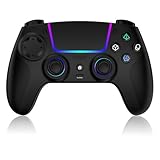
- Seamless Compatibility:This game controller is compatible with PS5, Pro, Slim, PC, and Steam Deck. Enjoy seamlesg integration with your console and all your PS5 games without any complicated setup
- Adjustable RGB Lighting: Personalize your setup with vibrant, 7-color adjustable RGB lighting. Choose from 4 distinct lighting modes (Steady, Breathing, Color Cycle, and Reactive) to match your mood, game, or gaming environment
- 3-Speed Turbo: Gain a competitive edge with the 3-speed adjustable TURBO function. Simply map any action button to turbo for rapid, continuous firing—perfect for shooting games or actions requiring high-speed input
- Programmable Back Buttons: Take command with fully programmable rear buttons M1 & M2. Map complex in-game commands or macros to these buttons, saving your configurations for instant access to advanced maneuvers and shortcuts
- Ergonomic Design: Its form-fitting shape, balanced weight, and soft-touch materials offer superior comfort. This non-slip design ensures stable control and prevents slippage, even with sweaty hands
Choose PlayStation Plus on PC when the catalog fits
This route makes sense when you want games included in Sony’s current subscription offering and your region supports the required PC application and service tier. Check the catalog and terms before subscribing; catalog access is not the same as owning or locally running a PS5 game file.
Do these 3 things before closing this tab:
1Scan for outdated or missing drivers - takes under a minute2Clear out junk files and repair common Windows errors3Fix the driver behind crashes, sound loss and screen glitchesChoose AnyPS5 only for experimentation
AnyPS5 is appropriate for readers comfortable with incomplete software, changing documentation, and title-by-title testing. It is a poor choice if you need a dependable way to play a commercial PS5 release tonight. Do not buy hardware or a controller expecting it to turn an experimental compatibility layer into a finished product.
Troubleshooting by symptom
Remote Play cannot find the PS5
- Confirm Remote Play is enabled on the console.
- Verify that the computer application and console are signed in to the intended PlayStation account.
- Check that the PS5 has an active broadband connection and is not fully powered off.
- Temporarily test with both devices on the same home network to separate account or setup problems from remote-network problems.
The image is blurry or the session disconnects
- Check whether the connection is meeting Sony’s 5 Mbps minimum and, ideally, approaching the recommended 15 Mbps.
- Stop competing downloads and streams.
- Prefer Ethernet or move the wireless device closer to the access point.
- Retry when the network is less congested. A speed test taken at one moment cannot guarantee a stable stream throughout a session.
The controller is not responding
- Reconnect the controller by USB or pair it with the PC using the operating system’s supported wireless procedure.
- Use one of Sony’s listed controllers—DUALSHOCK 4, DualSense, or DualSense Edge—when troubleshooting compatibility.
- If using a third-party XInput controller with PlayStation Plus on PC, remember that Sony does not guarantee full compatibility for every model.
AnyPS5 starts but the game is unplayable
- Check the current compatibility entry and project release notes for known rendering or stability problems.
- Separate a boot result from a playable result; aggregate implementation percentages do not predict either outcome.
- Record the exact project version, operating system, title build, and symptom when reporting an issue.
- Do not assume a newer GPU or more memory will fix an unimplemented system function or graphics feature.
Can you play PS5 games on a computer without a console?
Not through Sony’s supported Remote Play route: Sony explicitly requires a PS5 or PS4 console to stream games to another device, and a PS5 is required for PS5 games. AnyPS5 is being developed to port executables to Windows and Linux, but its experimental status and extremely limited verified compatibility mean it is not a dependable console replacement. A PC-only answer for arbitrary PS5 games does not exist today.
What the current evidence supports
The strongest practical conclusion is narrow but useful. Sony supports streaming from a required console, with a 5 Mbps minimum and 15 Mbps recommended for a better Remote Play experience. AnyPS5 demonstrates ongoing engineering progress, including the 1,166-of-1,166 tracked shader-instruction milestone and 84.69% system-library-function figure reported by Tom’s Hardware, but neither number measures the share of PS5 games that work. The same October 10, 2026 report identified only one verified playable title and described serious problems in technically demanding games.
Use the official streaming path when you need reliability. Treat AnyPS5 as an evolving technical project whose compatibility must be checked title by title. That distinction prevents the most common mistake: reading a component-coverage statistic as if it were a promise that your PS5 library will run on Windows.
The Tool Desk
Outbyte Driver Updater FREEScan for outdated or missing drivers - takes under a minuteDriver Scan →Outbyte PC Repair FREEClear out junk files and repair common Windows errorsFree Scan →Quick Recap
Product prices and availability are accurate as of the date/time indicated and are subject to change. Any price and availability information displayed on Amazon at the time of purchase will apply.

