Recommended Free Tools
To run a ROM in RetroArch, load a core made for the game’s original system, then open the ROM with Load Content. A playlist scan is optional: you can launch a game directly from its file. RetroArch’s starting-a-game guide identifies the two essentials as a libretro core and a ROM file.
Run a ROM directly
- Install or select a compatible core. A core is the emulator component for a particular system. The usual download route is Online Updater > Select Core Downloader; some RetroArch installations already include cores. If the downloader is unavailable, installation depends on how RetroArch was installed. For example, the Ubuntu PPA guide directs users to install cores through the package manager.
- From the main menu, choose Load Core and select the core for the system the game was made for.
- Choose Load Content, browse to the folder containing the game file, and select it.
- If RetroArch asks which core to use, choose the one intended for the game’s original platform. If the correct core is already loaded, choose Current Core when prompted.
The ROM can be stored in any folder RetroArch can access; it does not have to be in a special RetroArch directory. The loading guide explains the direct-launch workflow.
Choose and install the right core
Use a core that emulates the console or computer the game was released for. A file extension is not always enough to identify the correct system: more than one core may accept the same extension. When several cores support a system, compare their game compatibility, accuracy, performance demands, and suitability for your device. The official core guide notes that greater accuracy can carry a performance cost.
If you cannot find the Core Downloader, check the installation method rather than assuming RetroArch is broken. Core availability and installation steps vary by package; the Ubuntu PPA instructions, for instance, use the package manager.
PC Slower Than It Used to Be?
A free scan shows the junk files, broken settings and background clutter dragging Windows down - then fixes them in one click.Free scan · Windows 10 & 11Outdated Drivers Are Slowing You Down
One free scan finds every outdated or missing driver and matches the right update for your exact hardware.Free scan · exact hardware match#1 Best Overall

- Multiple Simulator Support: Compatible with more than 20 formats of games, supports open source RetroArch system and allows downloading games in relevant formats
- Advanced Gaming Features: Supports archiving and reading, searching for games, checking recently played games, collecting favorite games, supporting dual controllers, and wifi online battles
- High-Definition Display: Features a 5-inch IPS high-definition screen with 1280x720 high resolution, offering both full screen and original resolution display options
- Long-Lasting Battery Performance: Built-in 5000mAh Lithium battery with Type-C USB 5V/1.5A recharging capability, providing up to 5 hours of continuous battery life
- Storage and Expandability: Comes with 128GB TF card pre-installed and supports external TF card expansion up to 256GB maximum capacity
Find games again with playlists
Scanning a folder creates a playlist, but it is not required to launch a game. RetroArch’s default strict scan matches files against the Libretro database using checksums or disc serials. A file can be playable by a core yet not appear in a playlist if it does not match a database entry.
- To test a missing game, use Load Content and open it directly.
- For a playlist containing unmatched files, use a loose scan or enable Scan Without Core Match. Those entries may not have thumbnails or Explore-menu metadata.
- If you are following the full database-matching workflow, install a compatible core and update Core Info Files and Databases.
After scanning, select a playlist entry and choose Run. You can also relaunch games from History or Favorites; associating a core with an entry can make later launches more direct. See the playlist and scanning guide for the scan options.
Rank #2

- 【Premium Compact Design & Display 】 Crafted with a high-quality CNC Aluminum Alloy body, this handheld game console is both durable and lightweight. It features a vibrant 3.2-inch fully laminated IPS screen with a sharp 1024x768 resolution for a crisp and immersive gaming experience.NOTE:Please charge the machine for about 30 minutes before turning it on for the first time.Note: No TF card,No pre-installed games, installation required
- 【Powerful Performance for Retro Gaming 】Retro gaming console equipped with a fast 1.8GHz Allwinner A133P CPU and 1GB of RAM, the Brick Hammer smoothly emulates a wide range of classic game consoles. Enjoy your favorite retro titles with reliable performance and quick load times.
- 【Dynamic RGB Lighting & Vibration Feedback】 Enhance your gameplay with immersive features, including a customizable RGB top bar ambient light, illuminated function keys, and a single-channel vibration motor that gameboy provides tactile feedback for a more engaging experience.
- 【Long-Lasting Battery & Modern Connectivity 】Game consoles play for up to 5 hours on a single charge with the built-in 3000mAh battery. It supports convenient USB Type-C charging and offers multiple connectivity options, including WLAN for online battle support and a USB Host port for connecting external game controllers.
- 【Expandable Storage & Versatile Controls 】 With 8GB of built-in storage and support for TF cards up to 1TB, you can build an extensive game library. The handheld emulator also includes a custom FN switch and front F1/F2 hotkeys for customizable controls tailored to your gaming style.
Set a convenient game-folder location
RetroArch can browse any location it has permission to access. To make repeated browsing easier, set the File Browser start directory to the folder where you keep your ROMs. On some platforms, including Android, the app may be restricted from browsing certain storage locations. If a folder or file is missing, check access to that location and the configured start directory. The official guide to ROMs and playlists covers directory and scanning behavior.
Check archive and disc-image formats
Disc-based images generally should not be zipped for RetroArch use. For zipped content, the loading guide describes browsing an archive or loading the archive, depending on how it was created and what it contains. When unsure, follow the selected core’s documentation for supported content formats rather than assuming every archive or file type will work. See Starting a Game for archive-loading guidance.
Rank #3
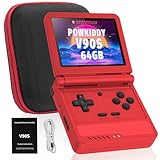
- 🎮 10,000+ Classics Preloaded Instantly play 8-bit to PSP-era gems across 20+ systems. No setup – unfold and relive childhood!
- 🔄 Fold & Go Anywhere Military-grade hinges survive 20K flips. Folds to pocket size (8.9x8.5cm) – 30% smaller than phones!
- 💾 Dual TF Slots for Upgrades Separate slots for OS (system) and games – update firmware without losing saves. Supports 512GB total!
- ⚡ Cartridge-Smooth Performance Quad-core CPU boots in 8 sec – faster than blowing NES cartridges. Zero lag on GBA classics.
- 🔓 Hack Your Childhood Install ArkOS/RetroArch for Dreamcast/PSP games. Includes USB-C cable & quick-start guide.
Know when a BIOS file is needed
A BIOS is a copy of the operating system used by the emulated hardware. Whether one is required depends on the core: some need BIOS files, some can use them optionally, and some do not need them. Check the documentation for the chosen core to learn whether your game requires one and which filenames it expects.
BIOS files usually belong in RetroArch’s System directory. Check Settings > Directory/Directories for the configured location, then consult the core’s documentation for required files. RetroArch and Libretro do not provide copyrighted system files or game content; supply your own files in accordance with applicable local law. The Libretro BIOS guide explains these requirements.
Rank #4

- 【Dual Android 10 System with WiFi for YouTube & TikTok】 Powered by Qualcomm Gen1 quad-core CPU and Mali 450 GPU, this handheld runs full Android 10 dual system with built-in WiFi. You can freely connect network to browse YouTube, scroll TikTok besides retro gaming, integrate entertainment in one device. It supports tons of emulators and preloaded 20000+ classic games for smooth lag-free gameplay
- 【4.2 Inch OCA Full Laminated HD IPS Screen】 4.2-inch full-fit MiPi IPS display with 720*720 resolution, OCA lamination cuts screen reflection and color deviation. Equipped with RGB glowing joysticks, the eye-care panel reduces visual fatigue for long-hour gaming and video watching
- 【Expandable Large Storage Space】 Built-in 1GB RAM + 8GB EMMC memory, supports TF card expansion from 16GB to 256GB to store more games and videos. Plug-and-play design, no complicated setup to access arcade, RPG, racing and puzzle retro games anytime
- 【Pocket Portable & Long-Lasting Battery】 Compact 210g lightweight body easy to slip into pocket or bag for travel. 3500mAh lithium battery provides up to 8 hours continuous use for gaming or watching videos, full charge only takes 2 hours via Type-C port. Built-in 8W cavity speaker delivers clear audio
- 【Multi-Functional & Perfect Nostalgic Gift】 Supports local room multiplayer real-time battle, available in transparent black/red/purple shells with cool RGB joysticks. Combines retro gaming and online video playback, an ideal stress relief gift for retro game lovers, teens and adults
Troubleshoot a game that will not launch
- The ROM does not appear in the file browser: Confirm RetroArch can access its folder and set the File Browser start directory to a convenient location.
- The game is absent from a playlist: Try opening it with Load Content. If direct loading works, the issue may be database matching or the scan settings, not core compatibility.
- RetroArch asks you to choose a core: Select one designed for the game’s original system; the extension may be shared by multiple cores.
- The game opens to a black screen or fails: Verify that the core matches the original platform, then check that core’s supported content formats and BIOS requirements.
Whether a particular ROM is compatible cannot be determined from the extension alone; it depends on the game file, system, core, and platform.
Quick Recap
Best Value

- 【Game Console with Linux Stylem】Comes with 64G TF Card Preloaded 5570 Classic Games,Support users to download games in relevant 15 kinds of games formats.
- 【supports 5G WIFI Bluetooth 2.4G Wireless Gamepad and Wired Gamepad Connection】 HDMI and TV output function makes the small screen become big screen in seconds, and the joystick connection supports multiplayer games, so you and your friends can enjoy the game together.
- 【3200 mAh Li-polymer battery and 3.5 INCHES OCA IPS screen】you can use for 6-7 hours, support fast charging with USB Type-C cable, With 3.5-inch IPS full viewing angle, zero distance OCA full-fit screen,the screen resolution is 640*480,Sharper picture quality and more saturated colours.
- 【Chip upgrade】with quad-core ARM Cortex-A53, Quad-core PowerVR SGX544MP GPU,makes have the characteristics of low power consumption and high performance. the Ram of the is LPDDR4 1GB, the larger the RAM running memory, the faster the system response time will be.
- 【Ideal gifts】Dimensions of Handled game :12.8cm*8.1cm *2.2cm,is a good size in the hand and is suitable for carrying aroundis a great gift for boyfriend, husband, brother, son, father and friends for birthday, Father's Day, Christmas, Valentines Day, Thanksgiving Day etc. Get lots of compliments on how it’s interesting or practical.
Product prices and availability are accurate as of the date/time indicated and are subject to change. Any price and availability information displayed on Amazon at the time of purchase will apply.




