Do these 3 things before closing this tab:
1Repair Windows errors before they cause bigger problems2Scan for outdated or missing drivers - takes under a minute3Clear out junk files and repair common Windows errorsTo set PUBG Mobile controls in BlueStacks 5, open Game controls or the keyboard icon, enter Controls editor, select the current PUBG scheme, change a control’s key, and choose Save. For a custom layout, add D-pad, Aim, pan & shoot, Tap spot, and Free look controls over the game’s touch buttons. Confirm the displayed bindings in your own BlueStacks installation because defaults and labels can change.
Quick answer
To set PUBG Mobile controls in BlueStacks 5, launch the game, open the Game controls menu—or click the keyboard icon on the side toolbar—and choose Controls editor. Select the existing PUBG Mobile control scheme, click the control you want to change, press the new keyboard key or mouse input, and select Save.
As an Amazon Associate I earn from qualifying purchases.
For a completely custom layout, create or duplicate a control scheme, then drag controls such as D-pad, Aim, pan & shoot, Tap spot, and Free look onto the matching PUBG touch controls. The exact default key assignments can vary by BlueStacks version, game build, and control scheme, so use the overlay in your own installation as the final authority. BlueStacks documents the current PUBG Mobile setup in its PUBG Mobile on PC guide.
Set up the default PUBG Mobile controls
- Open PUBG Mobile in BlueStacks. Use the instance where PUBG Mobile is installed, then enter a screen where the game’s touch controls are visible. The controls editor is easier to configure when you can see the movement, aim, fire, inventory, and interaction buttons.
- Open the controls interface. Click the keyboard or Game controls icon on BlueStacks’ side toolbar. You can also right-click the Game controls icon to open the Controls editor directly, according to BlueStacks’ documentation.
- Select the PUBG Mobile scheme. If BlueStacks provides a PUBG Mobile scheme, select it first. Do not replace it immediately: keeping the original gives you a working fallback while you experiment.
- Change a binding. Select the control shown over the relevant game action, press the keyboard key or mouse input you want to use, and click Save. Repeat this for each action you want to customize.
- Test the result in a low-risk mode. Check movement, mouse-look, firing, aiming, reload, weapon switching, inventory, map, pickup, and interaction before relying on the layout in a serious match.
If a change makes the layout worse, select Reset where available, switch back to the original scheme, or create a fresh custom profile. BlueStacks also supports creating, copying, renaming, switching, importing, and exporting control schemes; the available options are described in its Controls Editor guide.
#1 Best Overall

- Double protection:The hard PC back can effectively resist external impact and prevent damage when the phone is dropped,while the soft TPU border provides a better buffer effect,absorbs the impact and protects the edge of the phone from bumps
- Fashion print:The back of the phone case uses a design of fashion print,not only to enhance the beauty of the phone,but also to show your personality taste.The diverse selection of prints makes the phone a fashion accessory that shows your personal style
- Safe and reliable:Both Back And Front Raised Edges Lift The Camera And The Screen Higher Than The Contacting Surface,Avoid Any Potential Scratches To The Camera And The Screen,Four rounded corners can effectively prevent collision
- Light portable: Despite the excellent protective properties of the phone case,still maintains the characteristics of light and portable,This ensures that you don't feel it when using your phone Bulky or inconvenient,it still fits easily in a pocket or bag
- For model:Compatible iPhone 13/14,Note:Please confirm model before purchasing
Create a custom PUBG control layout
Use a custom scheme when the default layout feels uncomfortable, when a control is missing, or when you want separate layouts for different game modes. In the Controls editor, create a new profile or copy the existing PUBG Mobile scheme. Give each stable version a useful name, such as PUBG Classic, PUBG Low Sensitivity, or PUBG Training.
Add the main control types
| BlueStacks control | Use it for | Setup advice |
|---|---|---|
| D-pad | Moving forward, backward, left, and right | Place it over PUBG Mobile’s movement joystick. WASD is a practical starting point because the keys stay together and leave the mouse hand free. |
| Aim, pan & shoot | Mouse-look, aiming, and firing | Place it over the game’s camera or aiming area. Review its mouse-capture and fire settings instead of assuming the same toggle behavior across every scheme. |
| Tap spot | One-touch actions | Drop it over actions such as reload, pickup, crouch, prone, jump, map, backpack, or a particular weapon and item button. |
| Free look | Looking around without aiming | Place it over the appropriate camera area when you want to scan your surroundings without entering the normal aim workflow. |
To add one, drag the control type from the editor onto the matching touch target in PUBG Mobile. Select the control, assign a key or mouse input, and save. Avoid placing a new control slightly beside the touch target: the position matters because the emulator sends the input to the location underneath the overlay.
A sensible starting layout
BlueStacks’ PUBG Mobile documentation groups the controls into movement, combat, and general actions. Start with those groups rather than trying to reproduce every key from an image or another player’s setup. Some official key assignments are displayed as images, and default mappings may change, so confirm the labels in your own on-screen overlay.
- Movement: forward, left, backward, right, sprint, jump, crouch, and prone.
- Combat: fire, aim down sight, reload, scope, weapon switching, handgun or melee, and grenades.
- General actions: map, backpack, interact, pick up, and other frequently used menus.
Keep movement keys together. Put sprint on a nearby key or modifier that you can hold without losing control of movement. Keep fire, aim, reload, weapon switching, and interaction close to the hand that already operates the mouse and movement keys. There is no universally correct PUBG layout; comfort, keyboard size, mouse grip, and personal muscle memory matter more than copying a particular player.
Rank #2
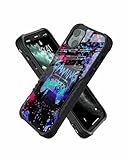
- Double protection:The hard PC back can effectively resist external impact and prevent damage when the phone is dropped,while the soft TPU border provides a better buffer effect,absorbs the impact and protects the edge of the phone from bumps
- Fashion print:The back of the phone case uses a design of fashion print,not only to enhance the beauty of the phone,but also to show your personality taste.The diverse selection of prints makes the phone a fashion accessory that shows your personal style
- Safe and reliable:Both Back And Front Raised Edges Lift The Camera And The Screen Higher Than The Contacting Surface,Avoid Any Potential Scratches To The Camera And The Screen,Four rounded corners can effectively prevent collision
- Light portable: Despite the excellent protective properties of the phone case,still maintains the characteristics of light and portable,This ensures that you don't feel it when using your phone Bulky or inconvenient,it still fits easily in a pocket or bag
- For model:Compatible iPhone 15,Note: Please confirm model before purchasing
Configure mouse aim and free look
The Aim, pan & shoot control is usually the most important part of a mouse-and-keyboard setup. Right-click it or open its gear icon to view advanced settings. Depending on the control and BlueStacks version, you may find options for:
- mouse sensitivity;
- fire with left click;
- the key that suspends or releases mouse capture;
- crosshair behavior;
- activation timing and related aim behavior.
Change one setting at a time, save it, and test it. If the cursor escapes the game or the camera stops responding, the issue may be the mouse-capture toggle rather than PUBG’s key binding. Check which key the current scheme uses to suspend or resume capture.
Use Free look when you want to look around without aiming down sights. BlueStacks provides keyboard or mouse operation for this control and may expose settings such as swipe speed and reset behavior. A faster setting is not automatically better: begin conservatively and increase it only if you cannot turn comfortably.
A gaming mouse for PUBG Mobile on BlueStacks is optional, not a requirement. Any functioning mouse can operate the emulator controls. A mouse with comfortable buttons and a consistent sensor may make long sessions easier, but the article cannot promise better aim, lower latency, or a competitive advantage from a particular brand, DPI setting, or polling rate.
Rank #3
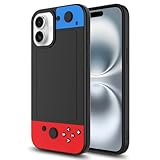
- 【Compatible with】 IPHONE 16 (NOT FIT IPHONE 16E,16 PLUS, 16 PRO, 16 PRO MAX)
- Wireless charging compatible, the durable anti-slip TPU ensures a lightweight, easy-to-grip design, with convenient access to all buttons and ports.
- Unique Design: Enjoy a 3D cool and fun game controller design with this gaming phone case, perfect for Man Women Boys Girls who love gaming and technology. Stand out from the crowd with its unique style.
- Ultimate Protection: This chic and lovely protective cover uses high-quality silicone material, ultra-thin slim fit. The surface is very resistant to friction, effectively preventing various scratches, wear marks, fingerprints.Durable and lightweight, it won't add bulk to your phone while providing reliable protection.
- Versatile Use: Perfect for everyday use, whether you're at school, work, or home. The unique design adds a fun touch to your phone while keeping it safe.
Save multiple schemes and preserve a fallback
Keep the original PUBG scheme untouched until the custom version works. Then save a named copy after each stable revision. Multiple schemes are useful for separating a normal gameplay layout from a training or experimental layout.
BlueStacks’ Controls Editor documentation also describes import and export functions. They can help preserve a layout or move it between compatible installations, but do not assume that an exported scheme will behave identically after a major BlueStacks or PUBG Mobile update. Recheck the overlay after importing.
Verify shortcuts and switch schemes
If a BlueStacks shortcut does not work, open Settings > Shortcuts and inspect the current assignment. This is also where you can review shortcuts for opening the Controls editor and turning game controls on or off. BlueStacks documents shortcut editing in its shortcut settings guide.
Quick wins for a faster PC:
Repair Windows errors before they cause bigger problemsFix Now →Fix the driver behind crashes, sound loss and screen glitchesFind Drivers →BlueStacks has documented Ctrl + Shift + Q for switching control schemes during gameplay in the version covered by its Controls Editor article. Because shortcut defaults are version-sensitive, check Settings > Shortcuts if that combination does nothing or conflicts with another application.
Rank #4

- Prefect gamer phone case design for Apple iphone 16.
- 2 in 1 structure - Inner soft silicone gel and outer hard plastic shell with synthetic leather print pattern design
- Silicone gel grip your phone tightly and prevent it from scratching/bumping/droping, outer snap-on hard shell provides double protection on your device
- Perfect cut outs allow convenient access to all functions, cameras, buttons and ports
- Variety stylish pretty funny art designs decorate your phone beauty and personal
Test the controls before playing a match
Use the training area or another low-stakes session and work through this checklist:
- Move in all four directions and confirm that sprint activates and releases correctly.
- Jump, crouch, and go prone without triggering another action.
- Move the mouse, capture and release it, and verify that the camera responds consistently.
- Fire, aim down sights, change scopes, reload, and switch weapons.
- Throw a grenade and check that the assigned input does not also activate a menu.
- Open the backpack and map, pick up an item, and interact with an object.
- Press every high-frequency key once to detect duplicate or overlapping bindings.
If two actions occur at once, inspect both controls in the editor. Remove duplicate assignments unless the game and BlueStacks clearly support the combination. Also check whether a control was placed over the wrong touch button after PUBG Mobile changed its interface.
Fix delayed, inconsistent, or missing inputs
- Confirm the mapping. Open the Controls editor and verify that the key is assigned to the intended control and that the control sits over the correct PUBG touch target.
- Check mouse capture. If movement works but aiming does not, test the capture or suspend key for Aim, pan & shoot.
- Check that game controls are enabled. Review the Game controls toggle and its shortcut in Settings > Shortcuts.
- Restore the default scheme. Switch to the original PUBG Mobile profile. If the default works, rebuild the custom profile one control at a time.
- Review performance settings. BlueStacks recommends High Performance mode, high frame rate mode, adequate CPU and memory allocation, and up-to-date graphics drivers for its PUBG Mobile setup. These are configuration recommendations—not guarantees of a specific frame rate, input latency, recoil behavior, or competitive result. See the official PUBG Mobile setup guidance.
- Update ordinary system components. Check Windows, BlueStacks, PUBG Mobile, and your graphics driver through their normal official update paths before using third-party tools.
An optional driver-maintenance utility may help identify outdated drivers after those basic checks, but it does not configure PUBG controls or guarantee higher FPS. If you consider a product such as Outbyte Driver Updater, treat it as optional PC-maintenance software, review its current terms and pricing yourself, and do not mistake it for a fix for an incorrect control overlay.
Free tools Windows power users keep installed
One-click scans. No signup required.
What not to do
- Do not assume a key layout is mandatory for every BlueStacks version or PUBG Mobile build.
- Do not map several high-frequency actions to one key unless the game and editor clearly support that behavior.
- Do not use scripts or automation as a normal substitute for the Controls editor without separately checking the game’s rules and safety implications.
- Do not judge a new layout in a high-stakes match before testing it.
- Do not promise that a particular keyboard, mouse, sensitivity value, or emulator setting guarantees better aim or performance.
BlueStacks and PUBG Mobile can change labels, default mappings, shortcut defaults, and touch-control positions. Revisit the layout after major updates, especially if a previously working key suddenly opens the wrong action or stops responding.
Frequently Asked Questions
How do I change PUBG Mobile keys in BlueStacks?
Open PUBG Mobile in BlueStacks, click the keyboard or Game controls icon, open Controls editor, select the PUBG Mobile scheme, choose a control, press the new key, and click Save. Right-clicking the Game controls icon may open the editor directly.
Best Value

- 【Compatible with】 IPHONE 16E,IPHONE 17E (NOT FIT IPHONE 16,16 PLUS, 16 PRO, 16 PRO MAX)
- Wireless charging compatible, the durable anti-slip TPU ensures a lightweight, easy-to-grip design, with convenient access to all buttons and ports.
- Unique Design: Enjoy a 3D cool and fun game controller design with this gaming phone case, perfect for Man Women Boys Girls who love gaming and technology. Stand out from the crowd with its unique style.
- Ultimate Protection: This chic and lovely protective cover uses high-quality silicone material, ultra-thin slim fit. The surface is very resistant to friction, effectively preventing various scratches, wear marks, fingerprints.Durable and lightweight, it won't add bulk to your phone while providing reliable protection.
- Versatile Use: Perfect for everyday use, whether you're at school, work, or home. The unique design adds a fun touch to your phone while keeping it safe.
Which BlueStacks controls should I use for PUBG Mobile?
Use the D-pad for movement, Aim, pan & shoot for mouse-look and firing, Tap spot for individual touch actions, and Free look for looking around without aiming. Drag each control over the matching PUBG Mobile touch target.
Can I make a custom PUBG control layout in BlueStacks?
Yes. Create or copy a control scheme in Controls editor, give it a name, edit it, and save it. Keep the original scheme available as a fallback and test the custom version before using it in a serious match.
What’s actually slowing this PC down?
Pick the symptom - the matching free tool is one click away.
Why is my BlueStacks PUBG control shortcut not working?
Open BlueStacks Settings, select Shortcuts, and review the current assignments. Ctrl + Shift + Q has been documented for switching schemes in a covered BlueStacks version, but shortcut defaults can change.
The Bottom Line
Use the existing PUBG Mobile scheme first, edit it through Game controls > Controls editor, and save a named copy before experimenting. Build custom controls with D-pad, Aim, pan & shoot, Tap spot, and Free look; then test every movement, combat, and menu action in training. Treat the key labels shown in your own BlueStacks overlay as authoritative because defaults vary by version.
Quick Recap
Product prices and availability are accurate as of the date/time indicated and are subject to change. Any price and availability information displayed on Amazon at the time of purchase will apply.




