The Tool Desk
Outbyte PC Repair FREERepair Windows errors before they cause bigger problemsFix Now →Outbyte Driver Updater FREEScan for outdated or missing drivers - takes under a minuteDriver Scan →You can use a PS4 DualShock 4 with a Nintendo Switch by connecting it through a compatible USB controller adapter. The adapter bridges the two systems; the controller does not pair directly through Nintendo’s standard controller-pairing process. This guide covers the 8BitDo USB Wireless Adapter 2 and MAYFLASH MAGIC-NS, including the setting and cable needed in common setups.
What you need
Choose a USB controller adapter whose manufacturer explicitly lists support for both the DualShock 4 and Nintendo Switch. 8BitDo documents its USB Wireless Adapter 2 for this use, and MAYFLASH lists Switch and DualShock 4 compatibility for MAGIC-NS. Check the exact adapter and revision documentation before connecting it: controller support, connection mode, and features can vary.
Nintendo’s Controller Pairing on Nintendo Switch FAQ describes Nintendo Switch controller pairing, while the adapter makers document how their products connect a DualShock 4. The adapter is the key piece of equipment.
Connect a DualShock 4 with 8BitDo USB Wireless Adapter 2
- Connect the adapter to the Switch. Use a USB port on the console or dock. For handheld play, 8BitDo specifies a USB-C male to USB-A female OTG cable between the console and adapter; see its USB Wireless Adapter FAQ.
- Select Switch mode on the DualShock 4. Hold SHARE + L1 for three seconds, as described in 8BitDo’s USB Adapter 2 instructions for DualShock 4 on Switch. The manual says the LED blinks twice in manual-setting mode.
- Pair the controller through the adapter. Follow the adapter’s pairing process to establish the wireless connection between the DualShock 4 and adapter.
- Enable wired communication if buttons do not respond. On the Switch, open System Settings → Controllers and Sensors → Pro Controller Wired Communication and turn the option on. 8BitDo notes this setting can be needed when the console shows the controller connected but does not register inputs.
Use MAYFLASH MAGIC-NS as an alternative
MAYFLASH lists the MAGIC-NS for Switch and DualShock 4 use with both Bluetooth controllers and wired USB controllers. Its product page identifies Switch Pro mode as the purple LED mode and directs Switch users to enable Pro Controller Wired Communication in system settings.
Recommended Free Tools
#1 Best Overall
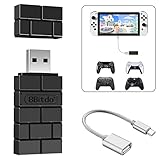
- Bluetooth Controller Adapter: Accessories for Switch 2, Switch/Switch OLED - Compatible with PS5 Controller, PS4 Controller, PS3 Controller, Xbox Series X/S, Xbox One, Wii Mote, Wii U Pro wirelessly on Switch / Switch OLED. Please upgrade the firmware to the latest version. Note: Supports Xbox One Controller / Xbox Elite Wireless Controller Series 2 with Bluetooth only.
- Wide System Support: Compatible with 8Bitdo Controllers, Switch Pro, Switch controller for Joycons, PS5, PS4, PS3, Wii Mote, Wii U Pro, Xbox Series X/S, Xbox One Bluetooth controller on Switch, Switch 2, Windows, Steam Deck, Raspberry Pi, Android TV Box and Retrofreak, for versatile gaming across multiple platforms.
- Less Lag Performance: Wireless Bluetooth connection provides reduced lag for responsive gameplay. It's one controller per 8Bitdo USB adapter. Vibration is supported on Switch and X-input mode. An OTG cable enables you to use the adapter to connect your Switch and enjoy the handheld mode directly.
- Plug and Play Functionality: Simply connect the controller adapter with your Wireless Controller to enable the same wireless experience you are used to on all the best platforms.
- Complete Package: Package includes an OTG cable, so you can use the converter to connect your Switch Console via an OTG cable and then enjoy the Undocked Mode directly.
MAYFLASH also lists six-axis motion and vibration support on Switch. Its V1.19 firmware note, published November 18, 2022, specifically says that the update added DualShock 4 gyroscope input in Switch Pro mode. If motion input is missing, check the adapter’s selected mode and the manufacturer’s current firmware downloads rather than assuming every hardware revision and firmware version behaves identically.
What works—and what does not
| Adapter | Documented Switch and DualShock 4 details | Important qualification |
|---|---|---|
| 8BitDo USB Wireless Adapter 2 | Switch mode is selected on the DualShock 4 with SHARE + L1; 8BitDo says DS4 motion controls work on Switch. | 8BitDo says the PS4 controller cannot wake the Switch through this adapter, and audio from the controller’s headphone jack is not passed through. Handheld use requires a USB-C male to USB-A female OTG cable. |
| MAYFLASH MAGIC-NS | MAYFLASH lists wired and wireless DualShock 4 support, plus Switch six-axis motion and vibration. Its V1.19 note says DS4 gyro input was added in Switch Pro mode. | Use the documented Switch Pro mode and enable Pro Controller Wired Communication. Firmware and mode can affect feature behavior. |
Feature claims above come from the manufacturers’ documentation: 8BitDo’s adapter instructions and FAQ, and MAYFLASH’s MAGIC-NS product page and firmware downloads. Check the product documentation for the specific adapter you own before relying on a particular feature.
Rank #2

- 【Wide Compatibility】Enjoy seamless gaming across various platforms with our p4 controller adapter, compatible with official P4 controller/ P5 controller /Switch Pro controllers. Whether you're gaming on Switch, Switch Lite, Windows PC, Android TV Box, Tesla, or Steam, this p4 controller adapter ensures a smooth experience.
- 【Memory Connection】Say goodbye to tedious pairing processes. Our p4 controller adapter plug-and-play feature remembers the last controller connected, making setup a breeze every time. Plus, the included type-C OTG cable simplifies connectivity even further.
- 【No Lag, Just Fun】 Experience gaming without interruptions. Our p4 controller adapter utilizes Bluetooth 5.0 and APTX low latency technology to minimize delay and enhance data transmission speed. Enjoy stable connections and faster response times for a competitive edge during multiplayer sessions.
- 【Portable and User-Friendly】Take your gaming on the go with our compact and travel-friendly p4 controller adapter. No need for driver installations; simply connect your p4 controller, and you're ready to dive into your favorite games hassle-free.
Choose an adapter for your setup
Before buying or connecting an adapter, compare the details that affect whether it will work the way you expect:
Quick Recap
Rank #3

- Multi-platform compatibility: The AIMZENIX BLADER keyboard and mouse adapter is compatible with Switch 2, NS, Xbox One, Xbox Series X/S, PS 4. The BLADER simulate keyboard and mouse inputs as controller signals, providing you with more flexible control on gaming consoles
- Shortcut key mapping and sensitivity: With shortcut key customization and sensitivity adjustment, this keyboard and mouse adapter allows you to personalize your gaming experience and improve game accuracy. Enjoy improved precision, speed, and control for FPS, TPS, and RTS games. Please refer to the manual or video tutorial for details on the mapping editing function
- Plug and Play: The BLADER keyboard mouse adapter offers a plug-and-play setup, making it easy to connect your keyboard and mouse to your Xbox, Switch, or PlayStation console. No complicated installation or additional software required(Connecting to the game console requires the corresponding original controller)
- Additional Requirements: 1. The mouse switching technology of BLADER will assume that the "view sensitivity" and other related options are maximized in your gameplay settings. In any case, it must be turned up to maximize your aiming performance. 2. Connecting to the game console requires the corresponding original controller, and the authorized controller is not supported
- Read before Use: 1. BLADER does not support mice that require driver installation. 2. Please note that after the controller is connected to the console through the blader, the 3.5mm headphone jack on the controller will become invalid
- Exact compatibility: Confirm the adapter’s documentation names both Switch and DualShock 4 support, including the product revision where applicable.
- Wired or wireless connection: Check whether your intended setup uses the DualShock 4 over Bluetooth or a USB cable.
- Switch mode and settings: Look for the required mode and whether Pro Controller Wired Communication must be enabled.
- Features: Verify support for motion input and vibration; do not assume wake or headphone audio support.
- Handheld cabling: If using 8BitDo’s adapter with the console in handheld mode, plan for the specified USB-C male to USB-A female OTG cable.
Product prices and availability are accurate as of the date/time indicated and are subject to change. Any price and availability information displayed on Amazon at the time of purchase will apply.
What’s actually slowing this PC down?
Pick the symptom - the matching free tool is one click away.



