Do these 3 things before closing this tab:
1Clear out junk files and repair common Windows errors2Scan for outdated or missing drivers - takes under a minute3Repair Windows errors before they cause bigger problemshpi_hlpm.dll is a legacy HP application DLL, not a normal Windows component. If Windows says it is missing, the safest solution is to repair or reinstall the HP printer, photo-printing, or imaging software that originally installed it.
The file is associated with older HP Photo Printing, HP Photosmart, HP Image Zone, and printer-bundled photo software. Public file inventories commonly place it under a path similar to:
C:Program Fileshpphotoprintingtemplates
Reported metadata describes hpi_hlpm.dll as a Win32, or 32-bit, file. The reported version and file size come from third-party inventories rather than a current HP manifest, so they should not be used to choose a replacement download.
Fix 1: Identify and repair the HP program
Time needed: 5 to 15 minutes
Start with the application named in the error. The program may be an HP photo editor, printer utility, scanning application, or an older HP Photosmart suite.
#1 Best Overall

- HP Ink Cartridges are engineered to work with HP printers to provide consistent quality, reliability and value
- Works with these HP Printers: DeskJet 1255, 2710e, 2720e, 2721e, 2722, 2722e, 2723e, 2724, 2725, 2732, 2742e, 2752e, 2755, 2755e, 4110e, 4120e, 4121e, 4122e, 4123e, 4130e, 4132e, 4152e, 4155e, 4158e; DeskJet Plus 4122, 4132, 4155
- Works with these HP Printers: ENVY 6010e, 6020e, 6022e, 6030e, 6032e, 6034e, 6050e, 6052e, 6055, 6055e, 6075, 6075e, 6420e, 6422e, 6430e, 6432e, 6450e, 6452e, 6455e, 6458e, 6475e; ENVY Pro 6455, 6458, 6475
- Cartridge yield (approx.): 120 pages black, 100 pages tri-color
- Trusted HP Printer Ink Cartridges for every printing need: Perfect for everyday home, office, and small business printing needs — choose HP 67 Ink Cartridges for reliable printing
- Press Windows + I to open Settings.
- Select Apps.
- Select Installed apps on Windows 11. On Windows 10, select Apps & features.
- Search for:
- HP Photosmart
- HP Photo Printing
- HP Image Zone
- HP printer software
- HP imaging or scanning software
- Select the three-dot menu beside the relevant entry.
- Choose Advanced options, if available.
- Select Repair and wait for Windows to finish.
- Restart the computer.
- Open the HP application again.
If the application starts normally, the missing file was restored or the damaged installation was repaired.
Some older HP packages do not provide a Repair button. If you see Modify, choose it and follow the installer. Select a repair option when the installer offers one.
Do not repair an unrelated application simply because it contains “HP” in its name. If several HP products are installed, use the program named in the error or the one that stopped working immediately before the message appeared.
Fix 2: Reinstall the complete HP printer or photo package
Time needed: 15 to 30 minutes
Reinstalling the owning package is the most reliable fix when repair is unavailable or does not restore hpi_hlpm.dll.
- Open Settings.
- Select Apps, then Installed apps.
- Find the affected HP application or printer software.
- Select its three-dot menu and choose Uninstall.
- Follow the removal wizard.
- Restart Windows.
- Go to HP’s official printer software and driver support page.
- Enter the exact printer model.
- Download the complete software package intended for your version of Windows.
- Run the installer as an administrator:
- Right-click the downloaded installer.
- Select Show more options, if shown.
- Select Run as administrator.
- Connect the printer only when the installer requests it.
- Restart Windows after setup completes.
- Launch the HP application that previously produced the error.
Use the exact printer model, not merely a similar product family. Different HP printer bundles shipped with different revisions of their photo and imaging components.
If the printer is old and its software is not listed on HP’s current page, check the printer’s archived support page or use the original installation disc. Do not fill the gap by downloading hpi_hlpm.dll separately.
If the uninstaller leaves the old program behind
After restarting, check Settings → Apps → Installed apps again. If the old HP application remains, remove it before reinstalling.
Also check these folders in File Explorer:
C:Program FilesHP
C:Program Files (x86)HP
Do not manually delete an HP folder while the printer software is still installed. Remove the program through Windows first. Manual deletion can leave startup entries, services, or printer drivers behind.
Fix 3: Check Windows Security quarantine
Time needed: 5 to 10 minutes
Security software may have quarantined a legitimate application file, or it may have detected a counterfeit DLL placed in the wrong directory.
Rank #2

- HP Ink Cartridges for HP printers are engineered to provide consistent quality, reliability and value
- Works with these HP Printers: OfficeJet 8122e; OfficeJet Pro 8135e, 8138e, 8139e
- Cartridge yield (approx.): 500 pages black, 400 pages per color
- Trusted HP Printer Ink Cartridges for every printing need: HP 923 Ink Cartridges are perfect for everyday home, office, and small business printing needs
- HP has kept over 2,300 metric tons of plastic out of our world’s oceans to be upcycled into HP 923 color ink cartridges for HP printers and other everyday products
- Open the Start menu.
- Type Windows Security and open it.
- Select Virus & threat protection.
- Select Protection history.
- Review recent detections.
- Look for an entry that names
hpi_hlpm.dllor the HP installation folder. - Expand the detection and review its path and details.
Only consider restoring the file when all of the following are true:
- It came from the original HP installer.
- It is located in the HP application directory.
- The installer was obtained from HP or original trusted installation media.
- The file’s digital signature and origin are consistent with the package.
- A current security scan shows no broader infection.
If the file came from a temporary folder, an unknown download, System32, or an unrelated application directory, do not restore it. Remove the suspicious file and reinstall the HP software from its official source instead.
After handling the detection, run Windows Security → Virus & threat protection → Scan options → Full scan.
The Tool Desk
Outbyte PC Repair FREERepair Windows errors before they cause bigger problemsFix Now →Outbyte Driver Updater FREEFix the driver behind crashes, sound loss and screen glitchesFind Drivers →Microsoft’s guidance on protection history explains why restoring quarantined files can be unsafe. A quarantine event should be investigated, not bypassed automatically.
Fix 4: Install the correct 32-bit HP application
Time needed: 10 to 30 minutes
Available file metadata identifies hpi_hlpm.dll as a 32-bit Windows DLL. That does not mean your version of Windows must be 32-bit. A 32-bit HP application can require a 32-bit DLL while running on 64-bit Windows.
This is why copying a similarly named 64-bit file into the application folder is not a valid repair.
To check your Windows architecture:
- Open Settings.
- Select System.
- Select About.
- Look beside System type.
Then reinstall the HP package designed for the application and printer model. Let the HP installer place its files in the correct directory.
Windows Errors? Fix Them Before They Spread
Repair common Windows errors and clear accumulated junk for a smoother, more stable PC - no reinstall needed.Free scan · no reinstallCrashes, No Sound, or Screen Glitches?
Random freezes, missing sound and display glitches usually trace back to one bad driver. Find and replace yours safely.Free scan · under a minuteDo not copy the DLL into either of these Windows folders:
C:WindowsSystem32
C:WindowsSysWOW64
Despite the confusing names, neither folder is the correct general-purpose destination for an HP application DLL. The owning program normally loads the file from its own installation directory.
Rank #3
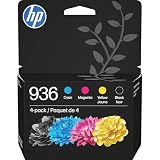
- HP Ink Cartridges are engineered to work with HP printers to provide consistent quality, reliability and value
- Works with these HP Printers: OfficeJet 9122e; HP OfficeJet Pro 9110b, 9125e, 9128e, 9130b, 9135e; OfficeJet Pro Wide Format 9730e
- Cartridge yield (approx.): 1,450 pages black, 800 pages per color
- HP has kept over 2,300 metric tons of plastic out of our world’s oceans to be upcycled into HP Ink cartridges and other everyday products
- Trusted HP Printer Ink Cartridges for every printing need: Perfect for everyday home, office, and small business printing needs — choose HP 936 Ink Cartridges for reliable printing
If the installer offers separate 32-bit and 64-bit packages, choose the package matching the HP application. If the application itself is old, the 32-bit package may be required even on Windows 11 or Windows 10 64-bit.
Fix 5: Update or reinstall the HP printer driver
Time needed: 10 to 25 minutes
A printer driver update will not always restore an application DLL, but a complete HP software package can include the missing photo or imaging components.
Recommended Free Tools
- Right-click Start.
- Select Device Manager.
- Expand Printers, Print queues, and Imaging devices, if present.
- Right-click the affected HP device.
- Select Properties and review the Driver tab.
- Note the printer model and driver provider.
- Return to the HP support page for that exact model.
- Download the complete software and driver package.
- Run the installer as administrator.
- Restart Windows and test the HP program.
Avoid relying only on Update driver in Device Manager. Windows may report that the best driver is already installed while the separate HP photo-printing component remains damaged.
Manually hunting through multiple driver packages can be tedious, especially with older HP devices. Outbyte Driver Updater can scan for outdated drivers and show what needs attention; its full-version installation feature is optional, and reinstalling the HP application remains the definitive fix for this application-specific DLL.
If Device Manager shows a yellow warning icon, resolve that device problem separately. A printer driver problem and a missing HP application DLL can occur together, but they are not the same repair.
Fix 6: Repair Windows components with DISM and SFC
Time needed: 15 to 30 minutes
Use these commands when Windows reports broader file corruption, several programs are failing, or the problem began after an interrupted update or storage problem. They normally repair Windows components, not a deleted HP DLL in Program Files.
- Open Start.
- Type Command Prompt.
- Right-click Command Prompt.
- Select Run as administrator.
- Select Yes if User Account Control appears.
- Run this command:
DISM.exe /Online /Cleanup-Image /RestoreHealth
- Wait for it to finish. Do not close the window if progress pauses.
- Then run:
sfc /scannow
- Wait until verification reaches 100 percent.
- Restart Windows.
- Test the HP application.
Microsoft recommends running DISM before System File Checker. If SFC reports that it repaired files, restart and test again. If it reports that it could not repair everything, repeat the commands only after addressing any pending Windows updates or storage errors.
Repeating repair commands without knowing what changed can make diagnosis frustrating. Outbyte PC Repair can provide a scan showing possible Windows problems, while its repair functions require the full version; for this case, reinstalling the HP package is still the definitive repair for hpi_hlpm.dll.
If DISM and SFC complete successfully but the HP error remains, that result is expected when the missing file belongs to the HP application rather than Windows. Return to Fix 1 or Fix 2.
Fix 7: Check for an orphaned startup entry
Time needed: 5 to 15 minutes
If the error appears immediately after signing in, but you no longer use HP software, Windows may be trying to start an old HP utility that was only partly removed.
Free tools Windows power users keep installed
One-click scans. No signup required.
- Press Ctrl + Shift + Esc to open Task Manager.
- Select Startup apps.
- Look for an HP entry.
- Right-click it and select Open file location, if available.
- Note the executable and its folder.
- Disable the entry only if you recognize it as the obsolete HP program.
- Restart Windows.
You can also check Task Scheduler:
- Open Start and type Task Scheduler.
- Open Task Scheduler.
- Select Task Scheduler Library.
- Look for a task clearly associated with the old HP software.
- Check its Actions tab before disabling it.
- Disable it only when its executable points to the removed HP application.
Do not delete an entry merely because its name contains “HP.” Some entries control printing, scanning, or device notifications that you still need.
Rank #4

- HP Ink Cartridges are engineered to work with HP printers to provide consistent quality, reliability and value
- Works with these HP Printers: DeskJet 1255, 2710e, 2720e, 2721e, 2722, 2722e, 2723e, 2724, 2725, 2732, 2742e, 2752e, 2755, 2755e, 4110e, 4120e, 4121e, 4122e, 4123e, 4130e, 4132e, 4152e, 4155e, 4158e; DeskJet Plus 4122, 4132, 4155
- Works with these HP Printers: ENVY 6010e, 6020e, 6022e, 6030e, 6032e, 6034e, 6050e, 6052e, 6055, 6055e, 6075, 6075e, 6420e, 6422e, 6430e, 6432e, 6450e, 6452e, 6455e, 6458e, 6475e; ENVY Pro 6455, 6458, 6475
- Cartridge yield (approx.): 240 pages
- Trusted HP Printer Ink Cartridges for every printing need: Perfect for everyday home, office, and small business printing needs — choose HP 67XL Ink Cartridges for reliable printing
If the program is no longer needed, uninstalling the complete HP application is cleaner than leaving a disabled startup entry. If you still use the printer, reinstall the complete package instead.
Fix 8: Use compatibility settings for obsolete HP software
Time needed: 5 to 15 minutes
Some legacy HP programs were designed for earlier Windows releases. If reinstalling restores the DLL but the program still will not launch, use Windows compatibility troubleshooting.
- Find the HP application shortcut.
- Right-click it.
- Select Properties.
- Open the Compatibility tab.
- Select Run this program in compatibility mode for.
- Choose an older Windows version only if the application’s original documentation or installer indicates that it requires one.
- Select Apply, then OK.
- Launch the program again.
You can also right-click the application and select Show more options → Troubleshoot compatibility.
Compatibility mode cannot repair a missing file. Use it only after the complete HP package has been installed. If the software remains unreliable on the current Windows version, use a supported HP workflow or a newer application where available.
Do not install unrelated runtimes first
hpi_hlpm.dll is identified as an HP application DLL, not a Microsoft Visual C++ runtime, DirectX component, or Windows system DLL.
Do not begin by installing:
- Visual C++ Redistributable packages
- DirectX
- .NET Framework
- Registry cleaners
- Random driver bundles
A Microsoft runtime may be relevant only if the error separately names a file such as MSVCP*.dll or VCRUNTIME*.dll. Install those packages only from Microsoft’s official documentation and only when the separate error supports that diagnosis.
Windows Features also do not normally restore hpi_hlpm.dll. Enabling optional components such as legacy .NET support will not recreate an HP application file unless another, separately identified program requires that feature.
Quick wins for a faster PC:
Fix the driver behind crashes, sound loss and screen glitchesFind Drivers →Repair Windows errors before they cause bigger problemsFix Now →Does regsvr32 repair hpi_hlpm.dll?
Usually, no.
regsvr32 is used for DLLs that expose the registration entry points required by a specific COM or ActiveX application. Ordinary application libraries are often loaded directly by their executable and do not need registration.
Do not run:
regsvr32 hpi_hlpm.dll
merely because a download page recommends it. If an official HP installer specifically instructs you to register a component, follow that instruction from the correct HP installation directory. Otherwise, reinstall the application instead.
Best Value

- HP Ink Cartridges are engineered to work with HP printers to provide consistent quality, reliability and value
- This cartridge works with: HP OfficeJet 8010, 8010e, 8012e, 8014e, 8015, 8015e, 8018, 8022, 8022e; HP OfficeJet Pro 8020, 8020e, 8024e, 8025, 8025e, 8028, 8028e, 8035, 8035e
- Cartridge yield (approx.): 825 pages
- HP has kept over 2,300 metric tons of plastic out of our world’s oceans to be upcycled into HP Ink cartridges and other everyday products
- Trusted HP Printer Ink Cartridges for every printing need: Perfect for everyday home, office, and small business printing needs — choose HP 910XL Ink Cartridges for reliable printing
Microsoft describes DLL registration as an application-specific operation, not a universal missing-DLL repair.
Common causes of the error
| Likely cause | What usually resolves it |
|---|---|
| Incomplete HP installation | Repair or reinstall the complete HP package |
| HP software removed in pieces | Reinstall the printer or photo suite, or remove the orphaned program |
| Antivirus quarantine | Verify the detection and reinstall from a trusted HP source |
| Wrong architecture or mismatched file | Install the correct package for the HP application |
| Damaged Windows components | Run DISM, then SFC |
| Old software on newer Windows | Reinstall the latest available HP package and test compatibility settings |
| System Restore or backup recovery | Reinstall the affected HP program after the system change |
System Restore can be considered when the failure began immediately after a known change and a suitable restore point exists. Open Start, search for Recovery, select Open System Restore, choose a restore point, and review the affected programs before confirming. System Restore normally affects system settings, installed applications, and system files rather than personal documents.
What’s actually slowing this PC down?
Pick the symptom - the matching free tool is one click away.
Why random DLL downloads are unsafe
Downloading hpi_hlpm.dll from an unknown DLL repository can introduce:
- Malware or a tampered file
- The wrong revision
- The wrong 32-bit or 64-bit architecture
- Missing dependent files
- An unsigned file with no trustworthy origin
- A file that fixes one message while leaving the damaged HP installation unresolved
It can also place the DLL in the wrong directory. The safe source is the complete HP installer for the exact printer or application. If the package is no longer publicly available, use original installation media or contact HP support rather than substituting a standalone file.
FAQ
Is hpi_hlpm.dll part of Windows?
No reliable evidence places it in the standard Windows component inventory. Available evidence associates it with legacy HP printer and photo-imaging software.
Which HP program installed it?
The strongest available association is with HP Photo Printing and related HP Photosmart, HP Image Zone, printer, and imaging packages. The exact HP product version cannot be established reliably from current official documentation.
Crashes, No Sound, or Screen Glitches?
Random freezes, missing sound and display glitches usually trace back to one bad driver. Find and replace yours safely.Free scan · under a minuteWindows Errors? Fix Them Before They Spread
Repair common Windows errors and clear accumulated junk for a smoother, more stable PC - no reinstall needed.Free scan · no reinstallIs the file 32-bit?
Reported metadata identifies it as Win32, or 32-bit. Treat that as reported file metadata rather than a current HP-verified manifest. A 32-bit application may need it even on 64-bit Windows.
Should I copy it to System32 or SysWOW64?
No. Restore it through the owning HP installer so it returns to the application directory with its matching dependencies.
Will reinstalling Visual C++ fix it?
Not as a first response. hpi_hlpm.dll is associated with HP software rather than a Microsoft runtime. Install a runtime only if a separate error specifically identifies one.
Why does the error appear when I no longer use an HP printer?
An old startup entry or scheduled task may still reference the removed HP application. Identify the executable before disabling the entry, and remove the obsolete HP software cleanly.
What if reinstalling HP software produces another missing-DLL error?
The package may be incomplete, blocked by security software, or incompatible with the current Windows version. Check quarantine, use the exact printer package, and test compatibility settings after reinstalling.
What is the correct fix?
Identify the HP application that owns the file, repair it if possible, and otherwise reinstall the complete HP printer or photo-imaging package from its official source.
Quick Recap
Product prices and availability are accurate as of the date/time indicated and are subject to change. Any price and availability information displayed on Amazon at the time of purchase will apply.



