Windows Errors? Fix Them Before They Spread
Repair common Windows errors and clear accumulated junk for a smoother, more stable PC - no reinstall needed.Free scan · no reinstallOutdated Drivers Are Slowing You Down
One free scan finds every outdated or missing driver and matches the right update for your exact hardware.Free scan · exact hardware match“rverb.dll was not found.”
The rverb.dll error usually means a DAW, audio editor, or plug-in scanner cannot load the Waves Renaissance Reverb component named RVerb.
rverb.dll is associated with Renaissance Reverberator from Waves Audio Ltd. It is an application plug-in file, not a normal Windows system DLL. The safest repair is to restore the Waves installation through Waves Central rather than downloading a replacement file.
Which fix applies to you
Use this list to choose the shortest repair path:
- Waves Central does not show Renaissance Reverb as installed: install or repair the product through Waves Central.
- The product is installed but the DAW cannot find it: check the DAW’s plug-in folders, rescan plug-ins, and rebuild its scan cache.
- The error appeared after moving to another computer or reinstalling Windows: install Waves Central, sign in to the correct account, activate the license, and reinstall the product.
- The file disappeared after a security alert: check antivirus quarantine and repair the Waves installation instead of copying a DLL from the internet.
- The file exists but Windows says it is invalid or the entry point is missing: suspect a damaged dependency, incompatible architecture, or duplicate old Waves installation.
- Only one DAW reports the problem: focus on that host’s plug-in format, scan paths, and cache.
- Several unrelated programs also report missing DLLs: check Windows components and Microsoft runtimes after repairing Waves.
- You are looking in
C:WindowsSystem32orC:WindowsSysWOW64: stop there.rverb.dllshould not normally be treated as a Windows file.
Fix 1: Repair Renaissance Reverb through Waves Central
This is the most likely fix because rverb.dll belongs to the Waves product installation.
Check the product and license
- Close the DAW, audio editor, plug-in scanner, and any Waves applications.
- Open the Start menu.
- Type Waves Central.
- Open Waves Central.
- Sign in with the Waves account that owns Renaissance Reverb.
- Open the page showing your installed products, licenses, or products available to install.
- Find Renaissance Reverb or Renaissance Reverberator.
- Check whether it is shown as installed, available to install, or requiring activation.
If the product is not installed, select it and use the install option. If it is installed but the host still reports rverb.dll, use Waves Central’s repair, reinstall, or installation workflow for that product.
Free tools Windows power users keep installed
One-click scans. No signup required.
#1 Best Overall

- Powerful UAFX dual-engine delivers the most authentic mid-'60s American tube combo sound ever placed into a stompbox
- Authentic spring reverb and vibrato modeled from a "golden unit" amp heard on more than 100 classic records
- Includes the world's best speaker cabinet, mic, and room tones derived from the award-winning OX Amp Top Box
- Features "hot rod" amp and speaker mods, plus free additional downloadable speaker cabinets and mics upon product registration
- Bypass cabinet/mic emulations and use in front of your amp for added tonal flavor and overdrive sounds
The exact buttons and product labels can vary between Waves Central releases. Follow the current prompts shown in the application rather than copying a DLL manually.
Reinstall the product cleanly
If repair does not help:
- Close Waves Central.
- Restart Windows.
- Open Waves Central again as an administrator:
- Open Start.
- Search for Waves Central.
- Right-click it.
- Select Run as administrator.
- Sign in to the correct Waves account.
- Remove or uninstall the damaged Renaissance Reverb installation only if Waves Central provides that option.
- Install Renaissance Reverb again through Waves Central.
- Restart Windows after the installation finishes.
- Open the DAW and run a plug-in scan.
Do not choose a random folder merely because it already contains another DLL. Waves products can depend on matching files, licensing information, and a particular plug-in installation structure. Mixing files from different Waves installations can leave the host with an older or incompatible copy.
How to tell whether this worked
The repair is successful when:
- Waves Central shows Renaissance Reverb as installed and licensed.
- The DAW completes its plug-in scan without an
rverb.dllerror. - Renaissance Reverb appears in the Waves plug-in list.
- The plug-in opens in a test project.
If Waves Central cannot install the product, record the exact message. Confirm that you are using the correct Waves account and that the product is still available to that account before moving to Windows repair steps.
Fix 2: Rescan the DAW and remove stale plug-in paths
A correct file can still appear missing when the host scans an obsolete folder, an incomplete migration, or a duplicate Waves installation.
Check the host’s plug-in settings
- Open the DAW or audio application.
- Open its Preferences, Settings, or Options window.
- Find Plug-ins, VST, Audio plug-ins, or Plug-in Manager.
- Review the folders being scanned.
- Look for old or duplicate Waves locations.
- Keep the path used by the current Waves installation.
- Remove stale paths only after confirming that they do not contain products you still use.
- Save the settings.
- Start a full plug-in rescan.
Menu names differ between applications, so do not add a path copied from another computer unless Waves or the DAW documentation specifically requires it.
Rebuild the plug-in cache
If the DAW still shows the old error:
- Close the DAW.
- Reopen its plug-in manager or settings.
- Look for Reset plug-in cache, Clear scan cache, Rescan failed plug-ins, or Full rescan.
- Use the reset or full-rescan function.
- Restart the DAW.
- Create a blank project.
- Insert Renaissance Reverb on an audio track.
Some hosts cache failed plug-ins and will not retry them during a normal startup scan. If the DAW has no visible reset option, use the host’s documented procedure for clearing its plug-in database. Do not delete unrelated application folders.
If only one DAW fails
When Renaissance Reverb works in one host but not another, the Waves installation is probably present. Concentrate on:
- The failing host’s scan paths.
- Whether that host supports the installed Waves plug-in format.
- Its plug-in cache.
- Whether it is running as a different Windows user.
- Whether it is scanning an old duplicate location.
Do not reinstall Windows because one DAW has a stale plug-in scan.
Rank #2

- Desktop controlled plug-in brings classic TC reverb sound to your DAW
- Dedicated desktop interface with intuitive hands-on control
- Huge reverb variety to perfectly suit diverse musical needs - everything from vocals to drums
- Preserves natural characteristics of original source
- Includes custom-built signature presets from your favorite artists
Fix 3: Check 32-bit and 64-bit compatibility
A host cannot directly load a plug-in binary built for the wrong architecture. A 32-bit host cannot directly use a 64-bit plug-in, and a 64-bit host cannot directly use a 32-bit binary without a compatible bridging solution.
Check the host architecture
- Close the DAW.
- Open Start.
- Search for the DAW.
- Right-click its shortcut and select Open file location.
- Right-click the application shortcut or executable.
- Select Properties.
- Open the Details tab if available and review the product information.
- Check the DAW’s About window or official documentation for its 32-bit or 64-bit build.
Do not infer the plug-in architecture from the Windows edition alone. A 64-bit version of Windows can run some 32-bit applications, but that does not make every plug-in combination compatible.
Match the installation
Install the Waves build supported by the host and the current Waves workflow. Avoid these shortcuts:
- Copying
rverb.dllfrom another computer. - Renaming a file to make it appear compatible.
- Putting a 32-bit DLL into a 64-bit plug-in folder.
- Putting a 64-bit DLL into a 32-bit plug-in folder.
- Keeping multiple old Waves folders active in the same scan.
After changing the installation, restart the host and perform a full plug-in rescan.
Fix 4: Check antivirus quarantine
Security software can quarantine a plug-in file after an update, migration, or scan.
Review protection history
- Open Windows Security from the Start menu.
- Select Virus & threat protection.
- Select Protection history.
- Search for an event involving
rverb.dll, Waves, or the DAW. - Read the detection name and file path.
- Do not restore the file automatically.
- If the detection is confirmed to be a false positive, use the security product’s controlled restore option.
- Repair or reinstall Renaissance Reverb through Waves Central afterward.
- Run another scan.
If you use third-party antivirus software, open its quarantine or protection-history screen instead.
Do not disable antivirus permanently. Do not add the entire Windows directory or an entire drive to exclusions. If an exclusion is genuinely needed during troubleshooting, keep it narrow, temporary, and limited to the verified Waves installation location.
What success looks like
After a legitimate restore and Waves repair:
- The security event no longer removes the file.
- Waves Central reports the product correctly.
- The DAW can scan and load Renaissance Reverb.
If the same file is quarantined repeatedly, preserve the detection details and contact Waves Support and the security vendor. Repeatedly restoring an unverified DLL is not a safe repair.
The Tool Desk
Outbyte PC Repair FREEClear out junk files and repair common Windows errorsFree Scan →Outbyte Driver Updater FREEScan for outdated or missing drivers - takes under a minuteDriver Scan →Rank #3

- Portable Silent Practice Solution: Carry-on/bedroom guitar effects with headphone amplifier for silent practicing; enables musicians to practice at any time without disturbing others through headphone-only output
- Classic Tweed Amp Tone & Built-In Reverb Effects : This mini headphone guitar amplifier features built-in reverb effects adding additional sonic dimensions to the overall tone; Classic tweed amp clean and overdrive tone tastes, delivering that light fuzzy, edge of break-up sound
- Enhanced Connectivity Options: Headphone splitter and 1/8'' auxiliary cable included, offering more possibilities for a variety of uses; features 1/8 inch AUX input allowing you to play along with your favorite backing tracks during practice or pre-show warm-up
- Playing Anytime: Supports USB charging with included USB charging cable for 5 hours of continuous operation, allowing you to play anytime without batteries
- Compact and Lightweight Design: Space-saving amplifier design allows for easy portability and convenient storage in gig bags or backpacks
Fix 5: Separate a missing file from a missing dependency
The message may name rverb.dll even when another module is the real problem.
These errors point to different possibilities:
- “rverb.dll was not found” usually indicates a missing file or an incorrect plug-in path.
- “The specified module could not be found” can mean a dependency used by the plug-in is missing.
- “The procedure entry point could not be located” often indicates mismatched versions.
- “Not designed to run on Windows” can indicate corruption or incompatibility. It does not prove that Windows itself is damaged.
- A scan failure with no Windows dialog may be a host-format or plug-in-cache problem.
Do not install the Microsoft Visual C++ Redistributable merely because the filename ends in .dll. Use it when the host or Waves documentation identifies a missing Microsoft runtime, or when a repaired Waves installation still fails with a dependency-related message.
If evidence points to a missing Microsoft runtime:
- Open Microsoft’s official Visual C++ Redistributable downloads page.
- Read the supported package information.
- Download the package appropriate for the application architecture.
- Run the installer.
- Choose Repair if that option is offered, or complete the installation.
- Restart Windows.
- Rescan plug-ins in the DAW.
If Renaissance Reverb remains broken, return to Waves Central. A runtime repair does not replace the Waves product.
Fix 6: Update the audio host and its drivers only when evidence points there
An audio driver normally does not supply rverb.dll, so Device Manager is not the first place to repair this file. It becomes relevant if the DAW itself crashes, cannot initialize audio, or fails with multiple plug-ins after a Windows change.
Check audio devices in Device Manager
- Right-click the Start button.
- Select Device Manager.
- Expand Sound, video and game controllers.
- Right-click the audio interface or sound device used by the DAW.
- Select Properties.
- Open the Driver tab.
- Review the provider, date, and status.
- Use Update Driver only when you have a known compatible driver source.
- Restart Windows.
- Test the DAW again.
Do not uninstall a working audio interface driver as a first response to rverb.dll. If the driver is removed, Windows may switch the DAW to a different audio device and create a second problem.
Manually identifying the correct driver can mean checking the hardware model, Windows architecture, vendor package, and rollback option. Outbyte Driver Updater can scan for outdated drivers and show what it finds; its full version performs the driver installation, but reinstalling Renaissance Reverb through Waves Central remains the definitive fix for this application file.
Fix 7: Repair Windows components when other evidence supports it
Use Windows component repair when several unrelated applications have damaged-file errors, Windows Update is failing, or system tools report corruption. SFC and DISM do not normally reinstall rverb.dll, because it is not a Windows component.
Run DISM
- Open Start.
- Type Command Prompt.
- Right-click Command Prompt.
- Select Run as administrator.
- Select Yes at the User Account Control prompt.
- Run:
DISM /Online /Cleanup-Image /RestoreHealth
- Wait for the command to finish.
- Restart Windows.
Do not close the window merely because progress appears to pause. DISM may take time to complete.
Do these 3 things before closing this tab:
1Clear out junk files and repair common Windows errors2Scan for outdated or missing drivers - takes under a minute3Repair Windows errors before they cause bigger problemsRun System File Checker
After restarting:
- Open Command Prompt as administrator again.
- Run:
sfc /scannow
- Wait until verification reaches 100 percent.
- Read the final result.
- Restart Windows if repairs were made.
- Reinstall or repair Renaissance Reverb through Waves Central.
- Rescan the DAW.
If SFC reports that it found no integrity violations, Windows may be healthy and the problem remains specific to Waves, the host, or a dependency. If it reports files that could not be repaired, run DISM again, restart, and repeat SFC once. Keep the result text for support.
Rank #4

- Controls: Decay, Tone, Mix
- Modes: Hall, Spring, Plate
- Power Requirements: 100mA minimum
Repeating SFC and DISM without knowing what changed can waste time while leaving the Waves installation untouched. Outbyte PC Repair can scan for system issues and show what it identifies; repairs require the full version, and it is not a substitute for reinstalling the Waves product that owns rverb.dll.
Fix 8: Do not register rverb.dll with regsvr32
regsvr32 is intended for registering compatible COM or ActiveX libraries. Audio plug-in DLLs are not automatically repaired by registering them, and many do not support COM registration.
Do not run:
regsvr32 rverb.dll
unless Waves has specifically instructed you to do so for your exact product and version.
Recommended Free Tools
A registration error does not prove that rverb.dll is missing or damaged. It may simply mean that the plug-in is not a self-registering library. Microsoft’s regsvr32 documentation explains the command’s purpose and syntax.
For this file, Waves Central repair, host rescan, architecture matching, and dependency checks are more appropriate.
Fix 9: Check for duplicate or migrated Waves installations
Migration tools and manual backups can leave a host pointing to an old copy.
- Open the DAW’s plug-in settings.
- List every Waves-related scan path.
- Note the path that produces the error.
- Check whether Waves Central currently uses that location.
- Do not delete files immediately.
- Remove the obsolete scan path from the DAW.
- Repair Renaissance Reverb through Waves Central.
- Run a full plug-in rescan.
The exact installation location can vary by Waves generation, host format, installation choices, and Windows setup. Do not treat a path found in an online forum as universal.
What’s actually slowing this PC down?
Pick the symptom - the matching free tool is one click away.
Prevention after the repair
Once Renaissance Reverb loads correctly:
- Keep Waves products managed through Waves Central.
- Use the same Waves account when moving to another computer.
- Do not copy individual DLLs between systems.
- Keep a record of the DAW’s active plug-in scan paths.
- Remove obsolete scan locations after confirming the current installation works.
- Check antivirus quarantine before restoring a missing file.
- Keep the DAW and audio interface driver compatible with the Waves installation.
- Create a backup of projects and licensing information before major Windows migrations.
- Avoid installing multiple unrelated copies of the same Waves product.
When to contact Waves Support
Contact Waves when Waves Central cannot install or activate Renaissance Reverb, or when the host continues to reject a freshly repaired installation.
Include:
- The exact error text.
- Windows 10 or Windows 11 edition.
- DAW name and version.
- Whether the host is 32-bit or 64-bit.
- The plug-in format being scanned.
- Waves Central’s installation and license status.
- The full path reported by the host.
- Antivirus quarantine details.
- The DAW’s plug-in scan log.
- Whether the problem affects one DAW or every host.
Do not send a downloaded replacement DLL as evidence. The installation path, host architecture, and scan log are more useful than an isolated file.
Best Value
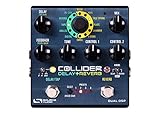
- Two legendary effects in one — the acclaimed Nemesis Delay and Ventris Dual Reverb fused into a single, stage-ready pedal
- Seven reverbs and five delays running on two independent processors — mix and match any pairing into one beautiful, layered sound
- From tight, rhythmic delays to deep, spacious reverbs, shape rich textures that add depth and dimension to your playing
- Dual footswitches for independent control of each effect — built for the demands of live performance
- Create and save your own presets, or explore an ever-growing library of community sounds through the free Neuro Editor
FAQ
Is rverb.dll a Windows system file?
No evidence indicates that it ships with Windows. It is associated with RVerb, part of Waves Renaissance Reverberator or Renaissance Reverb. It should not normally be expected in C:WindowsSystem32 or C:WindowsSysWOW64.
Which program installs rverb.dll?
The file is associated with Renaissance Reverberator from Waves Audio Ltd. Confirm the exact product and installed generation in Waves Central because product names, packages, and compatibility details can vary.
Quick wins for a faster PC:
Clear out junk files and repair common Windows errorsFree Scan →Fix the driver behind crashes, sound loss and screen glitchesFind Drivers →Can I download rverb.dll from a DLL website?
Do not do that. A random file may contain malware, belong to the wrong Waves version, use the wrong architecture, or lack the related dependencies and licensing installation. Repair the product through Waves Central instead.
Why does a DAW report the file when it is present?
The host may be scanning an obsolete duplicate, using an incompatible architecture, rejecting a damaged binary, or unable to load a dependency. A present file is not automatically a usable file.
Will Visual C++ Redistributable fix the problem?
Only if the error identifies a missing Microsoft runtime or dependency. It does not replace Renaissance Reverb and should not be assumed to be the cause.
Should I run regsvr32?
Usually no. Audio plug-in DLLs are not automatically fixed through COM registration. Use Waves Central and the DAW’s plug-in scan tools unless Waves gives product-specific instructions.
Will SFC or DISM restore rverb.dll?
Normally no. They repair Windows components. Use them when broader Windows corruption is indicated, then repair Renaissance Reverb separately through Waves Central.
Why does the problem happen in one DAW only?
That usually points to the host’s scan path, cache, architecture, user profile, or plug-in format. Check that DAW before changing Windows system files.
What is the final confirmation?
Waves Central should show Renaissance Reverb installed and licensed, the DAW should complete its scan without the error, and RVerb should load successfully in a blank test project.
Quick Recap
Product prices and availability are accurate as of the date/time indicated and are subject to change. Any price and availability information displayed on Amazon at the time of purchase will apply.



