Quick wins for a faster PC:
Clear out junk files and repair common Windows errorsFree Scan →Fix the driver behind crashes, sound loss and screen glitchesFind Drivers →Repair Windows errors before they cause bigger problemsFix Now →If Avowed crashes, freezes, closes to desktop, or stutters on Windows PC, work through the fixes below in order. Start with the reversible steps: update the game, restart Windows, update or clean-install your graphics driver, verify the installation, and install Windows updates. Then check unstable hardware settings, temperatures, Intel BIOS firmware, and the graphics features Obsidian specifically identifies as possible stability triggers.
Do not use DirectX 11 launch commands. Avowed does not support launching with DirectX 11, and Obsidian warns that unsupported workarounds can create additional problems. (Patch 1.2.4 notes)
As an Amazon Associate I earn from qualifying purchases.
First, update Avowed and restart your PC
- Close Avowed.
- Open Steam, the Xbox app for Windows, or your other PC storefront and allow all pending game updates to install.
- Restart Windows.
- Launch Avowed once before changing additional settings.
Avowed has received fixes involving crashes, GPU stability, shader compilation, frame generation, and performance. The latest official patch I could verify is Patch 2.1, released March 25, 2026; it included fixes for DLSS and XeSS Frame Generation behavior and a terrain-shader issue. That does not mean every PC crash or stutter has been resolved, so check the launcher for the build currently available in your region. (Obsidian’s Patch 2.1 announcement)
The Tool Desk
Outbyte PC Repair FREERepair Windows errors before they cause bigger problemsFix Now →Outbyte Driver Updater FREEFix the driver behind crashes, sound loss and screen glitchesFind Drivers →Check whether your PC meets Avowed’s requirements
Obsidian lists these Windows PC requirements:
| Requirement | Minimum | Recommended |
|---|---|---|
| Operating system | Updated 64-bit Windows 10/11 | Updated 64-bit Windows 10/11 |
| CPU | AMD Ryzen 5 2600 / Intel Core i5-8400 | AMD Ryzen 5 5600X / Intel Core i7-10700K |
| Memory | 16 GB RAM | 16 GB RAM |
| GPU | AMD Radeon RX 5700 / NVIDIA GeForce GTX 1070 / Intel Arc A580 | AMD Radeon RX 6800 XT / NVIDIA GeForce RTX 3080 |
| DirectX | Version 12 | Version 12 |
| Storage | 75 GB available | 75 GB available |
Meeting the minimum specification is not a promise of high settings, high resolution, or a locked frame rate. A computer can meet the listed requirements and still crash because of unstable memory settings, outdated BIOS firmware, driver problems, overheating, damaged files, or a game-specific bug. (Avowed’s official system requirements)
#1 Best Overall

- System: Intel Core i5-14400F 2.5GHz 10 Cores | Intel B760 Chipset | 16GB DDR5 | 2TB PCIe 4.0 NVMe SSD | Windows 11 Home
- Graphics: NVIDIA GeForce RTX 5060 Ti 8GB Graphics | 1x HDMI | 2x DisplayPort
- Connectivity: 2 x USB-C 3.2 | 3 x USB-A 3.2 | 4 x USB-A 2.0 | 1 x LAN | WiFi 6 | Bluetooth 5.3 | 7.1 Channel Audio
- Tempered Side Case Panel | Custom RGB Lighting | Keyboard and Mouse
- 1 Year Parts & Labor Warranty, Free Lifetime Tech Support
Update the graphics driver
Install the current driver offered by NVIDIA, AMD, or Intel for your exact GPU and Windows version. Avoid random third-party driver-download sites.
- Install the appropriate driver.
- Restart Windows.
- Test Avowed with default driver-control-panel settings.
If the crashes began immediately after a driver update, reinstall that driver using the manufacturer’s clean installation option, where available. Do not simultaneously change driver profiles, overclocking settings, overlays, and in-game graphics options; changing one variable at a time makes the cause easier to identify. Obsidian specifically recommends updating the GPU driver and using a clean install if necessary. (Obsidian’s crash troubleshooting guide)
Verify or repair Avowed’s files
Steam
- Open Steam and go to Library.
- Right-click Avowed and select Properties.
- Open Installed Files.
- Select Verify integrity of game files.
- Allow Steam to replace or redownload damaged files.
- Restart Steam and launch the game.
Steam’s client wording can change slightly between versions. Its Avowed technical-support page is also available if verification does not help.
Xbox app for Windows
- Open the Xbox app for Windows.
- Open My Library and select Avowed.
- Click the three-dot menu and choose Manage.
- Open the Files tab.
- Select Check for updates.
- If no update is available, choose Verify and Repair.
- Launch Avowed again.
If repair fails, update the Xbox app and Windows before reinstalling the game. Xbox-app installations can have different permission and file-management problems from Steam installations. (Obsidian’s official repair instructions)
If Avowed crashes before reaching the menu
When you cannot open the graphics menu, add Obsidian’s launch option:
-noraytracingOn Steam, open Library, right-click Avowed, select Properties, and enter the command in Launch Options. The equivalent setting may be available in another storefront’s game-management interface.
Rank #2

- Welcome to the Living Lands, a mysterious island filled with adventure and danger.
- Set in the fictional world of Eora that was first introduced to players in the Pillars of Eternity franchise, Avowed is a first-person fantasy action RPG from the award-winning team at Obsidian Entertainment.
- Explore an island home to many different environments and landscapes, each with their own unique ecosystem
- Mix and match swords, spells, guns, and shields to fight your way
- Companions from a spread of species will fight alongside you, with their own unique set of abilities.
This is a diagnostic workaround, not a guarantee. If Avowed starts, turn Ray Tracing off through Settings > Graphics, then test the game normally. Remove the launch option later if it does not help.
Obsidian also recommends temporarily disabling Upscaling and NVIDIA Reflex Low Latency. If the game still fails to launch, remove mods, ReShade, DLL injectors, custom configuration files, and third-party overlays before testing again. Then verify the game files and perform a clean GPU-driver installation if you have not already done so.
If Avowed crashes during play
Return hardware settings to stock
Temporarily disable CPU and GPU overclocks, undervolts, aggressive power-limit profiles, and memory profiles that may be unstable. This includes settings or utilities associated with MSI Afterburner, Intel Extreme Tuning Utility, AMD EXPO, and AMD Ryzen Master.
- Restore CPU, GPU, RAM, and motherboard settings to stable defaults.
- Check that case intakes and exhausts are unobstructed.
- Clean dust from filters, fans, and heatsinks.
- Monitor CPU and GPU temperatures while reproducing the crash.
There is no universal “safe” temperature number for every processor and graphics card. Use the limits and monitoring guidance for your exact hardware. If the entire computer reboots, locks up, or reports a hardware error, investigate power delivery, memory stability, and cooling rather than treating the problem as only an Avowed file issue.
Check BIOS firmware on 13th- and 14th-generation Intel systems
Obsidian advises owners of 13th- and 14th-generation Intel CPUs to update their motherboard or prebuilt-PC BIOS. Its guidance tells advanced users to confirm that the BIOS includes Intel microcode 0x12B or later.
Rank #3
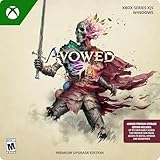
- Requires base game, Game Pass Ultimate, or PC Game Pass Membership (Sold Separately)
- Premium Upgrade includes: Premium Skin Packs: 2 sets of bonus skins for your companions, and access to Avowed Digital Artbook & Original Soundtrack
- Set in the fictional world of Eora that was first introduced to players in the Pillars of Eternity franchise, Avowed is a first-person fantasy action RPG from the award-winning team at Obsidian Entertainment.
- Explore an island home to many different environments and landscapes, each with their own unique ecosystem.
- Mix and match swords, spells, guns, and shields to fight your way.
- Identify the processor in Start > Settings > System > About.
- If it is a 13th- or 14th-generation Intel CPU, identify the exact motherboard or prebuilt-PC model.
- Download BIOS firmware only from the motherboard or system manufacturer.
- Follow that manufacturer’s flashing instructions exactly.
- Afterward, use stable/default BIOS settings if instability continues.
Not every Avowed crash on an Intel system is caused by the CPU or BIOS. If you are uncomfortable updating firmware, use the manufacturer’s support service. Obsidian also points to the Intel Processor Diagnostic Tool; broader instability or a failed diagnostic should be handled as a hardware-support issue.
Reduce the graphics features Obsidian identifies
If Avowed reaches the menu, open Settings > Graphics and temporarily:
- Turn Ray Tracing off.
- Turn Upscaling off.
- Turn NVIDIA Reflex Low Latency off.
- Apply the changes, exit the game completely, and relaunch it.
These are stability tests. They may help, but they are not required permanent settings for every PC. Re-enable features one at a time only after the game is stable.
Recommended Free Tools
If Avowed is stuttering or freezing during shader compilation
Not every hitch has the same cause:
- Shader-compilation stutter: brief hitches while the game builds or validates shaders.
- CPU or GPU bottleneck: sustained low performance because a component is saturated.
- Streaming stutter: frame-time spikes while world assets load.
- Cache or driver corruption: performance that worsens after a driver or game update.
- Patch regression: a new problem that appears after an update on otherwise unchanged hardware.
Let the initial shader-compilation process finish instead of repeatedly force-closing the game. Restart Windows after changing drivers. Patch 1.4 included a change limiting CPU utilization during shader compilation, while Patch 1.5 addressed issues that could lead to GPU crashes. These changes show why updating the game matters, but they do not prove that one setting will eliminate every stutter. (Patch 1.4 notes; Patch 1.5 notes)
Test frame generation and frame pacing
Disable frame generation temporarily, then test again. Also try:
- Disabling overlays such as Steam Overlay, Xbox Game Bar, Discord, and GPU recording or performance overlays.
- Switching between borderless and windowed or exclusive fullscreen modes, if available.
- Using a sensible frame cap instead of leaving the game completely uncapped.
- Checking that Windows and the monitor are using the intended refresh rate.
- Testing Ray Tracing and Upscaling separately rather than changing every graphics option at once.
These are controlled PC troubleshooting tests, not confirmed universal causes. Patch 2.1 specifically fixed incorrect frame-limit behavior with DLSS Frame Generation and XeSS Frame Generation.
Rank #4

- Premium Edition includes: Avowed base game, Premium Skin Packs: 2 sets of bonus skins for each of your companions, and access to Avowed Digital Artbook & Original Soundtrack
- Set in the fictional world of Eora that was first introduced to players in the Pillars of Eternity franchise, Avowed is a first-person fantasy action RPG from the award-winning team at Obsidian Entertainment.
- Explore an island home to many different environments and landscapes, each with their own unique ecosystem.
- Mix and match swords, spells, guns, and shields to fight your way.
- Companions from a spread of species will fight alongside you, with their own unique set of abilities.
Clear the shader cache only as a later test
Some players reported improved performance after clearing the shader cache following Patch 1.5, but that is not evidence of a universal fix. Clearing it can force Avowed to rebuild shaders and temporarily make stuttering worse. Patch 2.1 also addressed a terrain-shader problem that could appear after clearing the cache. (Obsidian community discussion)
What’s actually slowing this PC down?
Pick the symptom - the matching free tool is one click away.
Try this only after updating the game and driver, verifying files, and reducing the relevant graphics features. Use the GPU manufacturer’s current documentation for the exact cache-clearing procedure for your driver and Windows version; cache locations vary, so do not delete a guessed folder. Restart Windows afterward and allow shader compilation to complete.
Independent reader supportYour contribution helps us test, update, and keep practical guides available for everyone.Remove mods and third-party utilities
Before concluding that the base game is unstable, test with:
- No mods or ReShade.
- No DLL injectors or manually edited engine configuration files.
- No hardware-monitoring or recording overlays.
- No overclocking or undervolting utilities actively applying profiles.
Restore the game configuration to default if you edited it, verify the files, and launch Avowed with only the official game and graphics driver enabled. Do not assume a particular mod is responsible unless its compatibility with your current game version has been established.
When the problem is probably an Avowed bug
Stop repeating generic PC fixes and report the issue when:
- The crash always happens at the same scripted event, location, ability, menu, or save.
- The problem began immediately after a particular game update.
- Other demanding applications are stable on the same computer.
- File verification, driver testing, stock hardware settings, and a clean launch do not change the behavior.
- Other players are reporting the same regression.
A reproducible crash tied to one save or event may not be fixable through graphics settings. Lowering quality or deleting a cache cannot guarantee a fix for a game-side defect.
Send Obsidian useful diagnostic information
When the steps above fail, include evidence rather than sending only “the game crashes.” Obsidian asks for a short description, screenshots or a video clip, reproduction steps, a save file from before the issue, system specifications, and a dxdiag report. (Avowed bug-report instructions)
Create a dxdiag report
- Press Windows key + R.
- Type
dxdiagand press Enter. - Select Save All Information.
- Review the saved report before sharing it. It may contain your computer name and possibly your Windows username.
- Attach the report, reproduction steps, relevant save, and screenshots or video to the support ticket or requested email.
Also record the game version if shown by your launcher, GPU driver version, when the issue began, and whether the same save worked before a game or driver update.
Quick Recap
Quick-reference checklist
- Update Avowed and restart the PC.
- Confirm the system meets the requirements and has 75 GB available.
- Update or clean-install the GPU driver.
- Verify Steam files or use Xbox app Manage > Files > Verify and Repair.
- Install Windows updates and restart.
- Remove overclocks, undervolts, mods, and overlays.
- Check temperatures, airflow, and system stability.
- Update BIOS on affected 13th- and 14th-generation Intel systems; use the exact manufacturer firmware.
- Disable Ray Tracing, Upscaling, Reflex, and frame generation as controlled tests.
- If the game cannot reach the menu, try
-noraytracing. - Consider shader-cache clearing only after the basic steps, and expect rebuilding stutter.
- Report a reproducible bug to Obsidian with clips, steps, saves, specifications, and
dxdiag.
Product prices and availability are accurate as of the date/time indicated and are subject to change. Any price and availability information displayed on Amazon at the time of purchase will apply.
Do these 3 things before closing this tab:
1Clear out junk files and repair common Windows errors2Scan for outdated or missing drivers - takes under a minute3Repair Windows errors before they cause bigger problems



