Yes. An unmodified Sega Dreamcast can output native 480p through its 31-kHz VGA mode, usually as a 640×480 progressive image. But VGA is not supported by every game, and a VGA cable or HDMI adapter does not automatically work with the entire library.
What 480p means on Dreamcast
480p means progressive video: the display draws the image as a full frame rather than alternating the lines as 480i does. The Dreamcast can output 480i, 480p, and, in some games, 240p. For standard commercial games, 480p is normally delivered through the console’s 31-kHz VGA mode. ConsoleMods’ Dreamcast video-output notes describe VGA output as generally a 640×480 progressive active image.
| # | Preview | Product | Price | |
|---|---|---|---|---|
| 1 |
|
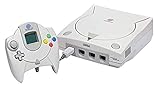
Sega Dreamcast Console (Renewed) | $207.95 | Buy on Amazon |
| 2 |

|
Sega Dreamcast Console - Model HKT-3020 | $209.98 | Buy on Amazon |
| 3 |
|
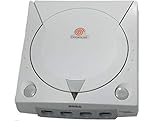
Sega Dreamcast White Console System | $199.98 | Buy on Amazon |
| 4 |
|
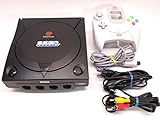
Sega Dreamcast System - Video Game Console (Black Sega Sports Edition) (Renewed) | Buy on Amazon |
That 640×480 description refers to the active picture, not a guarantee that every display samples the analog signal identically. Dreamcast VGA timing can be awkward for some converters and televisions, leading to a picture that looks soft, cropped, or too wide or narrow. A display or scaler may also upscale the signal to 720p, 1080p, or 4K; that is processing after the Dreamcast, not the game’s native resolution.
- 480i: Interlaced video commonly associated with composite, S-Video, and 15-kHz RGB connections.
- 480p: Progressive video normally provided by the Dreamcast’s 31-kHz VGA mode.
- 240p: A distinct low-resolution progressive-style mode used by a small number of games.
Does every Dreamcast game support 480p?
No. Many Dreamcast games support VGA/480p, but a minority do not and may refuse to boot or show a usable picture when the console starts in VGA mode. Compatibility varies by title and can also differ by regional release, game revision, and whether a patch or forced-VGA option is in use. There is no single safe compatibility percentage without defining the game list and those variables.
#1 Best Overall
- Contains: Gray Dreamcast unit, modem, controller, power cable, and stereo a/v cable.
A VGA-only cable or converter cannot display a game that is outputting a 15-kHz mode it does not accept. Symptoms include a black screen, an out-of-range message, or audio with no picture. The Beharbros VGA-box manual distinguishes 15-kHz RGB/480i from 31-kHz VGA/480p and warns that some games reject VGA at boot. Technical documentation commonly describes 480i support as broad, but individual game and regional behavior should not be assumed identical.
What you need to connect the Dreamcast in 480p
The console’s ordinary composite cable does not provide VGA. Use a Dreamcast VGA cable or VGA box, a VGA-capable HDMI adapter, a scaler with a compatible RGBHV/VGA input, or an internal HDMI modification. VGA carries video, not audio, so an analog VGA setup also needs a separate stereo-audio connection. See the Dreamcast.wiki modern A/V guide for an overview of connection types.
- Turn off the Dreamcast and display, then connect the VGA cable or box to the Dreamcast’s AV port.
- Connect VGA video to a compatible monitor, scaler, or VGA-to-HDMI converter. Conversion must be VGA-to-HDMI; an HDMI-to-VGA device works in the opposite direction.
- Connect stereo audio separately using the accessory’s RCA or 3.5-mm audio outputs, unless the adapter combines audio into HDMI.
- If the accessory has a mode switch, select VGA for 31-kHz 480p. Use a switchable 15-kHz/RGB mode for titles that do not support VGA.
- Power on and set the display or scaler to 4:3 unless the device handles the aspect ratio for you. Test with a known VGA-compatible game.
Some televisions still have a native VGA input, but many modern TVs do not. Even when using an HDMI adapter, check that it accepts the Dreamcast’s particular VGA timing; a generic HDMI cable cannot perform analog-to-digital conversion.
Choosing a connection for your setup
| Option | 480p | Non-VGA games | Audio | Best suited to |
|---|---|---|---|---|
| VGA cable | Yes | Usually not, unless the display supports the game’s other mode | Separate connection usually needed | Low-cost setup, compatible display, or CRT VGA monitor |
| Switchable VGA box | Yes | Can switch to 15-kHz RGB for broader compatibility | Separate connection usually needed | Original-style analog setup with mode choice |
| VGA-only HDMI adapter | Yes | Usually not | Often combined into HDMI | Simple HDMI connection for VGA-compatible games |
| RGB/VGA HDMI adapter | Yes | Potentially broader; verify the maker’s claim | Usually combined into HDMI | One-box convenience across more video modes |
| Dedicated scaler | Yes, with compatible input | Depends on the scaler’s inputs and signal support | Depends on setup | Adjustable sampling, cropping, scaling, and use with other retro systems |
| Internal HDMI modification | Yes, with flexible digital output | Depends on firmware and game | Digital output | Permanent premium installation |
Simple HDMI connection
A Dreamcast HDMI adapter is the least complicated route to a modern TV, but adapters are not interchangeable in what they accept. Some take VGA/480p only; others also accept 15-kHz RGBS. The Kaico adapter manual, for example, claims support for NTSC 480i and 480p and PAL 576i and 576p, with VGA/RGBS and 4:3/16:9 switches. That is the manufacturer’s specification, not independent confirmation that every title works. Kaico’s manual provides its stated modes and switch guidance.
What’s actually slowing this PC down?
Pick the symptom - the matching free tool is one click away.
Using a scaler you already own
If you have a scaler with a compatible HD15/RGBHV input, a suitable Dreamcast-to-HD15 connection may be enough. RetroTINK describes its Dreamcast HD15 dongle as a 480p pass-through accessory, not an upscaler; it is intended for compatible scalers rather than VGA CRT use, and the product page notes that a small selection of games may need a patch to boot. Its listed price was $19.99 when checked on August 18, 2026, and can change.
A dedicated scaler gives more control over sampling, cropping, and aspect ratio, which can help with geometry or softness. RetroTINK lists the RetroTINK-4K CE at $475 when checked on August 18, 2026; it accepts multiple signal types and offers configurable scaling and aspect-ratio correction. That is an enthusiast option, not a necessary purchase just to connect one Dreamcast.
Rank #3
- almost zero scratches, keeping very well.
Switchable boxes and internal modifications
A switchable VGA box can provide 31-kHz VGA for compatible games and 15-kHz RGB for games that require it. The documented Beharbros design supports that mode selection, but a box does not make every game compatible with VGA; its manual describes the modes and boot limitation.
An internal HDMI modification can provide a permanent digital connection and flexible scaling, but it involves opening and modifying the console and may require delicate soldering or a specialist installer. See the Dreamcast.wiki overview for the broader context and PixelFX’s RetroGEM reference for one mod category. Exact current pricing and installation availability are not established here.
Outdated Drivers Are Slowing You Down
One free scan finds every outdated or missing driver and matches the right update for your exact hardware.Free scan · exact hardware matchPC Slower Than It Used to Be?
A free scan shows the junk files, broken settings and background clutter dragging Windows down - then fixes them in one click.Free scan · Windows 10 & 11What to try when the picture fails or looks wrong
Black screen or out-of-range signal
- Turn the console off and try a known VGA-compatible game to separate a game-compatibility issue from a cabling or display issue.
- If that works, use a switchable 15-kHz/RGB mode or an adapter that accepts both VGA and RGBS for the problem title.
- Check that the converter is VGA-to-HDMI, that the display accepts the signal timing, and that the connectors are seated properly.
- Try a different compatible scaler or display if possible. Avoid changing modes while powered unless the accessory maker explicitly supports it.
Audio but no video
Check whether the game supports VGA, whether the converter accepts RGBHV at the Dreamcast’s timing, and whether the cable’s sync connection is intact. Audio can work even when the display path rejects the video signal.
Soft, cropped, or stretched image
Set the screen to 4:3 first. If geometry or sharpness remains wrong, the converter may be sampling or scaling the signal poorly; a scaler with horizontal sampling and crop controls offers more adjustment than a basic converter. A 480p label alone does not guarantee correct image proportions.
Can you force a non-VGA game into 480p?
Sometimes, using a boot-time mode switch, a game patch, cheat code, optical-drive emulator setting, or an HDMI modification’s forced-VGA option. These are title-specific workarounds, not universal fixes: a game may still fail, lose sync, or render incorrectly. The Beharbros manual describes a switching technique while warning that some games remain incompatible. Use a patch or forced mode only when it is documented for the particular game and setup.
Is 480p the Dreamcast’s maximum resolution?
For ordinary official Dreamcast games, 480p is the practical high-resolution mode. The Dreamcast is not a native 720p, 1080i, or 1080p console. A TV or scaler can upscale its output, and homebrew or specialized modifications may produce unusual modes, but neither changes the native resolution of a standard game. ConsoleMods’ video-output notes document the console’s ordinary modes.
Quick wins for a faster PC:
Scan for outdated or missing drivers - takes under a minuteDriver Scan →Repair Windows errors before they cause bigger problemsFix Now →Quick Recap
Product prices and availability are accurate as of the date/time indicated and are subject to change. Any price and availability information displayed on Amazon at the time of purchase will apply.




