Do these 3 things before closing this tab:
1Clear out junk files and repair common Windows errors2Fix the driver behind crashes, sound loss and screen glitches3Repair Windows errors before they cause bigger problemsIf your Intel Core i9-13900K is crashing in games, update the exact motherboard BIOS to microcode 0x12F or later, load Intel Default Settings, disable manual tuning, and retest. BIOS settings can contribute to Intel’s documented 13th- and 14th-generation instability, but persistent crashes may also involve graphics, memory, thermals, power, storage, or software.
The i9-13900K is covered by Intel’s guidance for affected 13th-generation desktop processors. The safest diagnostic baseline is current firmware and stock Intel-recommended settings; only after that baseline is stable should performance profiles be reintroduced.
As an Amazon Associate I earn from qualifying purchases.
Key takeaways
- The Core i9-13900K is part of Intel’s 13th-generation desktop processor family covered by Intel’s instability guidance.
- Intel’s current first-line mitigation is a motherboard BIOS containing microcode 0x12F or later, combined with the relevant Intel Default Settings.
- Microcode arrives through a motherboard or system BIOS update, not an ordinary Windows update.
- Manual overclocking, automatic motherboard power behavior, elevated voltage requests, XMP, thermals, memory faults, graphics drivers, and software can all affect game stability.
- A BIOS update can reduce future risk but cannot prove that an already unstable or degraded processor has been restored.
- Intel’s warranty policy names the i9-13900K among eligible processors for a two-year extended limited warranty, potentially providing up to five years of coverage from original purchase when eligibility conditions are met.
Why does my Intel Core i9-13900K crash in games?
An Intel Core i9-13900K may crash in games because of the documented 13th- and 14th-generation desktop processor instability issue, but a game crash alone does not prove that the CPU is defective. BIOS power and voltage behavior is one important possibility; graphics drivers, unstable memory, excessive temperatures, power delivery, storage errors, and ordinary game or Windows problems remain possible causes.
Intel’s current recommendation is to update the exact motherboard BIOS to a release containing microcode 0x12F or later, then use the relevant Intel Default Settings. Intel’s official Vmin Shift Instability support guidance says: “Intel recommends that users adhere to the relevant Intel Default Settings in BIOS and ensure that their systems are running the latest BIOS version containing Microcode 0x12F or later.”
#1 Best Overall
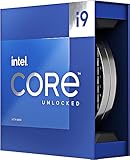
- Stream, create, and compete at the highest levels with industry leading features and the latest hybrid architecture
- 24 cores (8 P-cores + 16 E-cores) and 32 threads
- Up to 5.8 GHz unlocked. 36MB Cache
- Integrated Intel UHD Graphics 770 included
- Compatible with Intel 600 series (might need BIOS update) and 700 series chipset-based motherboards
What should you do first?
Use this order: identify the exact platform, update the correct BIOS, load Intel Default Settings, remove manual tuning, and retest the failing games. If crashes continue under current firmware and stock settings, escalate the case instead of assuming another BIOS tweak will repair the processor.
1. Record the platform and current settings
Before changing anything, write down the CPU model, motherboard brand and exact model, current BIOS version, operating system, graphics card, memory capacity and configuration, and the symptoms. Note whether XMP, automatic overclocking, enhanced multi-core or performance modes, undervolting, or manual power limits are enabled.
The exact motherboard model matters because BIOS files are model-specific. A BIOS intended for a similar-looking board, a different revision, or a different system-builder configuration can be incompatible. If the computer is a prebuilt system, use the system builder’s support page and instructions rather than assuming the retail motherboard manufacturer’s file applies.
Free tools Windows power users keep installed
One-click scans. No signup required.
2. Update the motherboard BIOS from the correct source
Download the BIOS only from the motherboard manufacturer’s support page or the system builder’s support page for the exact model. Intel’s 600- and 700-series chipset BIOS guidance explains that boards using these chipsets may require BIOS updates for 13th- and 14th-generation desktop processors and recommends keeping BIOS current for compatibility.
Check the BIOS release notes or the vendor’s CPU-support information for microcode 0x12F or later. The current Intel support baseline is 0x12F or later; an older release containing 0x129 or 0x12B should not be described as the newest required baseline merely because it addressed earlier parts of the investigation.
Follow the vendor’s flashing procedure exactly. Keep the system on reliable power, avoid interrupting the update, and do not use a BIOS file for another board revision. The correct menu and recovery method vary by vendor, so the motherboard manual is the authoritative source for the actual button names and sequence.
3. Load Intel Default Settings
After the update, enter BIOS and load the option that applies Intel Default Settings or the vendor’s equivalent Intel-recommended profile. Menu names differ between motherboard manufacturers, so do not expect one universal label.
Rank #2

- Game without compromise. Play harder and work smarter with Intel Core 14th Gen processors
- 24 cores (8 P-cores plus 16 E-cores) and 32 threads. Integrated Intel UHD Graphics 770 included
- Leading max clock speed of up to 6.0 GHz gives you smoother game play, higher frame rates, and rapid responsiveness
- Compatible with Intel 600-series (with potential BIOS update) or 700-series chipset-based motherboards
- DDR4 and DDR5 platform support cuts your load times and gives you the space to run the most demanding games
For the first stability test, disable manual overclocking, undervolting, enhanced multi-core or performance presets, and other board-specific tuning. Also test without XMP initially. XMP can be stable on a healthy system, but removing it temporarily makes the diagnostic baseline easier to interpret. Save the settings, boot into the operating system, and confirm that the intended BIOS version is active.
Is my motherboard overvolting my 13900K?
Motherboard automatic voltage and power behavior can contribute to instability, but the BIOS interface alone cannot establish that a particular board is overvolting the processor. Intel’s root-cause update associated the instability investigation with elevated operating voltage and explained that the earlier 0x12B mitigation addressed elevated voltage requests during idle and light activity.
That historical explanation is useful for understanding why BIOS firmware matters, but 0x12B is not the current update instruction. Intel’s current guidance points users to microcode 0x12F or later and the relevant Intel Default Settings. Avoid relying on forum presets or manually chosen voltage offsets as a substitute for Intel’s documented baseline.
Intel’s 2024 root-cause update identified elevated operating voltage as a contributor. The finding explains why automatic motherboard power and voltage behavior deserves attention, but it does not mean every i9-13900K has the same fault or that every crash is voltage-related.
Quick wins for a faster PC:
Scan for outdated or missing drivers - takes under a minuteDriver Scan →Clear out junk files and repair common Windows errorsFree Scan →What microcode should my BIOS have?
Your BIOS should contain microcode 0x12F or later according to Intel’s current support guidance reviewed July 21, 2026. Microcode is processor-level control code delivered as part of motherboard firmware, so checking Windows Update alone is not enough.
| Microcode | How to interpret it | What to do |
|---|---|---|
| 0x12F or later | Meets Intel’s current stated baseline, assuming the relevant Intel Default Settings are also applied. | Keep stock settings for testing and retest the crashes. |
| 0x12B | Historical mitigation described in Intel’s 2024 root-cause update. | Check the board vendor for a newer BIOS meeting 0x12F or later. |
| 0x129 or earlier | Earlier mitigation or an older firmware baseline. | Do not treat it as the current required baseline; update using the exact board or system-builder support page. |
BIOS screens and monitoring utilities may display microcode differently or may show only the BIOS version. If the release notes do not clearly identify the microcode, consult the motherboard vendor’s documentation or support team rather than guessing from the version number.
Are 13700K and 14900K affected too?
Intel’s guidance covers the broader 13th- and 14th-generation desktop processor families, so other high-end models such as the Core i7-13700K and Core i9-14900K should also be evaluated against the same current BIOS and Intel Default Settings guidance. Family coverage does not mean every processor is defective or that every crash has the same cause.
Rank #3

- Get ultra-efficient with Intel Core Ultra desktop processors that improve both performance and efficiency so your PC can run cooler, quieter, and quicker.
- Core and Threads 24 cores (8 P-cores plus 16 E-cores) and 24 threads. Integrated Intel Graphics included
- Performance Hybrid Architecture Integrates two core microarchitectures, prioritizing and distributing workloads to optimize performance
- Performance Unlocked Up to 5.7 GHz unlocked. 40MB Cache
- Compatibility Compatible with Intel 800 series chipset-based motherboards
The same diagnostic sequence applies: identify the exact board, install firmware with microcode 0x12F or later, load Intel Default Settings, remove manual tuning, and retest. Intel’s current instability article is the relevant source for the present baseline rather than older forum advice or an earlier microcode announcement.
How should you retest after the BIOS update?
Retest the games that previously failed across several sessions, not just one successful launch. Record whether each failure is a crash to desktop, application hang, blue screen, unexpected reboot, freeze, or complete system lockup. The failure type can help support teams distinguish between possible software, memory, graphics, power, and hardware paths.
During testing, monitor processor temperature and record the BIOS settings in use. Keep the initial test at Intel Default Settings without manual overclocking or undervolting. Add XMP or other performance profiles back one at a time only after the stock baseline is repeatably stable; if instability returns after a change, that change becomes useful diagnostic evidence, not proof of the original Intel issue.
Also check alternative causes when appropriate: update graphics drivers from the GPU vendor, test memory stability, review Windows and game crash logs, check storage health, and verify that the power supply and cooling are adequate for the system. These checks matter because BIOS remediation is not a universal explanation for every gaming crash.
Will Intel BIOS updates fix Raptor Lake crashes?
Intel BIOS updates can mitigate the documented instability risk by delivering updated microcode and applying the recommended platform behavior, but Intel does not guarantee that a firmware update reverses degradation that may already have occurred. Persistent crashes after current firmware and Intel Default Settings should be treated as a reason for support or replacement evaluation.
The Tool Desk
Outbyte PC Repair FREEClear out junk files and repair common Windows errorsFree Scan →Outbyte Driver Updater FREEFix the driver behind crashes, sound loss and screen glitchesFind Drivers →| Next action | When it makes sense | What it proves |
|---|---|---|
| Continue testing at stock settings | The BIOS now meets the current baseline and crashes have stopped or become less frequent. | Provides practical evidence of improved stability, but not a laboratory diagnosis. |
| Investigate software, memory, GPU, thermals, and power | Crashes continue but symptoms point to a broader system problem or occur only in particular applications. | May identify an alternative cause; it does not rule out CPU instability by itself. |
| Contact Intel, the system builder, or the motherboard vendor | Crashes persist at current firmware and Intel Default Settings, or the system shows repeatable instability. | Starts the appropriate technical-support or replacement assessment. |
| Request warranty evaluation | The processor and purchase meet Intel’s policy requirements. | Allows Intel or the responsible seller/system builder to determine eligibility and remedy. |
Should I RMA my i9-13900K?
Do not use an RMA as the first substitute for updating BIOS and testing Intel Default Settings, but do pursue support if instability remains after those steps. Intel’s current warranty policy explicitly names the Core i9-13900K among processors eligible for a two-year extended limited warranty, potentially bringing total coverage to five years from the original purchase date when the policy’s eligibility conditions are satisfied.
Contact the correct support channel: Intel for an eligible boxed processor, the system builder for a prebuilt system, or the motherboard manufacturer when the board firmware or platform configuration is the unresolved issue. Prepare purchase documentation, CPU serial information if requested, motherboard model, BIOS version and microcode details, crash logs, and a short timeline showing what changed after the update.
Rank #4

- 24 cores (8 P-cores + 16 E-cores) and 32 threads. Integrated Intel UHD Graphics 770 included
- Performance hybrid architecture integrates two core microarchitectures, prioritizing and distributing workloads to optimize performance
- Up to 6.0 GHz unlocked. 36M Cache
- Compatible with Intel 600 series and 700 series chipset-based motherboards
- Turbo Boost Max Technology 3.0, and PCIe 5.0 & 4.0 support. Intel Optane Memory support. No thermal solution included
Intel’s current boxed and tray processor warranty policy contains the eligibility conditions and coverage language. A replacement processor may be costly, and replacement is not proof that every game crash was caused by the CPU; support evaluation should connect the remedy to repeatable evidence.
What is the practical verdict?
For an i9-13900K crashing in games, update the exact motherboard BIOS to a release with microcode 0x12F or later, load Intel Default Settings, remove manual tuning, and retest several times. If the crashes persist, broaden the diagnosis and escalate to Intel, the system builder, or the motherboard vendor. Firmware is an essential mitigation step, not a promise that an already damaged processor will recover.
What’s actually slowing this PC down?
Pick the symptom - the matching free tool is one click away.
Frequently Asked Questions
Do I need to update BIOS for Intel 13th-gen instability?
Yes. Intel’s current guidance is to update the exact motherboard BIOS to a version containing microcode 0x12F or later, then load the relevant Intel Default Settings. Microcode is delivered through BIOS firmware, not an ordinary operating-system update.
Will Intel BIOS updates fix Raptor Lake crashes?
No. A BIOS update can mitigate the documented instability risk, but it cannot prove that a previously unstable or degraded processor has been restored. Persistent crashes at current firmware and Intel Default Settings warrant support or replacement evaluation.
Are 13700K and 14900K affected too?
The documented guidance applies to the wider 13th- and 14th-generation desktop processor families, including other high-end models such as the Core i7-13700K and Core i9-14900K. Family coverage does not mean every processor is defective or that every game crash has the same cause.
Should I RMA my i9-13900K?
Intel’s warranty policy names the Core i9-13900K among processors eligible for a two-year extended limited warranty, potentially providing up to five years of coverage from the original purchase date when eligibility conditions are met. Contact Intel or the system builder with purchase and system details for an actual determination.




